

Overview
This article walks through connecting the TimeXtender MCP Server to a Snowflake data warehouse on the Prepare Instance Config tab. Snowflake is supported in Early Access.
The MCP Server supports three Snowflake authentication modes. Use the recommended order:
- Key Pair (Unencrypted .p8) — strongly recommended for production
- Key Pair (Encrypted .p8) — key file is itself password-protected
- Password — provided for legacy accounts only; not recommended
Key-pair authentication is preferred because it avoids storing a Snowflake user password on the MCP Server machine, supports per-user rotation by re-running ALTER USER, and is the authentication mode that Snowflake's own audit recommendations call out as the default for service accounts.
Prerequisites
- A Snowflake account with permission to log in from the MCP Server machine
- A Snowflake user dedicated to the MCP Server (recommended:
MCP_SERVICE_USER). The user must haveUSAGEon the warehouse and database,USAGEon each schema, andSELECTon the tables the semantic model exposes - Permission to run
ALTER USER ... SET RSA_PUBLIC_KEY = '...'against that user, or a Snowflake administrator who can do so for you - OpenSSL installed on the machine where you generate the key pair (Windows users can install OpenSSL via Git for Windows or the Win64 OpenSSL build)
Generate the Key Pair (Recommended)
Generate an RSA 2048 key pair and the corresponding public key in PEM format.
For an unencrypted private key:
openssl genrsa 2048 | openssl pkcs8 -topk8 -inform PEM -out mcp_service_user.p8 -nocrypt
openssl rsa -in mcp_service_user.p8 -pubout -out mcp_service_user.pub
For an encrypted private key (you will be prompted for a password):
openssl genrsa 2048 | openssl pkcs8 -topk8 -inform PEM -out mcp_service_user.p8
openssl rsa -in mcp_service_user.p8 -pubout -out mcp_service_user.pub
The two files produced are:
mcp_service_user.p8— private key. Stays on the MCP Server machine. Treat as a secret.mcp_service_user.pub— public key. Goes to Snowflake.
Associate the Public Key with the Snowflake User
- Open the public key file:
The contents look like:cat mcp_service_user.pub-----BEGIN PUBLIC KEY-----
MIIBIjANBgkqhkiG9w0BAQEFAAOCAQ8AMIIBCgKCAQEA...
...
-----END PUBLIC KEY----- - Copy the base64 body between (but not including) the
-----BEGIN PUBLIC KEY-----and-----END PUBLIC KEY-----lines. - In a Snowflake worksheet (logged in as an account admin or a user with
MANAGE GRANTS), run:
Replace the value with the base64 body you copied. Keep it on one line; no line breaks.ALTER USER MCP_SERVICE_USER SET RSA_PUBLIC_KEY = 'MIIBIjANBgkqhkiG9w0BAQEFAAOCAQ8AMIIBCgKCAQEA...'; - (Optional) Verify the fingerprint matches what the MCP Server will compute:
Look at theDESC USER MCP_SERVICE_USER;RSA_PUBLIC_KEY_FPproperty.
Place the Private Key on the MCP Server
- Copy
mcp_service_user.p8to a folder readable by the Windows service account that runs the MCP Server (for example,C:\TimeXtenderMCP\keys\) - Restrict file permissions so only the service account and an administrator can read the file. From an elevated PowerShell prompt:
Replace$acl = Get-Acl "C:\TimeXtenderMCP\keys\mcp_service_user.p8"
$acl.SetAccessRuleProtection($true, $false)
$rules = @(
New-Object System.Security.AccessControl.FileSystemAccessRule("BUILTIN\Administrators","FullControl","Allow"),
New-Object System.Security.AccessControl.FileSystemAccessRule("NT AUTHORITY\NetworkService","Read","Allow")
)
foreach ($r in $rules) { $acl.AddAccessRule($r) }
Set-Acl "C:\TimeXtenderMCP\keys\mcp_service_user.p8" $aclNT AUTHORITY\NetworkServicewith the actual account the MCP Server Windows service runs as if you have changed it from the default.
The MCP Server reads the .p8 file directly at runtime, on every Test Connection and every query. The service account must keep read access for as long as the model is registered.
Configure the Provider in the Configurator
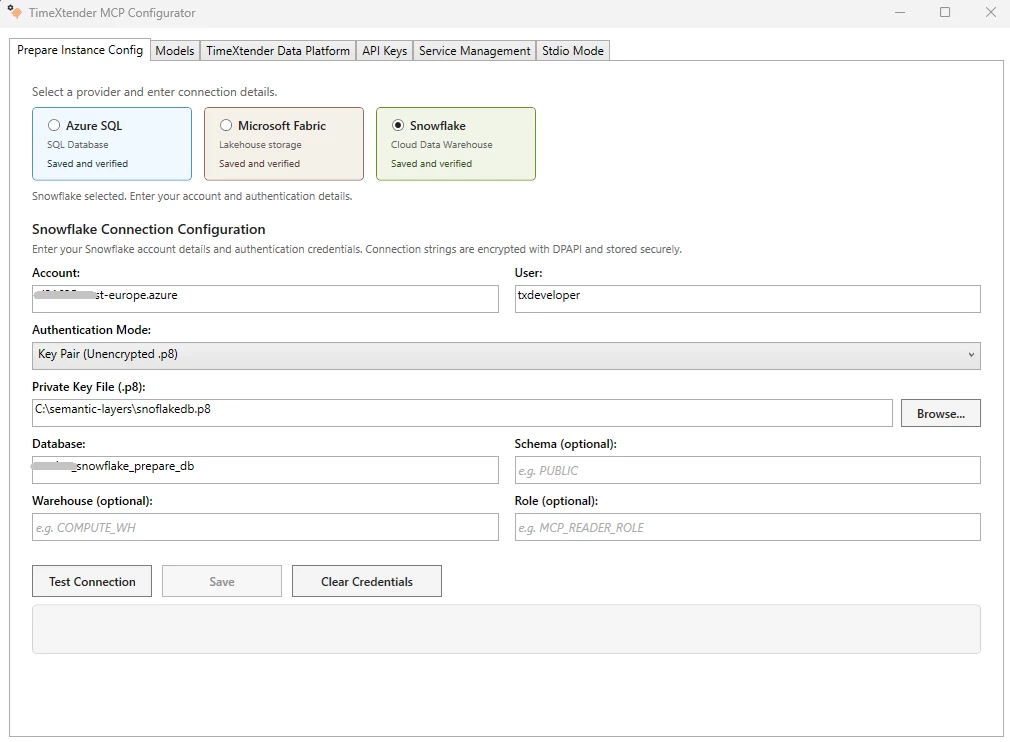
- Open the TimeXtender MCP Configurator
- Click the Prepare Instance Config tab
- Set the Database Type to Snowflake
- Fill in the connection fields:
| Field | Value | Notes |
|---|---|---|
| Account | The Snowflake account identifier | Format: |
| User | The Snowflake login name | For example, |
| Authentication Mode | Key Pair (Unencrypted .p8) or Key Pair (Encrypted .p8) | Match the file you generated |
| Private Key File (.p8) | Full path to the private key | For example, |
| Private Key Password | The password protecting the | Encrypted-key mode only. Stored DPAPI-encrypted on disk. |
| Database | The Snowflake database name | For example, |
| Schema (optional) | Default schema | If omitted, the user's default schema is used |
| Warehouse (optional) | Compute warehouse the queries run against | If omitted, the user's default warehouse is used |
| Role (optional) | Role to assume on connect | If omitted, the user's default role is used |
- Click Test Connection. A successful test returns a Snowflake version string.
- Click Save to persist the provider. The provider now appears in the Provider dropdown on the Models tab.
Test the Path End-to-End
- Go to the Models tab
- Click Add Model, browse to a semantic model JSON file backed by this Snowflake database, and pick Snowflake in the Provider dropdown
- Click Test Connection on the model card. A green status badge confirms the MCP Server can reach the Snowflake objects referenced by the semantic model.
Troubleshooting
Test Connection fails with "Could not resolve host"
The Account identifier is wrong. Snowflake account identifiers include the region and cloud suffix. For example, xy12345 alone is not enough; use xy12345.us-east-1 or xy12345.eu-west-2.aws. Check the Account URL shown on the Snowflake login page.
Test Connection fails with "JWT token is invalid"
The public key associated with the Snowflake user does not match the private key the MCP Server is using. Re-run DESC USER MCP_SERVICE_USER in Snowflake and confirm RSA_PUBLIC_KEY_FP is set. Generate the public key fingerprint from the local file with:
openssl rsa -pubin -in mcp_service_user.pub -outform DER | openssl dgst -sha256 -binary | openssl enc -base64If the local fingerprint and Snowflake's stored fingerprint differ, the public key was associated incorrectly. Re-run the ALTER USER statement with the correct key.
Test Connection fails with "Access denied. Could not open file"
The Windows service account does not have read access to the .p8 file. Re-run the Get-Acl/Set-Acl snippet above and confirm the account that runs the MCP Server Windows service is granted Read. The service account can be checked from Services → TimeXtender MCP Server → Log On.
Test Connection fails with "Object does not exist"
The user, role, or warehouse does not have access to the database or schema the model uses. Grant the required USAGE and SELECT privileges in Snowflake, then click Test Connection again.
Test Connection passes but the Models tab Test Connection fails
The provider works, but the semantic model references tables or columns the Snowflake user is not authorised for. Grant SELECT on the missing objects, then re-test from the Models tab.
