



You can use this provider to connect to your Salesforce data.
Configuration manual
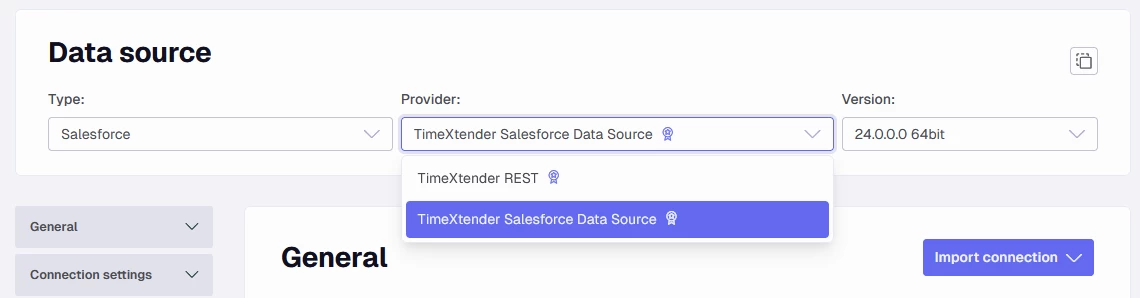
Data Source
Connection settings
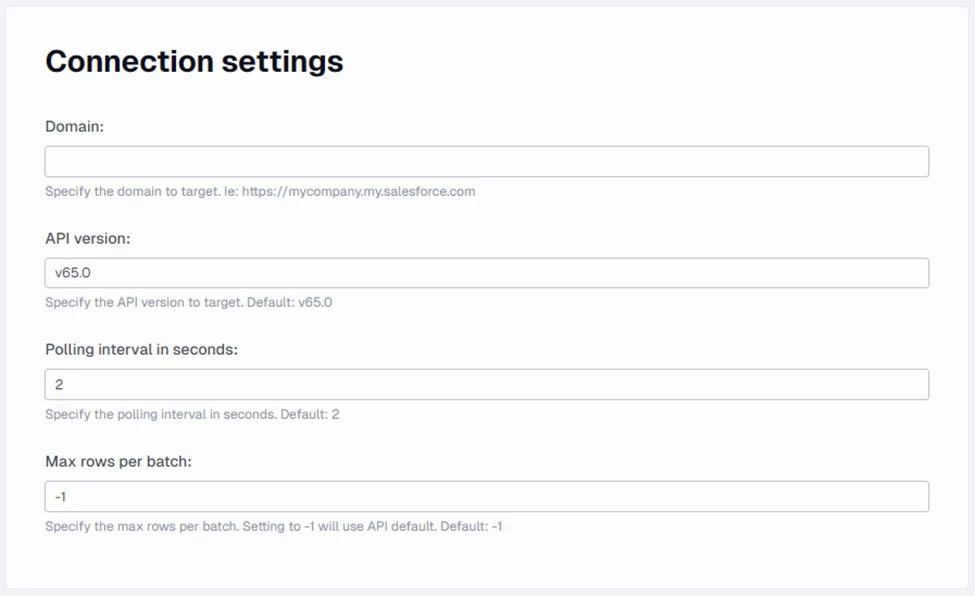
These settings relate to the connection to your Salesforce account and API settings.
Domain

Enter the domain for your Salesforce solution.
API version

Specify the API version to connect to. The default v65.0 is the latest version at the time of development.
Polling interval in seconds

When the connector pulls data using Bulk 2.0 API, it first creates a query job, then it needs to poll the status of the query job until it returns that it is completed before it can pull any data. For small tables, this might be instant, but for larger tables (100k++), it might be smart to increase this interval. Each poll consumes 1 request of the request quota. There is a max of 10 polling attempts, so adjust your polling interval accordingly.
Max rows per batch

If you want to specify the number of rows returned per batch/page, you can do so here. The default will use the API default, which is returned based on the total size of the data. Per day of release, that size is 2GB. So there will be no pagination before data exceeds 2GB in size (regardless of the number of rows).
Authentication settings
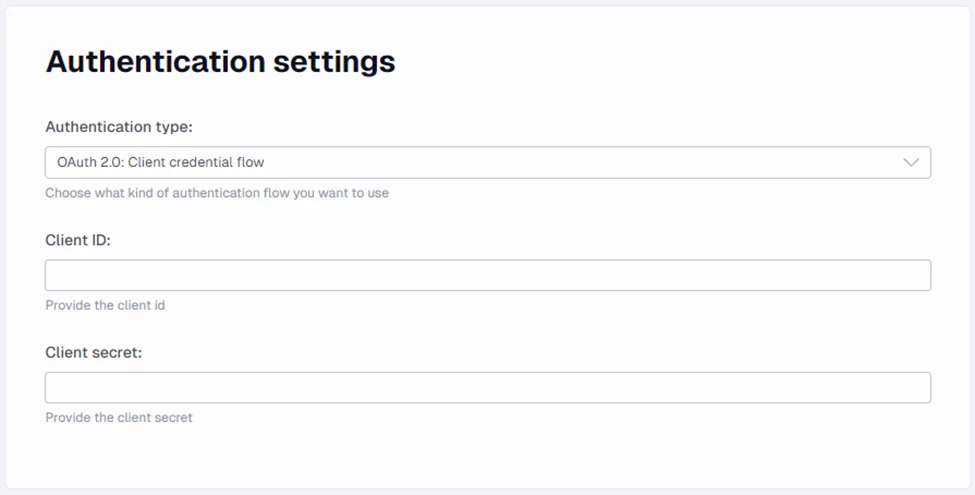
These settings are related to authentication.
Authentication type

Select the authentication type flow you want to authenticate with.
Client credential flow
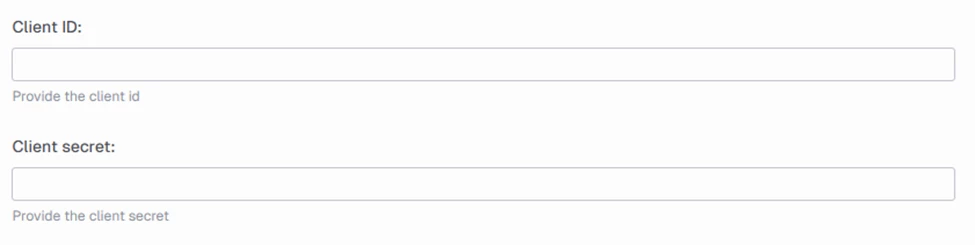
This flow requires you to provide a client id/key and a client secret. You will find this where you created your app in Salesforce.
JWT Bearer token flow
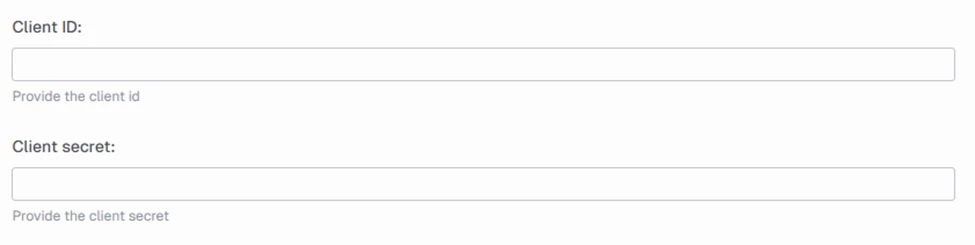
This flow requires you to provide a:
-
client id/key
-
username of the user you want the token to be issued as (important regarding permissions and such)
-
private key PEM. Include the header and footer, as this is used to identify what version of PEM key it is.
-
Audience. This is usually https://login.salesforce.com. It is where the token request will be issued.
Salesforce settings
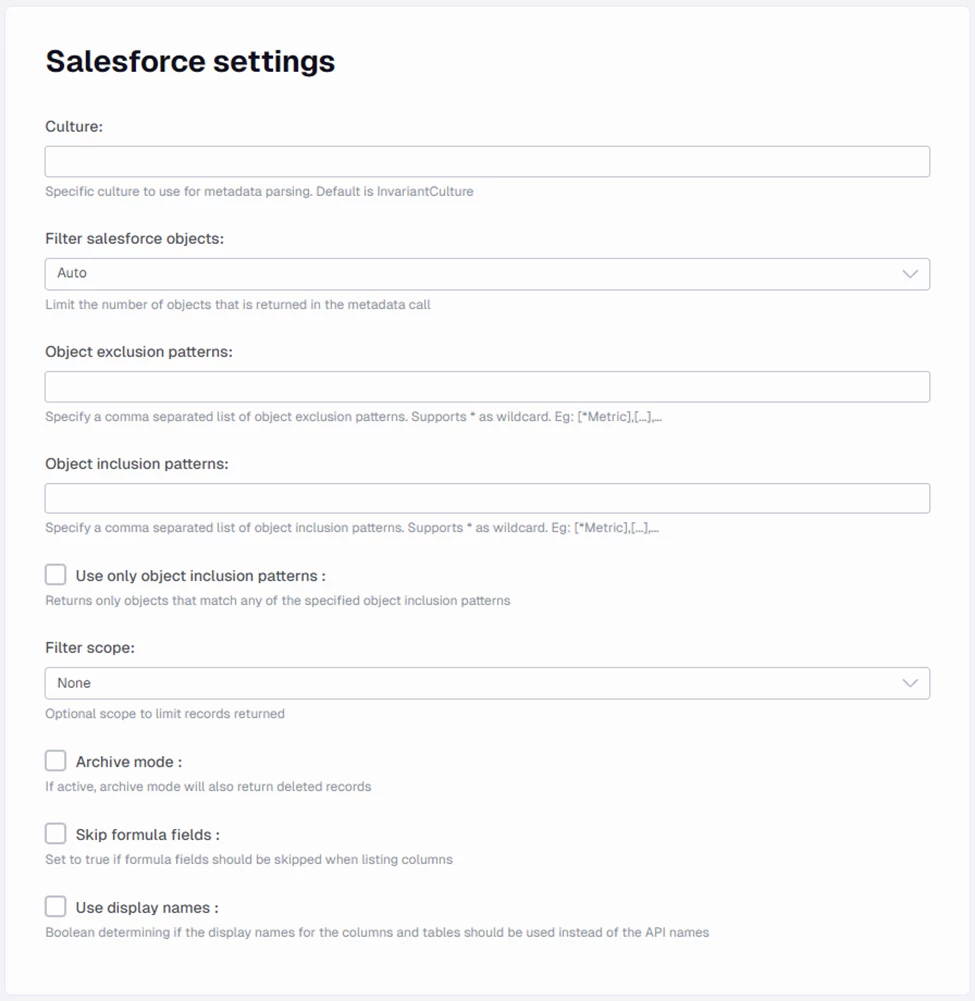
These are the settings related to what and how to read from Salesforce.
Culture

Define the culture for when reading the data pulled from Salesforce. It can be important regarding decimals and datetimes, for example. Usually, it should be left blank.
Filter Salesforce objects

When querying Salesforce, there are a lot of objects returned that are usually not very relevant in a data warehouse setting. It also takes some time to perform a metadata call, and the more objects included, the longer it takes. We have created a couple of filters to filter out what we think is not relevant. If an object was filtered out, it will be logged with the reason it was filtered.
The different filters are:
-
Auto
-
Comprehensive
-
Minimal
Auto is our most restrictive filter; it filters based on several heuristics such as feed, share and platform events. For most use cases, this will return more than enough objects.
Comprehensive filters based on a whitelist of objects. This mode is meant to be backwards compatible with what previous connectors returned.
Minimal applies only hard filters on objects that are not queryable or system views.
Object exclusion patterns

Here, you can provide a list of objects or patterns to exclude/filter from your metadata call. Use this if there are objects that you know you do not need.
Object inclusion patterns

Here, you can provide a list of objects or patterns to include in your metadata call. Use this if you know exactly what objects you need from Salesforce. In combination with the “Use only object inclusion patterns” this will only pull what you want from Salesforce, saving you a lot of time and number of queries to Salesforce in the metadata call.
Use only object inclusion patterns

As mentioned above, check this and only the list of objects or patterns provided in the “Object inclusion patterns” will be used to pull metadata from Salesforce. If you know exactly what tables you need, this is the fastest way to get them.
Filter scope

Adds an additional WHERE clause to your table query to filter results by your users and selected scope. The options are:
-
None
-
Delegated
-
Everything
-
Mine
-
Mine and my groups
-
My territory
-
My team territory
-
Team
Archive mode

Check if you also want to include deleted records in your results.
Skip formula fields

Check if you want to exclude composite columns from your results.
Use display names

Check if you want your tables and columns to use “pretty names”. This will use the label in the metadata for table and column names instead of the object's actual API name.
