
In version 26.1 we have moved User Management for TimeXtender Orchestration & Data Quality to our new web application, and in 26.2 we finished the migration by moving User Group / Role management to the web application. This means that user management in the desktop client has now been disabled. On-prem customers will still do all user management in the desktop client.
Understanding user roles and permissions within the TimeXtender Data Platform (TDP) is crucial for effective user management. This article provides a comprehensive overview of global and object-level roles, configuring users, how roles apply to different objects, and how TDP permissions affect desktop client access.
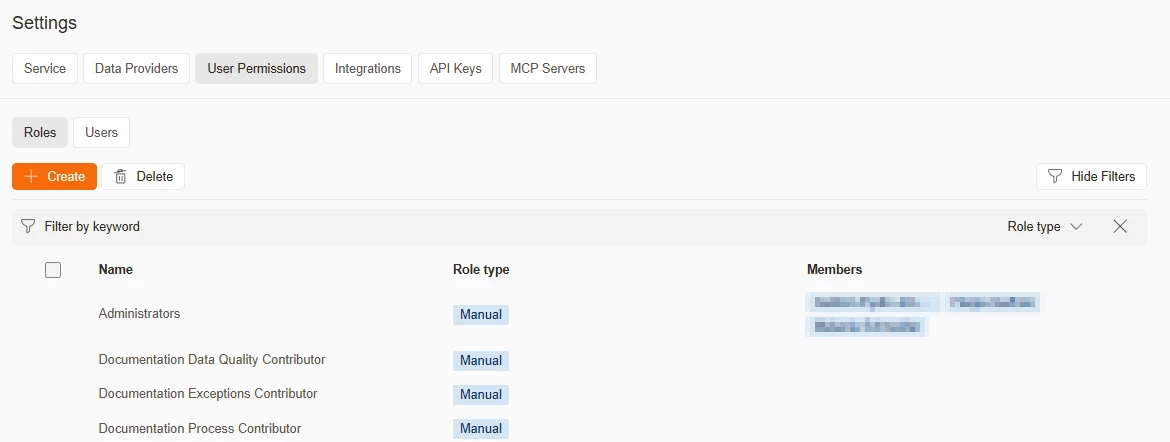
The User Management is available from Settings > User permissions.

Global Roles
Global roles define what a user can do at the platform level, including access to settings and user configuration.
Global Administrator
- Full access to all workspaces and objects in TDP
- Can manage users, assign or change privileges, configure settings, and create or delete workspaces and all related objects
Normal User
- No access beyond basic sign-in until object-level permissions are assigned
- Gains capabilities through Viewer, Contributor, or Administrator roles on specific workspaces or objects
We recommend assigning privileges to roles and adding users to roles, rather than assigning privileges per user. Roles are easier to maintain, scale to many users, and support Entra-group-backed membership.
Object Level roles
Object-level roles define what a user can do on specific workspaces, datasets, rules, exceptions, and process maps.

Viewer
- Can open objects, inspect configuration and results, and use basic navigation and filtering
- Cannot change configuration, save, publish, or trigger any actions that would modify data or processing
Contributor
- Can edit configuration and content on assigned objects and save changes
- Cannot publish objects, cannot change user access, and cannot perform certain administrative actions
Administrator
- Full control on assigned objects, including publish, delete, run, and ownership changes
- Can configure notifications, default owners, and any object-specific advanced settings
Configuring Users and Roles
User configuration for User Management is handled centrally in TDP settings.
Creating New Users
Only Global Administrators can open Settings > User Permissions to add, edit, or remove users.
Steps to add a new user:
- Navigate to Settings > User Permissions
- Click Create
- Enter user details (name, email)
- Choose whether the user is a Global Administrator or Normal User
- For Normal Users, assign object-level roles (Viewer, Contributor, or Administrator) per workspace and object
- Click Add
Roles
A role groups a set of privileges that you can assign to many users at once. There are two role types:
- Manual — members are added to the role by an administrator in TDP.
- Entra group — members come from an Azure AD security group; membership in TDP follows membership in Azure AD automatically. See the new Using Entra Groups for Roles in TDP article for setup.
Important — Entra group members must sign in to TDP first
If a user gets their access through an Entra group, they must sign in to TDP at least once before they can use the ODQ Desktop client or the old portal. The desktop record is created during the first TDP sign-in.
TDP does not show which Entra groups a user belongs to. To check group membership, look the user up in the Azure Portal.
How Roles Apply to Objects
This section describes how Viewer, Contributor, and Administrator behave on each major object type in TDP.
Workspaces
Workspace Viewer: Can see the workspace in the workspace list and open the workspace home page. Can see Datasets, Rules, Exceptions, and Process Maps where at least Viewer access exists.
Workspace Contributor: Can edit datasets and rules in the workspace. Cannot change workspace-level administration settings or delete the workspace.
Workspace Administrator: Can edit workspace properties, manage user roles, and create/remove all objects within the workspace.
Datasets & Rules
Dataset/Rule Viewer: Can inspect definitions and configurations but all modification actions are disabled.
Dataset/Rule Contributor: Can edit and save changes but cannot publish.
Dataset/Rule Administrator: Full control including publish, delete, and lifecycle management.
Process Maps & Executions
Process Maps Administrator: Can run full processes, deploy process maps, and manage all process-level settings.
Executions Access: Only available to Global Administrators or Normal Users with Administrator access on the Workspace/Process Maps group.
Desktop Client Access
Desktop access now depends on the permissions configured in TDP. Only users with Admin or Contributor access on workspaces can sign in to the desktop client - users with Viewer access only will NOT have desktop access.
Workspace Group Admin
If a user is Admin on the Workspaces group in TDP:
- Can open the desktop client
- Will be set with System Administrator, Developer, and Deployment Administrator roles
Workspace Group Contributor
If a user is Contributor on the Workspaces group in TDP:
- Can open the desktop client
- Will be set with System Administrator and Developer roles
Viewer Only - No access to desktop
If a user only has Viewer permissions on workspaces:
- CANNOT open or use the desktop client
- All work must be done in TDP with read-only access
Migrating from desktop roles to TDP privileges
When you upgrade to version 26.1 and newer, existing user roles from the desktop client are automatically mapped to the corresponding TDP roles so that users maintain equivalent access to workspaces and objects.
This one-time sync applies to all active users, and the mapping follows established patterns based on desktop role scope and responsibilities.
Desktop to TDP role mapping
The sync process uses the following mapping to translate desktop roles into TDP privileges:
-
Deployment Administrators
- Receive Administrator privileges on:
- Rules group
- Datasets group
- Process Maps group
- Exceptions group
- Scope: Within workspaces they have access to (or all workspaces if System Administrator)
- Receive Administrator privileges on:
-
Exception Administrators
- Receive Exceptions Administrator privileges on the Exceptions group within their assigned systems/workspaces
-
Users with Deployment Administrator or Tester roles
- Receive Workspace Viewer privileges on workspaces corresponding to their system assignments (where View System is checked)
-
Individual Process Access:
- Users with specific process assignments receive Process Map Administrator privileges on those individual process maps
-
Execution Job Access:
- Users with execution job assignments receive Execution Job Administrator privileges on specific execution jobs within their process maps