

Configure global parameters
A global parameter is a named value you define once and reuse across scripts, queries, and commands. Each parameter is referenced as a token, for example {$AppSecret}, and the execution engine substitutes the real value when a task runs.
This means you change a value in one place rather than in every package that uses it, and a secret never has to be typed into a script where it can be read.
Cloud only. This article is aimed at cloud customers. If you are running an on-prem installation, see Global Parameters.
The token is substituted when the task runs, not in TimeXtender Data Platform. While you are editing, {$AppSecret} stays as literal text. It becomes the real value only when the package executes. A script that looks incomplete in the editor is usually correct, and a script you test by pasting the token into a terminal will fail.
Prerequisites
- To manage global parameters, you need to be a global administrator or an administrator on the Workspaces group. If the Global Parameters tab is not visible under Settings, you do not have this role.
- To insert a parameter into a script, you need Contributor access or higher on a workspace, dataset, or package.
- Decide whether the value is a secret before you create the parameter. You can turn on encryption later, but the platform never displays a stored encrypted value again, so you have to enter it a second time.
Create a parameter
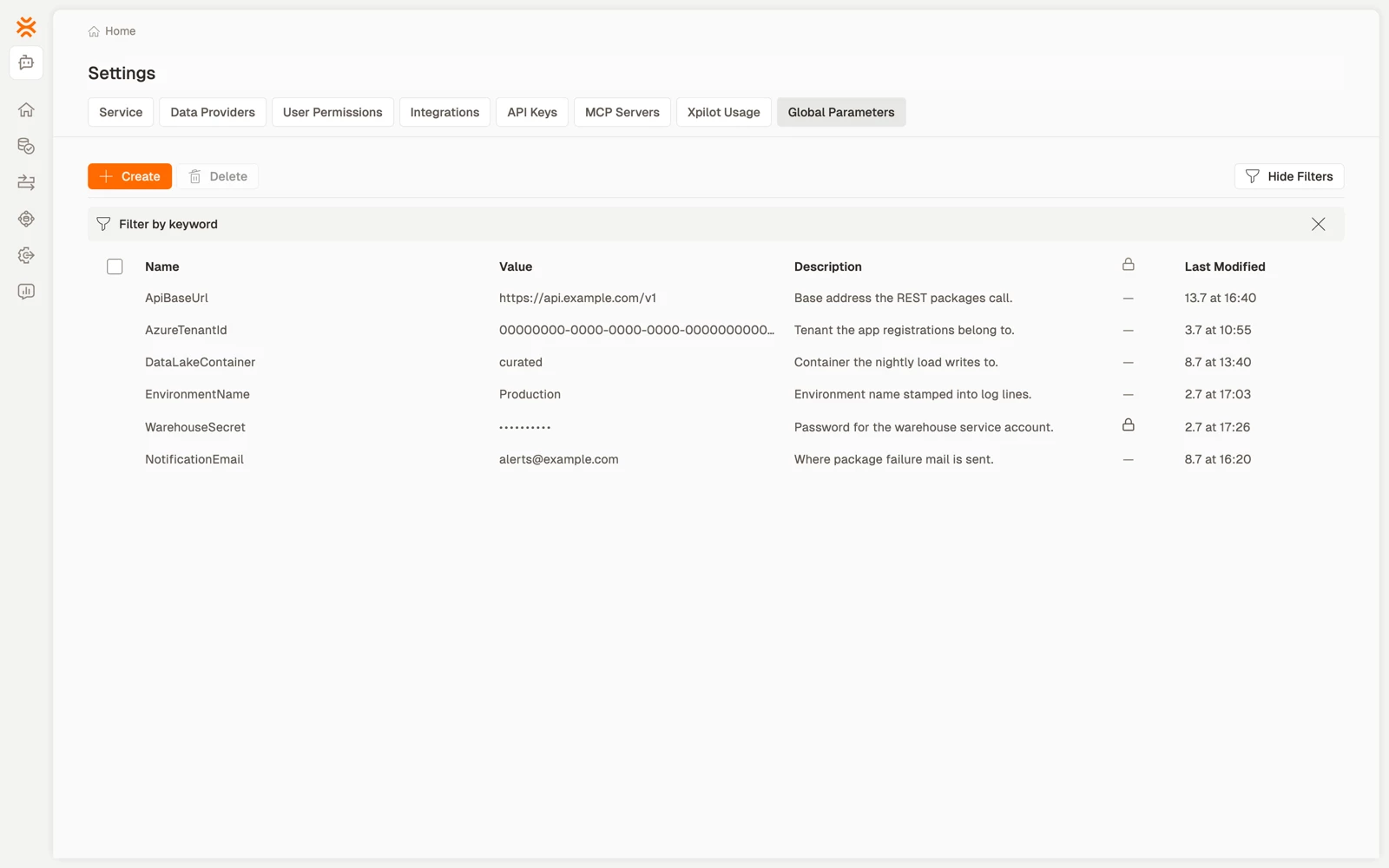
- Go to Settings > Global Parameters.
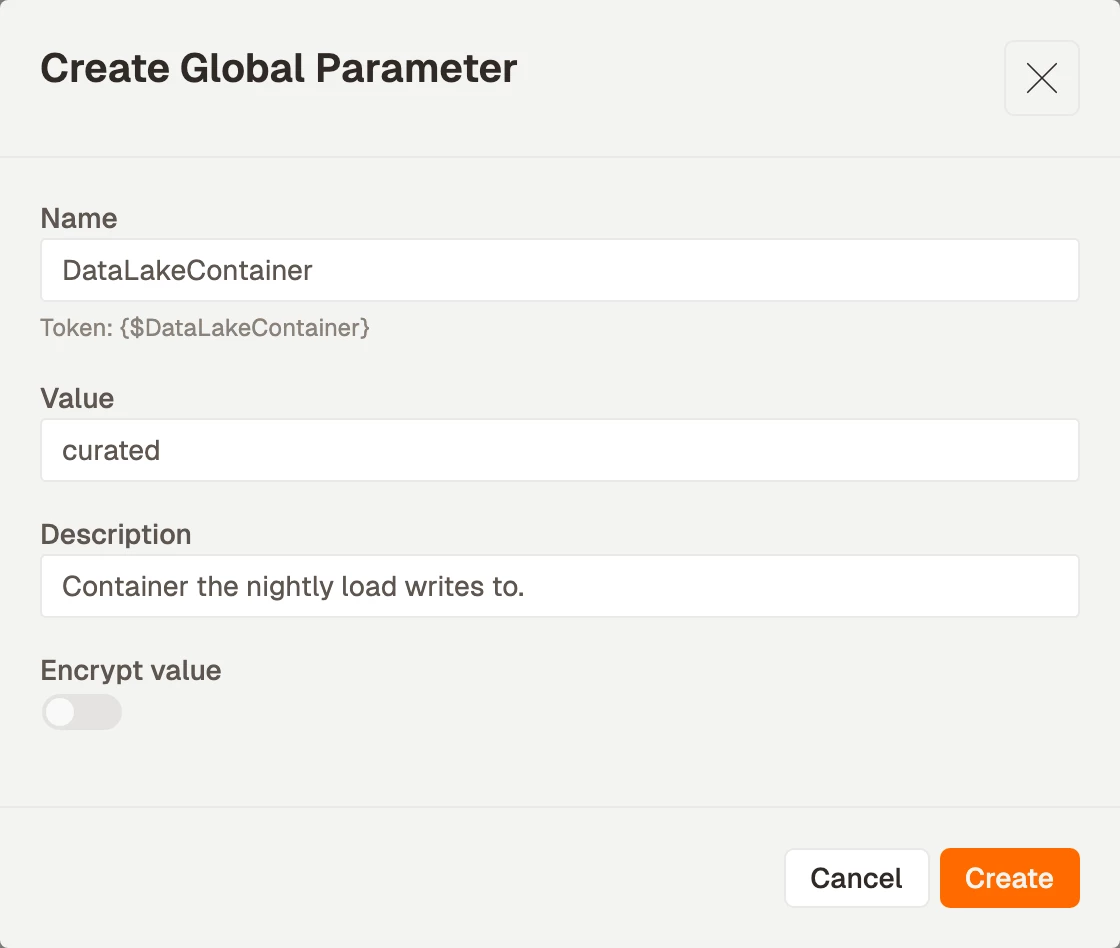
- Select Create. The Create Global Parameter dialog opens.
- Enter a Name, without braces. The dialog shows the token the name becomes, so
AppSecretbecomes{$AppSecret}. - Enter a Value, and optionally a Description.
- To store the value as a secret, turn on Encrypt value. See Encrypted values before you save.
- Select Create.
Use a parameter
Copy the token from the list
- Select the copy icon next to a parameter's name to copy its
{$Name}token, then paste the token into a script, query, or command.
Insert a parameter into a PowerShell script
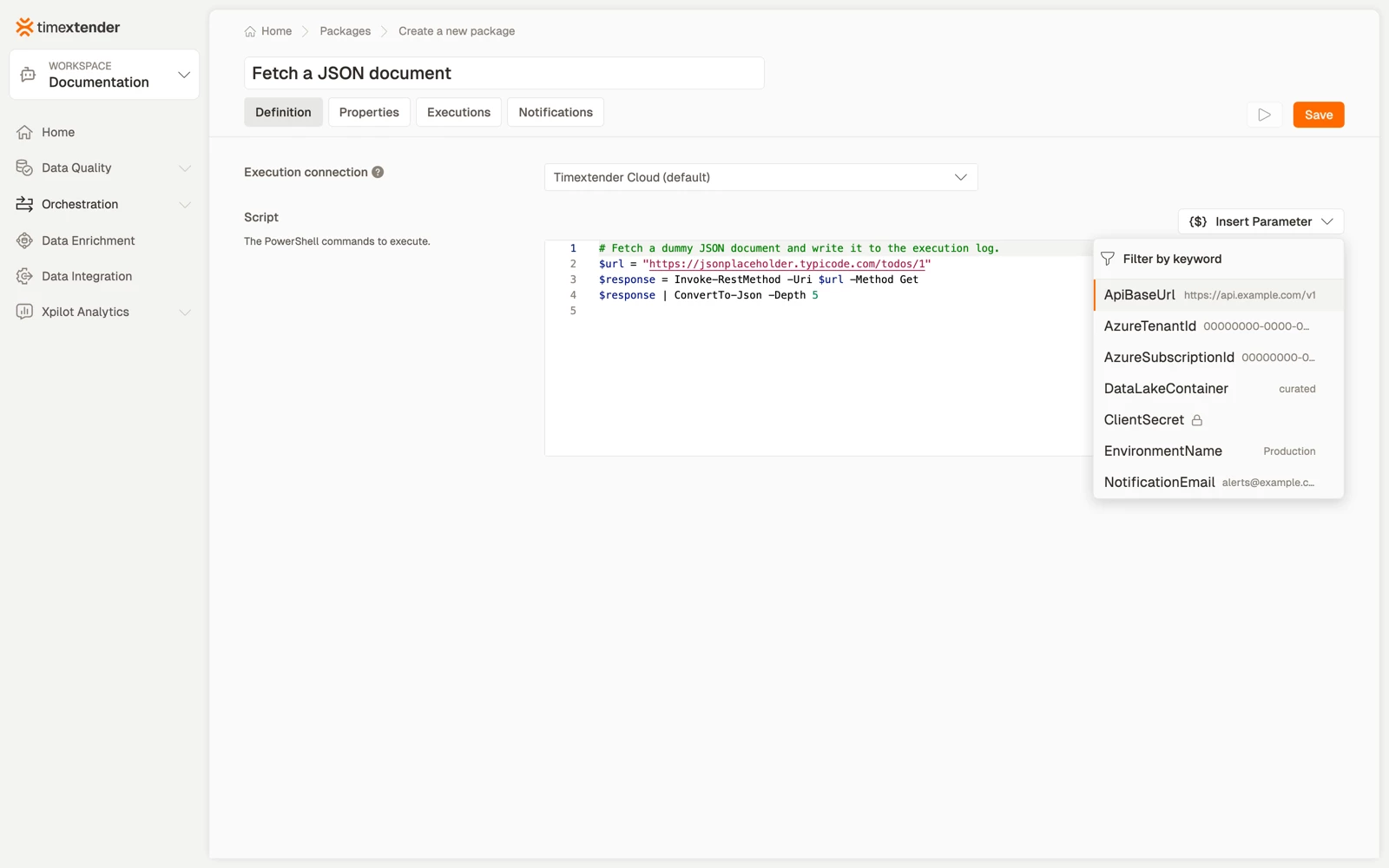
- Open a PowerShell package and select the Script field.
- Select {$} Insert Parameter above the editor.
- Enter text in the search box to filter the list by name.
- Select the parameter, or use the arrow keys and press Enter. The token is inserted at the cursor.
Encrypted parameters show a padlock and no value. System parameters show a system badge. In both cases only the token is inserted, never the value. Tokens already present in the script are highlighted.
PowerShell script fields only. The picker is available on the PowerShell script field. In Command Line, Data Transfer, and Azure CLI fields, enter the token directly or copy it from the Global Parameters list.
- Package working directory and command fields
- Queries and compare queries
- Dimensions
- Schedule, process, and object group extra parameters
Encrypted values
The platform stores an encrypted value but never displays it again. Three behaviours follow from this:
- Editing an encrypted parameter. Leave Value empty to keep the current value. Anything you enter replaces it.
- Turning encryption off. The platform cannot display the stored value, so enter a new value with Encrypt value turned off. Saving with an empty value clears the parameter instead. A warning is shown first, and when you reopen the parameter it states that it has no value.
- Length. An encrypted value is limited to 143 characters of plain text. A longer value is rejected with a message rather than truncated.
At run time the real value is passed to your script or command. Treat a secret as an input: pass it to a command or a connection, and keep it out of anything your task writes to its own output.
Secrets in the execution log
When a command line execution uses a global parameter, the execution log records the parameter reference, for example {$MyPassword}, rather than the resolved value. Logs are retained in history and are visible to anyone who can view a run, so this applies on every path: success, a failing exit code, a timeout, a cancellation, and a failure to start.
The exception is a command that prints its own values. If the command echoes its arguments or logs its own configuration, that output still appears, because it is the command's output rather than something the platform composed. Gateway dispatched runs are covered on both sides of the hop.
Before you delete or rename a parameter
Deleting or renaming a parameter breaks every script that still references the old token, so the platform checks where the token is used and shows you the result.
- Deleting. The confirmation lists, for each selected parameter, the packages, queries, and datasets that still use its token, with the environments each applies to, for example
Package: Nightly load (DEV, PROD). Deleting is not blocked. - Renaming. The same check runs against the old name while you enter the new one. Save waits briefly and shows Checking where {$Name} is used…
- The check is best effort. A parameter used only in a dataset that exists in TimeXtender Data Platform and has not been published is not listed, because tokens are not substituted there yet.
- If the check cannot be completed, the dialog states The usage check could not be completed rather than showing an empty list.
System parameters
Four parameters are built in, marked with a system badge, and cannot be edited or deleted. They have no stored value. The execution engine fills them in for each run.
| Token | Value at run time |
|---|---|
{$__ExecId} | The current execution's id |
{$__RemoteExecId} | The id of the remote execution |
{$__SystemId} | The id of the System in ODQ Desktop |
{$__UserId} | The id of the user running the execution |
Write {$__ExecId} into your own log output to match a failed run in the Executions list to what your script printed.
Parameters carried over from ODQ Desktop
- Parameters created in ODQ Desktop appear in TimeXtender Data Platform automatically, including encrypted ones, and existing tasks resolve the same values. Nothing has to be entered again.
- Parameters whose names do not meet the naming rules, for example names that start with
__or contain dots, symbols, or leading, trailing, or doubled spaces, continue to work. They are displayed as they are and their values stay editable. Only new names, created or renamed, have to meet the rules. - Opening the Global Parameter screen in ODQ Desktop directs you to manage parameters in TimeXtender Data Platform. The Desktop token inserter continues to work while you author a package there.
Best practices
- Name the parameter for what it holds, not for the environment. Use
{$DataLakeContainer}with a different value in each environment rather than{$ProdContainer}and{$DevContainer}referenced by different scripts. - Encrypt anything you would not paste into a support ticket. The 143 character limit is sufficient for a key or a password, but not for a certificate.
- Write
{$__ExecId}into your log output. It is the reliable way to match what your script printed to the run that printed it. - Rename rarely. The usage check is best effort, so a rename can leave a token unresolved somewhere the check did not find. Creating a new parameter and retiring the old one is safer.
Troubleshooting
The token appears in the output instead of a value. The parameter does not exist, or the name does not match. Substitution is case sensitive even though name uniqueness is not, so {$apisecret} does not resolve a parameter named ApiSecret, and you cannot create both. Copy the token from the list rather than entering it.
The usage check could not be completed. The delete or rename dialog could not reach the check. The operation is still allowed, but you have no list of affected items. Retry before you continue.
A value was saved as empty. You turned encryption off and left the value empty, which clears the parameter. Reopen it and enter the value again.
An encrypted value is rejected when you save. The value is longer than 143 characters of plain text.
The Global Parameters tab is not visible. The tab is available to global administrators and administrators on the Workspaces group. A link to ?tab=global-parameters without that role shows You don't have access to that settings tab.
Reference
| Field | Required | Validation |
|---|---|---|
| Name | Yes | Starts with a letter or underscore, followed by letters, digits, underscores, hyphens, and single spaces between words. No leading, trailing, or doubled spaces. Maximum 197 characters. Unique, and uniqueness is not case sensitive. |
| Value | No | Maximum 200 characters stored, or 143 characters of plain text if encrypted |
| Description | No | Maximum 500 characters |
| Encrypt value | No | Stored using AES-256 |
Related articles
- Global Parameters for on-prem installations
- Create a PowerShell package, where the Insert Parameter picker is available
- Packages in TimeXtender Data Platform
