

Create a Command Line package
A Command Line package runs an executable or a script on one of your own machines as a step in an orchestration flow. Use it for work that has to happen on your network and with your own tooling: running an SSIS package with dtexec, calling sqlcmd, driving a vendor's command line utility, or moving files between shares.
Standard output and standard error are both captured in the execution log.
This type always needs a gateway. Command Line packages run on a gateway rather than in TimeXtender Cloud. The editor pre-selects the first gateway registered for the tenant and requires one to be chosen. If you have no gateway, install one first. See Installing an execution connection.
Prerequisites
- Permission to create packages in the workspace.
- An ODQ Gateway installed and reachable.
- Knowing which identity the gateway service runs as, because that is the account your command runs under, not your own.
Create the package
- Go to Orchestration > Packages.
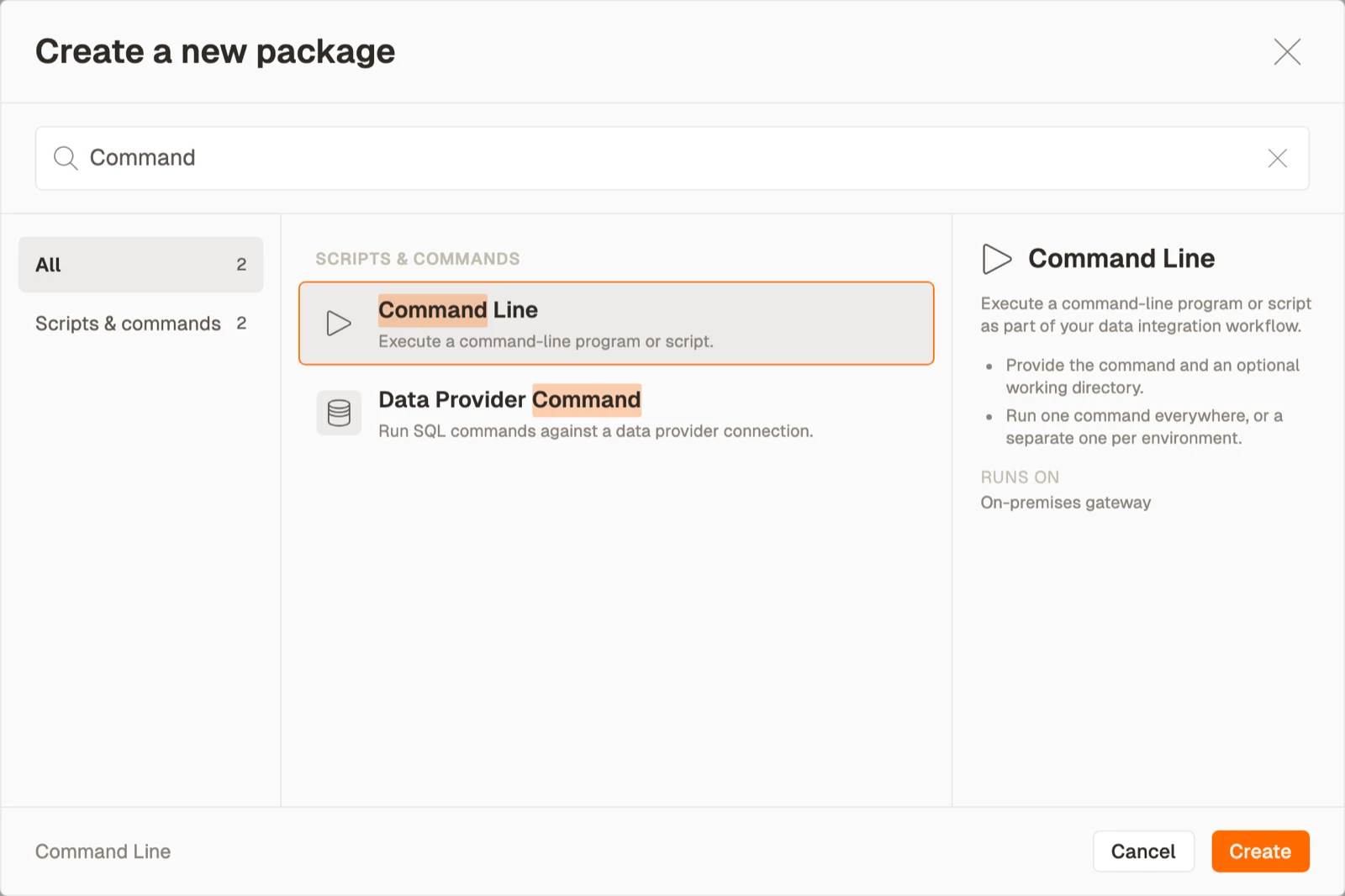
- Select Create, then select Command Line from the Scripts & commands area. The package opens on the Definition tab with the execution connection already filled in.
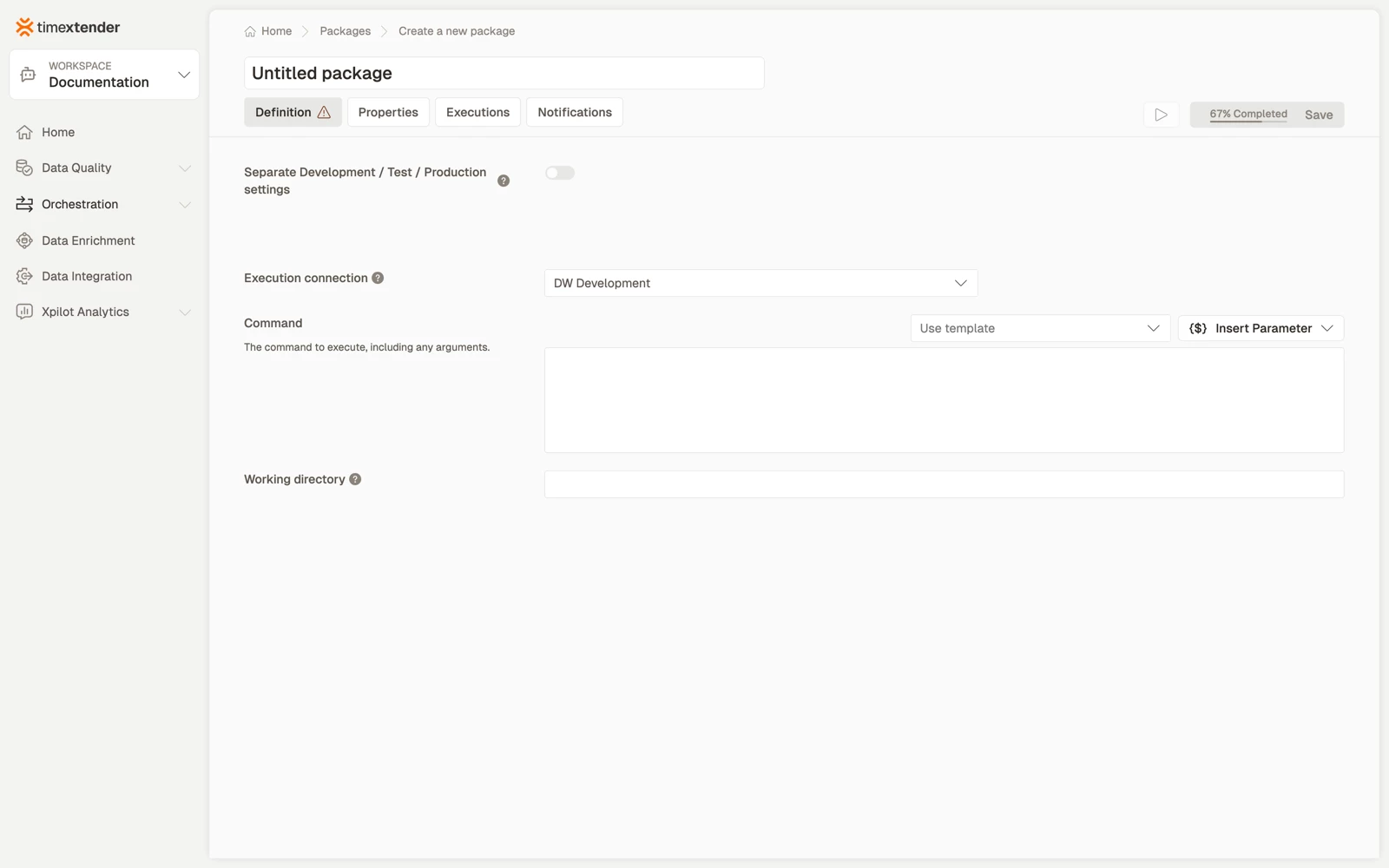
- Check the Execution connection, and select a different gateway if the pre-selected one is not the machine you want.
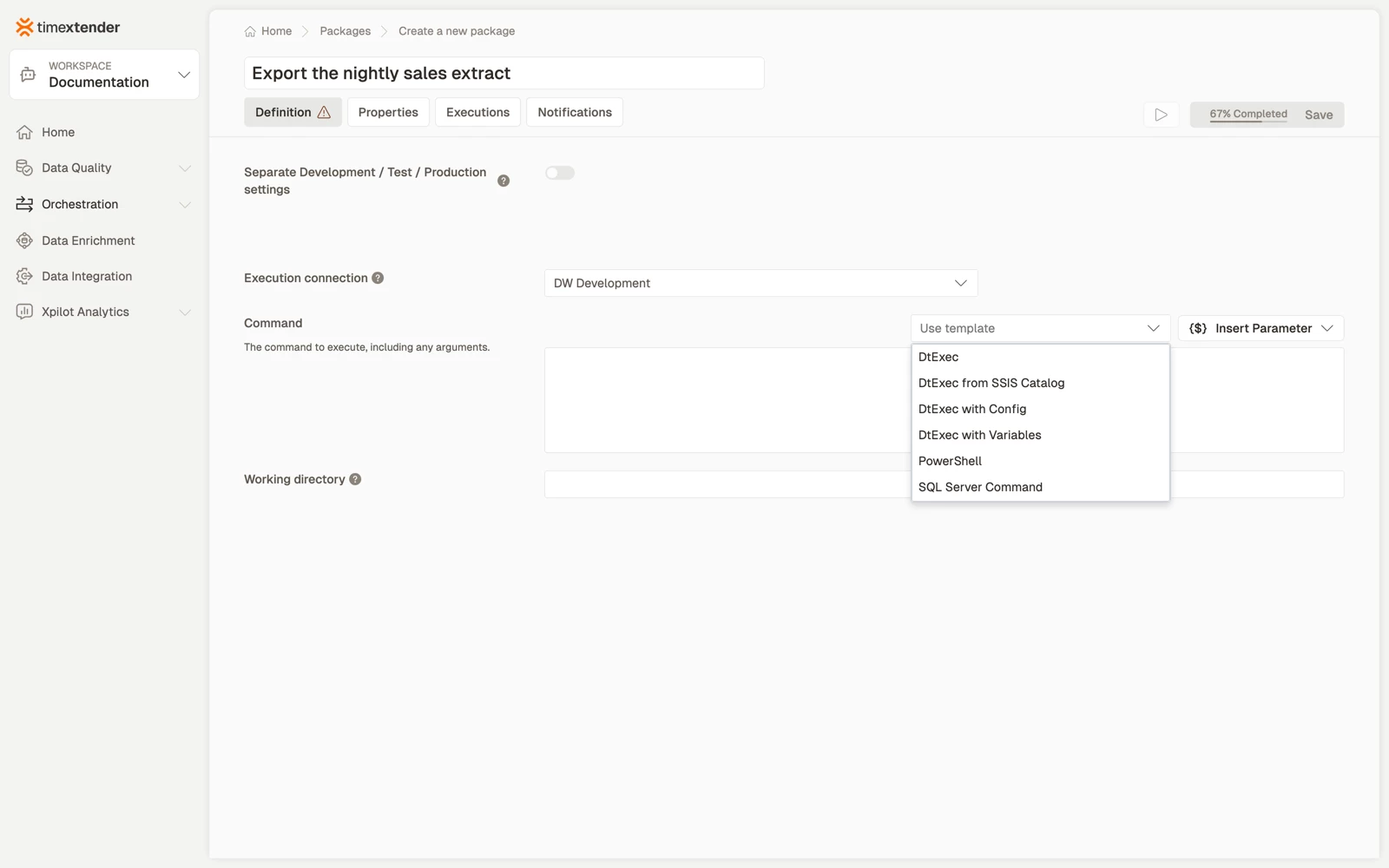
- To start from a template, select Use template and select one of the six starting points.
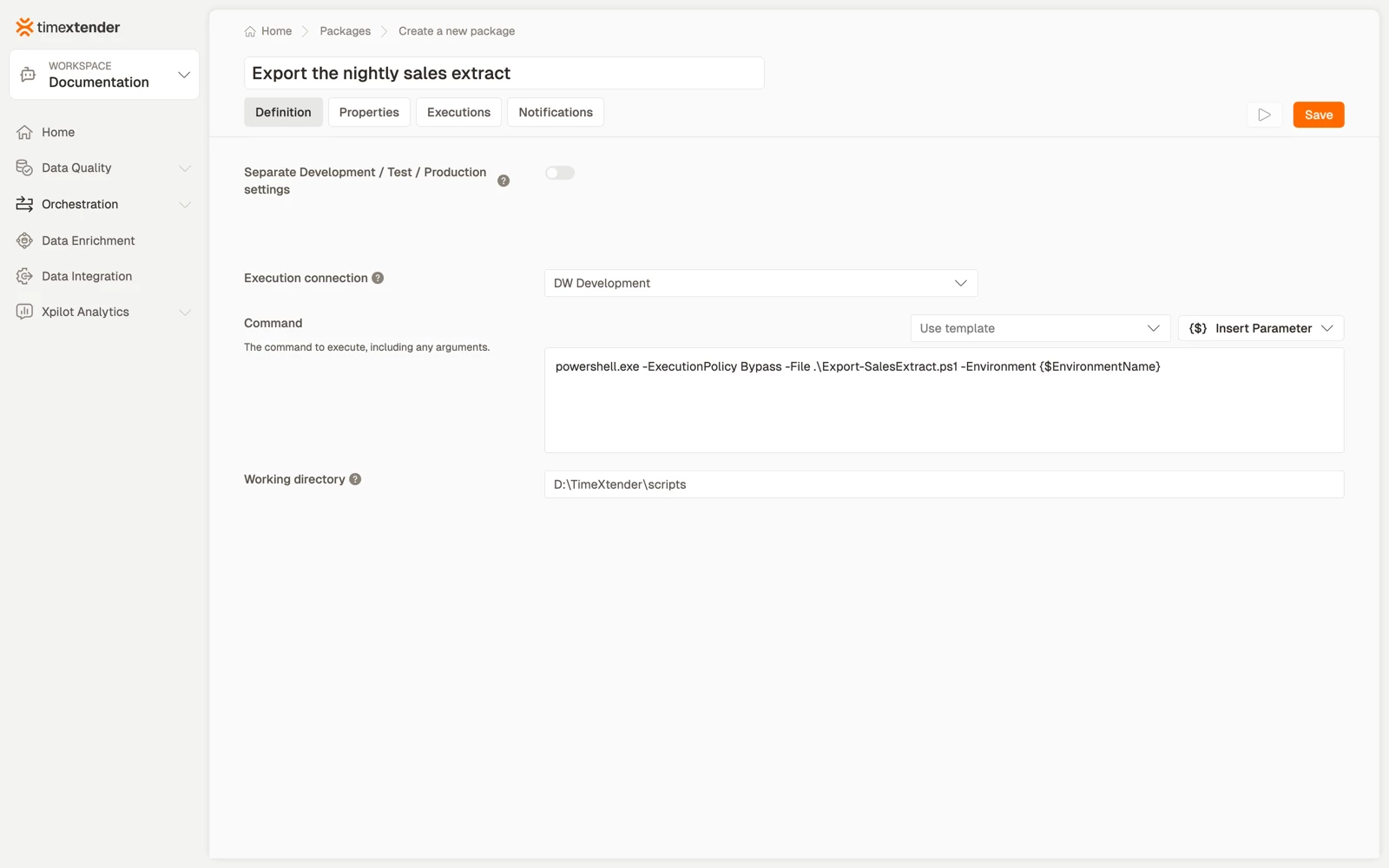
- Enter the Command, which is the executable and its arguments, as you would enter them at a prompt.
- Enter the Working directory. This is optional, and it is limited to 120 characters.
Templates
Use template offers six starting points. Each one fills in the command with the right switches and leaves you to replace the paths.
| Template | For |
|---|---|
| DtExec | Running an SSIS package from the file system |
| DtExec from SSIS Catalog | Running an SSIS package deployed to SSISDB |
| DtExec with Config | SSIS with a configuration file |
| DtExec with Variables | SSIS with variables passed on the command line |
| PowerShell | Invoking powershell.exe against a script file |
| SQL Server Command | Running sqlcmd |
Selecting a template when the Command field already has content asks you to confirm before it overwrites what is there. The working directory is replaced only if the template itself specifies one.
The command and the working directory
If the Working directory is empty, the command runs in the working directory of the execution engine, which is rarely what you want for a script that uses relative paths.
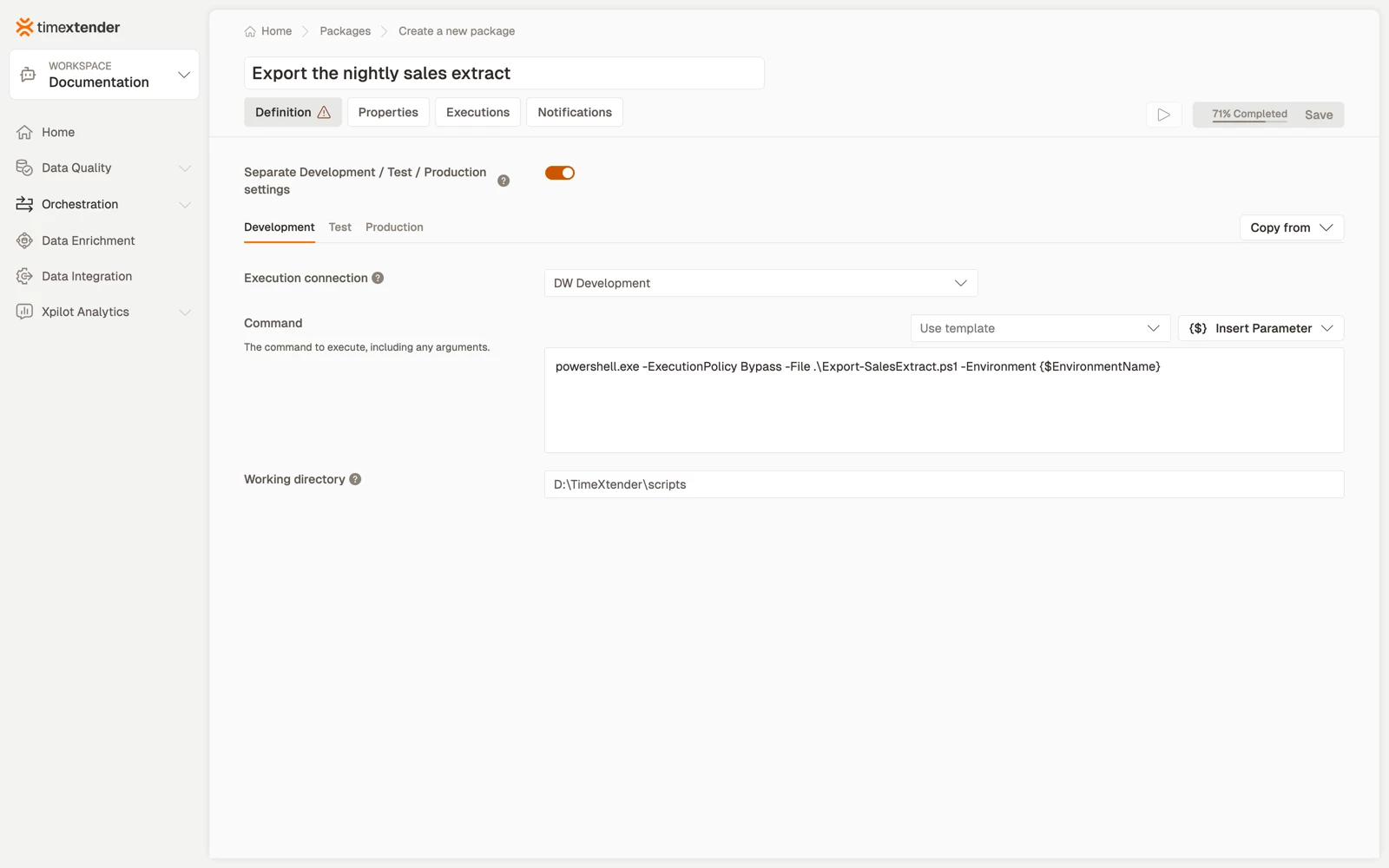
powershell.exe -ExecutionPolicy Bypass -File .\Export-SalesExtract.ps1 -Environment {$EnvironmentName}{$EnvironmentName} is a global parameter reference. Global parameters are substituted into the command before the process starts, so you can keep paths, server names and credentials out of the package itself. Select Insert Parameter to pick one rather than entering the token by hand.
Run a separate command per environment
By default one command runs everywhere. Turning on Separate Development / Test / Production settings replaces that with an environment tab strip, and each environment gets its own gateway, command and working directory.
- Turn on Separate Development / Test / Production settings.
- Go to each environment tab and enter its gateway, command and working directory.
- To reuse another environment's values, select Copy from and select the environment to copy.
Two things are worth knowing before you turn it on.
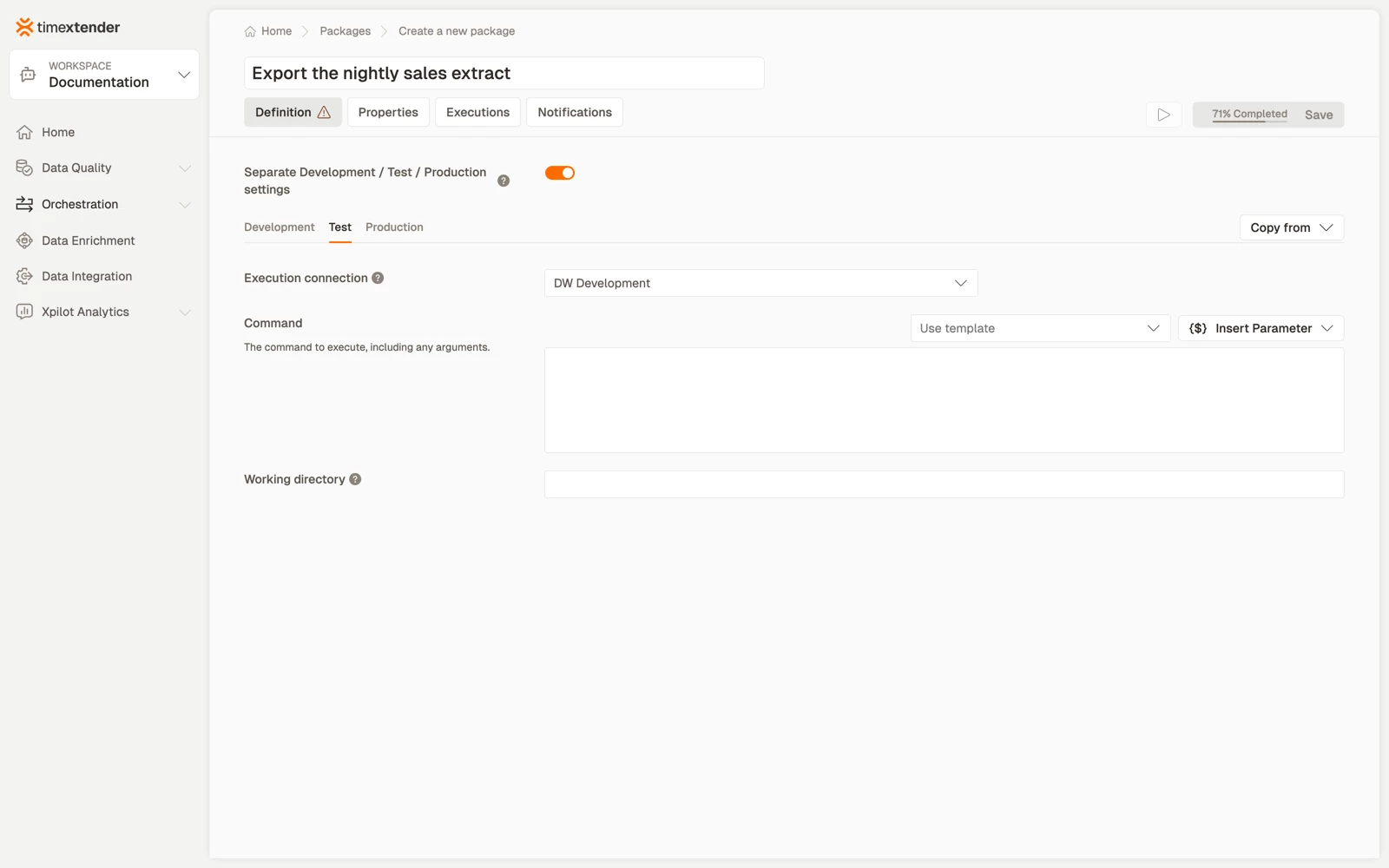
- Values are not copied across. Turning separation on leaves Test and Production empty rather than seeding them from Development, so a production command is never created by accident. Use Copy from to pull one environment's values into another when that is what you want.
- The package becomes incomplete. Required fields go from 2 to 6, a gateway and a command for each of the three environments, so the completion badge drops and Save stays unavailable until all three are filled in. Hover Save to see exactly what is missing.
Save the package
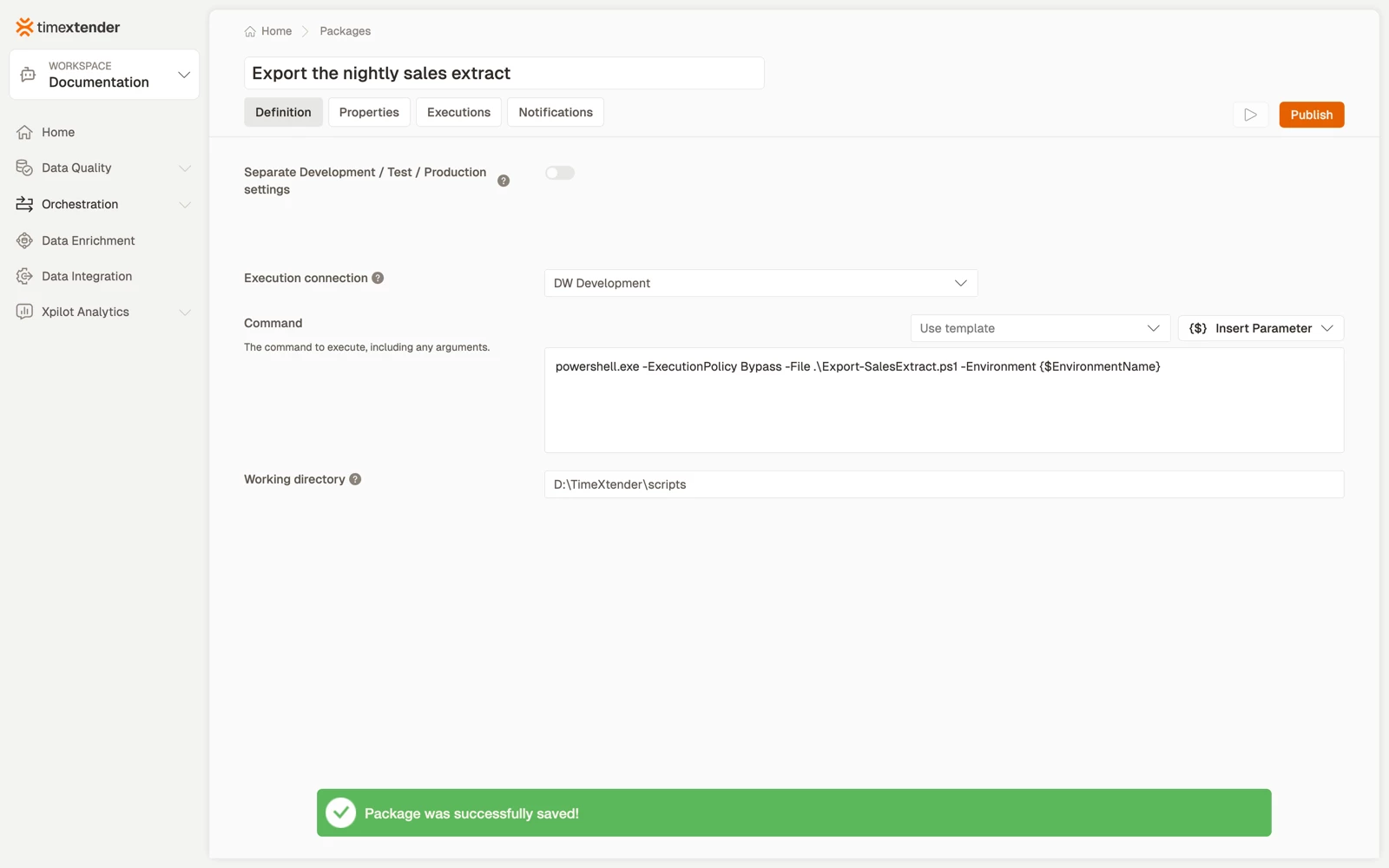
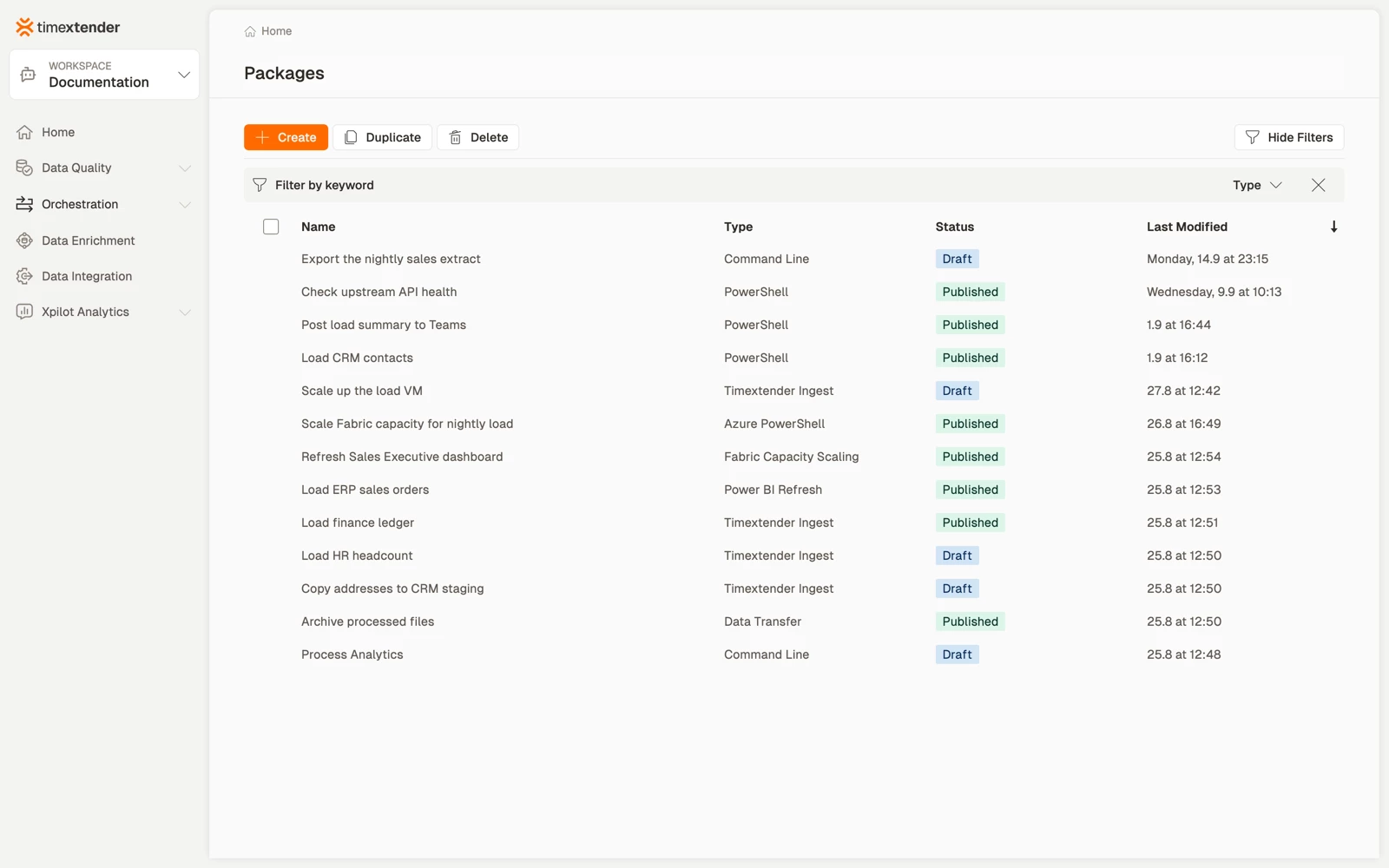
- Select Save. The package is stored as a Draft until you publish it.
How success and failure are decided
The command runs as a real process, and a non-zero exit code fails the package. That is the whole contract: exit 0 for success, anything else for failure.
A PowerShell package runs its script inside the execution engine's own process, so exit 1 there does not become a process exit code and the package reports success. That type uses throw instead. A Command Line package that invokes powershell.exe starts a genuine process, so exit 1 sets the exit code the package reads. If you are moving a script from a PowerShell package to a Command Line package, check that difference.
Examples
Run an SSIS package from the file system
"C:\Program Files\Microsoft SQL Server\160\DTS\Binn\dtexec.exe" /F "D:\ssis\LoadSales.dtsx" /CHECKPOINTING OFF /REPORTING EWCDIRun a stored procedure with sqlcmd
sqlcmd -S {$SqlServerName} -d Warehouse -E -b -Q "EXEC dbo.usp_RebuildIndexes"-b matters. Without it, sqlcmd returns 0 even when the batch fails, and the package reports success over a failed procedure.
Call a script with a relative path
Command:
powershell.exe -ExecutionPolicy Bypass -File .\Export-SalesExtract.ps1Working directory:
D:\TimeXtender\scriptsArchive files after a load
robocopy D:\exports \\fileserver\archive\sales *.csv /MOV /R:2 /W:5robocopy uses exit codes 0 to 7 for success and 8 and above for failure, so a successful copy can still return a non-zero code and fail the package. Wrap it in a script that normalises the exit code if you use it here.
Secrets in the execution log
If your command uses a global parameter that holds a password, a token or a credential-bearing path, the execution log shows the parameter reference, for example {$MyPassword}, rather than what it resolved to.
That matters because an execution log is not transient. It appears in TimeXtender Data Platform, in the error description window in ODQ Desktop, and a copy is retained in history indefinitely. Substitution is applied when the command runs rather than when it is logged, so the resolved value of an encrypted parameter never reaches the log. This applies on every path: success, a failing exit code, a timeout, a cancellation, and a failure to start.
A command pointing at an executable that cannot be found is logged as:
Failed to start command '{$MyTool}': The system cannot find the file specified.
The reason the operating system gave is preserved, and the message names the parameter to check rather than the value it produced.
One exception: a command that prints its own values. If the command itself writes a parameter's value to its output, by echoing its arguments or logging its own configuration, that output still appears in the log, because it is the command's own output rather than something the platform composed. Avoid commands that echo sensitive arguments.
Gateway-dispatched runs behave the same way. Both the log file kept on the gateway machine and the lines it sends back carry the reference rather than the value.
Best practices
- Use absolute paths for the executable, and relative paths for its arguments. Set the working directory once and let the script's own paths hang off it.
- Check what your tool returns on failure. Command line tools are inconsistent about exit codes:
sqlcmdneeds-b, androbocopyuses a bitmask. Verify rather than assume, or the package reports success over a failure. - Put machine-specific values in global parameters. Server names and share paths differ between environments, and the command should not have to.
- Use separated settings only when the command genuinely differs. If only a value changes, a global parameter is simpler than three commands to maintain.
- Quote paths containing spaces, including in the working directory.
- Remember whose account this runs as. The command runs as the gateway service account. That is the most common reason a command that works in your own console fails in a package.
Troubleshooting
The package fails immediately with a "file not found" style error. The executable is not on the gateway, not on its PATH, or the path is misspelled. Use a full path to the executable.
Access denied, or the command cannot see a network share. The gateway service account lacks permission. Grant it access to the path, or run the gateway under an account that already has it.
The package reports success but the work did not happen. The tool exited 0 despite failing. Add whatever flag makes it return a real exit code, such as sqlcmd -b, or wrap it in a script that checks its own result.
Save is unavailable and the completion badge is below 100%. Hover Save to list what is missing. With separated settings turned on, all three environments need a gateway and a command.
The working directory will not save. It is limited to 120 characters. Shorten the path, or move the script closer to the root.
A global parameter token appears literally in the log. Check that the parameter exists and that the token spelling matches, including case. Substitution is skipped for commands starting with epcmd.
Related articles
- Create a PowerShell package, for scripts that can run in TimeXtender Cloud without a gateway
- Execution connections
- Installing an execution connection
- PowerShell script exit code not recognized
