

Create a Data Transfer package
A Data Transfer package moves rows from a source to a destination, with optional column mapping and merge behaviour. It is the only type in the Data movement area, and the most configurable type in the product.
Use it for point-to-point movement that does not justify a full TimeXtender Data Integration pipeline: copying a lookup table between systems, landing a CSV into a table, or pushing a small extract to a partner database.
Either end can be a script. Source and destination can each be PowerShell instead of a table. The editor describes the options as Select PowerShell to produce the source data from a script and Select PowerShell to hand the rows to a script instead of a table. That makes this type a general-purpose row pipe: read from an API with a script and write to a table, or read a table and hand each row to a script. It also means a data transfer in your flow may contain code, which is worth knowing when you are auditing what runs.
Prerequisites
- A gateway, or TimeXtender Cloud: Use 'Timextender Cloud' for cloud-hosted execution.
- A source and a destination connection, unless an end is a script.
- Write permission on the destination, and, if you use merge, permission to create the staging table.
The five sections
The Definition tab holds a vertical rail rather than one long form:
| Section | What it holds |
|---|---|
| Connection | The execution connection, for the whole package |
| Source | Where rows come from: a provider and table, a custom SQL query, or a script. Plus optional pre- and post-execution statements |
| Destination | Where they go: a provider, schema and table, a new table you define, or a script |
| Merge | Whether rows are inserted or merged, and the staging table used to do it |
| Column mapping | How source columns line up with destination columns |
Set Merge before you map columns. Turning merge on adds three columns to the mapping grid: Action, Custom Value and Collation. Work through the rail in the order it lists the sections, so the grid has all its controls when you map.
Create the package
- Go to Orchestration > Packages and select Create.
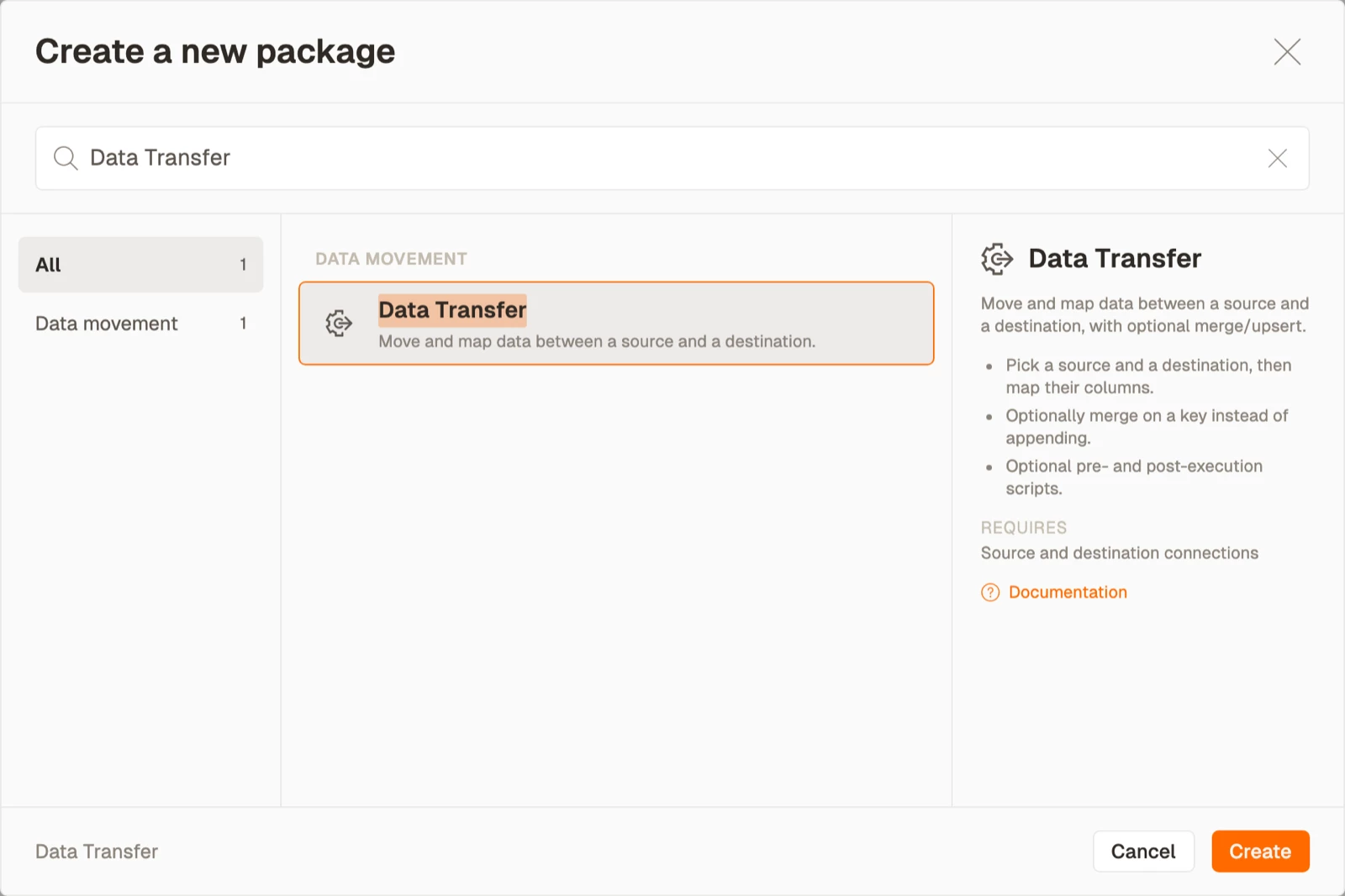
- Select Data Transfer from the Data movement area, then select Create.
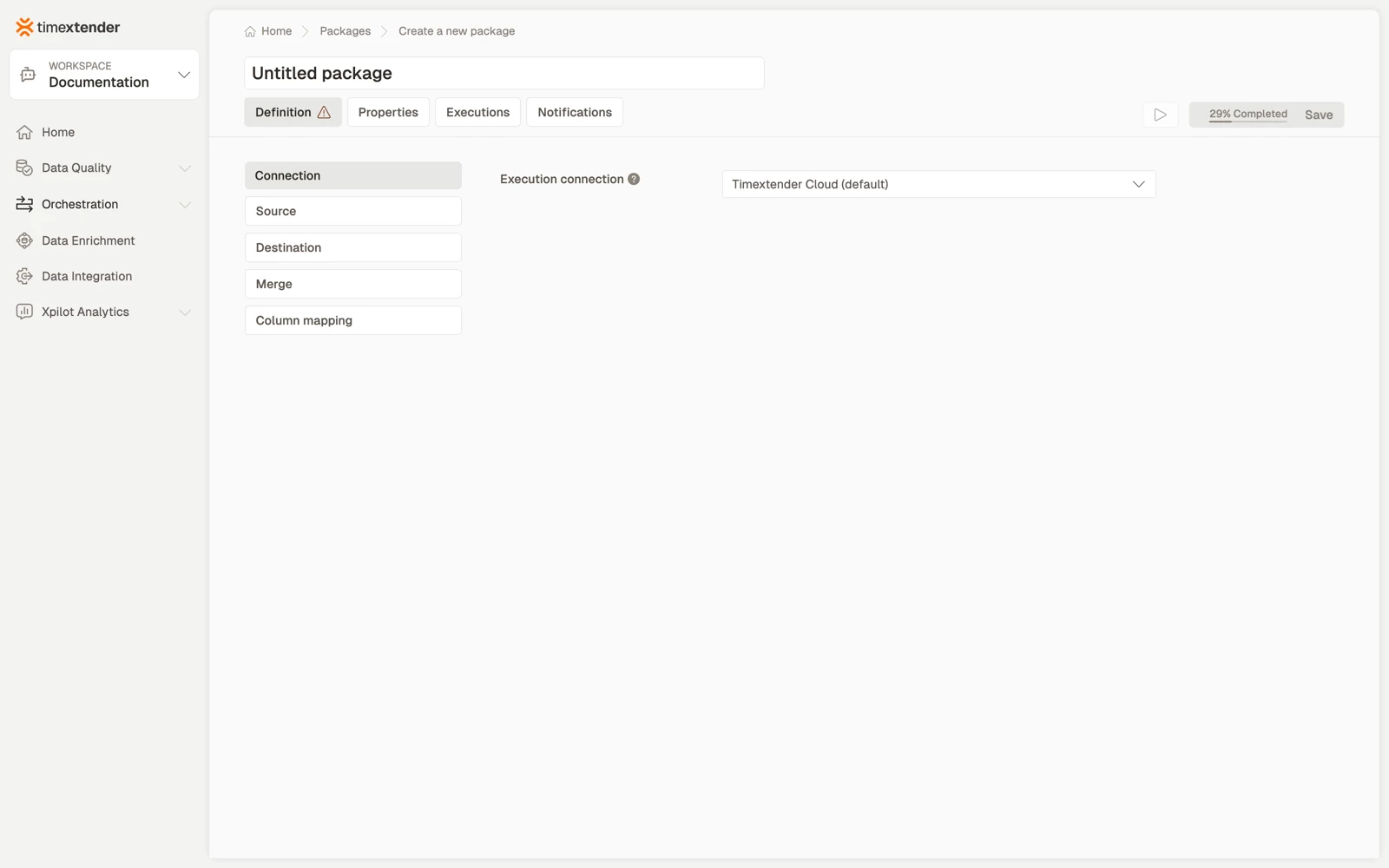
- Enter a name for the package.
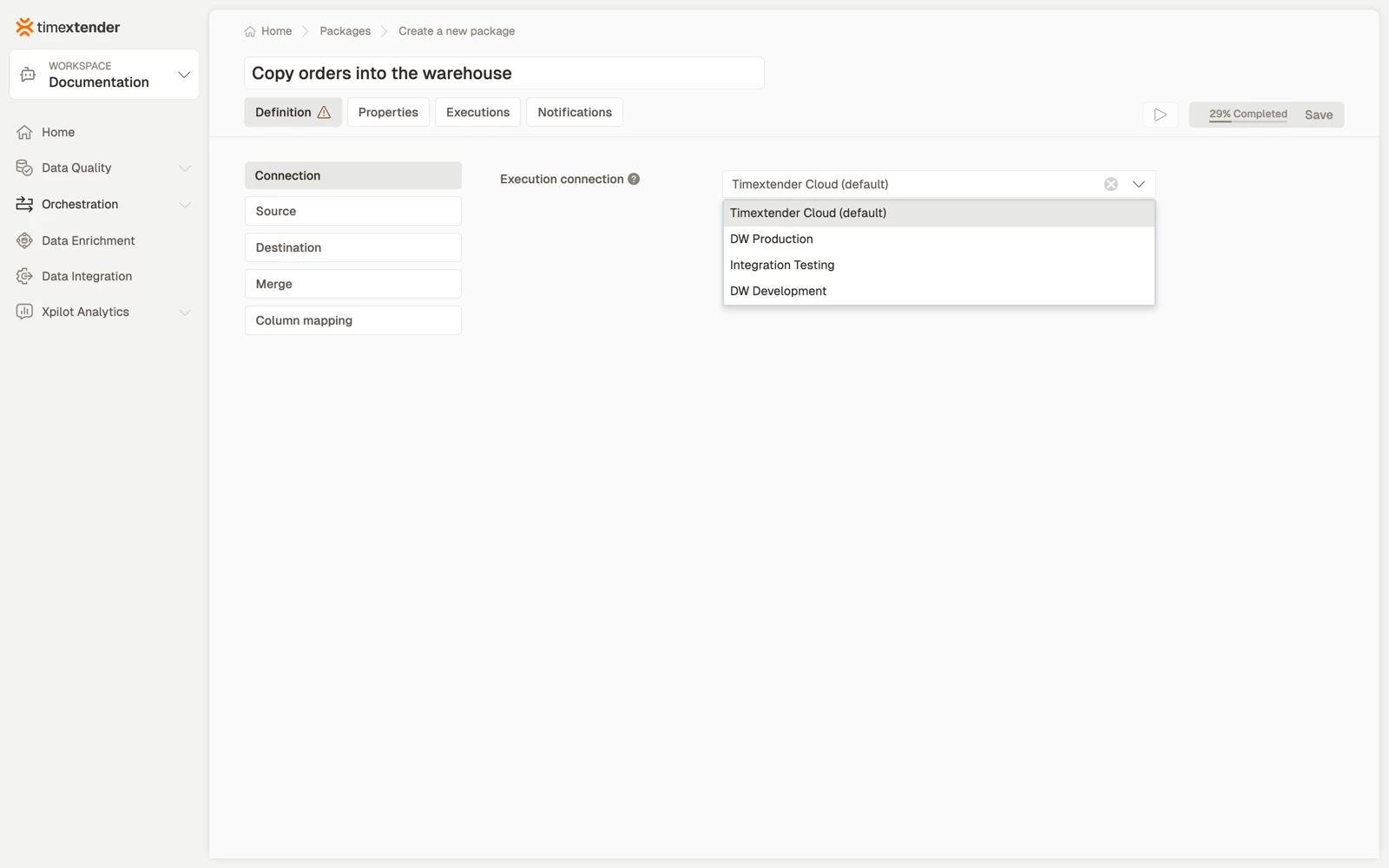
- Select the Execution connection in the Connection section. It defaults to Timextender Cloud (default). Select one of your own gateways if either end is inside your network.
One connection covers the whole package. There is not one per side.
Configure the source
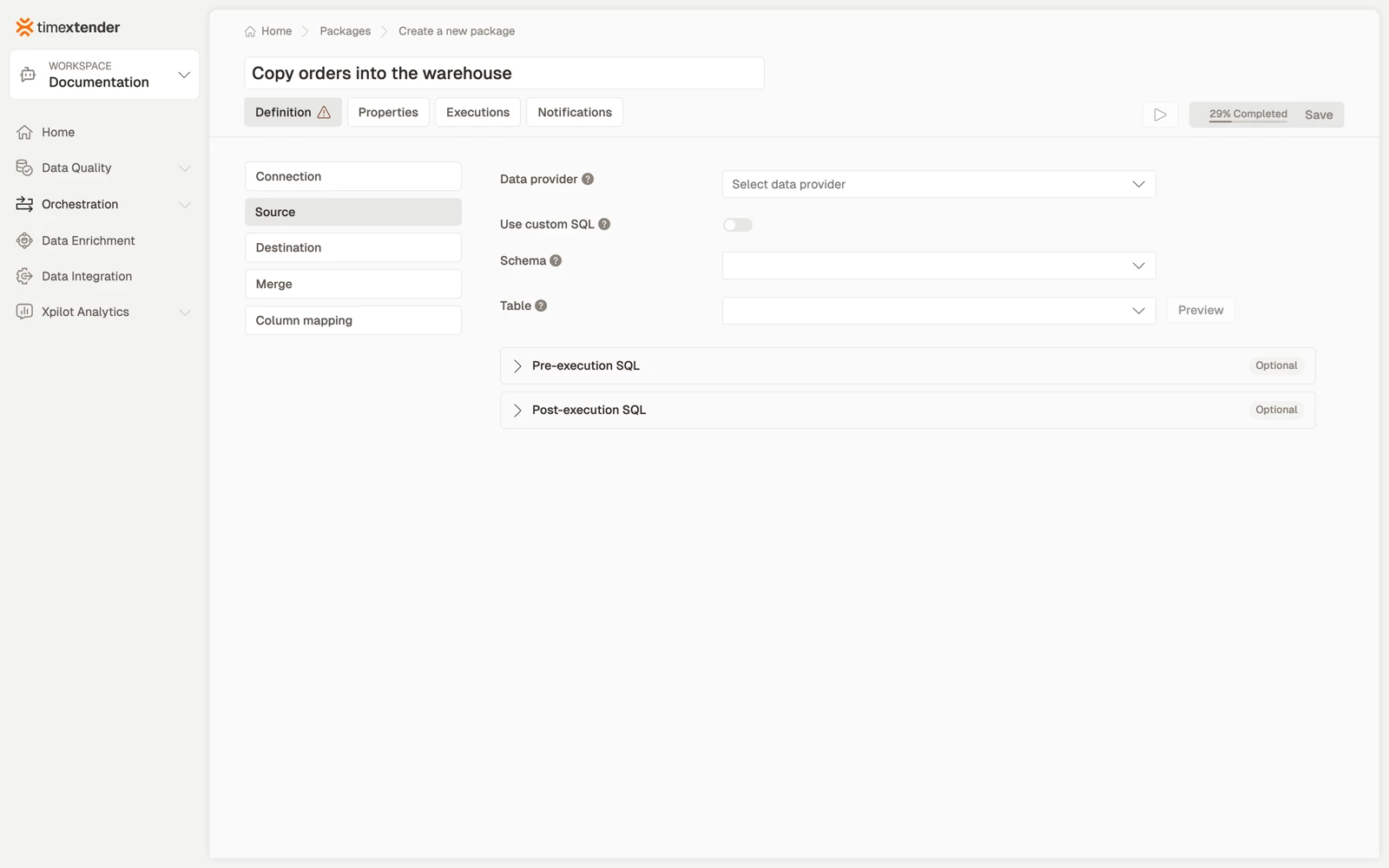
- Go to the Source section.
- Select a provider, then a schema and a table. The table list loads once you have selected a schema. Both fields also accept a typed value: The source schema (e.g. dbo). Loaded from the provider; you can also type one.
- To read the source with a query instead, turn on the custom SQL toggle: Toggle on to read the source with a custom SQL query instead of picking a table.
- Select Preview to see what the source returns.
- Optionally enter pre-execution and post-execution statements, which run before and after the transfer.
Preview is the fastest way to check a query before wiring up the rest. It is available for a table and for custom SQL, and not when the source is PowerShell, because there is no query to preview.
Pre- and post-execution statements cover work such as disabling an index, or stamping a control table when the load completes.
Configure the destination
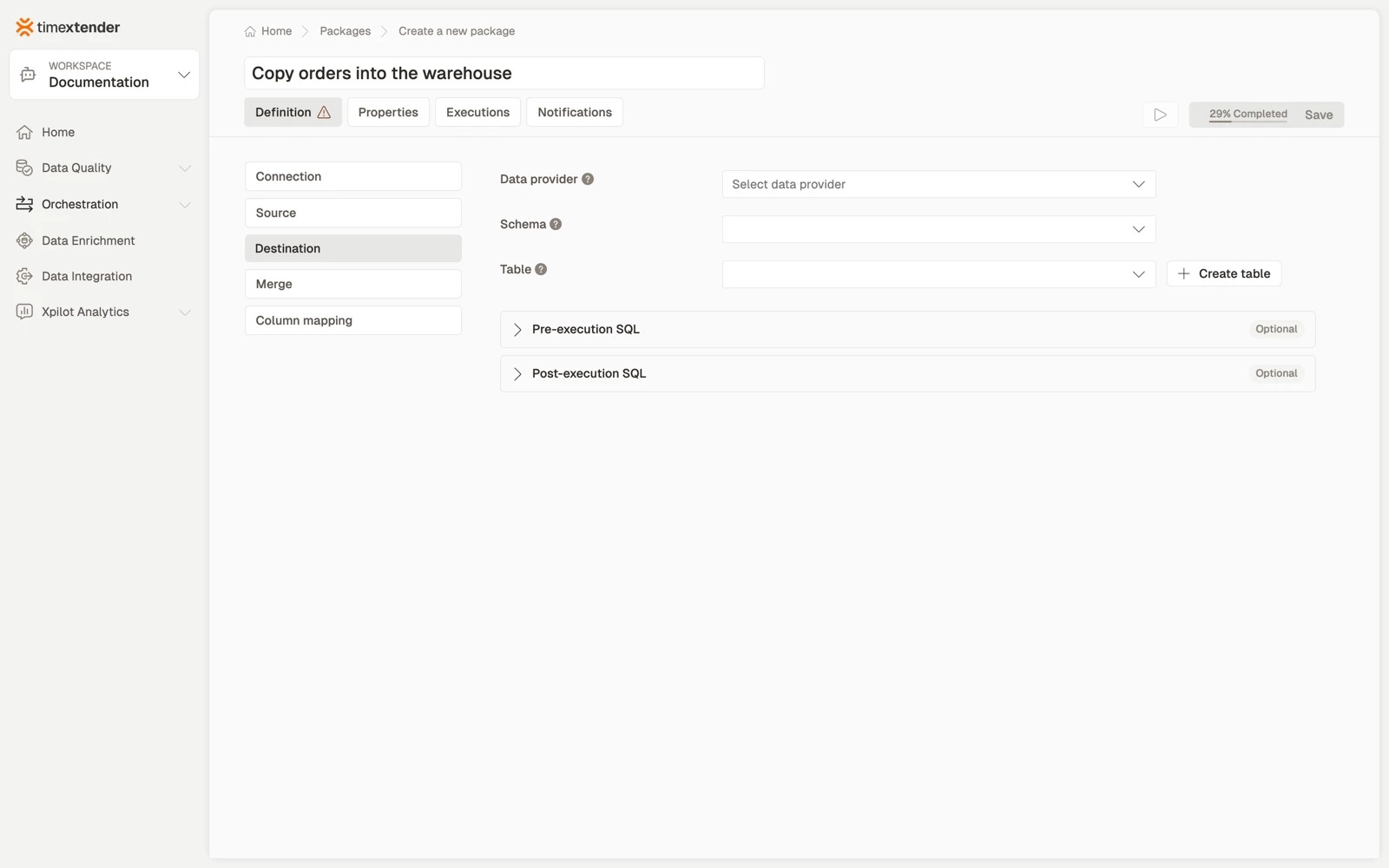
- Go to the Destination section.
- Select a provider, a schema and a table.
- To create a new table instead, select Create Table. The dialog pre-fills from the source: The schema the new table is created in. Pre-fills from the source table's schema. and The name of the new destination table. Pre-fills from the source table.
- Edit the column list, with types and a primary key, or enter your own CREATE TABLE statement.
- Select Confirm.
Create Table maps the columns for you. On confirm it creates the table and maps the columns, so you do not need to load columns afterwards.
A destination that is not PowerShell has no custom SQL mode, because a SQL destination is always a table.
Set up merge
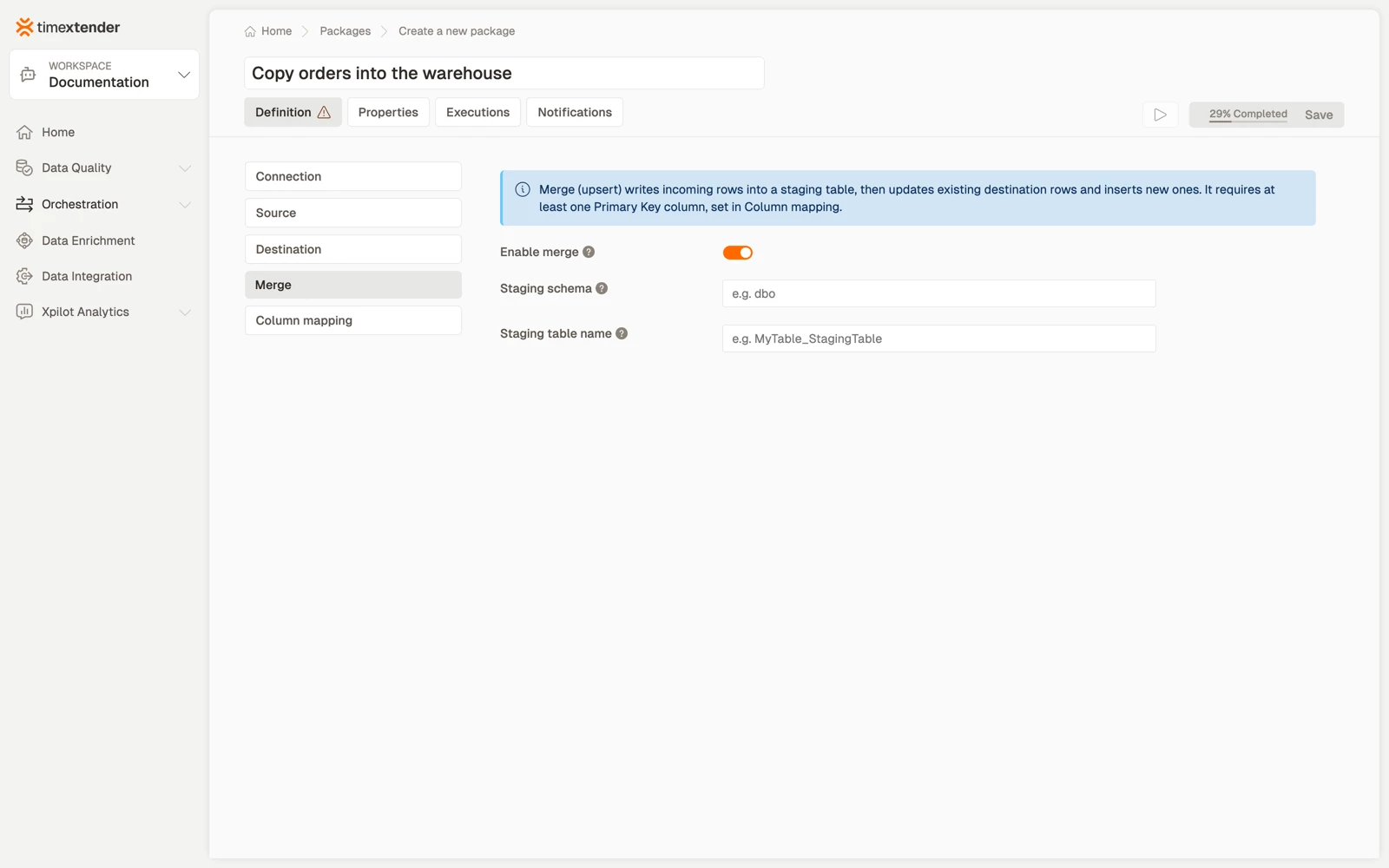
- Go to the Merge section.
- Leave merge on, or turn it off for a plain insert. Merge is on by default for a new package, and a duplicated package inherits whatever the original had.
- Enter a Staging schema and a Staging table name. Both pre-fill from the destination table name once one is selected.
The product explains merge on the section itself: Merge (upsert) writes incoming rows into a staging table, then updates existing destination rows and inserts new ones. It requires at least one Primary Key column, set in Column mapping.
Merge on with no primary key will not save. Saving is blocked, with the error shown in the editor rather than at run time. Set at least one column's Action to Primary Key in the Column mapping section.
Map the columns
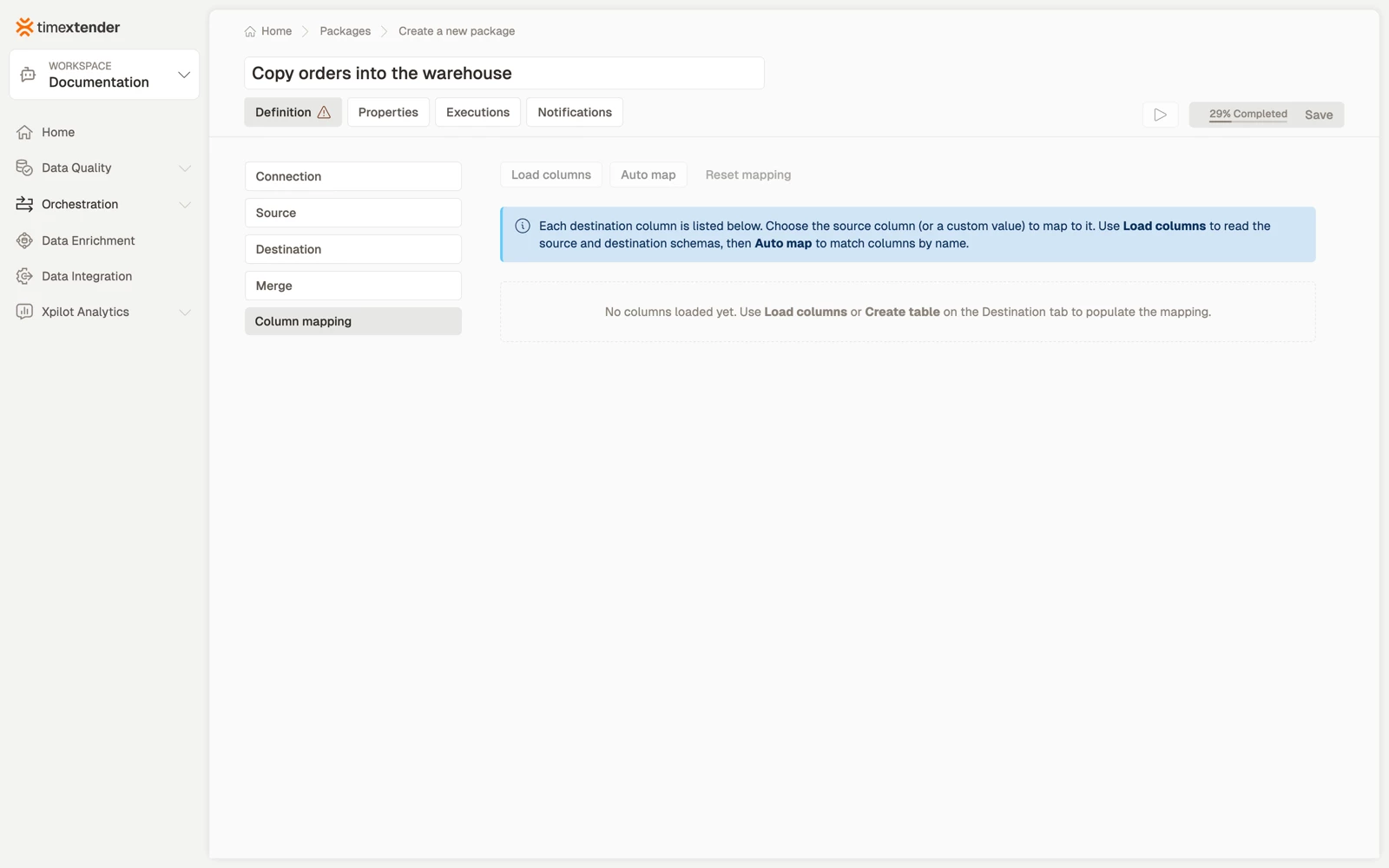
- Go to the Column mapping section.
- Select Load Columns to read the source and destination schemas and fill the grid.
- Select Auto Map to match columns by name, or set each row's Source column yourself. Reset Mapping clears everything.
- With merge on, set each row's Action to Primary Key, Update, or Ignore, and enter a Custom Value or a Collation where you need one.
A row's Source column also takes one of two special values, No mapping and Custom Value. Collation is available on any mapped column, not only on rows set to Update.
The grid is hidden entirely when the destination is PowerShell, because there are no destination columns to map to.
Save the package
- Select Save. The package is saved as a Draft.
Things that clear your work
Changing the source or destination provider, schema or table clears the existing column mapping, because the old mapping no longer refers to anything real. Pre- and post-execution content is kept.
A duplicated merge package gets a suffix on its staging table name, so the copy does not collide with the original.
Best practices
- Preview the source before configuring anything else. Most misconfiguration is a source query that does not return what you assumed, and preview catches it in seconds.
- Prefer merge with a key over delete-and-insert for anything a report reads. Delete and insert leaves a window where the table is empty.
- Keep pre- and post-execution statements small and reversible. A post-execution statement that does not run because the transfer failed should not leave the destination unusable.
- Name the staging table for the package. A shared staging table across several transfers is a race waiting to happen.
- Consider a PowerShell package instead of a script end. A Data Transfer containing PowerShell is easy to miss when auditing what code runs in the flow, and a PowerShell package is more visible when the work is really a script.
- Check the mapping after changing either end. A column added to the source is not automatically carried through.
Troubleshooting
The schema or table list is empty. The connection's credentials cannot read the database's metadata. You can enter the schema and table names instead, since both fields accept typed values.
The source preview errors but the query works in a SQL client. The connection's credentials differ from yours, or the query references something outside the connection's default database.
Merge fails with a permissions error. The staging table cannot be created. Grant the connection permission to create tables in the staging schema, or point it at a schema where it already can.
Rows transfer but columns are wrong or empty. Check the mapping explicitly rather than assuming names matched.
The transfer succeeds and the destination is empty. The source returned no rows. Preview it: a filter on a date that no longer matches anything is the usual cause.
Reference
Validation
The editor asks for: Please select an O&DQ Gateway, Please select a source data provider, Please select a source schema, Please enter a source table, Please enter the source custom SQL, Please enter a source PowerShell script, Please select a destination data provider, Please select a destination schema, Please enter a destination table, Please enter a destination PowerShell script, and for merge Please enter a staging schema for merge and Please enter a staging table name for merge.
Which apply depends on the shapes you selected at each end. Hover Save for the current list.
Related articles
- Packages overview
- Import a CSV to a database through a Data Transfer, a worked scenario
- Create a Data Provider Command package, for commanding a database rather than moving rows
- Create a PowerShell package
