

Create a Microsoft Fabric Notebook package
A Microsoft Fabric Notebook package runs a notebook in a Fabric workspace as an orchestrated step.
The service principal needs a role in the Fabric workspace. This type uses a Microsoft Fabric data provider rather than a plain App Registration, and the workspace list depends on Fabric permissions rather than Azure ones. The editor states it: Only workspaces the data provider's service principal has been given a role in are listed. An empty workspace list means the principal has not been added to the workspace in Fabric. As with Power BI, service principal access may also need enabling at tenant level.
Prerequisites
- A Microsoft Fabric data provider in the workspace.
- The principal given a role in the Fabric workspace holding the notebook.
- A notebook that can run unattended. A notebook that expects interactive input will wait indefinitely.
Custom JSON
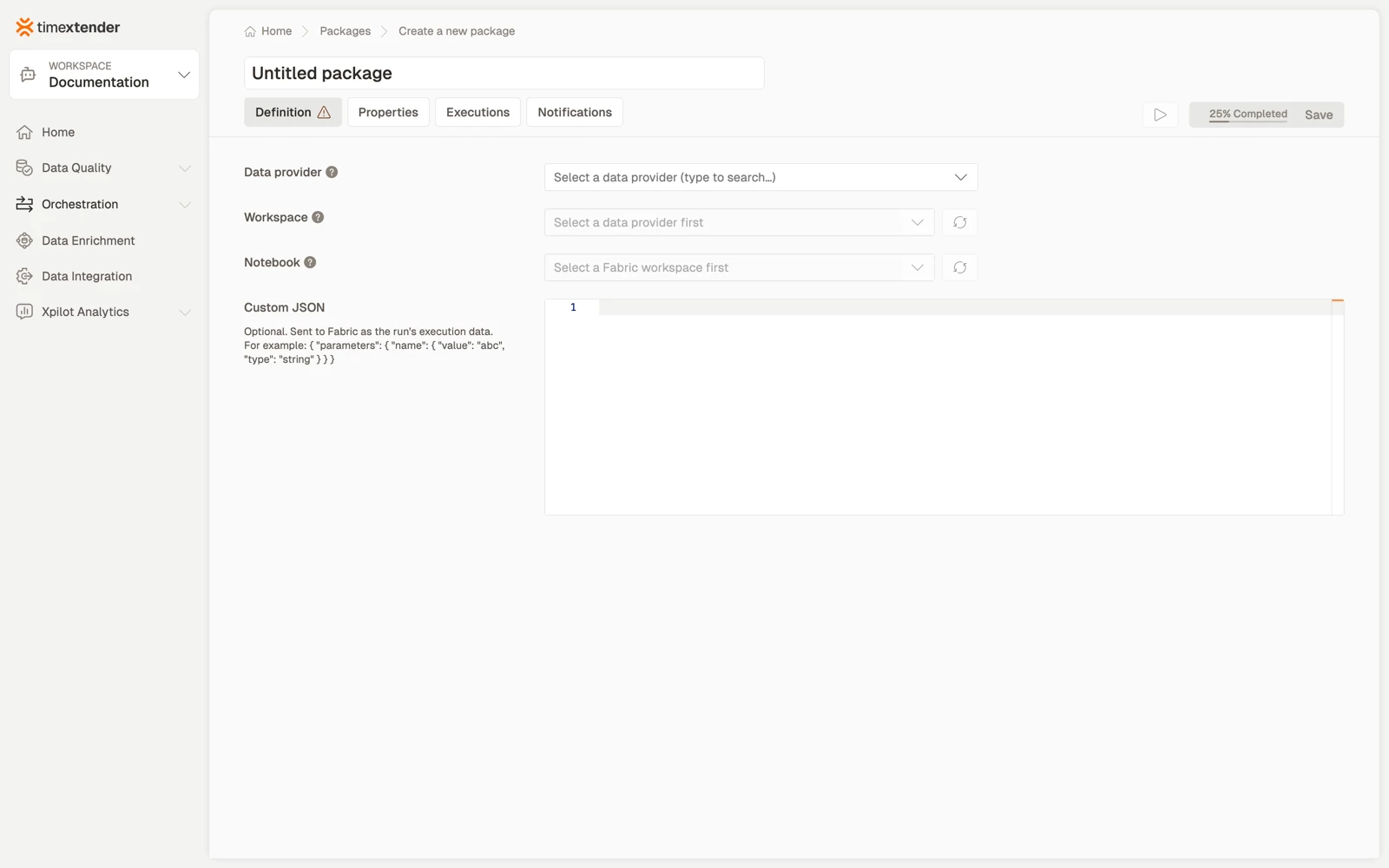
Beyond the workspace and notebook, the editor accepts an optional Custom JSON payload, which is how you pass parameters and configuration through to the notebook run. It is validated before saving, and invalid JSON is rejected with Custom JSON is not valid JSON.
Keep it small. A notebook that needs a large configuration blob is usually better reading that configuration itself from a lakehouse table, so that changing it does not mean editing a package.
Create the package
- Go to Orchestration > Packages and select Create.
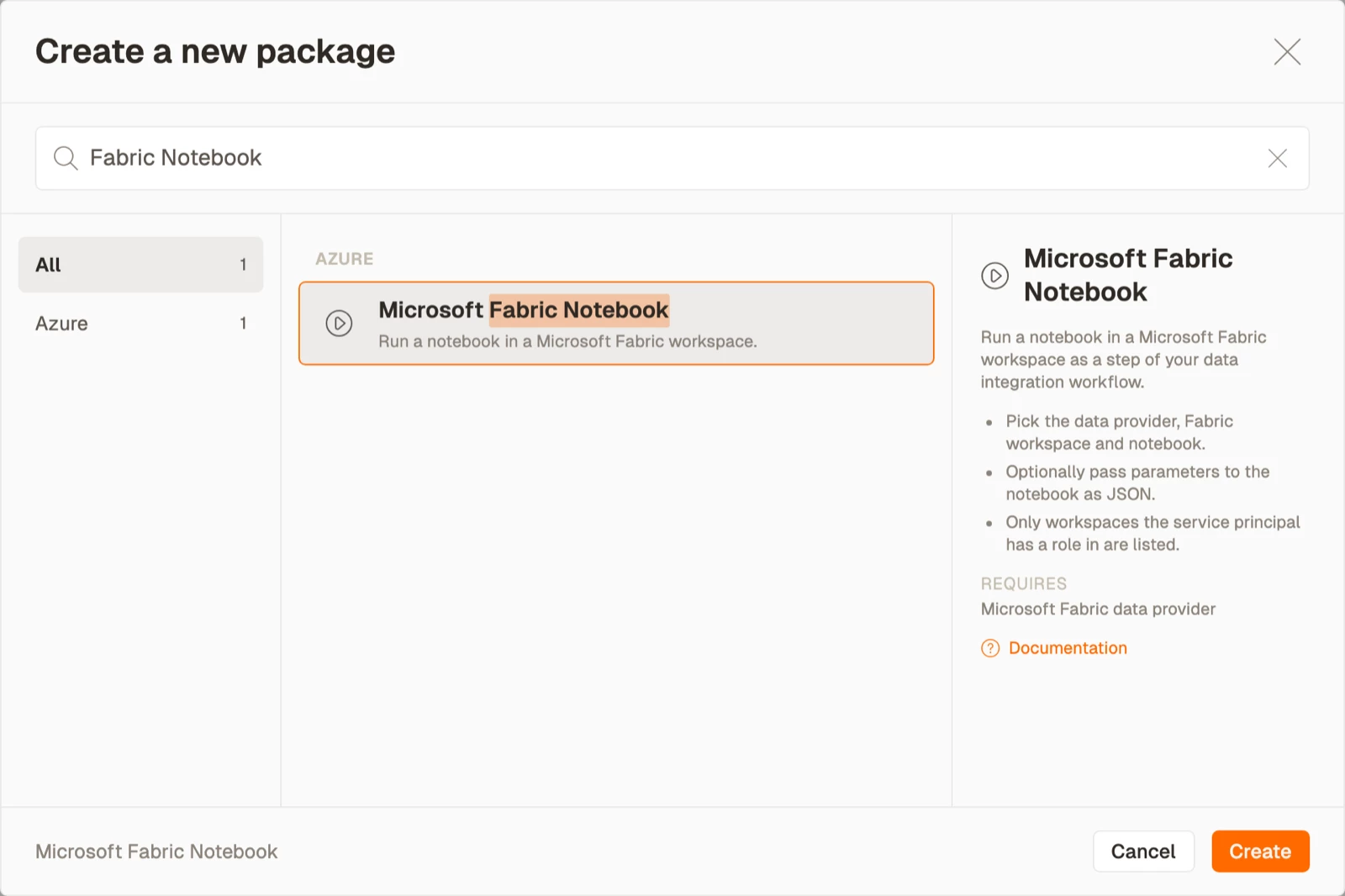
- Select Microsoft Fabric Notebook from the Azure area, then select Create.
- Enter a name for the package.
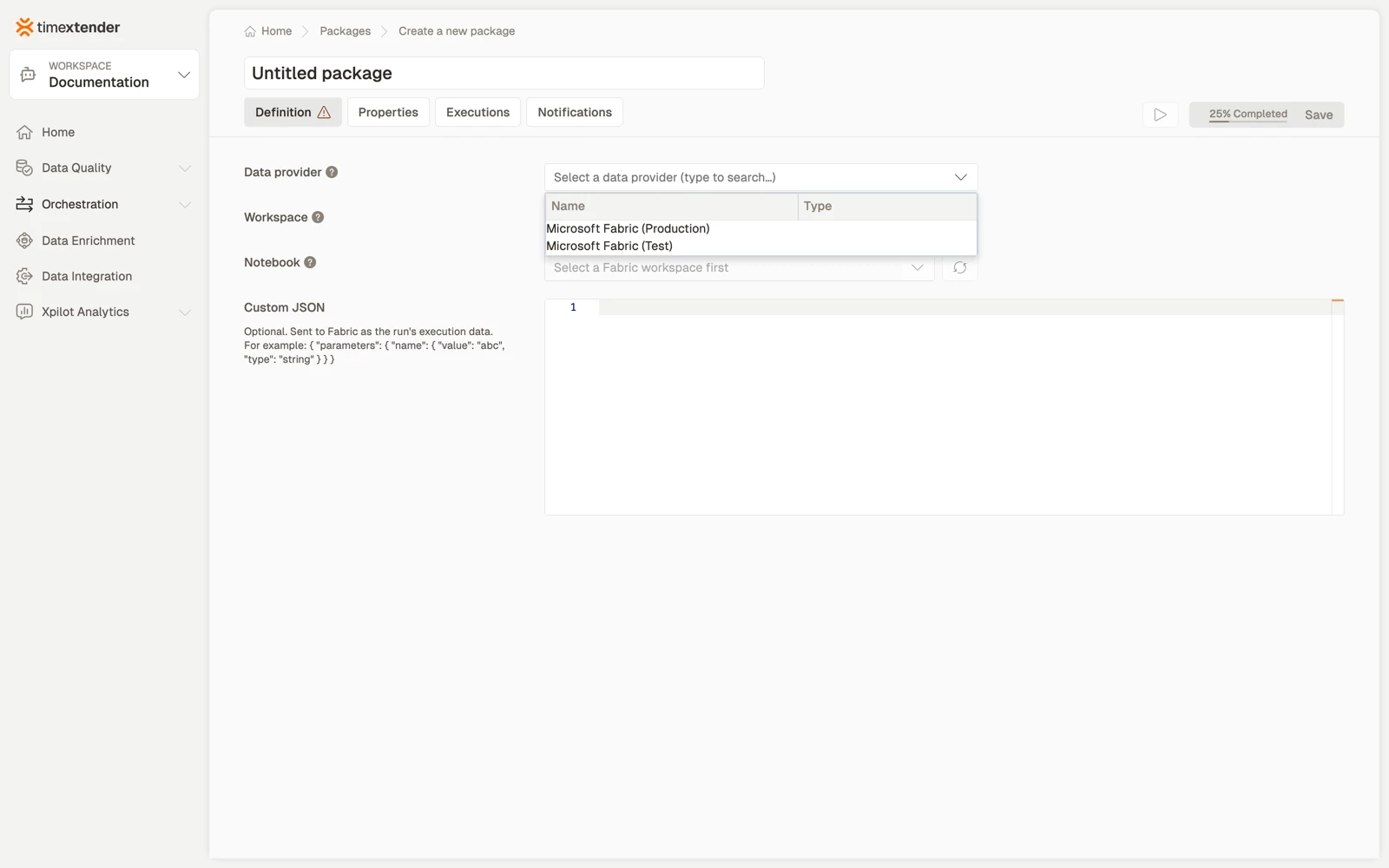
- Select the Data provider, the Microsoft Fabric data provider whose service principal authenticates against Fabric.
- Select the Fabric workspace, then the Notebook. Both lists have refresh buttons.
- Optionally enter a Custom JSON payload.
- Select Save. The package is saved as a Draft.
Best practices
- Make the notebook idempotent. Orchestration retries, and a notebook that appends rather than replaces will double-count on a second run.
- Have the notebook fail loudly. A notebook that catches an exception and continues will report success, and the next step in the flow will run against incomplete data.
- Keep configuration in the lakehouse rather than in the package, unless it genuinely varies per run.
- Consider capacity. A notebook run consumes Fabric capacity, and scheduling several at the same moment can throttle all of them. The Fabric Capacity Scaling package type exists partly for this.
Troubleshooting
The workspace list is empty. The principal has no role in any Fabric workspace, or service principals are not enabled for the Fabric APIs at tenant level.
The workspace lists but the notebook does not. The item may not be a notebook, since a pipeline or a dataflow will not appear, or it sits in a folder the principal cannot read.
Custom JSON is rejected. Custom JSON is not valid JSON. Paste it through a validator; a trailing comma is the usual cause.
The run starts and never finishes. The notebook is waiting for something. Check for interactive widgets or an unbounded loop, and set a package timeout so a stalled run does not block the schedule.
Reference
Fields
| Field | Required | Notes |
|---|---|---|
| Execution connection | No | Defaults to TimeXtender Cloud |
| Data provider | Yes | Microsoft Fabric, not a plain App Registration |
| Fabric workspace | Yes | Only workspaces the principal has a role in |
| Notebook | Yes | Listed from the selected workspace |
| Custom JSON | No | Validated before saving |
Validation: Please select a data provider, Please select a Fabric workspace, Please select a notebook, Custom JSON is not valid JSON.
Related articles
- Packages overview
- Create a Fabric Capacity Scaling package
- Trigger Fabric data pipelines with TimeXtender Orchestration
