

Create a Power BI Refresh package
A Power BI Refresh package triggers a dataset refresh. Its point is ordering: put it after the load that fills the warehouse, and the report refreshes when the data is ready rather than on a clock that assumes the load finished.
The service principal must be granted access in Power BI itself. An Azure App Registration that works for other Azure types lists no workspaces here until two things are true in Power BI, neither of which is done in TimeXtender Data Platform. First, the tenant setting Allow service principals to use Power BI APIs is enabled for a security group the App Registration belongs to. Second, the App Registration is added as a member or admin of the workspace holding the dataset. The editor states it: only workspaces the data provider's service principal has been given access to are listed. An empty list is a permissions answer.
Prerequisites
- An Azure App Registration data provider in the workspace.
- That principal granted access in Power BI, as described above.
- A dataset that can refresh, with valid credentials of its own in Power BI.
Create the package
- Go to Orchestration > Packages and select Create.
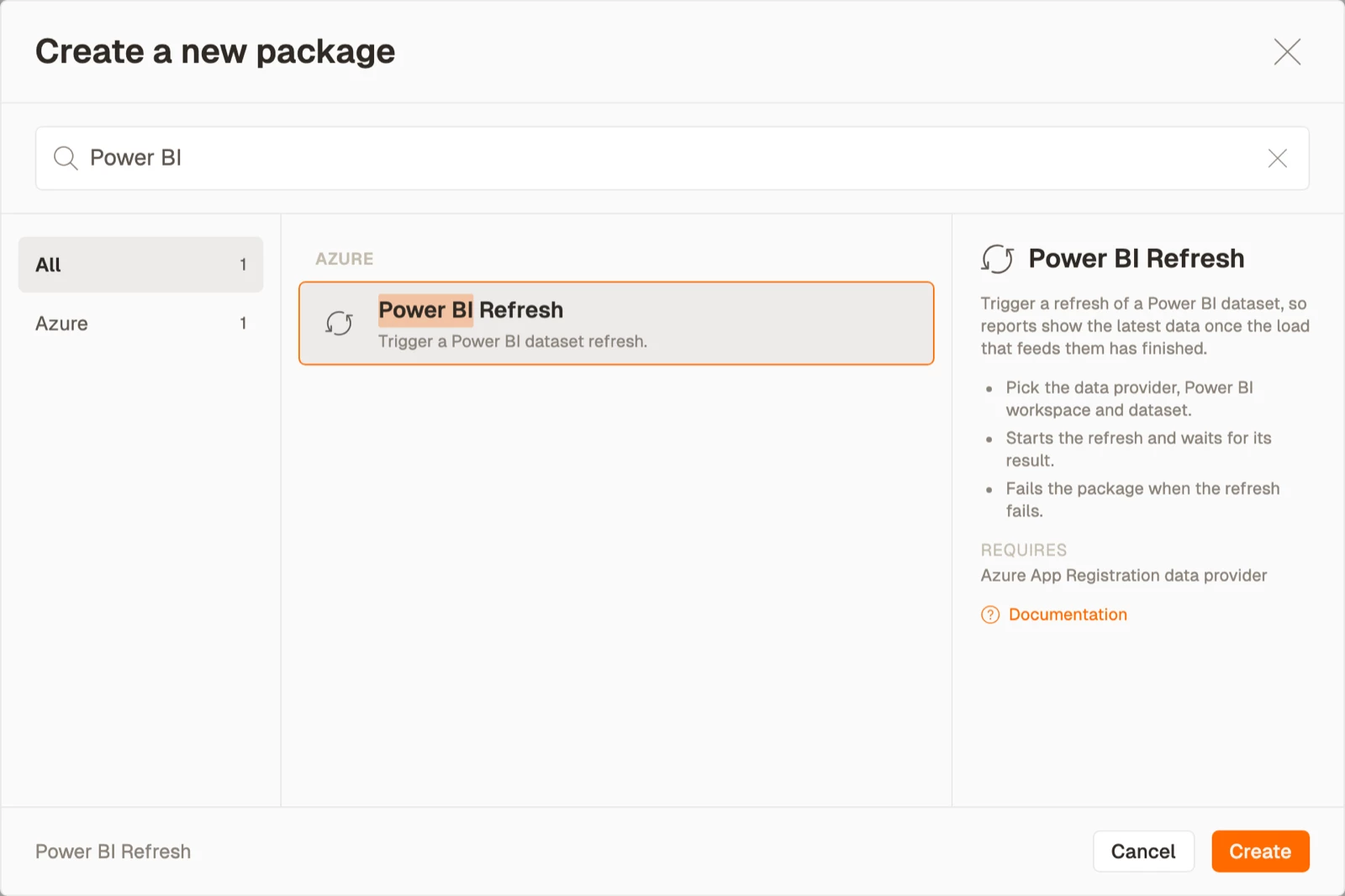
- Select Power BI Refresh from the Azure area, then select Create.
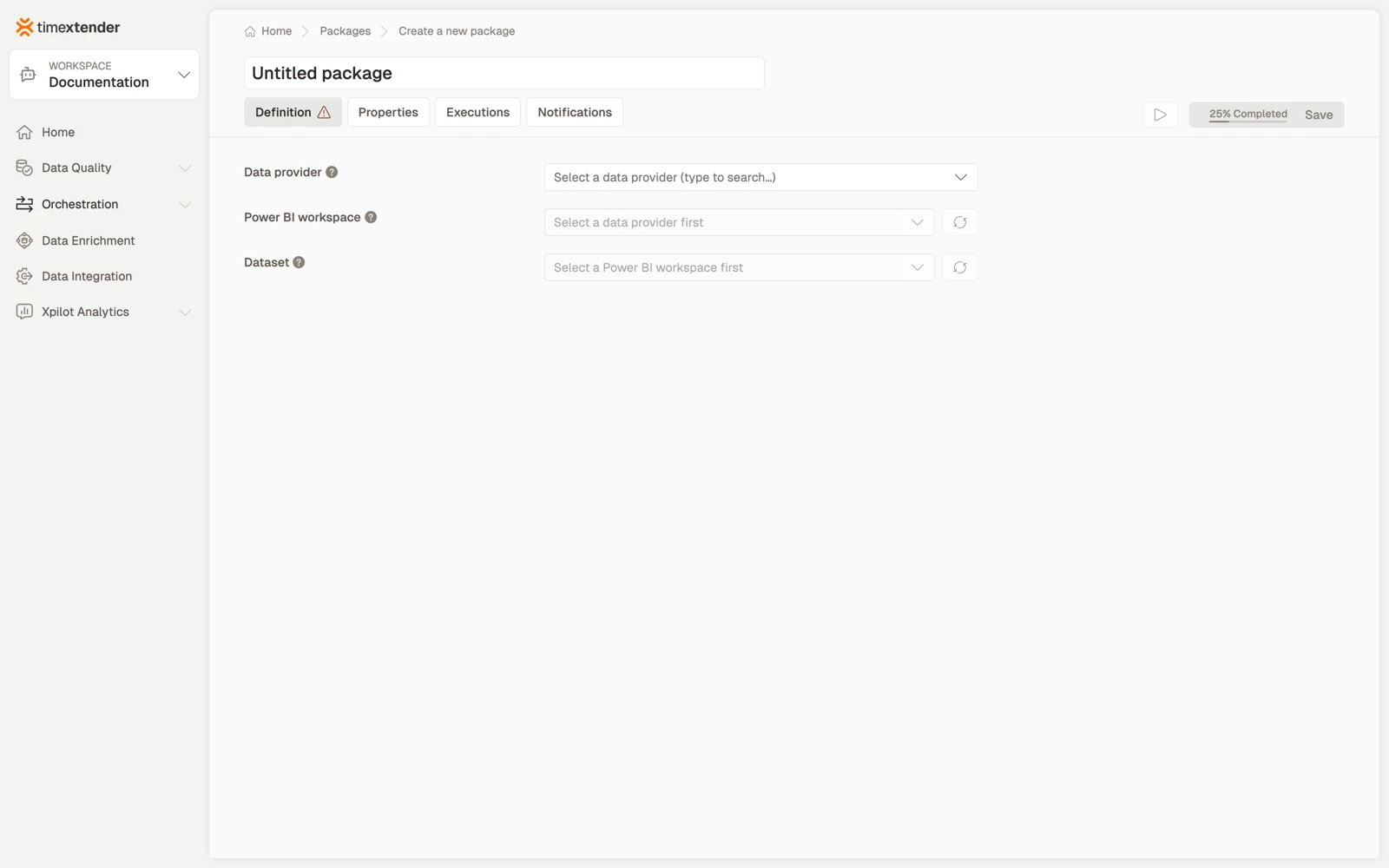
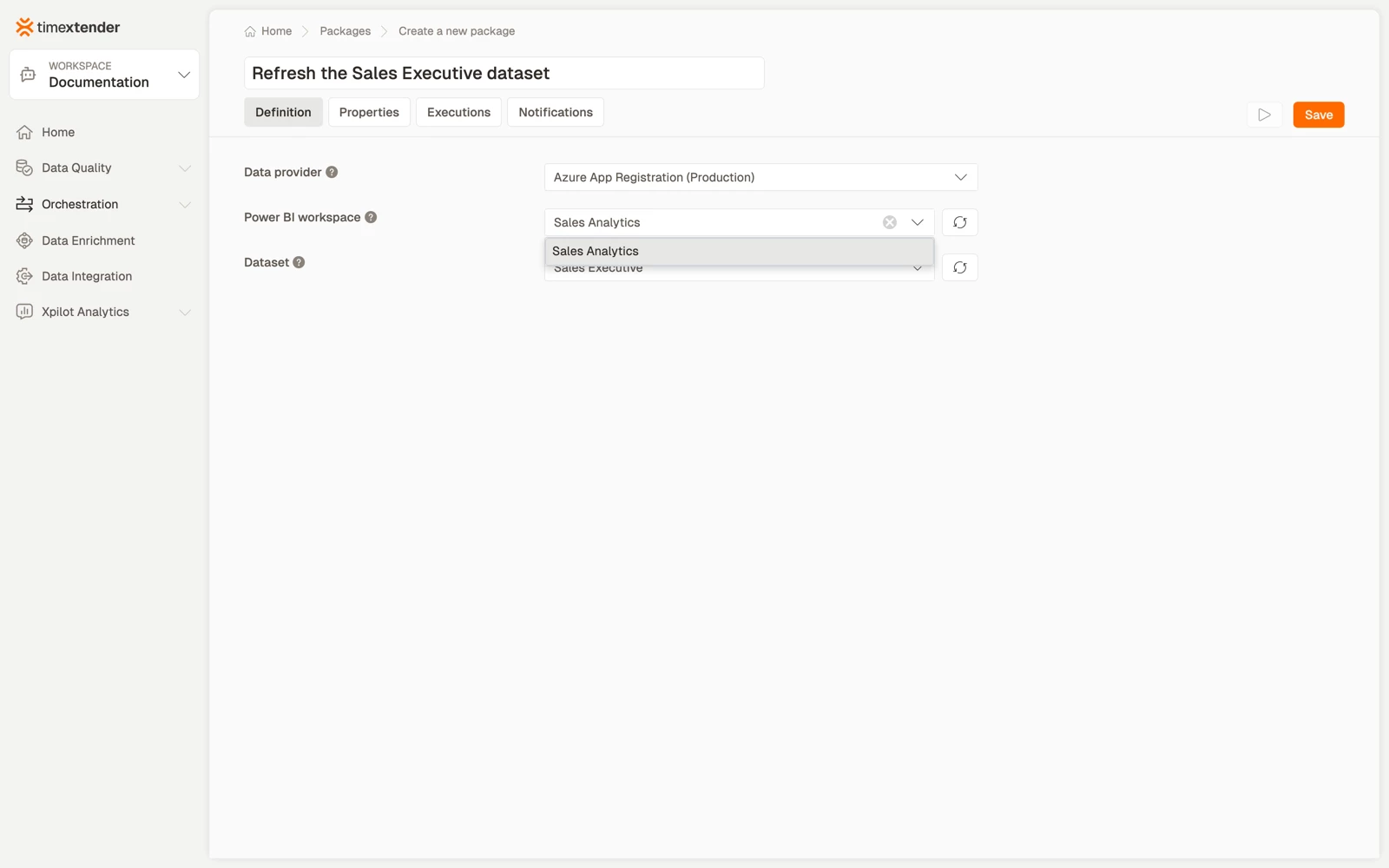
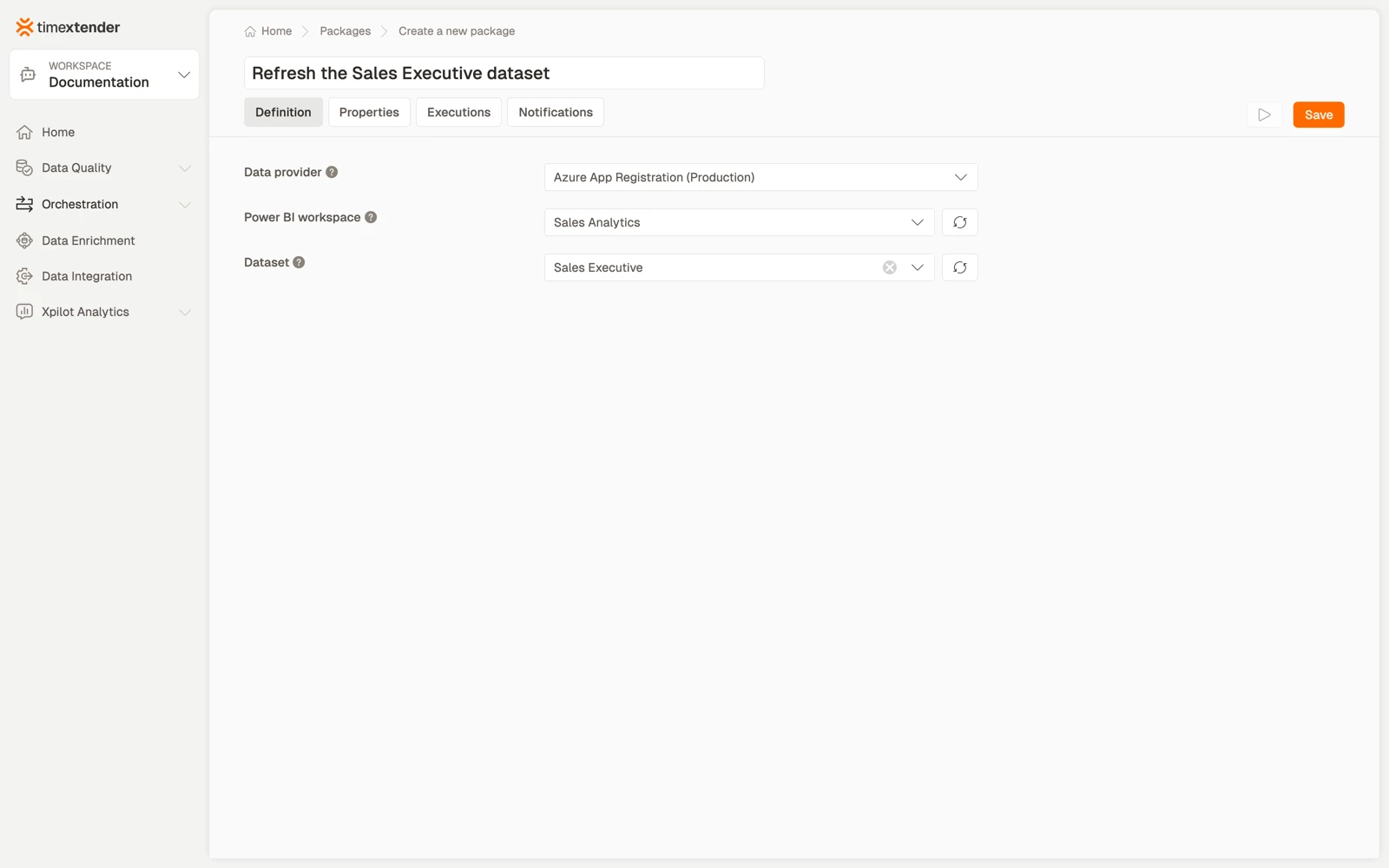
- Enter a name for the package. Name it for the report people know, for example "Refresh the Sales Executive dataset", since that is what someone will search for when the report looks stale.
- Select the Data provider, the Azure App Registration data provider whose service principal authenticates against Power BI.
- Select the Workspace. Only workspaces the principal has been given access to appear.
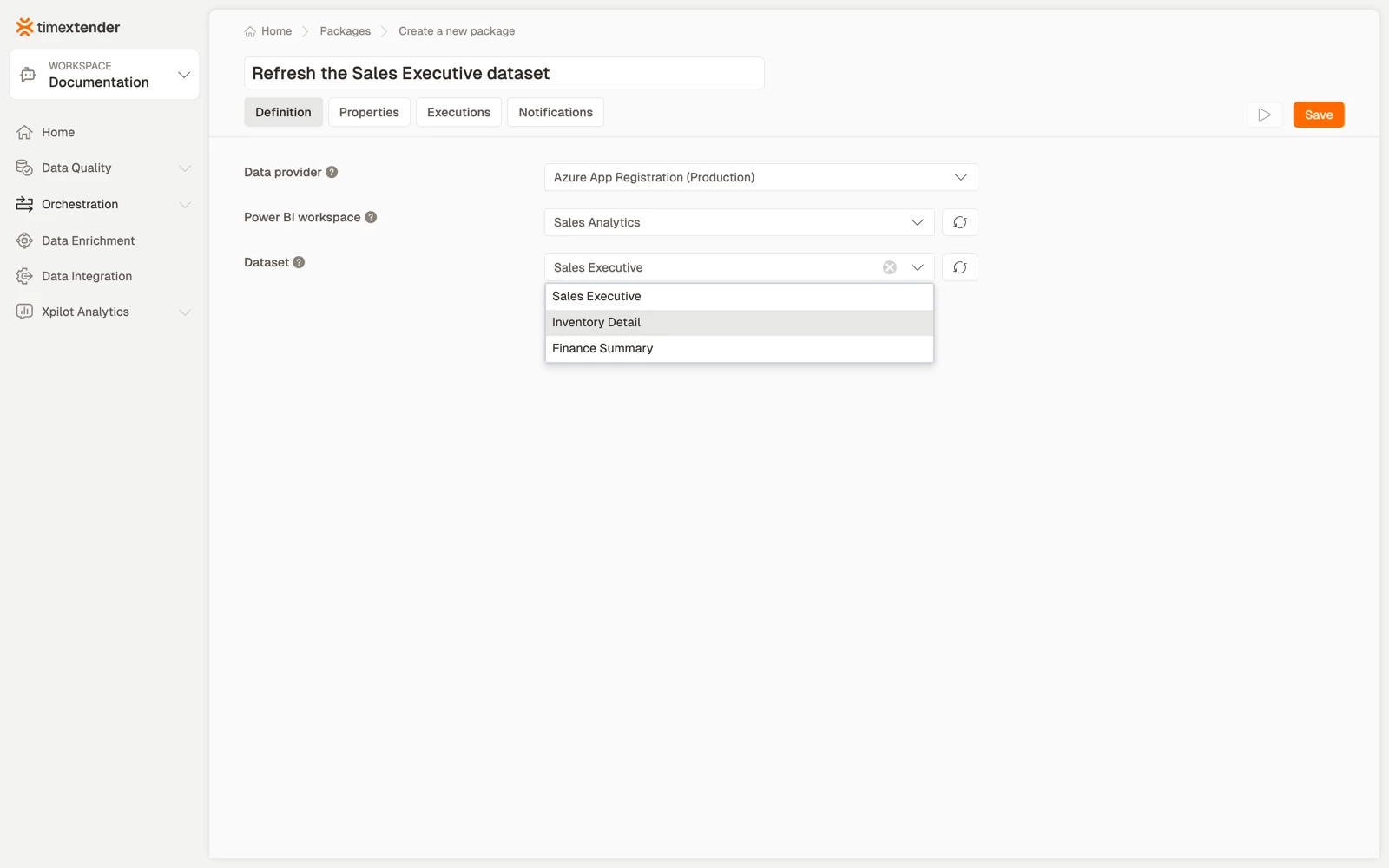
- Select the Dataset. Datasets are listed from the selected workspace.
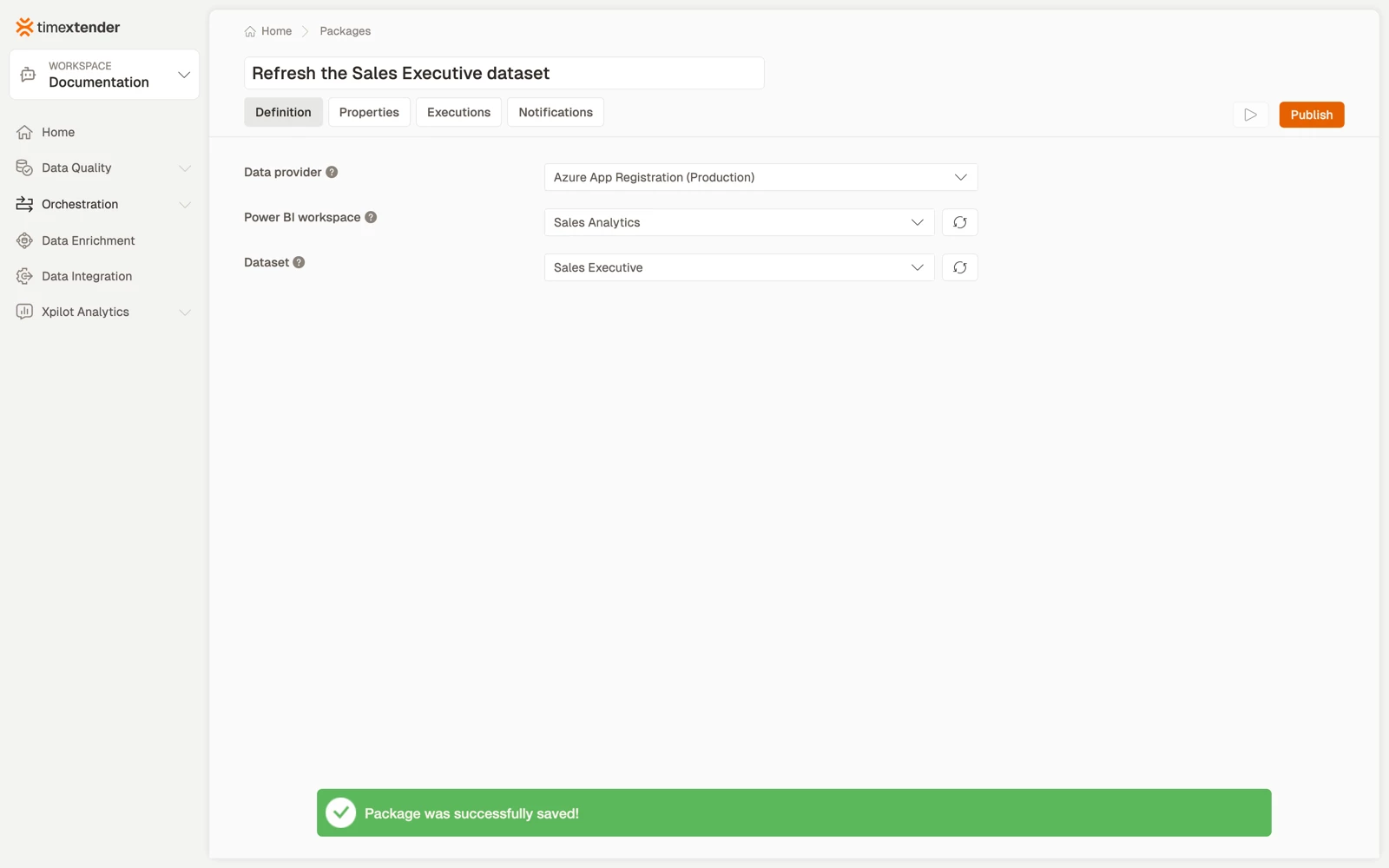
- Select Save.
Where this belongs in a flow
Put the refresh last, after the packages that load and transform. In a process map that means a dependency on the final load step, so a failed load stops the refresh rather than publishing yesterday's numbers under today's timestamp.
Two refinements are worth knowing:
- One package per dataset. If three reports read the same warehouse, three packages after the same load step are clearer than one package and a naming convention, and you can retry just the one that failed.
- Watch Power BI's own refresh limits. Shared capacity allows a limited number of scheduled refreshes per dataset per day, and API-triggered refreshes count. Orchestrating a refresh after every incremental load can exhaust the allowance before the working day ends.
Best practices
- Do not use a refresh package as a data quality gate. It reports whether the refresh started and finished, not whether the numbers are right. Use a data quality rule for that, and order it before the refresh.
- Keep the dataset's own credentials healthy in Power BI. The package authenticates to Power BI; the dataset authenticates to its sources separately. A refresh can fail for reasons entirely outside TimeXtender Data Platform.
- Name the App Registration for its purpose. A provider called "Power BI refresh service principal" tells the next administrator why it has workspace membership.
Troubleshooting
The workspace list is empty. This is almost always one of the two prerequisites in the callout above. Check the tenant setting first, then workspace membership. Neither can be granted from TimeXtender Data Platform.
The workspace is listed but the dataset is not. The principal is a viewer rather than a member or admin, or the item is not a dataset, since a dataflow or a report will not appear.
The refresh fails immediately, having worked before. Either the client secret expired, or the workspace membership was removed during a Power BI tidy-up.
The package succeeds but the report shows old data. Check that you refreshed the dataset the report is bound to. A report pointing at a shared semantic model in another workspace is not refreshed by refreshing the report's own workspace.
Reference
Fields
| Field | Required | Notes |
|---|---|---|
| Execution connection | No | Defaults to TimeXtender Cloud |
| Data provider | Yes | Azure App Registration; authenticates to Power BI |
| Workspace | Yes | Only workspaces the principal can access; has a refresh button |
| Dataset | Yes | Listed from the selected workspace; has a refresh button |
Validation: Please select a data provider, Please select a Power BI workspace, Please select a dataset.
Behaviour worth knowing
A workspace or dataset id that was saved earlier is kept and displayed even when the current fetch cannot see it, so a package configured by someone with broader access still opens and runs. That also means an empty list when you reopen a package does not mean the package lost its configuration.
Related articles
- Packages overview
- Create an Azure Data Factory package
- Triggering Power Automate workflows
