

Create a PowerShell package
A PowerShell package runs a PowerShell script as a step in an orchestration flow. Use it for the small pieces of work that sit between your data tasks: calling a REST endpoint, waiting for a file to land, posting a notification, or prompting an external system.
Everything the script writes to standard output is captured in the execution log, so a package is also a practical way to record what happened during a run.
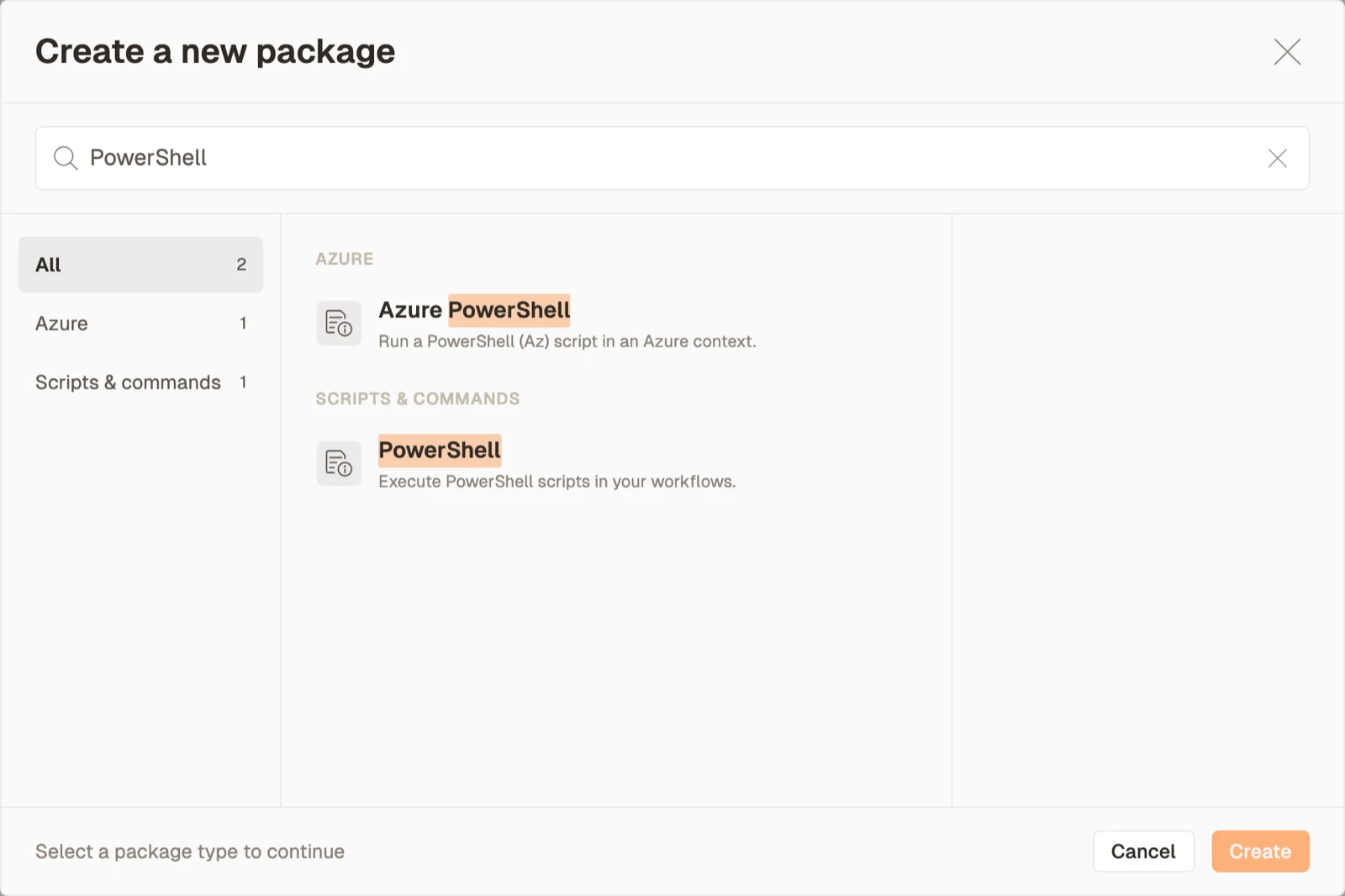
PowerShell or Azure PowerShell. Searching the package picker for PowerShell returns two types. PowerShell, covered on this page, runs a plain script and needs no credential. Azure PowerShell runs an Az module script inside an Azure context and requires an App Registration data provider. See Create an Azure PowerShell package.
Prerequisites
- Permission to create packages in the workspace. Nothing else: this package type has no data provider, no connection and no external resource to set up first.
- A decision about where the script should run, because it changes which commands are available to you. See Choosing where the script runs below. If you are unsure, start with the default and read that section when a command is refused.
Create the package
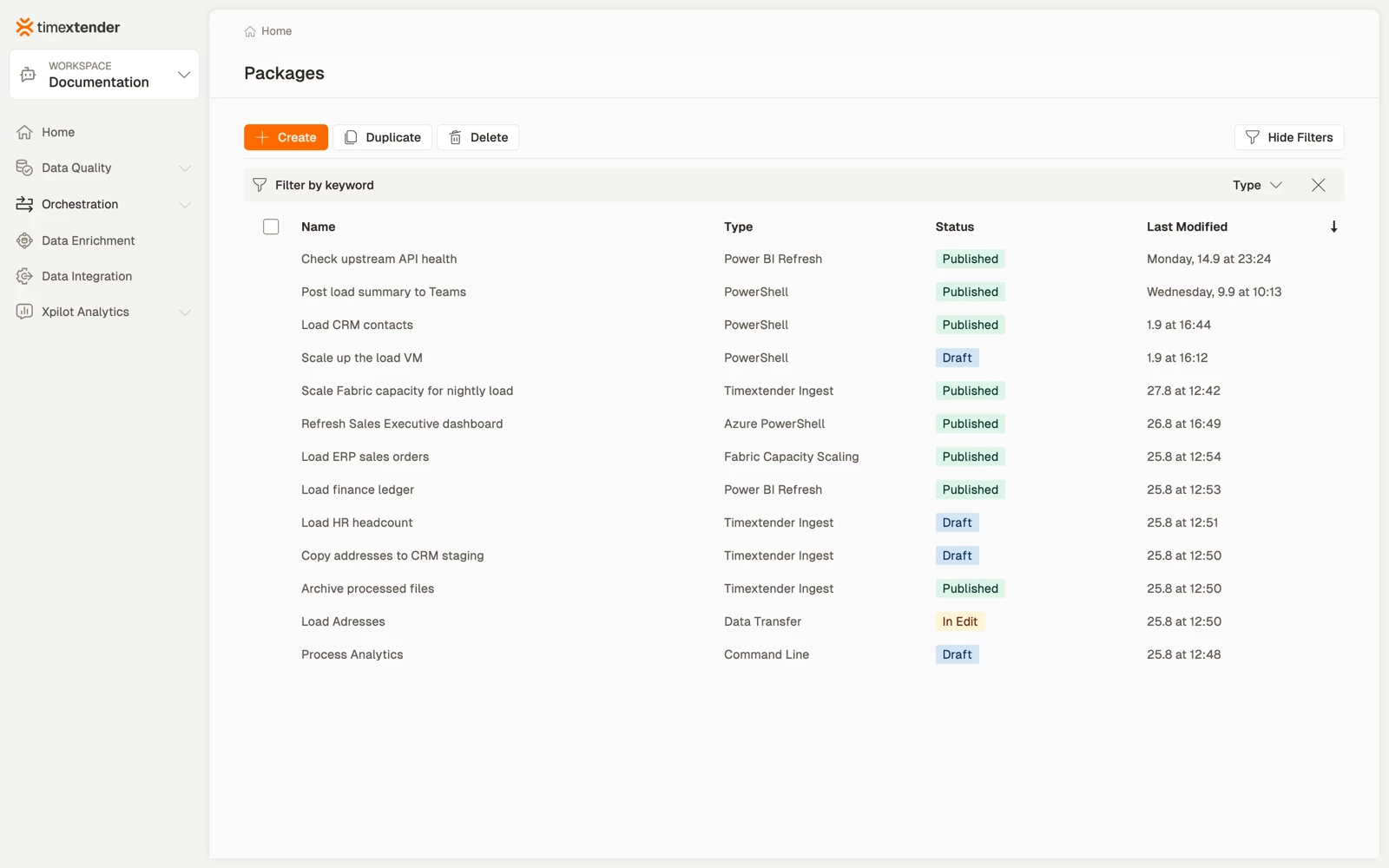
- Go to Orchestration > Packages and select Create.
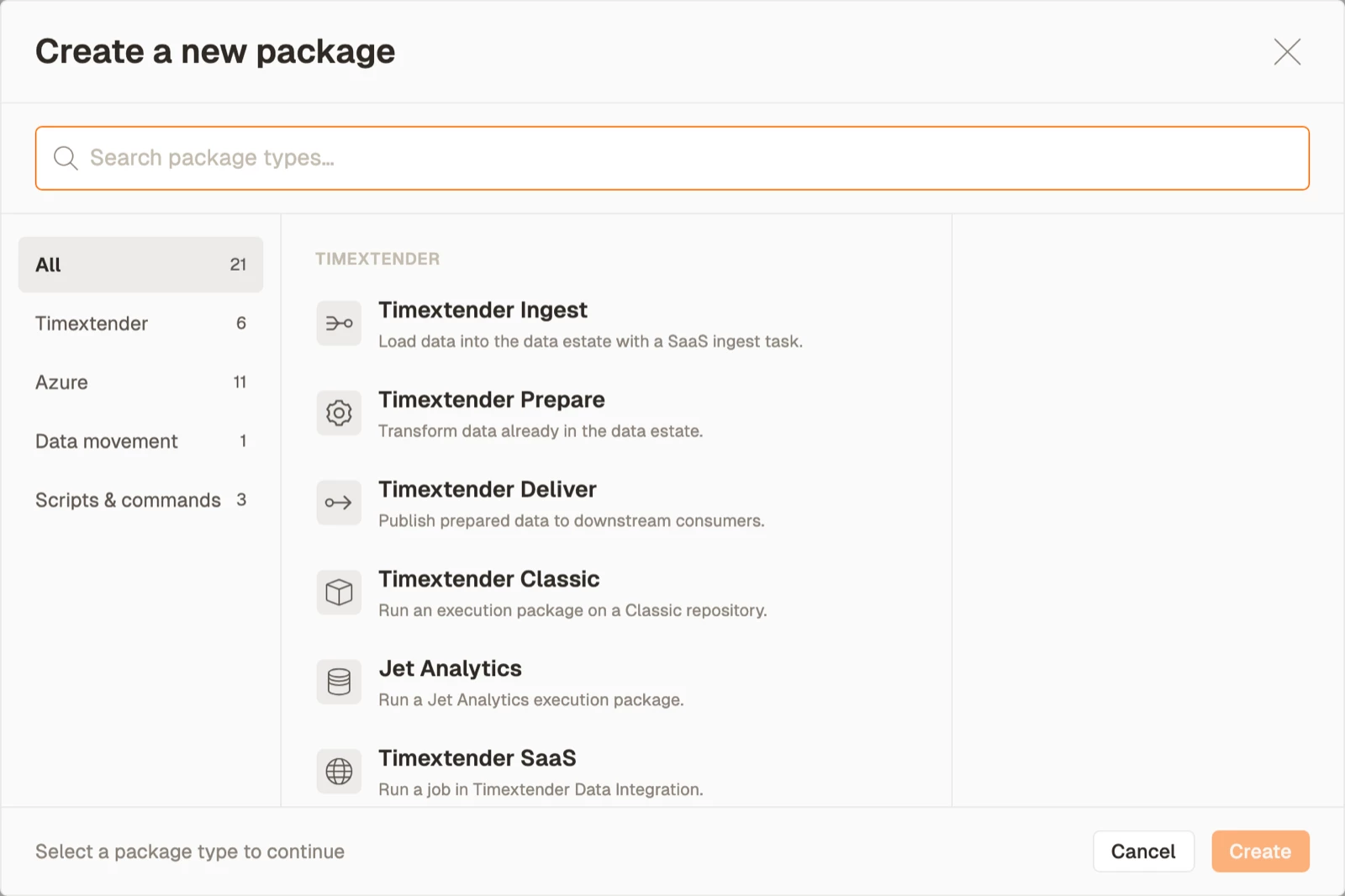
- In the Create a new package dialog, browse Scripts & commands, or enter text in the search box.
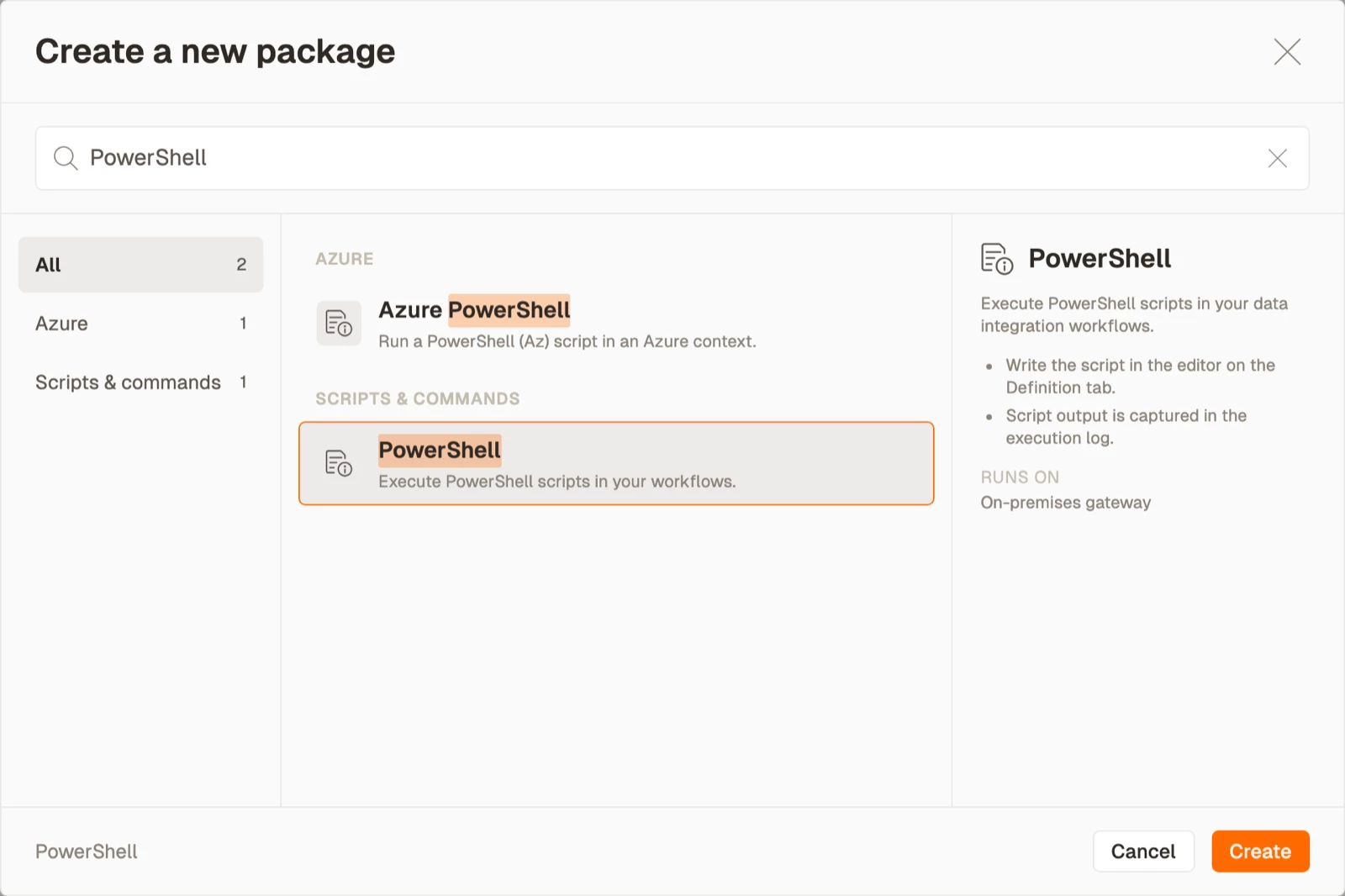
- Select PowerShell. The panel on the right confirms what the type does and where it runs, and the Create button becomes available.
- Select Create.
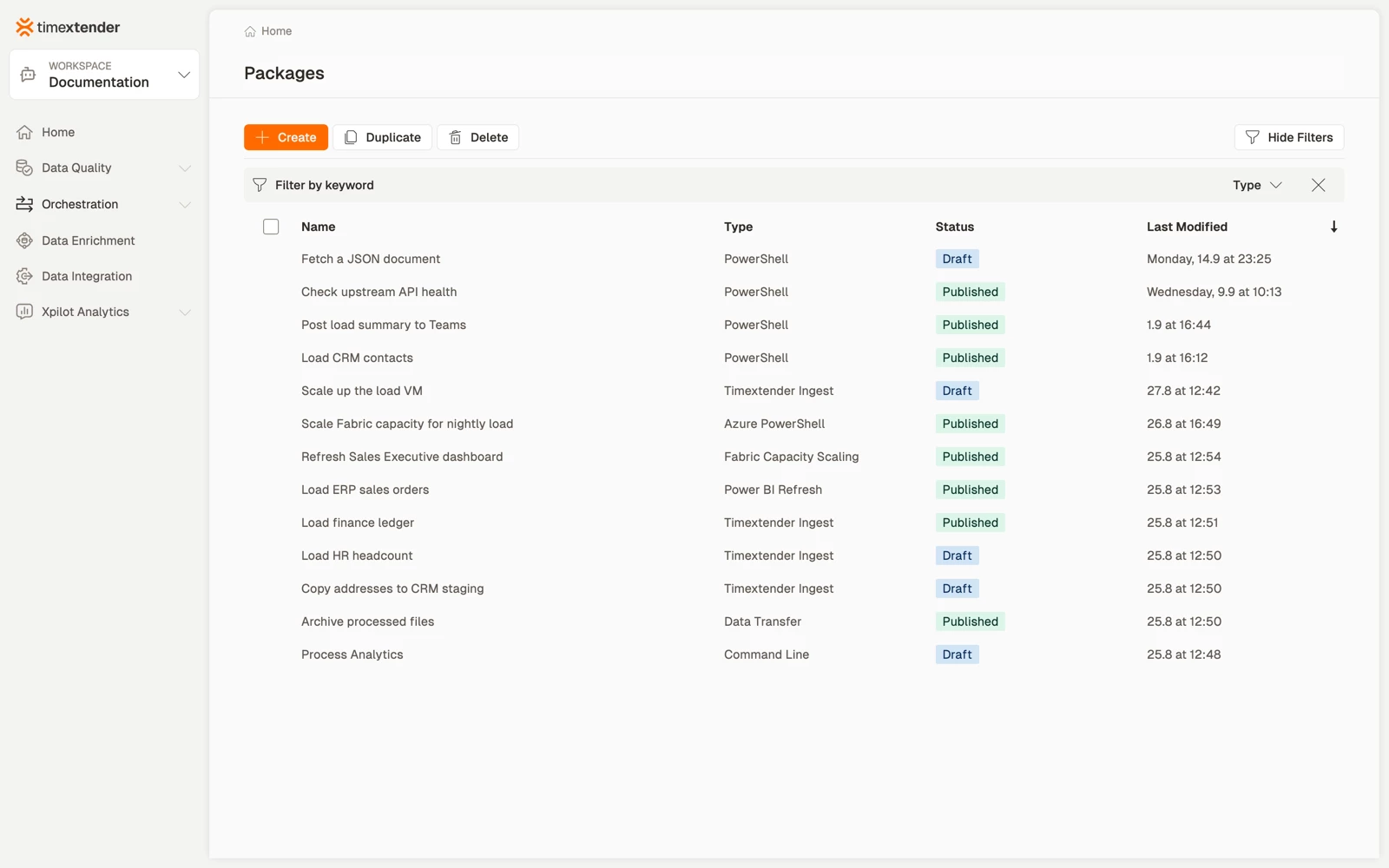
On the Packages overview, Duplicate and Delete act on the rows you tick in the leftmost column, so they stay inactive until you select something.
Write the script and save
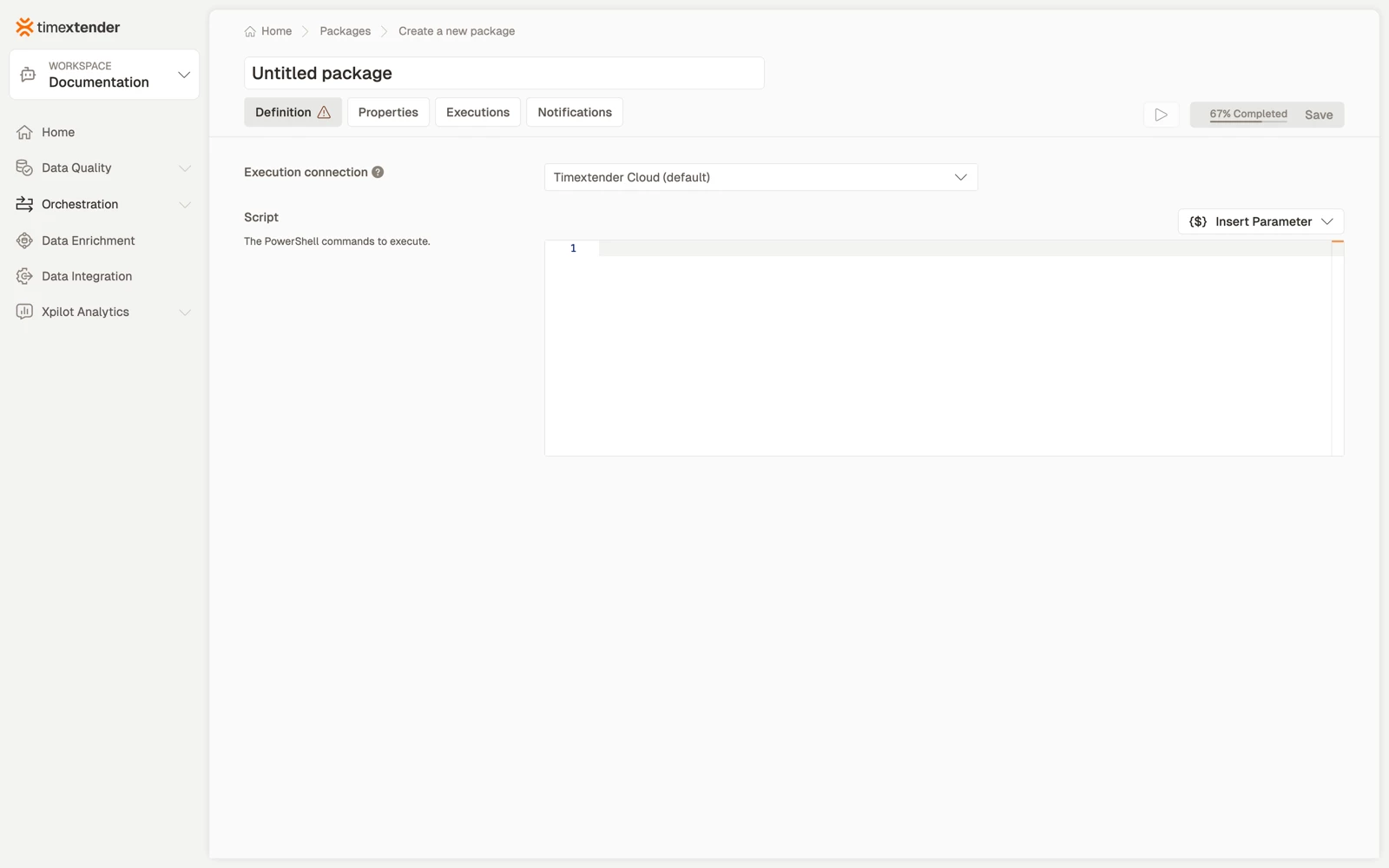
A new package opens on the Definition tab at 67% Completed, with a warning marker on the tab. The missing third is the script: the badge and the marker clear as soon as the Script field has content, and Save becomes available at the same moment.
- Replace Untitled package with a name that says what the script does.
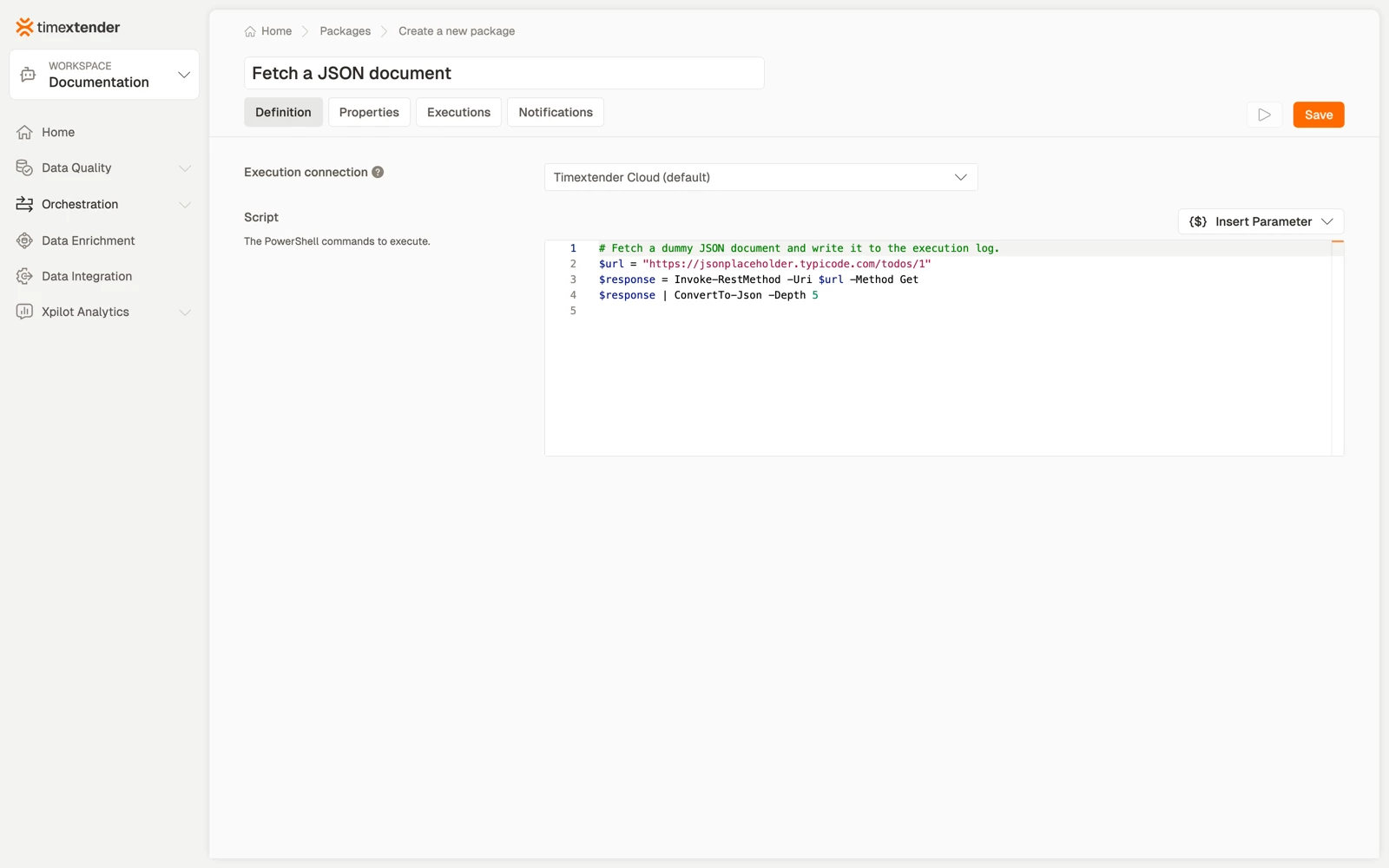
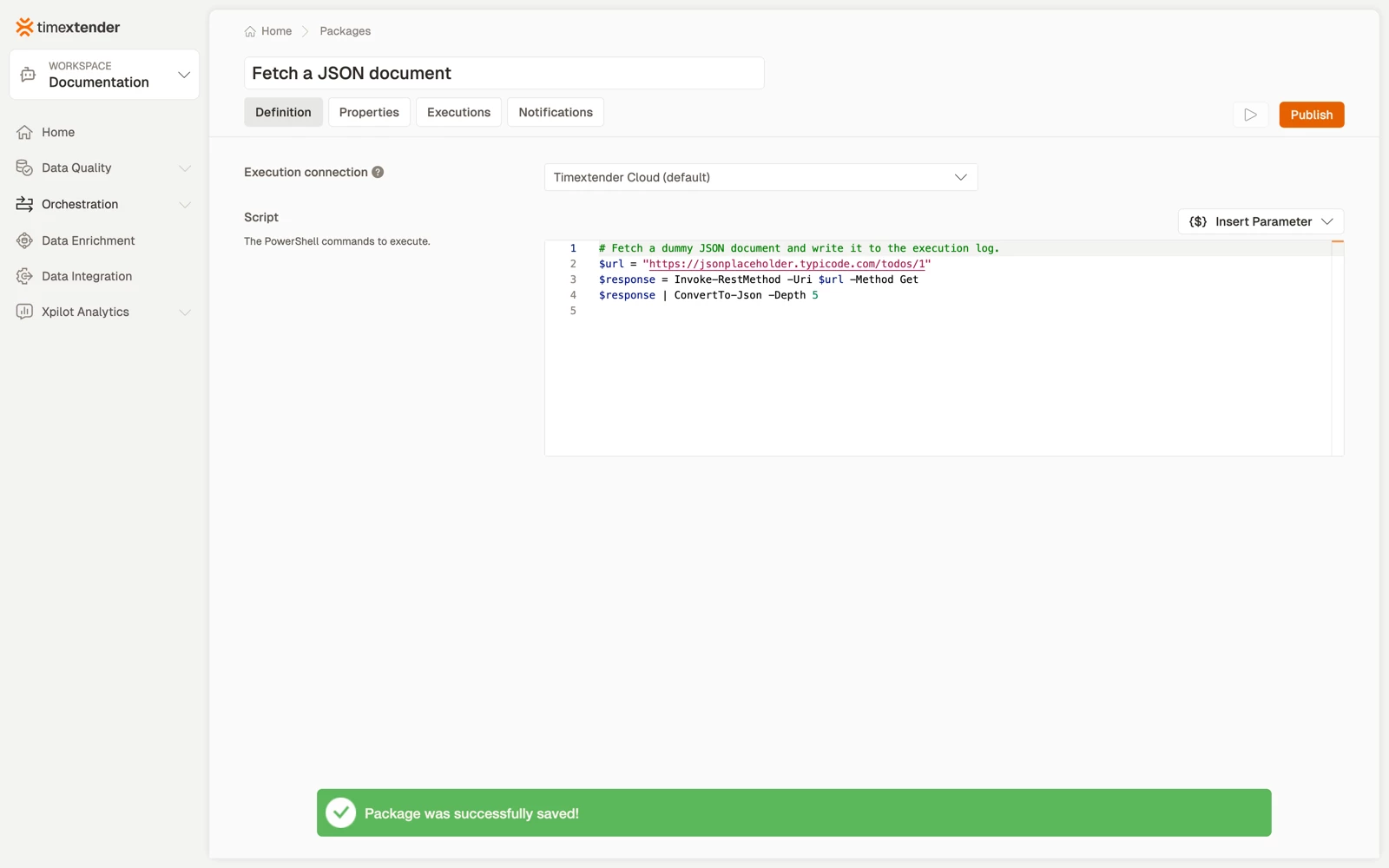
- Enter the script in the Script field. The field is a full code editor, with PowerShell syntax highlighting, line numbers and multi-line editing.
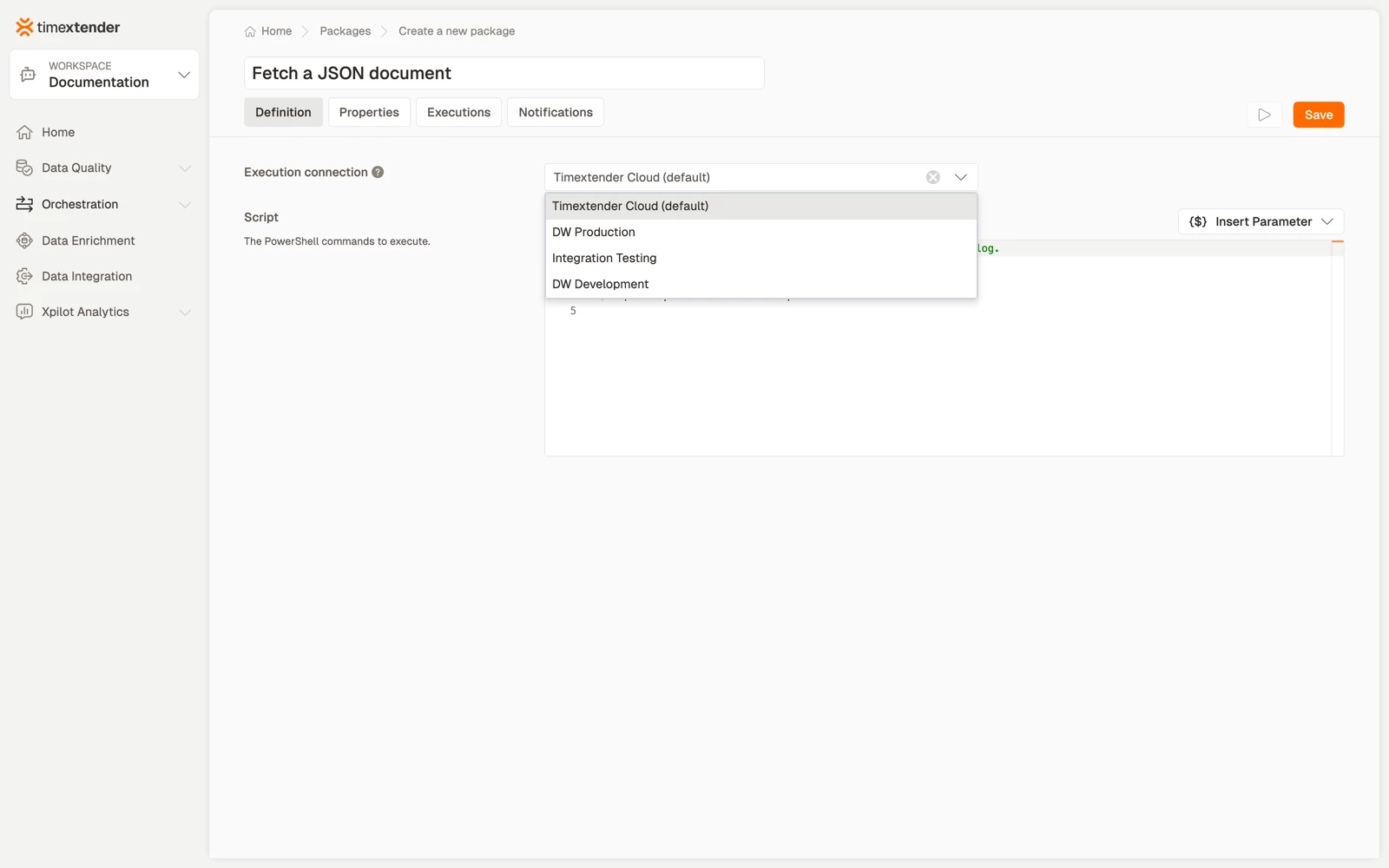
- Set the Execution connection, which decides where the script runs. TimeXtender Cloud (default) runs it in TimeXtender's cloud; selecting a gateway runs it on that machine, on your network.
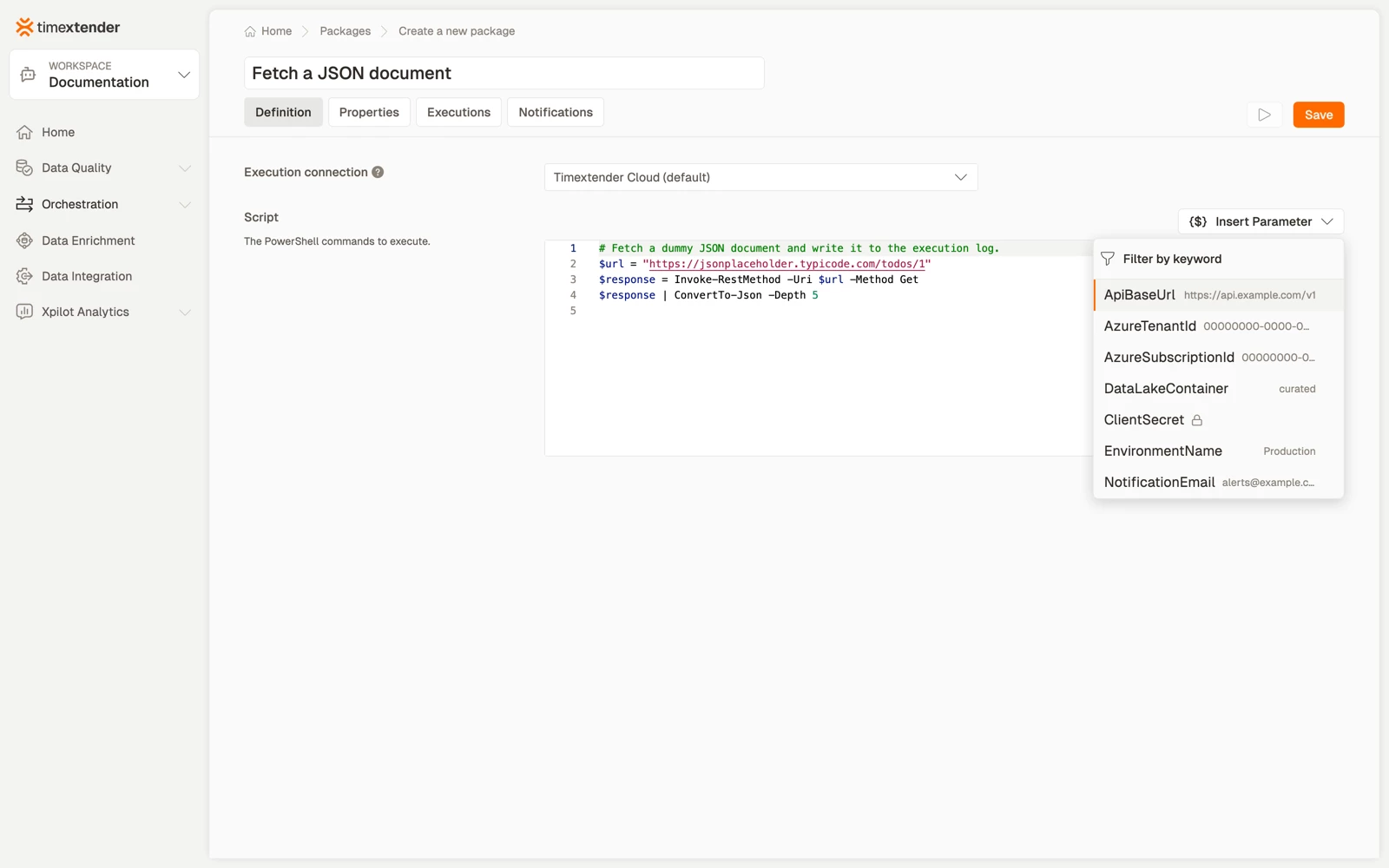
- To use a global parameter instead of a hard-coded value, select Insert Parameter at the top right of the editor, then select the parameter. The reference is inserted at the cursor.
- Select Save. A confirmation appears and the primary button changes to Publish.
A saved package is a Draft until you publish it, and a draft does not run on a schedule. The package appears in the overview with its type and status.
Reach for Insert Parameter whenever a value differs between environments or should not be readable in the script, such as a base URL, a tenant name, or an API key. The picker filters by keyword and shows each parameter's current value inline. Parameters marked as secret show a padlock instead of a value, and stay masked in the execution log.
This example script runs on either execution connection:
# Fetch a dummy JSON document and write it to the execution log.
$url = "https://jsonplaceholder.typicode.com/todos/1"
$response = Invoke-RestMethod -Uri $url -Method Get
$response | ConvertTo-Json -Depth 5
Invoke-RestMethod fetches the document and parses the JSON in one step. Piping the result to ConvertTo-Json writes it to the execution log, which is how you confirm the call actually succeeded rather than merely not failing.
Choosing where the script runs
This decision determines which commands are available. The rule is that a script runs with a restricted set of commands when it has no execution connection and the installation is not on-premises. Otherwise it runs unrestricted.
| Execution connection | Installation | What the script can do |
|---|---|---|
| TimeXtender Cloud (default) | Cloud | Restricted to the allow-listed commands below |
| A gateway | Cloud | Unrestricted, on the gateway machine |
| Either | On-premises | Unrestricted |
On TimeXtender Cloud: the allow-list
Scripts running in TimeXtender Cloud may use these commands and nothing else: ConvertFrom-Json, ConvertTo-Json, Get-Date, Get-Random, Invoke-RestMethod, Invoke-WebRequest, New-Object, Out-Default, Select-Object, Start-Sleep, Where-Object, Write-Output, Write-Warning.
The language itself is not restricted. Variables, if, foreach, try/catch, pipelines, string operations and arithmetic all work. It is cmdlets that are limited. That covers a large share of real orchestration glue: anything that talks HTTP, shapes JSON, picks values out of a response, or writes to the log.
What it rules out is anything touching the machine or the network beyond HTTP: no Get-ChildItem, no Test-Path, no Copy-Item, no New-Item, no Start-Process, no Invoke-Sqlcmd, no Send-MailMessage, and no Az or SqlServer modules.
If a script uses something else, the run fails with a message naming the first command that was refused:
The following PowerShell command is not allowed: Test-PathThis is a policy decision rather than a missing module, so installing something will not change it. Move the script to a gateway instead.
On a gateway: unrestricted
With a gateway selected, the script runs on that machine with the full command set, as the identity the gateway service runs under. Choose a gateway when the script needs to:
- read or write files, including network shares
- reach a system that is not exposed to the internet
- run an executable, or use a module such as
SqlServerorAz - act as a specific Windows identity
The trade-off is that you now own that machine: PowerShell version, installed modules, service account permissions and file system layout are all yours to keep working. A script that runs on your laptop can still fail on the gateway because the service account cannot see the share, which is the most common cause of a package that works locally and not on the gateway.
A rule of thumb
Start with TimeXtender Cloud. It has nothing to install, nothing to patch and no machine to keep alive. Move to a gateway when the allow-list blocks the job, rather than pre-emptively.
Examples
Fetch a document from a REST API, cloud
$response = Invoke-RestMethod -Uri "https://api.example.com/v1/status" -Method Get
$response | ConvertTo-Json -Depth 5
Fail the package when an API reports a problem, cloud
Throwing makes the package fail, which is what stops a dependent step in a process map from running against bad data.
$health = Invoke-RestMethod -Uri "https://api.example.com/v1/health" -Method Get

if ($health.status -ne "ok") {
    throw "Upstream API reported status '$($health.status)'"
}

Write-Output "Upstream API healthy"
Post a notification to a webhook, cloud
$payload = @{ text = "Nightly load finished at $(Get-Date -Format 'u')" } | ConvertTo-Json

Invoke-RestMethod -Uri $webhookUrl -Method Post -ContentType "application/json" -Body $payload
Keep $webhookUrl in a secret global parameter rather than in the script, because it is a credential in URL form.
Poll an API until a job finishes, cloud
$deadline = (Get-Date).AddMinutes(15)

do {
    Start-Sleep -Seconds 30
    $job = Invoke-RestMethod -Uri "https://api.example.com/v1/jobs/$jobId" -Method Get
    Write-Output "Job state: $($job.state)"
} while ($job.state -eq "running" -and (Get-Date) -lt $deadline)

if ($job.state -ne "succeeded") {
    throw "Job $jobId ended as '$($job.state)'"
}
Set the package Timeout as well. Start-Sleep loops are how a package ends up running until something stops it.
Wait for a file to land, then check it is not empty, gateway
This needs a gateway, because Test-Path and Get-Item are not on the cloud allow-list.
$path = "\\fileserver\dropbox\sales-orders.csv"
$deadline = (Get-Date).AddMinutes(10)

while (-not (Test-Path $path) -and (Get-Date) -lt $deadline) {
    Start-Sleep -Seconds 20
}

if (-not (Test-Path $path)) { throw "File never arrived: $path" }
if ((Get-Item $path).Length -eq 0) { throw "File arrived but is empty: $path" }

Write-Output "File ready: $path"
Archive yesterday's files after a load, gateway
$archive = "D:\data\archive\$(Get-Date -Format 'yyyy-MM-dd')"
New-Item -ItemType Directory -Path $archive -Force | Out-Null
Move-Item -Path "D:\data\incoming\*.csv" -Destination $archive

Write-Output "Archived to $archive"
Best practices
- Write something to the log on the happy path. A package that succeeds silently tells you nothing six weeks later. One
Write-Outputline naming what was done is enough. - Throw on failure rather than returning quietly. A script that swallows an error still reports success, and the next step in the process map runs against data that is not there.
- Put anything environment-specific in a global parameter. URLs, tenant names and credentials belong outside the script, so the same package can be promoted between environments unchanged.
- Set a timeout on anything that waits. Polling loops and network calls are the two things that hang.
- Keep scripts short and single-purpose. Two packages wired together in a process map are easier to retry and to read in an execution log than one script that does both jobs.
- Do not use a package as a scheduler. If the work needs to happen at a time, use a schedule.
Start-Sleepis not a schedule.
Troubleshooting
"The following PowerShell command is not allowed: X" The script is running in TimeXtender Cloud and X is not on the allow-list. Select a gateway as the execution connection, or rewrite the step using allowed commands.
The package completes but nothing happened. A script with no executable statements does not run. A script that is only comments saves fine but does nothing, so check the script has at least one real statement.
It works on my machine but fails on the gateway. Compare identities: the gateway runs as its service account, not as you. Check that account can reach the path or system in question, and that any module the script imports is installed on the gateway.
Nothing appears in the execution log. Only standard output is captured. Values left on the pipeline without being written, or sent to Write-Host, may not appear. Use Write-Output, or pipe to ConvertTo-Json.
The package will not save. Hover Save to see what is missing. For this type it is almost always an empty script.
Related articles
- Execution connections
- Installing an execution connection
- PowerShell script exit code not recognized
- Create an Azure PowerShell package
