

Create an Azure Data Factory package
An Azure Data Factory package triggers a pipeline in one of your data factories and waits for it to finish. Use it to put an existing Azure Data Factory pipeline into an orchestration flow, so that what happens before and after it is governed in one place.
The package waits, and inherits the pipeline's outcome. The package polls the pipeline run until it completes, and reports success only when Azure reports Succeeded. Any other final state fails the package, so a downstream step in a process map does not run on a failed load. Allow for the pipeline's normal runtime when you set the package timeout.
Prerequisites
- An Azure App Registration data provider in the workspace whose service principal can see the data factory. The subscription, resource group, factory and pipeline are all discovered from that provider.
Selecting a Data provider loads its factories, and selecting a factory loads that factory's pipelines. If either list comes back empty, the service principal cannot see the resource. See Troubleshooting below.
Create the package
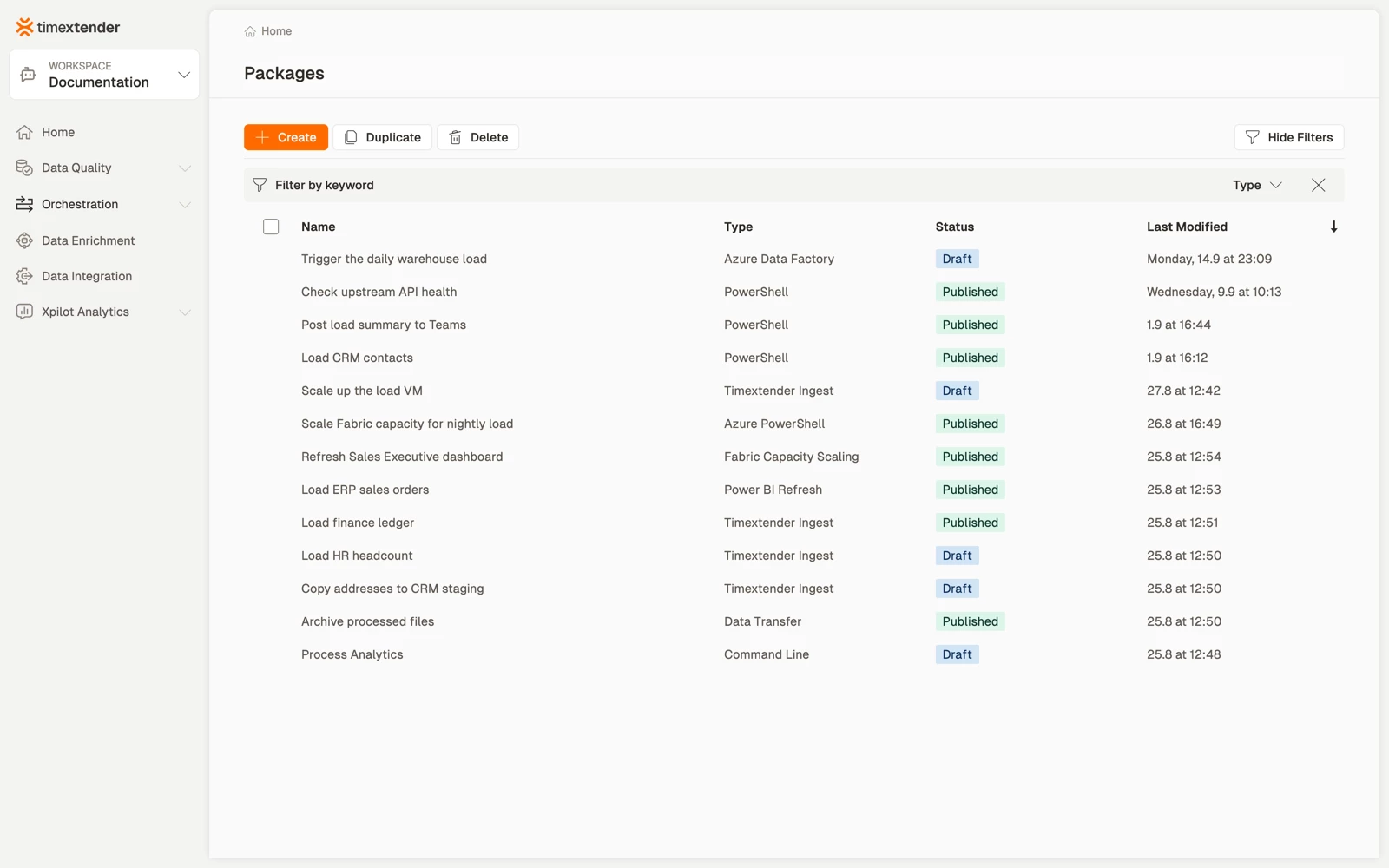
- Go to Orchestration > Packages.
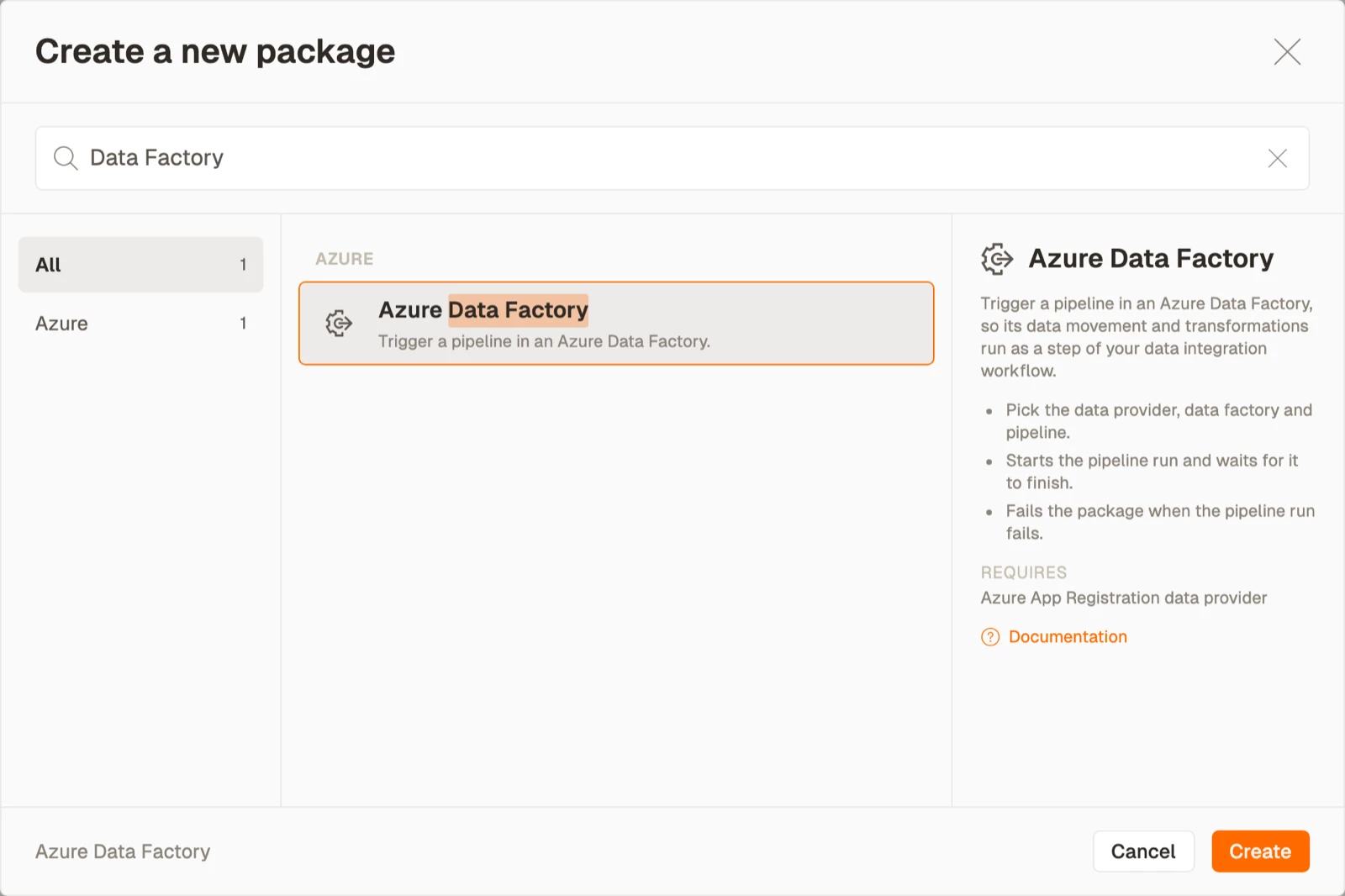
- Select Create, then select Azure Data Factory from the Azure area.
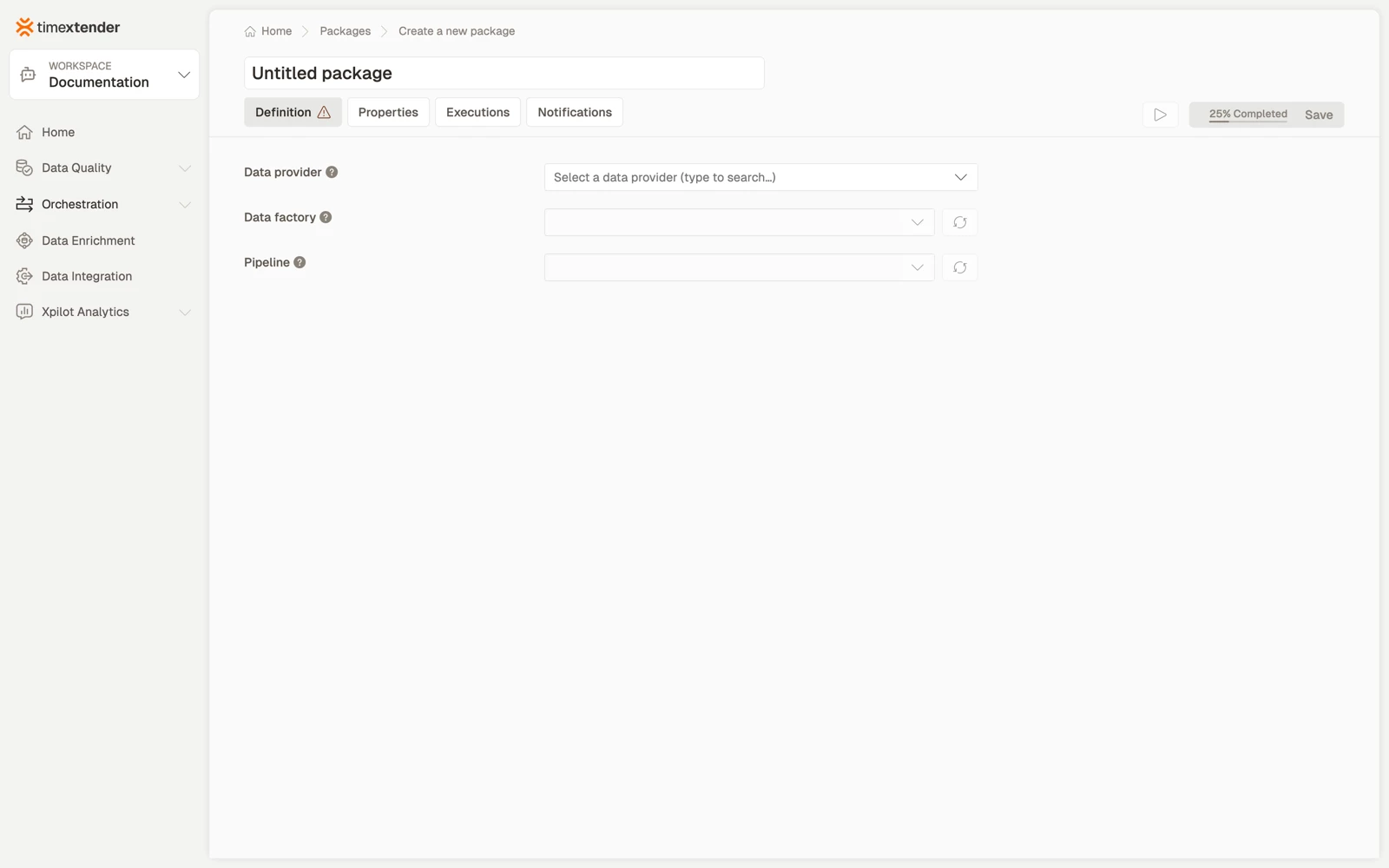
- Enter a Name that says what the pipeline achieves rather than what it is called in Azure, for example "Trigger the daily warehouse load" rather than "Run adf-pipeline-3".
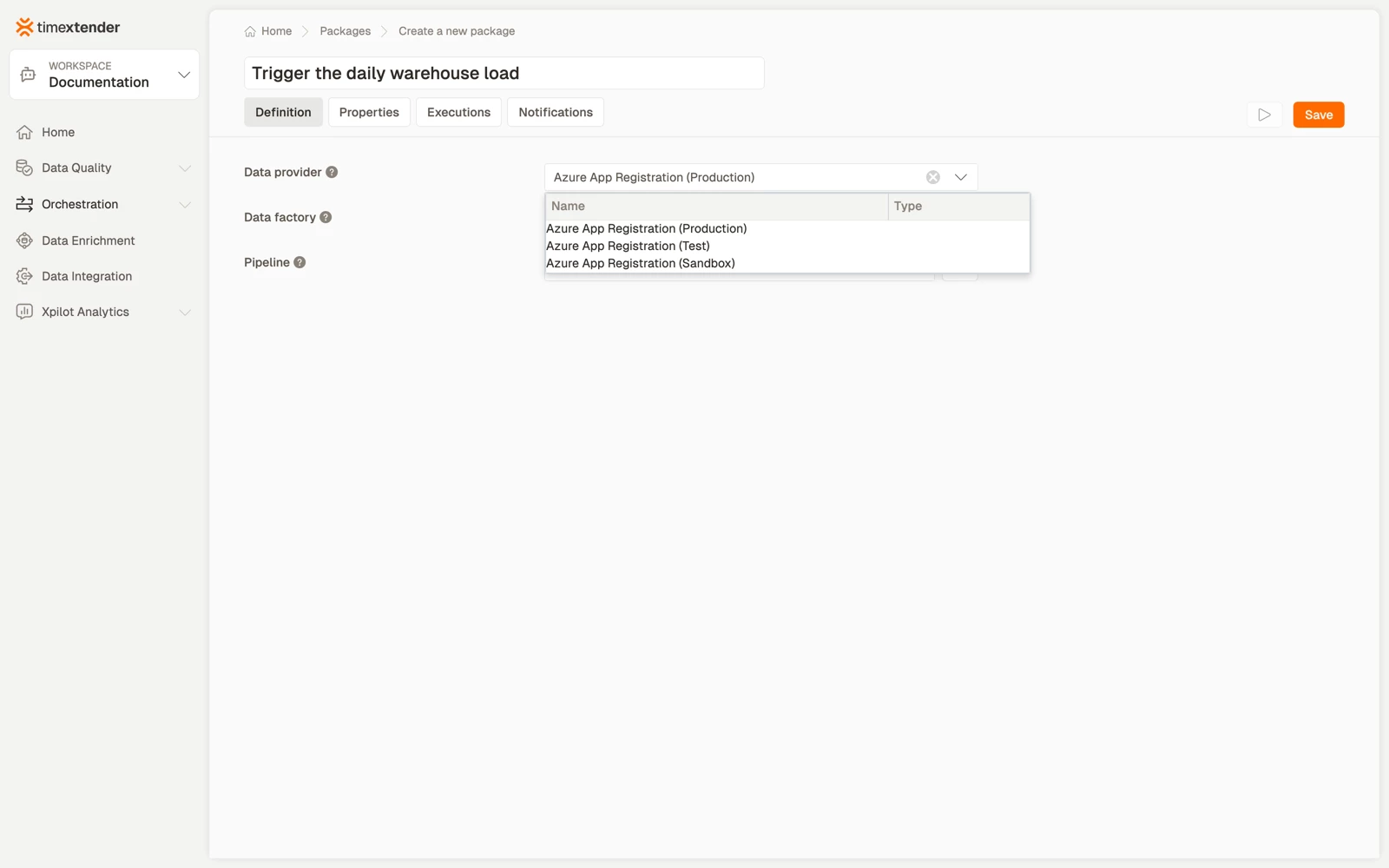
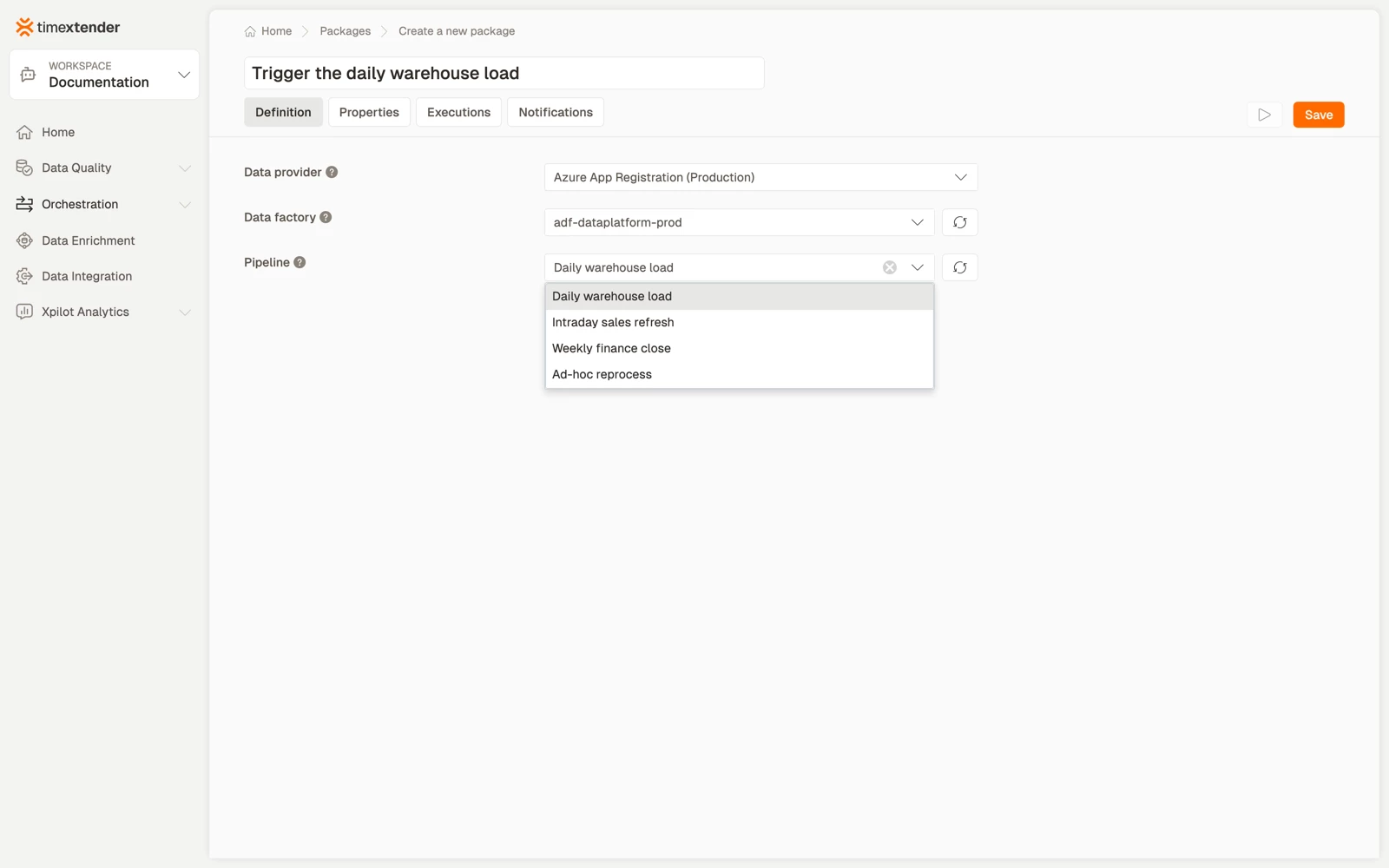
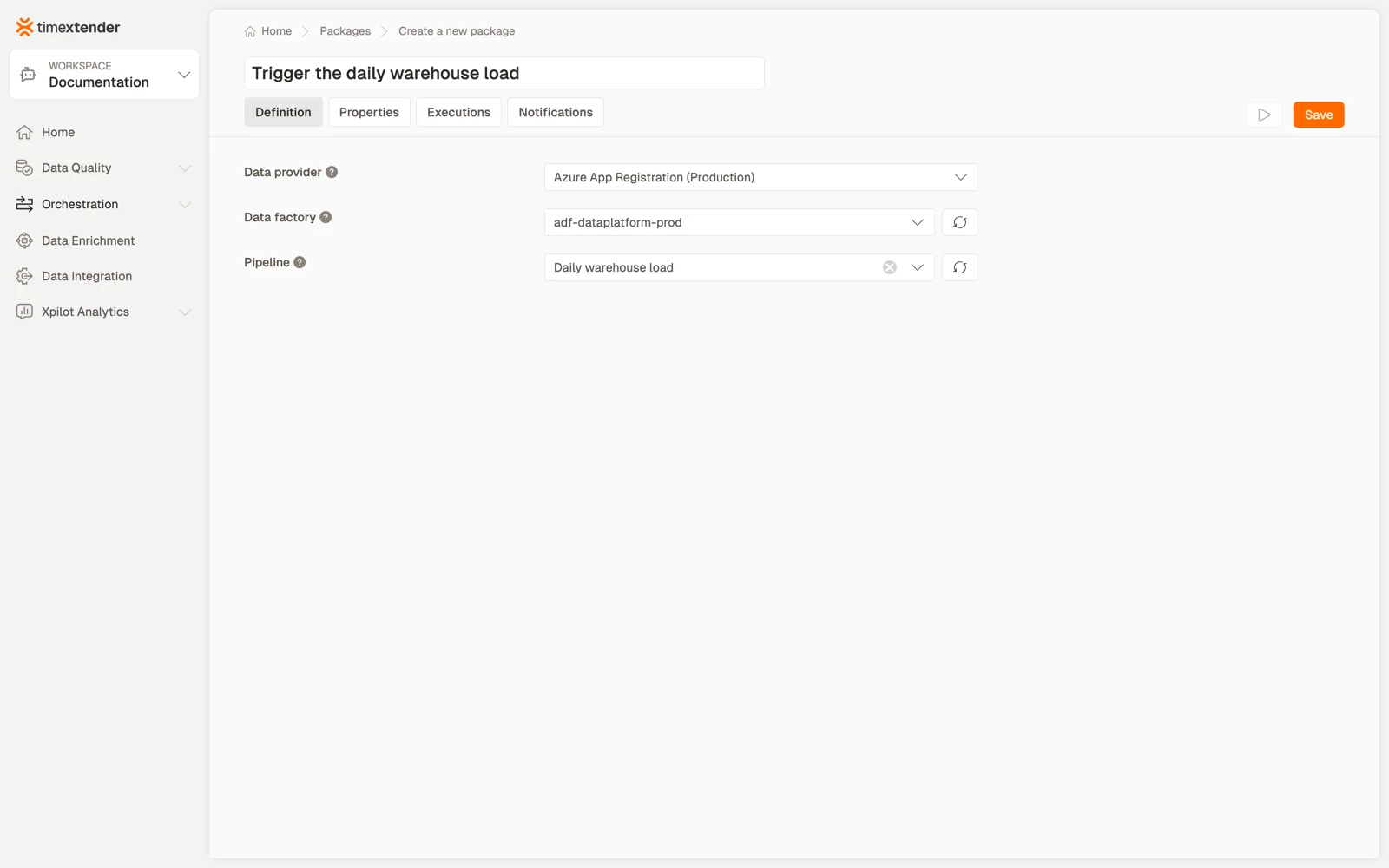
- Select a Data provider. This is the Azure App Registration whose service principal connects to Azure Data Factory, and it loads the factory and pipeline lists.
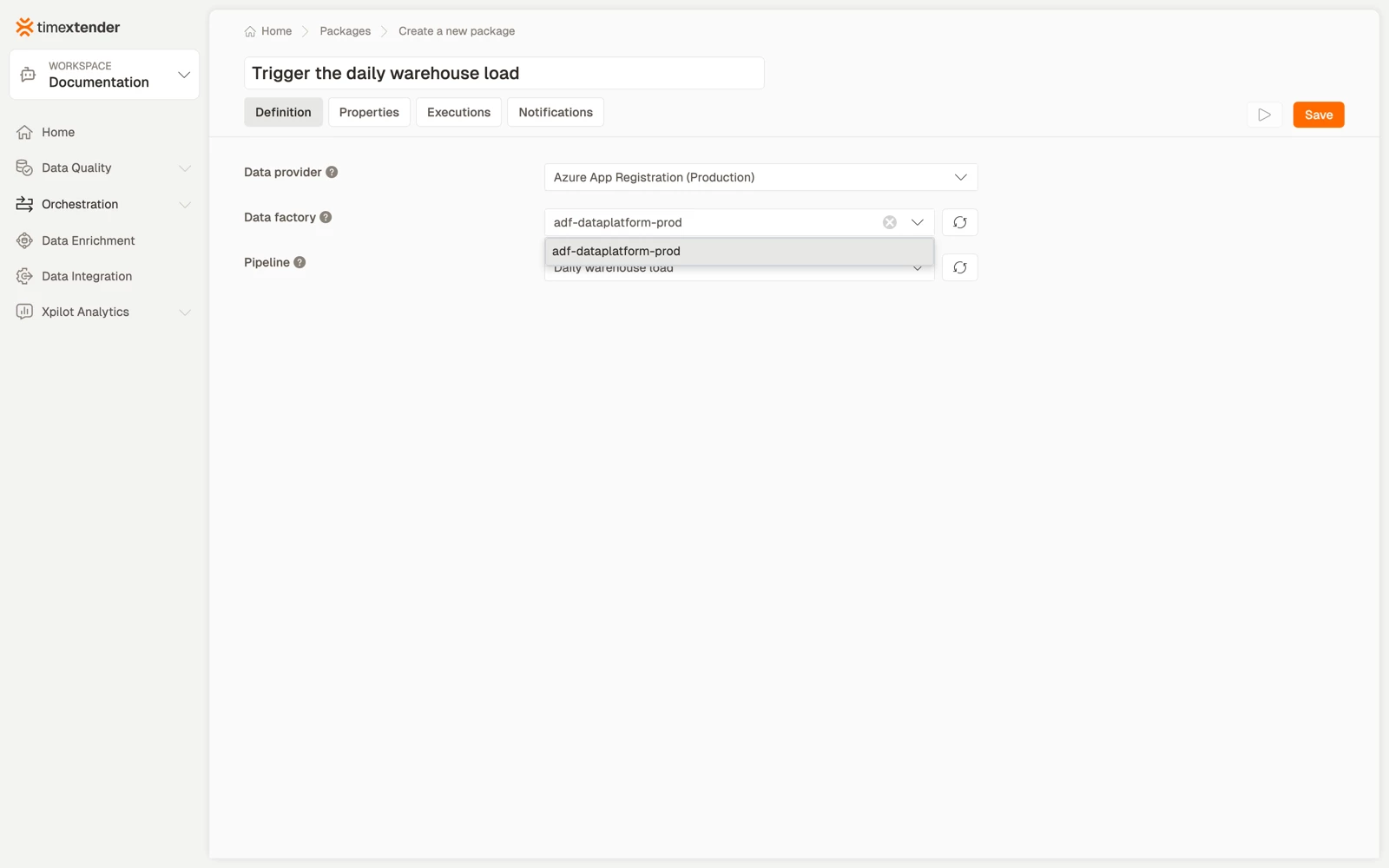
- Select the Data factory. Select Refresh to re-read the list if a factory was created in Azure after the page loaded.
- Select the Pipeline. The list is loaded for the selected factory and also has a refresh button.
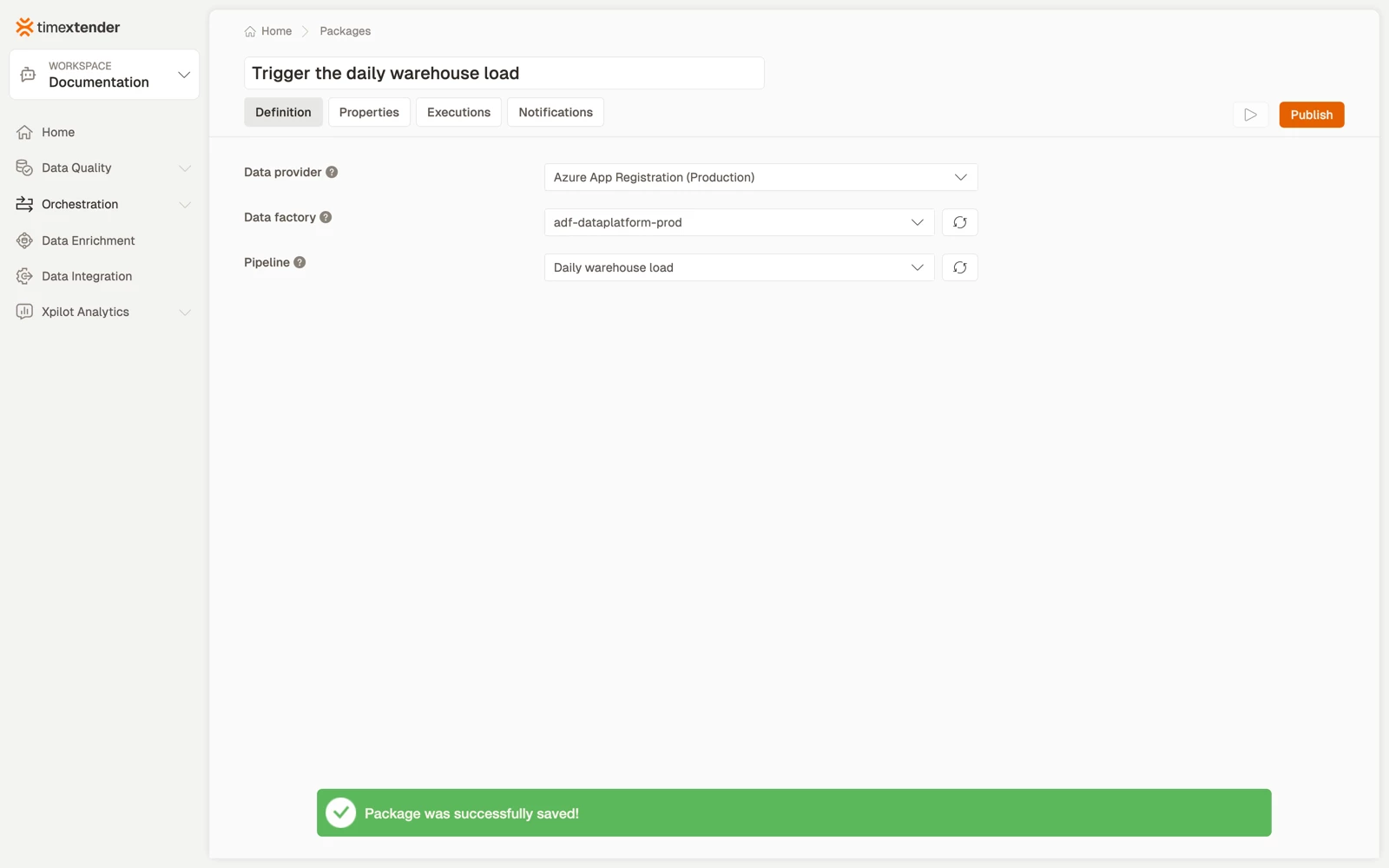
- Select Save. The package is stored as a Draft until you publish it.
Choosing what belongs in Azure Data Factory and what belongs here
The two tools overlap, so it is worth deciding the division deliberately.
Keep inside one pipeline the work that shares a failure boundary: copy activities that must all succeed or all be retried together, and anything that depends on features specific to Azure Data Factory such as data flows or integration runtimes.
Split into separate packages the steps that different people care about, or that you want to retry independently. A failed pipeline is one red package in the orchestration log, while three packages tell you which third of the night's work failed.
A useful pattern is one package per pipeline, wired together in a process map, so the dependencies between pipelines are visible in TimeXtender Orchestration rather than encoded in Azure Data Factory triggers.
Best practices
- Name the package for the outcome. The pipeline name is already recorded on the Definition tab, and the package name is what appears in schedules, logs and process maps.
- Set a timeout longer than the pipeline's normal runtime, since the package waits for completion. Too short a timeout fails runs that were going to succeed.
- Give the service principal least privilege. It needs to read the factory and start the pipeline, not to contribute to the resource group.
- Fill in the Action field. Go to Properties > Action. A note such as "Check the run history in the Azure portal for pipeline X" saves the next person a lookup.
Troubleshooting
The factory list is empty. The service principal cannot see any data factory in its subscriptions. Check that the App Registration has a role assignment on the factory or its resource group, then select Refresh.
The pipeline list is empty but the factory is listed. The principal can see the factory but cannot enumerate its pipelines. That is usually a narrower role than intended. Use Data Factory Contributor, or a custom role that includes pipeline read.
A pipeline you just created is not listed. Select the Refresh button next to the field. The list is fetched when the page loads.
The package fails but the pipeline succeeded in Azure. Check which run the log names. The package reports the run it started, and a pipeline that also runs on its own Azure Data Factory trigger can succeed separately while the triggered run failed.
Authentication failures after the package has been working. The client secret on the data provider has expired. Azure App Registration secrets have a finite lifetime.
Reference
| Field | Required | Notes |
|---|---|---|
| Execution connection | No | Defaults to TimeXtender Cloud |
| Data provider | Yes | Azure App Registration. Loads the factory list |
| Data factory | Yes | Loaded from Azure for the provider. Has a refresh button |
| Pipeline | Yes | Loaded for the selected factory. Has a refresh button |
Validation messages, if something is missing: Please select a data provider, Please select a data factory, Please select a pipeline. Hover Save to see which apply.
What is stored
The saved package records the data provider, the factory and the pipeline name. The execution engine additionally resolves and records the subscription id and resource group from the factory, and reads the tenant, application id and secret from the data provider at run time rather than storing them on the package.
Because credentials are resolved at run time, rotating the secret on the data provider takes effect without editing the packages that use it.
Execution semantics
The engine starts the pipeline run, then polls its status, waiting between checks until the run reaches a final state. Exit code 0 is returned only for Succeeded. Every other final state exits non-zero and fails the package.
Related articles
- Packages overview
- Create a Power BI Refresh package, the other trigger-and-wait Azure type
- Trigger Fabric data pipelines with TimeXtender Orchestration
