

Create an Azure PowerShell package
An Azure PowerShell package runs a PowerShell script with the Az module inside an Azure context that the package sets up for you. Use it for the Azure housekeeping that has no purpose-built package type, such as tagging resources after a load, checking a storage account, or calling an Azure API that nothing else covers.
Azure PowerShell or PowerShell? Searching the picker for PowerShell returns two types. Azure PowerShell, described on this page, authenticates to Azure for you from a data provider and hands the script an Azure context. PowerShell runs a plain script with no credential and no Azure involvement. If your script does not touch Azure, use the plain type: it needs no data provider.
Prerequisites
- An Azure App Registration data provider in the workspace.
- The service principal able to enumerate resource groups in the subscription. Resource group is required and accepts a selection only, so without that permission the package cannot be completed. See Troubleshooting below.
- The principal granted whatever rights the script itself uses, which is usually more than reading.
What the package gives your script
Two variables, supplied from what you select in the editor.
| Variable | Contains |
|---|---|
$subscriptionId | The id of the selected subscription |
$resourceGroupName | The name of the selected resource group |
It also supplies authentication. The engine signs in using the data provider's service principal before your script runs, so the script starts already connected.
The script must not sign in itself
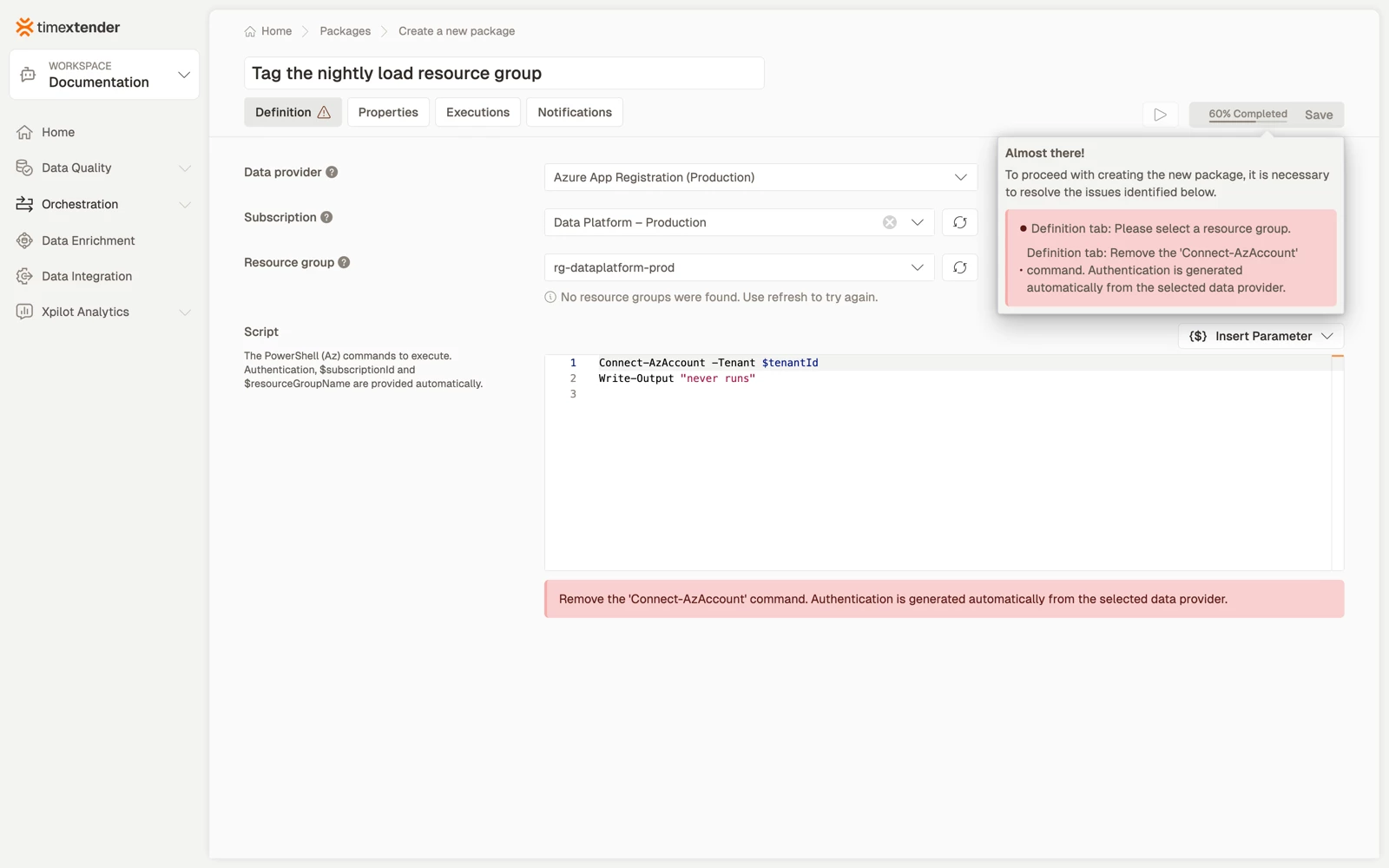
Because authentication is generated for you, a script that authenticates is rejected in the editor, before you can save:
Remove the 'Connect-AzAccount' command, authentication is generated automatically from the selected data provider.
Five commands are blocked, matched without regard to case:
Connect-AzAccount, Disconnect-AzAccount, az account, az login, az logout
Create the package
- Go to Orchestration > Packages.
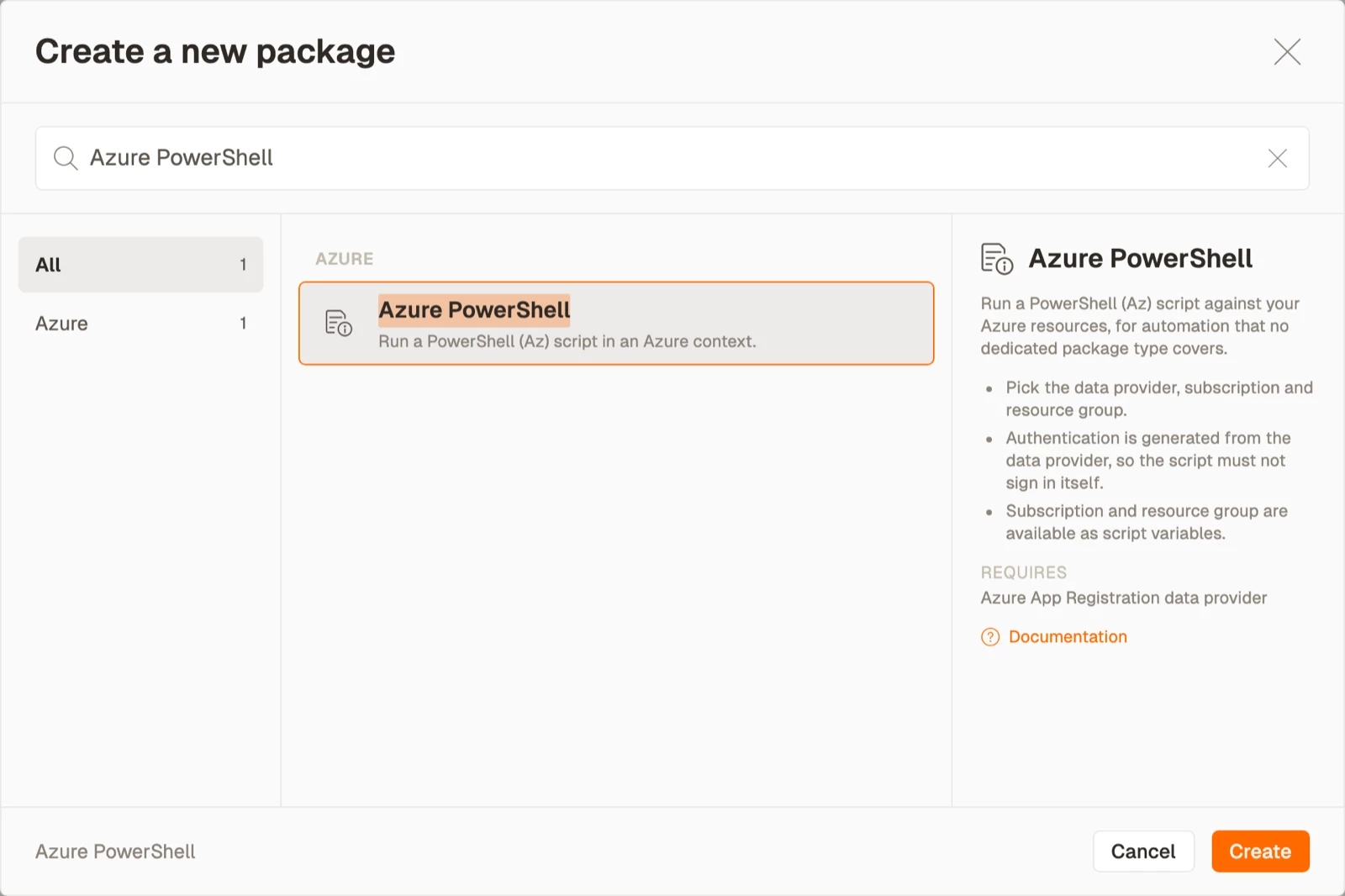
- Select Create, then select Azure PowerShell from the Azure area.
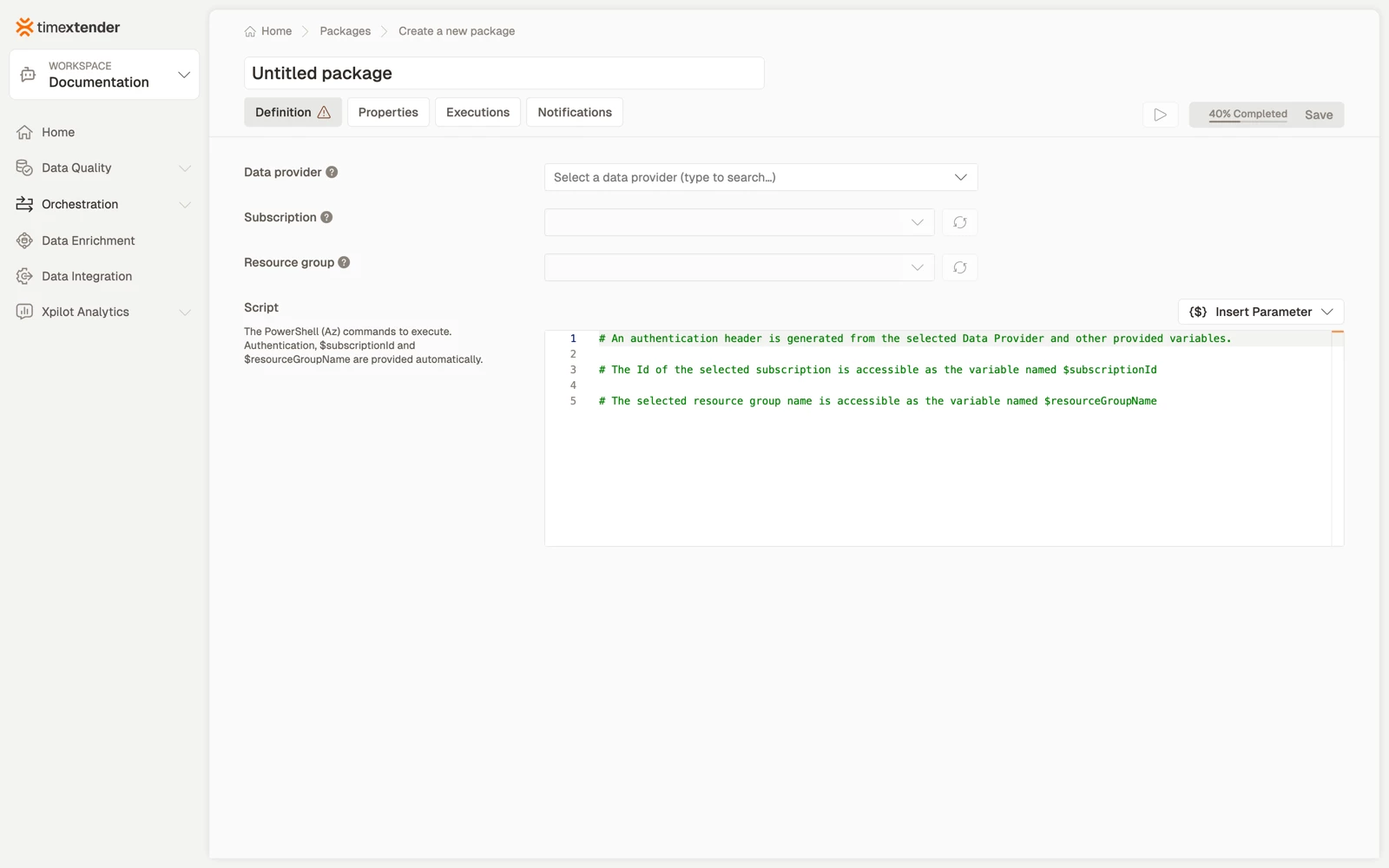
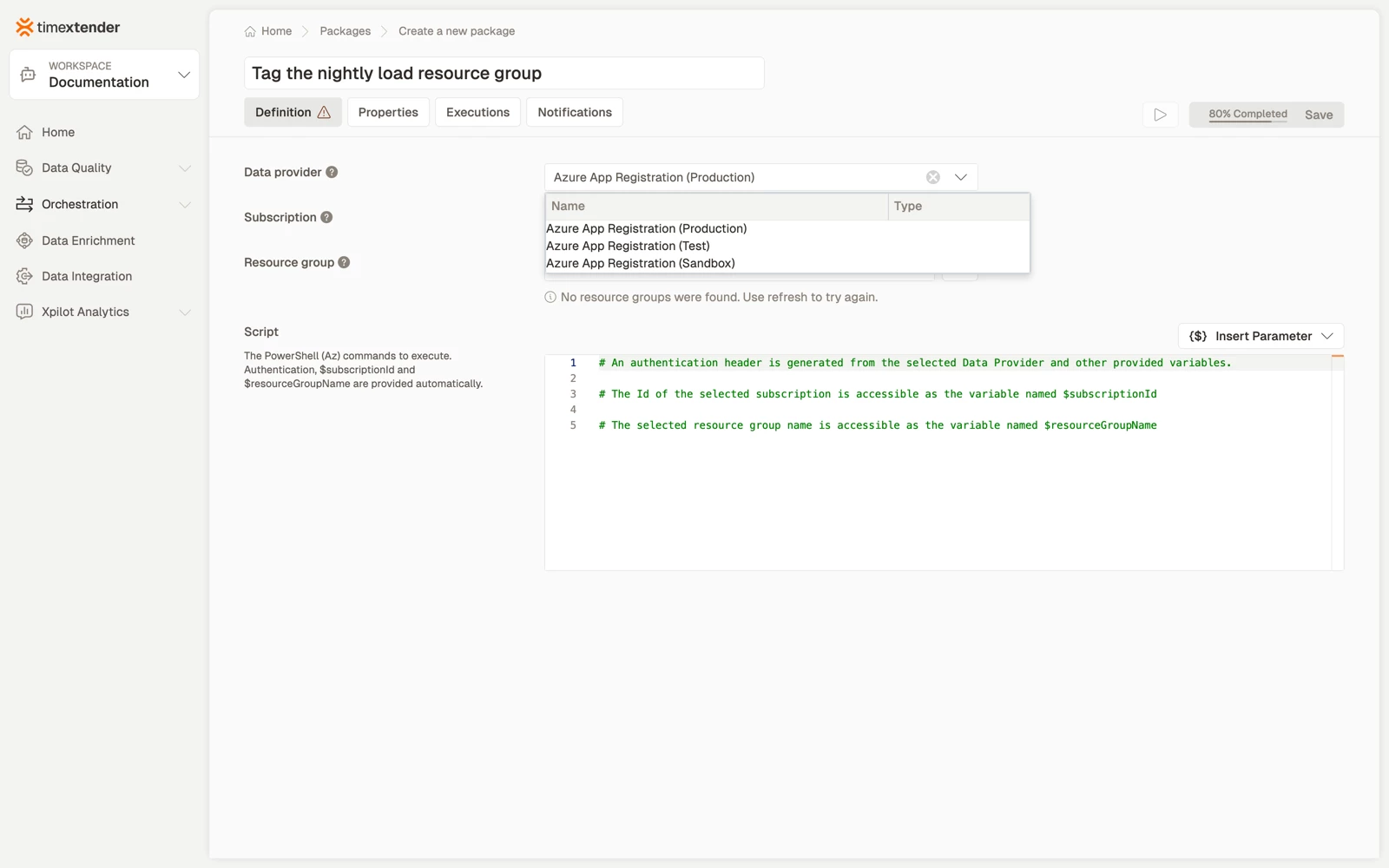
- Enter a Name for the package.
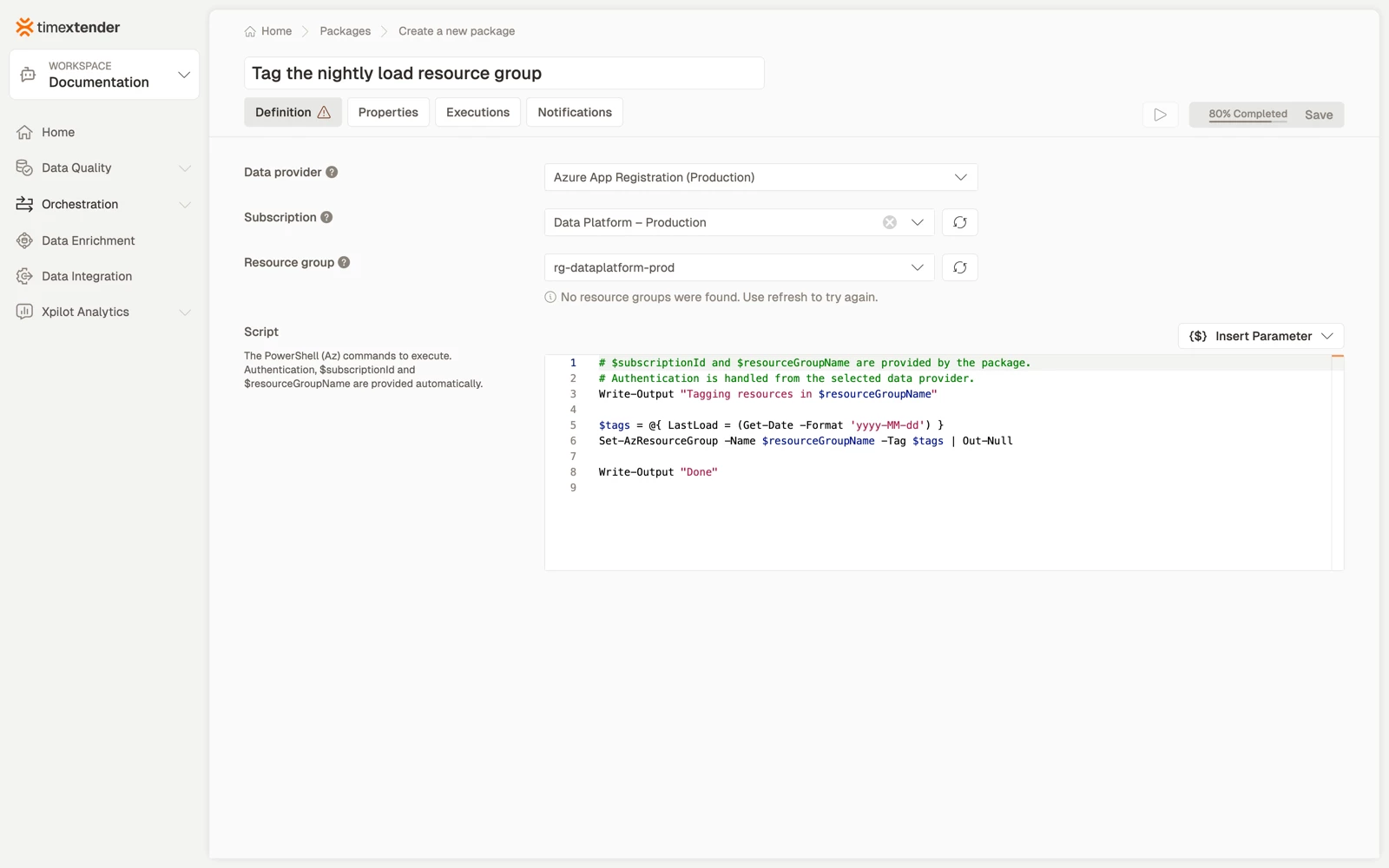
- Select a Data provider. This is the Azure App Registration whose service principal authenticates against Azure. Subscription and Resource group read Select a data provider first until a provider is chosen.
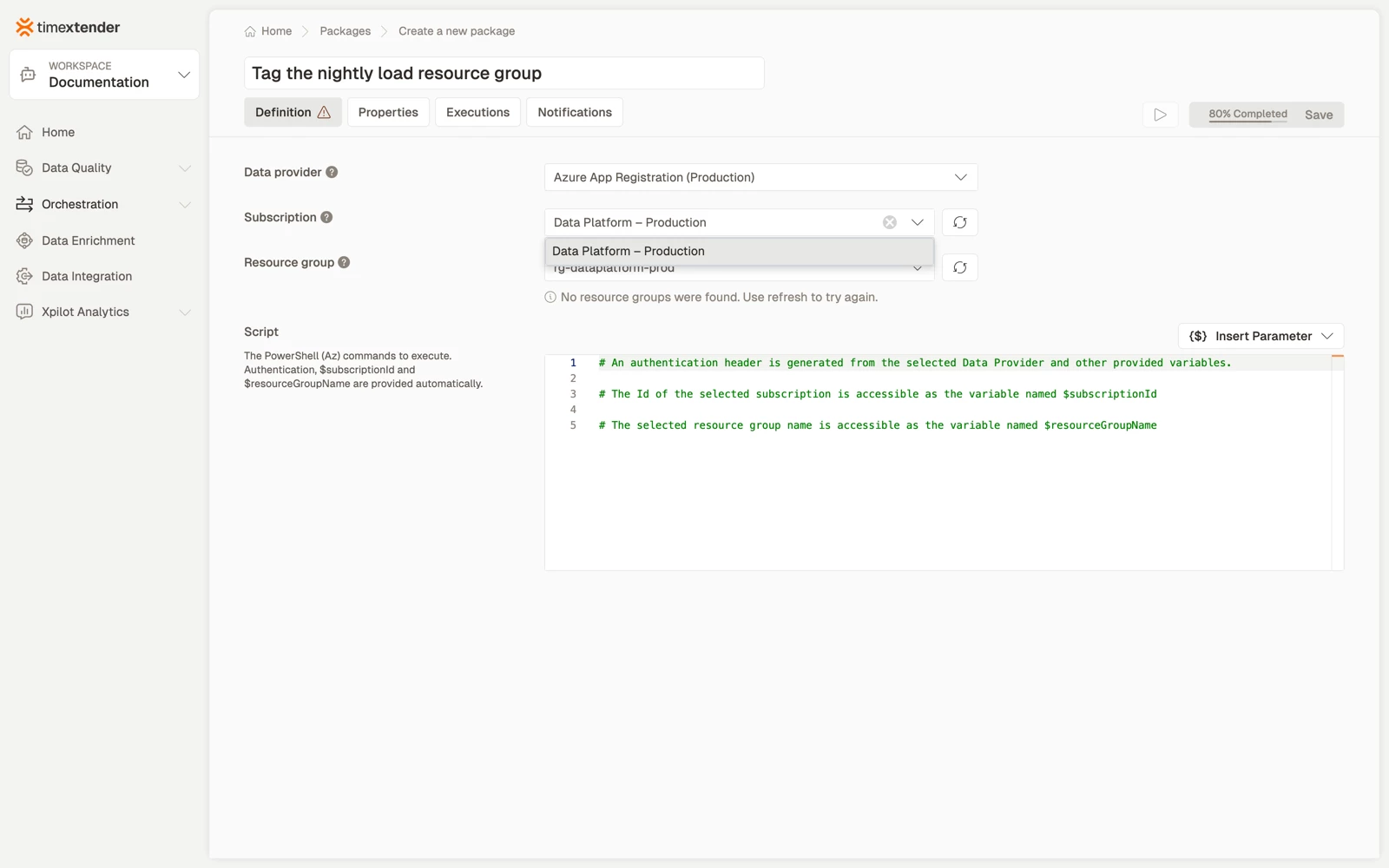
- Select the Subscription. Its id is available in the script as
$subscriptionId. - Select the Resource group. Its name is available in the script as
$resourceGroupName. Both lists have a refresh button, for anything created in Azure after the page loaded.
Write the script and save
- Enter the PowerShell (Az) commands in the Script field. Authentication,
$subscriptionIdand$resourceGroupNameare provided for you. - To use a global parameter, select Insert Parameter above the editor and select the parameter.
- Select Save. The package is stored as a Draft. Publish it to make it runnable on a schedule.
If the script contains one of the blocked sign-in commands, saving is blocked and the message names the command to remove.
Examples
Tag a resource group after a load
$tags = @{ LastLoad = (Get-Date -Format 'yyyy-MM-dd') }
Set-AzResourceGroup -Name $resourceGroupName -Tag $tags | Out-Null

Write-Output "Tagged $resourceGroupName"
Fail the package when something is not as expected
$account = Get-AzStorageAccount -ResourceGroupName $resourceGroupName -Name "salesextracts"

if (-not $account) {
    throw "Storage account 'salesextracts' not found in $resourceGroupName"
}

Write-Output "Storage account present"
Act on every VM in the resource group
$vms = Get-AzVM -ResourceGroupName $resourceGroupName

foreach ($vm in $vms) {
    Write-Output "Found VM: $($vm.Name)"
}
For starting and stopping VMs on a schedule, use an Azure Virtual Machine Start/Stop package instead. A purpose-built type saves you maintaining a script.
How success and failure are decided
Three rules govern whether an Azure PowerShell package passes.
- A non-zero exit code fails the package. A script that ends
exit 1is reported as failed. - Writing to the error stream fails the package, even if the script then completes its work and ends with
exit 0. A recoverable error logged withWrite-Errorstill fails the run. - A script with no executable statements fails immediately. That covers a blank script, and one that contains only comments.
exit, break and return are all valid in a script: in a loop, in a function, or as a final exit 0.
When a package fails, the execution log names the reason.
Best practices
- Use the supplied variables rather than hard-coding a subscription or resource group. The package already knows both, and a hard-coded id survives promotion to another environment looking correct while pointing at the wrong place.
- Fail loudly. A script that swallows its error reports success. Use
throw, or end with a non-zero exit code. - Write one confirmation line on the happy path. Standard output goes to the execution log, and a silent success tells you nothing later.
- Use a purpose-built type when one exists. Scaling, pausing and starting resources have their own package types, with validation and no script to maintain.
- Give the principal the rights the script needs, and no more. Listing resources and changing them are different grants.
Troubleshooting
The message No Resource Groups found under these credentials. The service principal cannot enumerate resource groups. Grant it subscription level Reader, or at minimum Microsoft.Resources/subscriptions/resourceGroups/read. A SQL-scoped role on its own returns an empty list. Because the field accepts a selection only, an empty list means the package cannot be saved at all.
Save is blocked and mentions a command. The script contains one of the blocked sign-in commands: Connect-AzAccount, Disconnect-AzAccount, az login, az logout or az account. Delete it. TimeXtender signs in for you using the data provider you selected, and the message names the exact command to remove.
The package fails within seconds saying there are no statements to run. The script is blank, or contains only comments, including the pre-filled example template that a new package starts with. Saving with the untouched template shows Please enter a script.
The script fails with an authorisation error from Azure. Authentication succeeded and authorisation did not. The principal can reach Azure but lacks the right for what the script does.
It worked last month and now fails immediately. The client secret on the data provider has expired. Credentials are read from the provider at run time, so fixing it there fixes every package that uses it.
Reference
| Field | Required | Notes |
|---|---|---|
| Execution connection | No | Defaults to TimeXtender Cloud |
| Data provider | Yes | Azure App Registration |
| Subscription | Yes | Fetched for the provider. Has a refresh button |
| Resource group | Yes | Fetched for the subscription. Has a refresh button. Selection only |
| Script | Yes | Comments count as content. Only a blank script blocks saving |
There are four required fields. Validation messages: Please select a data provider, Please select a subscription, Please select a resource group, Please enter a script, and the blocked-command message.
What is stored
The package stores the execution connection, the data provider, the subscription, the resource group name and the script. Credentials are not stored on the package. They are read from the data provider at run time.
Subscription and Resource group accept a selection only, and neither takes a typed value. If your service principal cannot enumerate resource groups, the package cannot be created.
Related articles
- Packages overview
- Create a PowerShell package, for scripts with no Azure context
- Create an Azure Virtual Machine Start/Stop package, and the other resource-sizing package types
