

Create an Azure Virtual Machine Start/Stop package
An Azure Virtual Machine Start/Stop package starts, restarts or shuts down a VM when it runs. Its usual job is to keep a machine running only while something needs it, for example a gateway VM that is required for the nightly load and idle for the other twenty hours.
Prerequisites
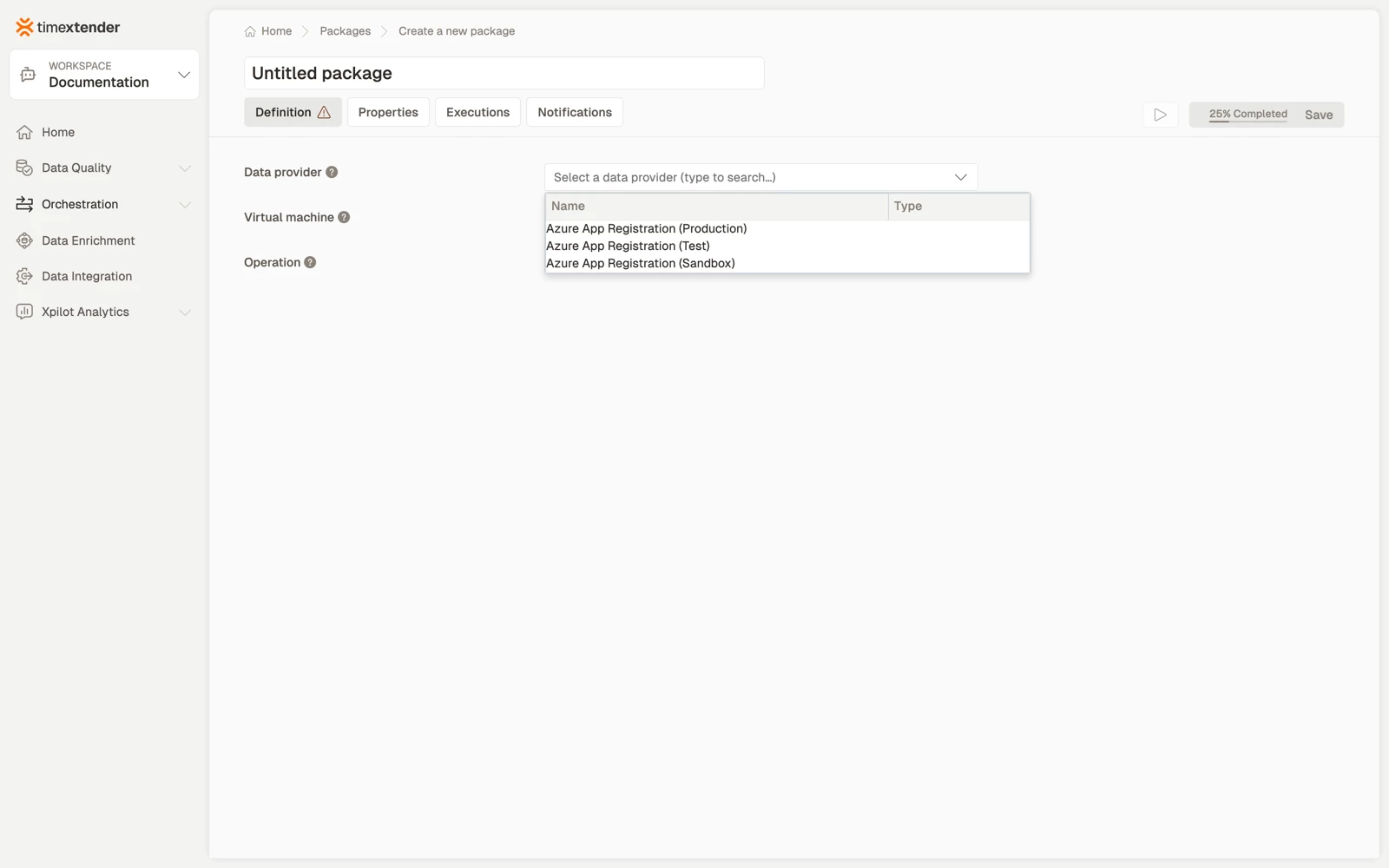
- An Azure App Registration data provider in the workspace. This is the App Registration whose service principal the package acts as, and it decides which Azure resources you can choose.
- The principal able to enumerate resource groups in the subscription. This package finds its resource that way, so without this the resource list is empty and the package cannot be completed.
- The principal needs permission to change the resource, not only to read it. Listing a resource and acting on it are different rights.
How it works
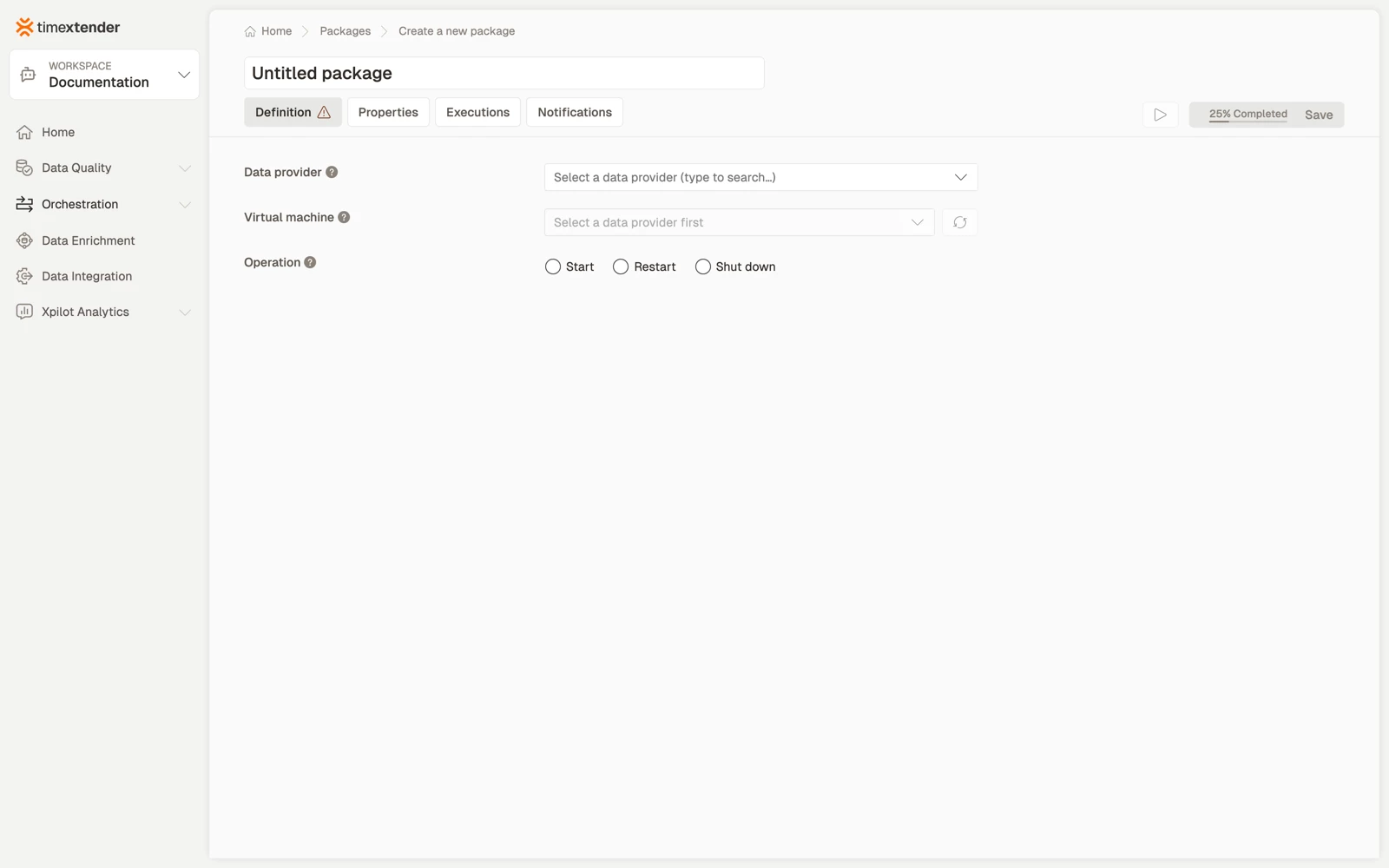
You choose a data provider, then the virtual machine to act on, then what to do to it.
When the resource list is empty, the editor names the scope it searched, for example No … were found in … this data provider can see. An empty list reflects the service principal's permissions.
Each of these packages performs one action. Starting a machine before a load and shutting it down afterwards is two packages, ordered in a process map or on a schedule. Ordering them this way is also what makes the saving visible in the execution log.
The action
The Action is what the package does to the machine when it runs.
- Shut down deallocates the machine, which is what stops you paying for compute. A VM stopped from inside the guest operating system keeps billing.
- Restart cycles the machine in place. It is for recovery rather than for saving money.
- Start brings a deallocated machine back online.
Storage keeps costing while the machine is deallocated. The saving is on compute only.
Create the package
- Go to Orchestration > Packages.
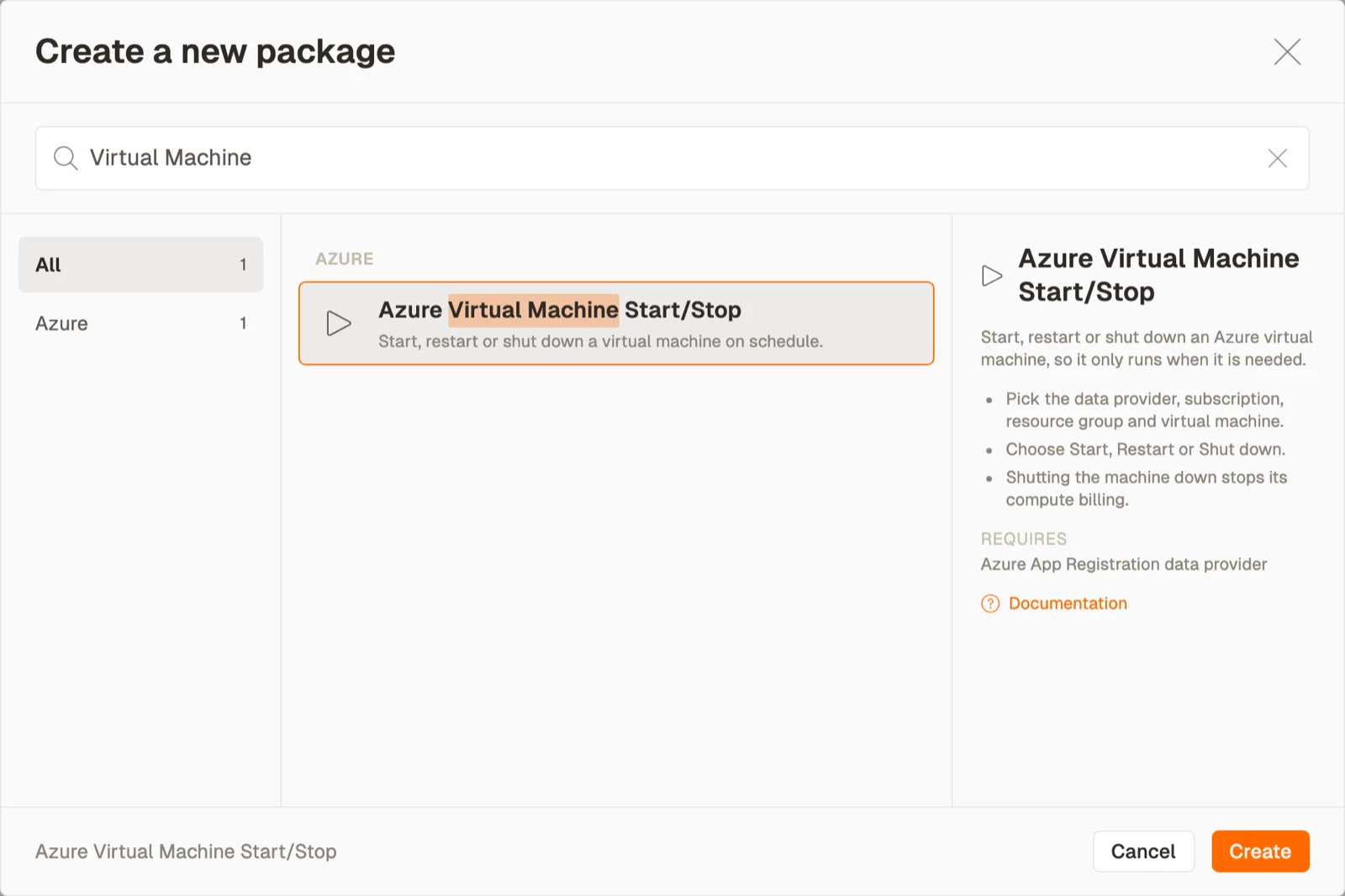
- Select Create, then select Azure Virtual Machine Start/Stop from the Azure area.
- Select a Data provider.
- Select the Resource. If the list is empty, see Troubleshooting below.
- Select the Action, either Start, Restart or Shut down.
- Select Save. The package is stored as a Draft.
A worked pattern
Use a pair of packages: Start at 22:00, and Shut down as the last step of the load's process map.
Best practices
- Pair the packages. A start with no matching shut down is how a cost optimisation exercise becomes a cost increase. Put both in the same process map.
- Order them around the work, not on a clock. A shut down scheduled for 06:00 runs whether or not the load finished. A shut down that depends on the load step does not.
- Make the down action the one that cannot be skipped. If the flow can fail between the up and down steps, arrange for the down step to run anyway.
- Give the principal least privilege, scoped to the specific resource rather than the subscription.
- Check the cost model before assuming a saving. Not every action stops billing, and the field help states which ones do.
Troubleshooting
The resource list is empty. The service principal cannot enumerate resource groups, or cannot see resources of this type. Grant subscription level Reader or Microsoft.Resources/subscriptions/resourceGroups/read, then select the refresh button. The editor's own message names the scope it searched.
The resource lists but the action fails at run time. The principal has read permission without write permission. It needs a role that can change the resource, not only see it.
The package succeeds but nothing changed. The machine was already in the target state. These actions are idempotent, which means a success does not by itself prove that anything moved.
A resource was renamed or deleted in Azure. The package stores the reference it was configured with. Reopen the package, select the resource again from the refreshed list, and save.
Reference
| Field | Required | Notes |
|---|---|---|
| Data provider | Yes | Azure App Registration. Decides which resources are selectable |
| Resource | Yes | Found through the subscription and resource group. Has a refresh button |
| Action | Yes | Start, Restart or Shut down |
| Advanced JSON | No | For settings the form does not expose |
Validation messages: Please select a data provider, Please select a virtual machine, Please select an operation.
Related articles
- Packages overview
- Create an Azure SQL Database Scaling package
- Create a Fabric Capacity Pause/Resume package
- Create a Fabric Capacity Scaling package
