

Create and assign a schedule
A schedule decides when work runs. You build the schedule once, then attach the packages, process maps or rules that should run on it, so the timing lives in one place instead of being repeated on every task.
Schedules are managed under Orchestration > Schedules.
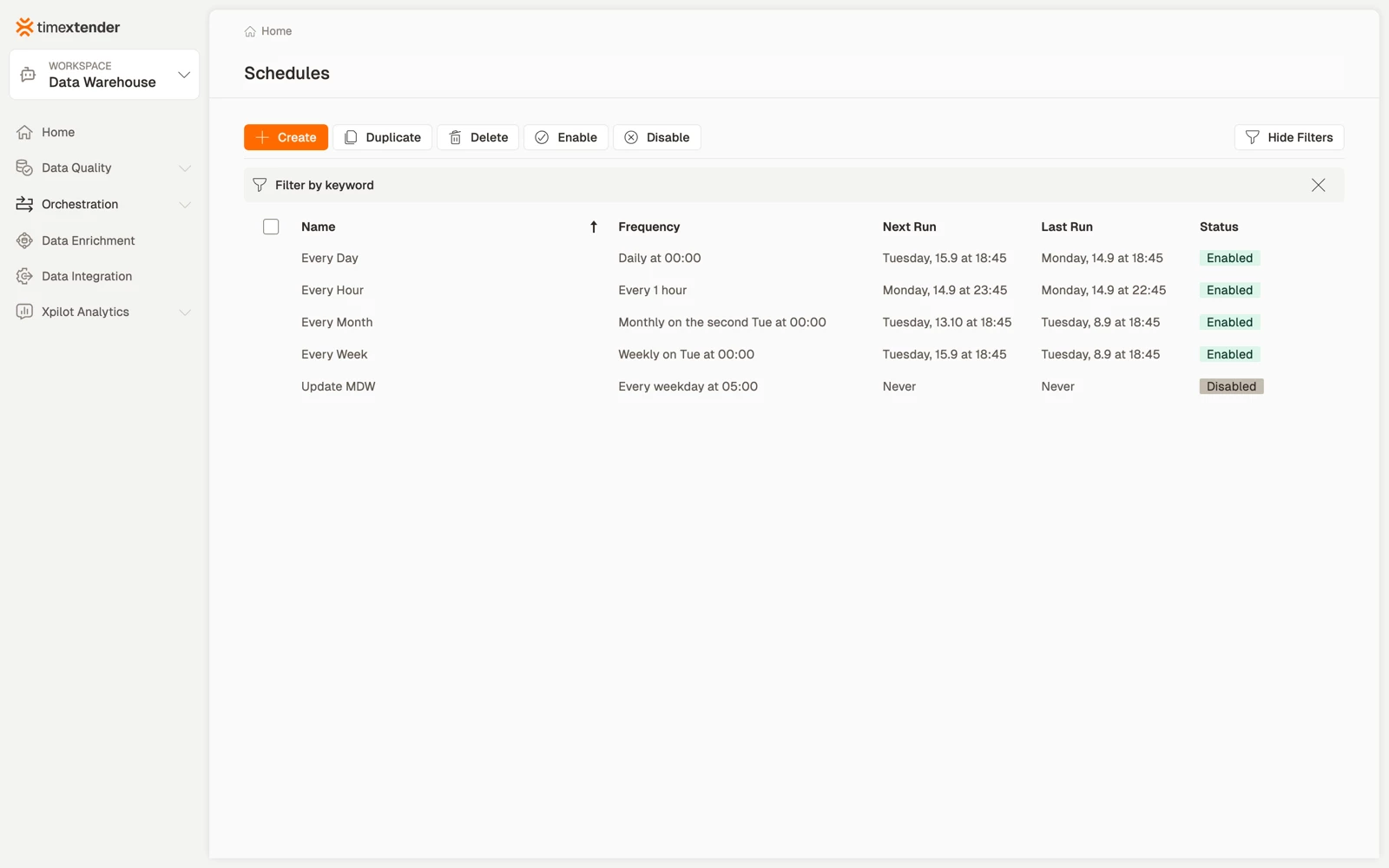
The Schedules overview
The toolbar has two actions, Enable and Disable. Both act on the rows you tick, which is how you stop a schedule for a maintenance window without deleting it and losing what it was attached to.
Create the schedule
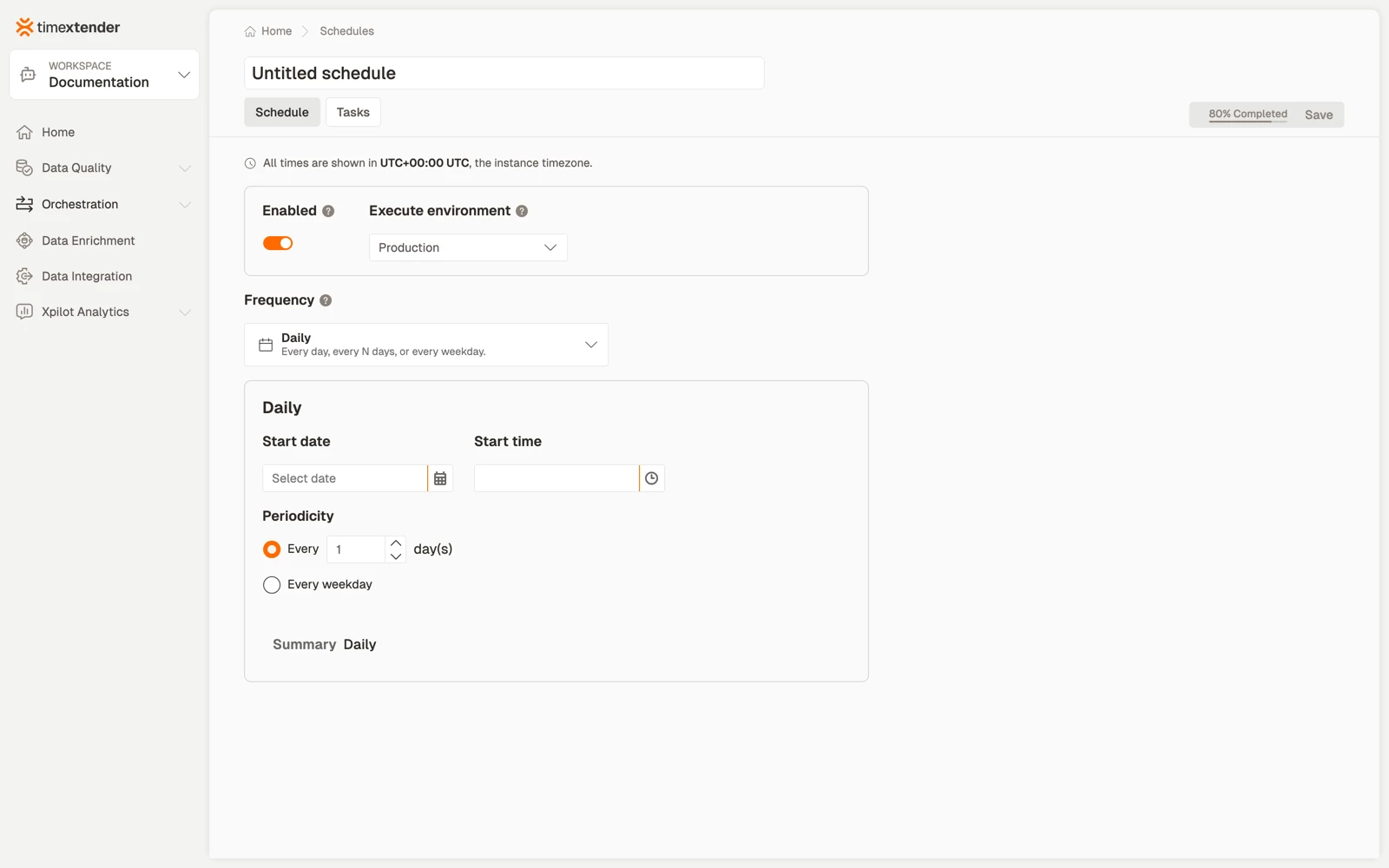
- Go to Orchestration > Schedules and select Create. A new schedule opens, enabled, belonging to one environment.
- Enter a Name. Name it for the rhythm rather than the contents, for example "Nightly warehouse load" or "Hourly CRM sync". Several tasks will share it, and a name listing today's tasks ages badly.
- Select the Environment, which decides which environment's configuration the run uses. A schedule belongs to one environment, so use separate schedules for Development, Test and Production.
- Select a frequency type, then fill in the start date and start time as well as the recurrence.
- Select Save. The schedule appears in the overview with its frequency and enabled state.
Until the start date, start time and recurrence are all set, the schedule is incomplete and Save stays unavailable. Hover it to see what is missing.
The seven frequencies
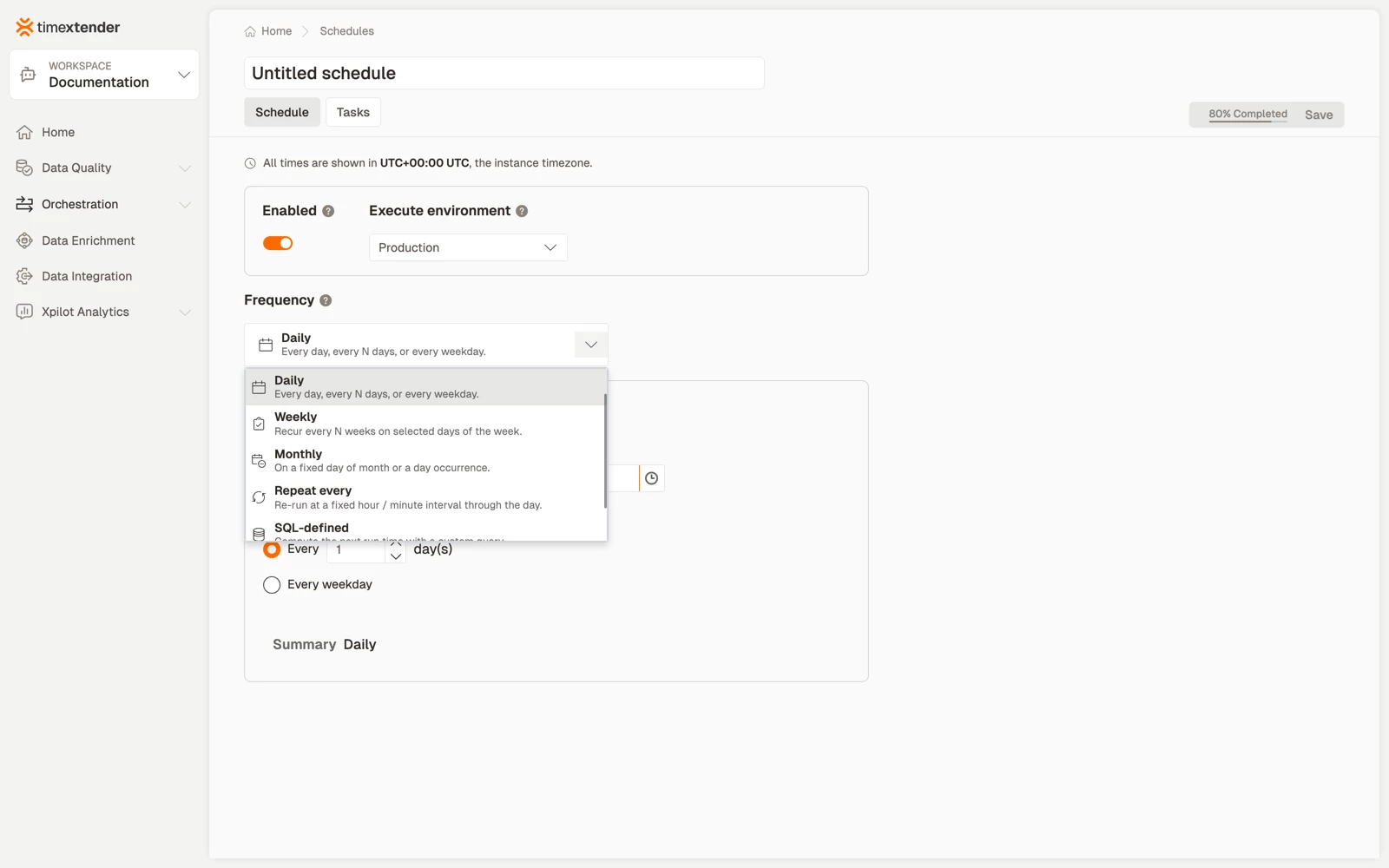
Each frequency type has a one-line description in the list:
| Frequency | Use it for |
|---|---|
| One-time | A single run at a date and time, after which the schedule disables itself |
| Daily | Every day, every N days, or every weekday |
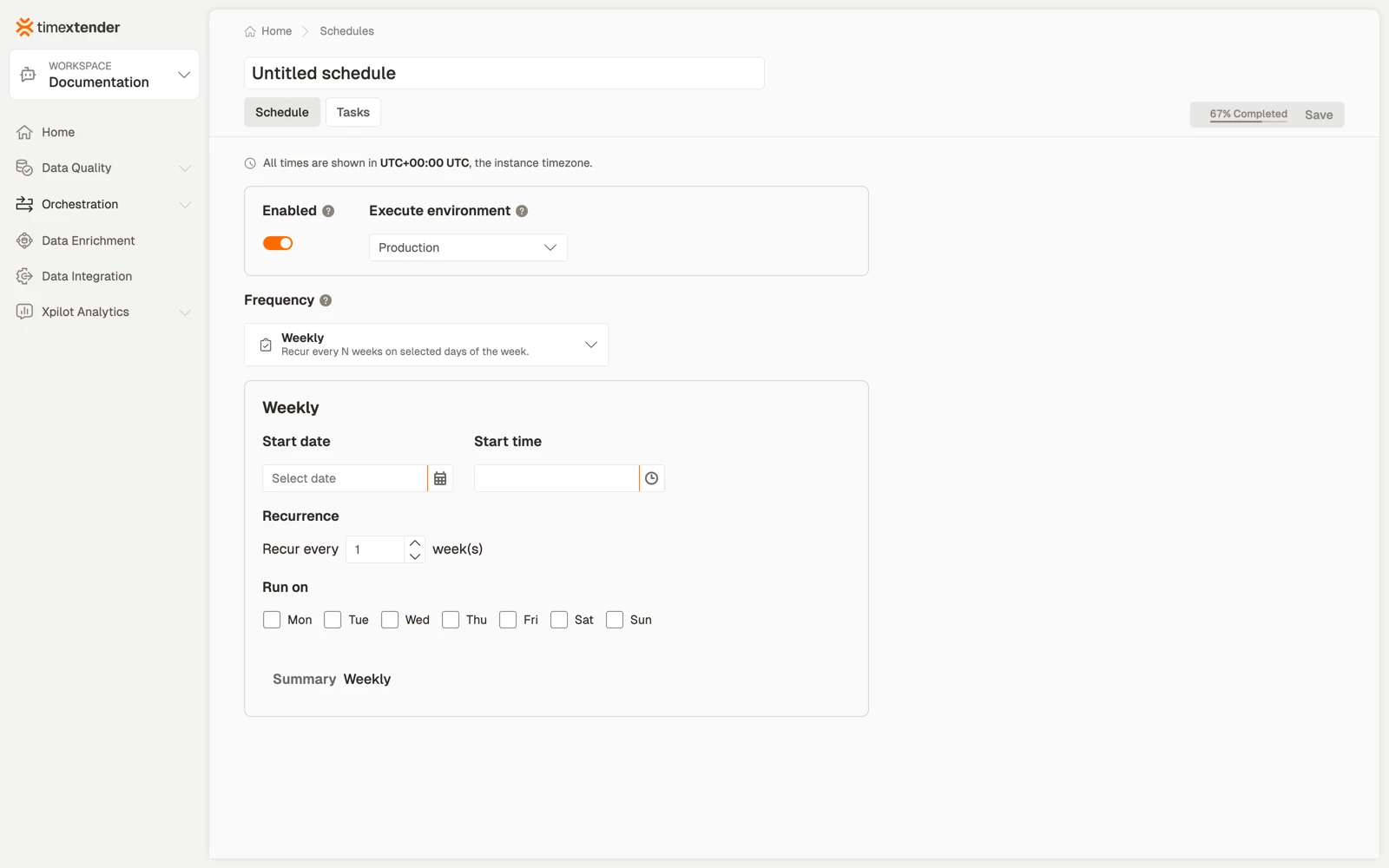
| Weekly | Every N weeks, on the weekdays you tick |
| Monthly | A fixed day of the month, or an occurrence such as the second Tuesday |
| Repeat every | A fixed interval measured in minutes or hours |
| Continuous | Run again as soon as the previous run finishes |
| SQL-defined | Compute the next run with a query |
Weekly is the common choice for anything with a business rhythm, such as a Monday morning reload or a weekday-only sync.
Limit a schedule to certain hours
Run only between specific hours limits the hours in which the schedule may start a run, with a From and a To time. It is the answer to "run every two hours, but never during the working day".
The window governs when a run may start, not how long it may take. It is offered on the Repeat every and Continuous frequencies.
Compute the next run with SQL
The SQL-defined frequency exists for schedules no calendar expresses, such as the second banking day of the month, or the day after a source system's own close. The query returns the next run time.
The editor describes it: Compute the next run with a query. It runs against the TimeXtender platform database, not your source systems.
That constraint matters: the query cannot look at your ERP to decide. It can read the platform database, including what previous runs did. The editor ships example queries you can copy, and a Test button that shows the next run time the query returns. Always use it, because a query returning nothing produces a schedule that never fires. If it returns nothing you will see The query did not return a next run time.
Testing needs permission. Without it you will see You do not have permission to test this schedule.
Attach the work
A schedule with no tasks does nothing. Add the packages, process maps or rules it should run, and set the execution mode that decides whether they run one after another or together.
Ordering matters more than it looks. Several tasks on one schedule are the cheap way to sequence a nightly flow, but a process map is the better tool as soon as one step must not run when an earlier one failed. A schedule runs its tasks; it does not reason about dependencies between them.
Best practices
- Few schedules, many tasks. A handful of named rhythms that many tasks share is easier to reason about than one schedule per task. When something must move, you move one schedule.
- Disable rather than delete. Disabling keeps the attachments, so re-enabling restores the arrangement exactly. Deleting loses it.
- Leave headroom between dependent schedules. If a 02:00 load feeds a 03:00 refresh, a load that occasionally takes seventy minutes will publish stale data silently. Express the dependency in a process map instead of trusting the gap.
Troubleshooting
The schedule is enabled but nothing runs. Check that the attached packages are published rather than drafts, and that the schedule has any tasks attached at all.
It runs, but at an unexpected hour. Check the timezone, or a run window that pushed the start.
A SQL-defined schedule never fires. Its query returns no next run time. Use Test in the editor to see what it returns.
Runs overlap. A Continuous or short-interval schedule whose work takes longer than the interval. Lengthen the interval, or bound it with Run only between specific hours.
Save is unavailable. Hover Save for the list. A start date and time are required alongside the recurrence, and Weekly needs at least one weekday.
Reference
Fields
| Field | Notes |
|---|---|
| Name | Required |
| Enabled | On by default |
| Environment | One per schedule |
| Frequency type | One of the seven above; changes the fields below it |
| Start date / start time | Required |
| Recurrence detail | Interval, weekdays, or day of month, depending on the frequency |
| Run only between specific hours | Optional; bounds when a run may start. Repeat every and Continuous only |
| Tasks | The packages, process maps and rules to run, with an execution mode |
The SQL-defined frequency
The query runs against the TimeXtender platform database and must return the next run time. The editor provides copyable examples and a Test action. A query that returns nothing yields a schedule that never fires, and that is not reported as an error at run time, which is why Test exists.
The rest of the schedules documentation
This page is the short path: create a schedule and attach work to it. Each part has its own article with the detail:
- The Schedules list, for columns, the Next Run states, bulk enable and disable, and Duplicate
- Creating a schedule, the Schedule tab, for the seven frequencies, start date and time, and the run window
- Adding tasks to a schedule, for the Add task picker, parallel and sequential execution, and extra parameters
- Schedule groups, for running by hand and environment scoping
- Schedule permissions, for who can do what
Related articles
- Packages overview
- Interacting with process maps in Turnkey, for dependencies between steps
- Time zones
