

Packages in TimeXtender Data Platform
A package is one unit of work in an orchestration flow: refresh a Power BI dataset, run a notebook, execute a script, move a table, or trigger a pipeline. You give a package a type, tell it what to act on, and then run it, on a schedule, as a step in a process map, or by hand.
All 21 package types are created and configured in TimeXtender Data Platform on cloud deployments.
Cloud only. This article is aimed at cloud customers. If you are running an on-prem installation, packages are managed in ODQ Desktop.
The Packages overview
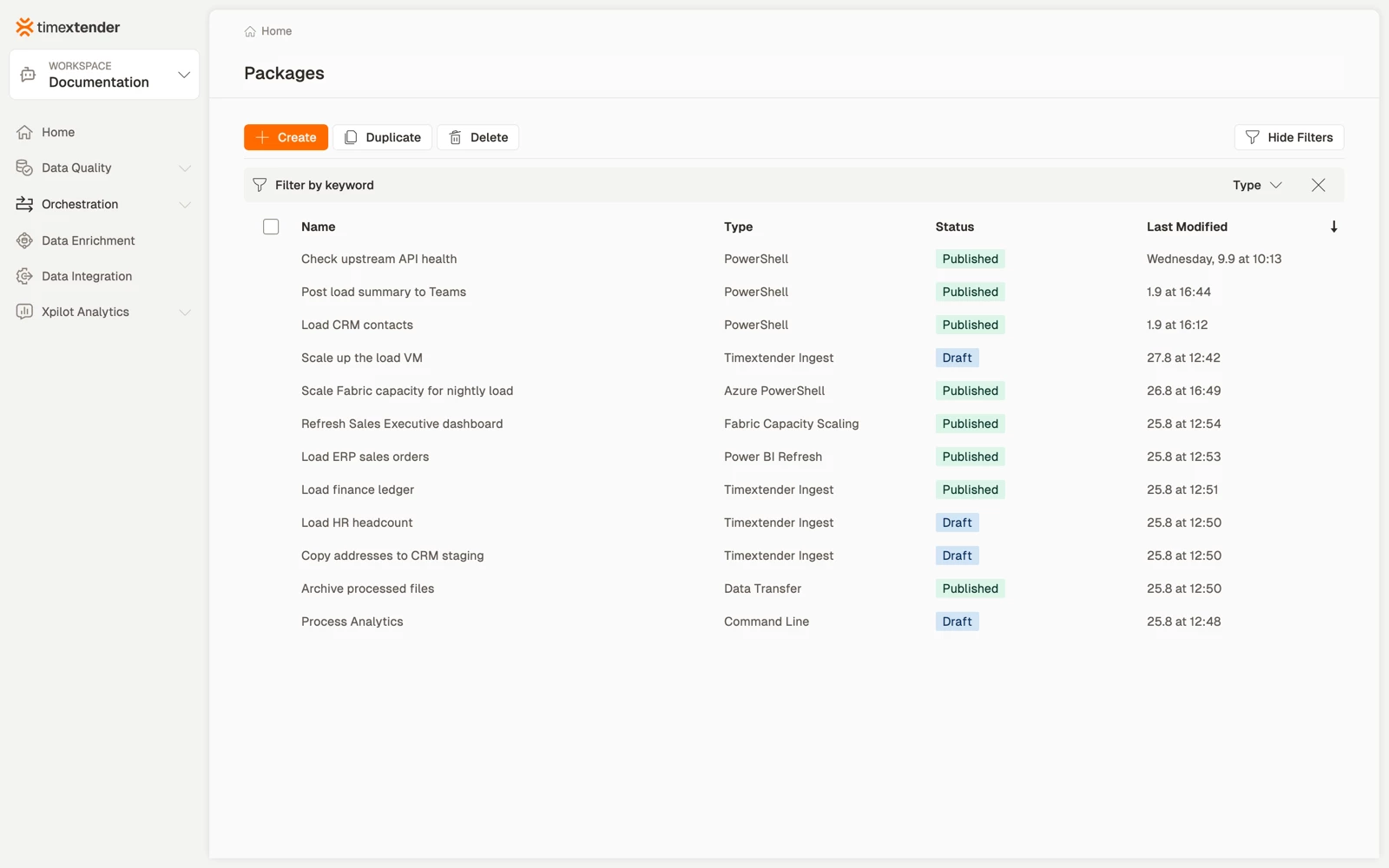
Go to Orchestration > Packages to list every package in the current workspace with its type and status.
Create, Duplicate and Delete sit in the toolbar. Duplicate and Delete act on the rows you select in the leftmost column, so they stay inactive until you select something. The filter bar above the grid narrows the list by keyword or by type.
Choose a package type
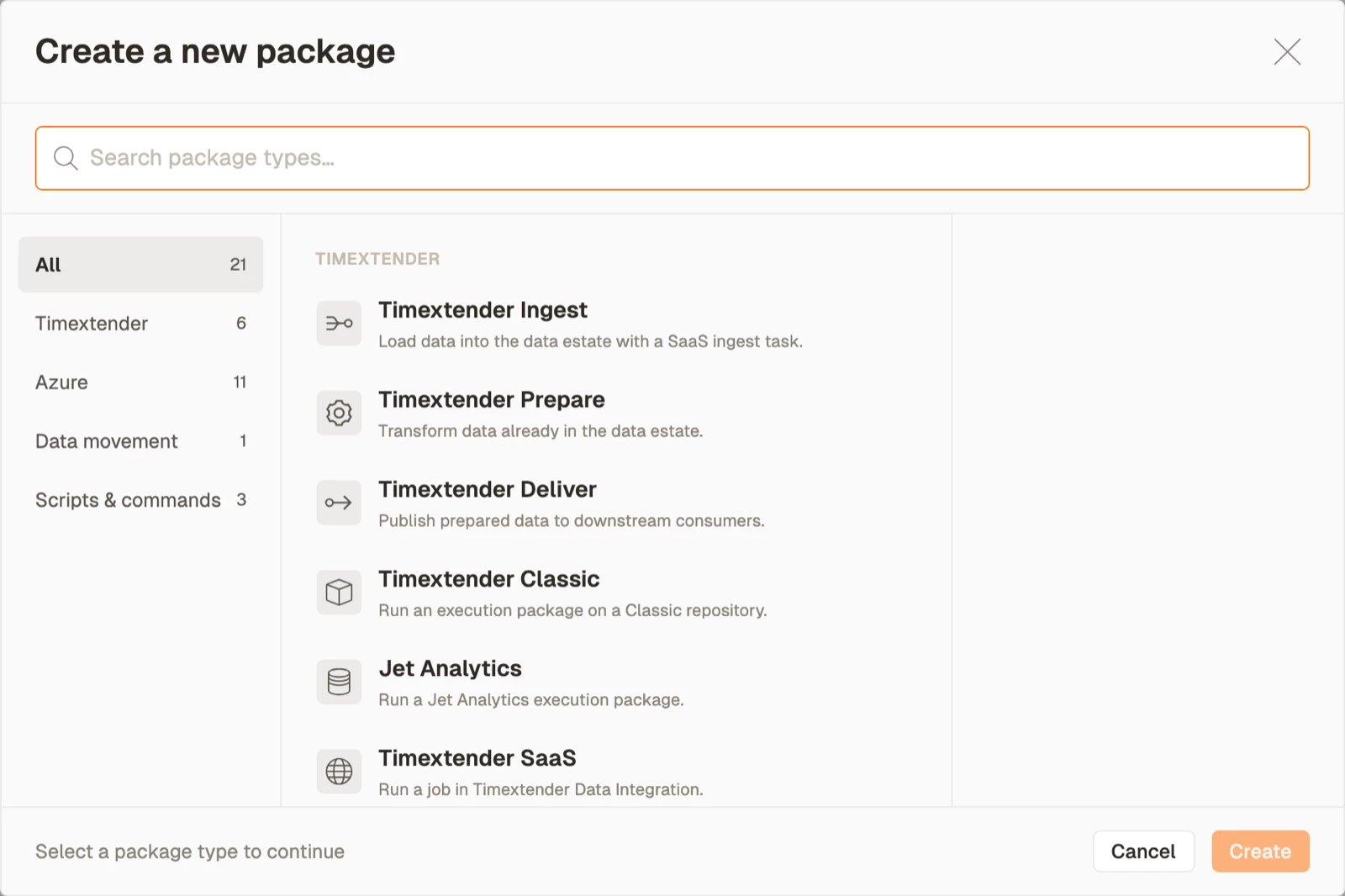
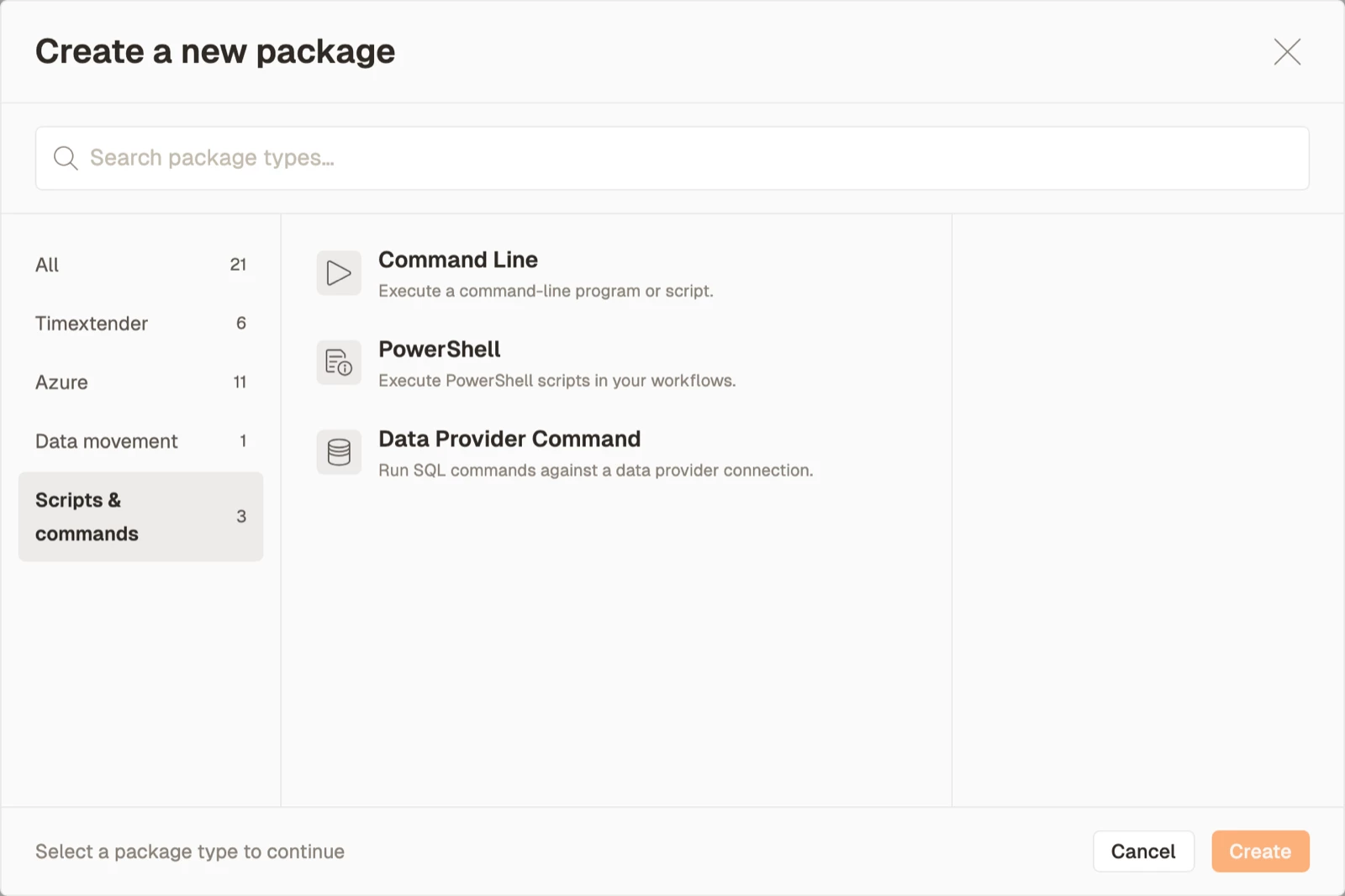
Select Create to open the type picker. All 21 types are grouped by area, with a count against each area.
Selecting a type shows a panel on the right with what the type does, a few points on how it behaves, and one of two lines: Requires, naming the connection you need first, or Runs on, telling you where the work happens.
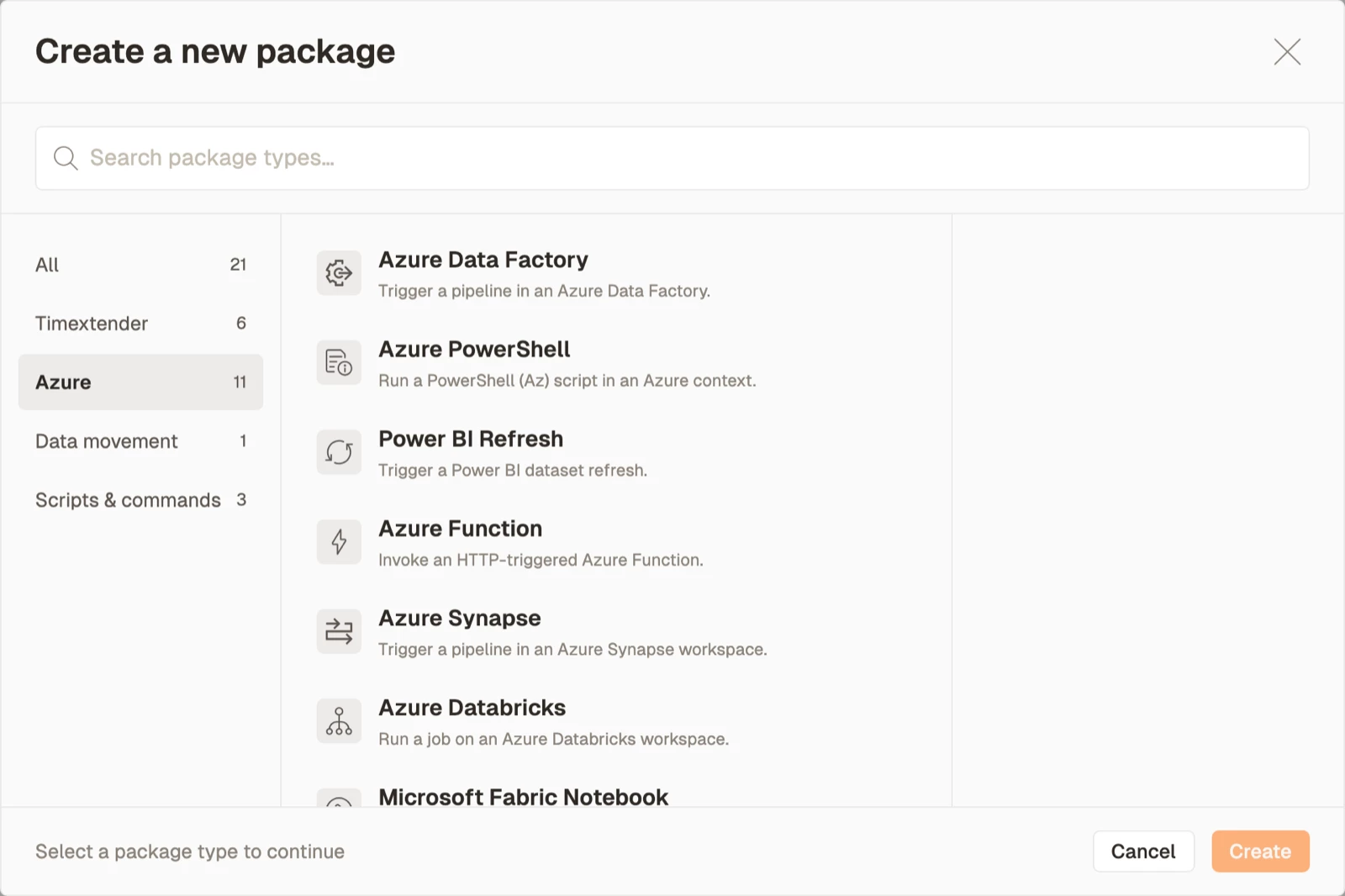
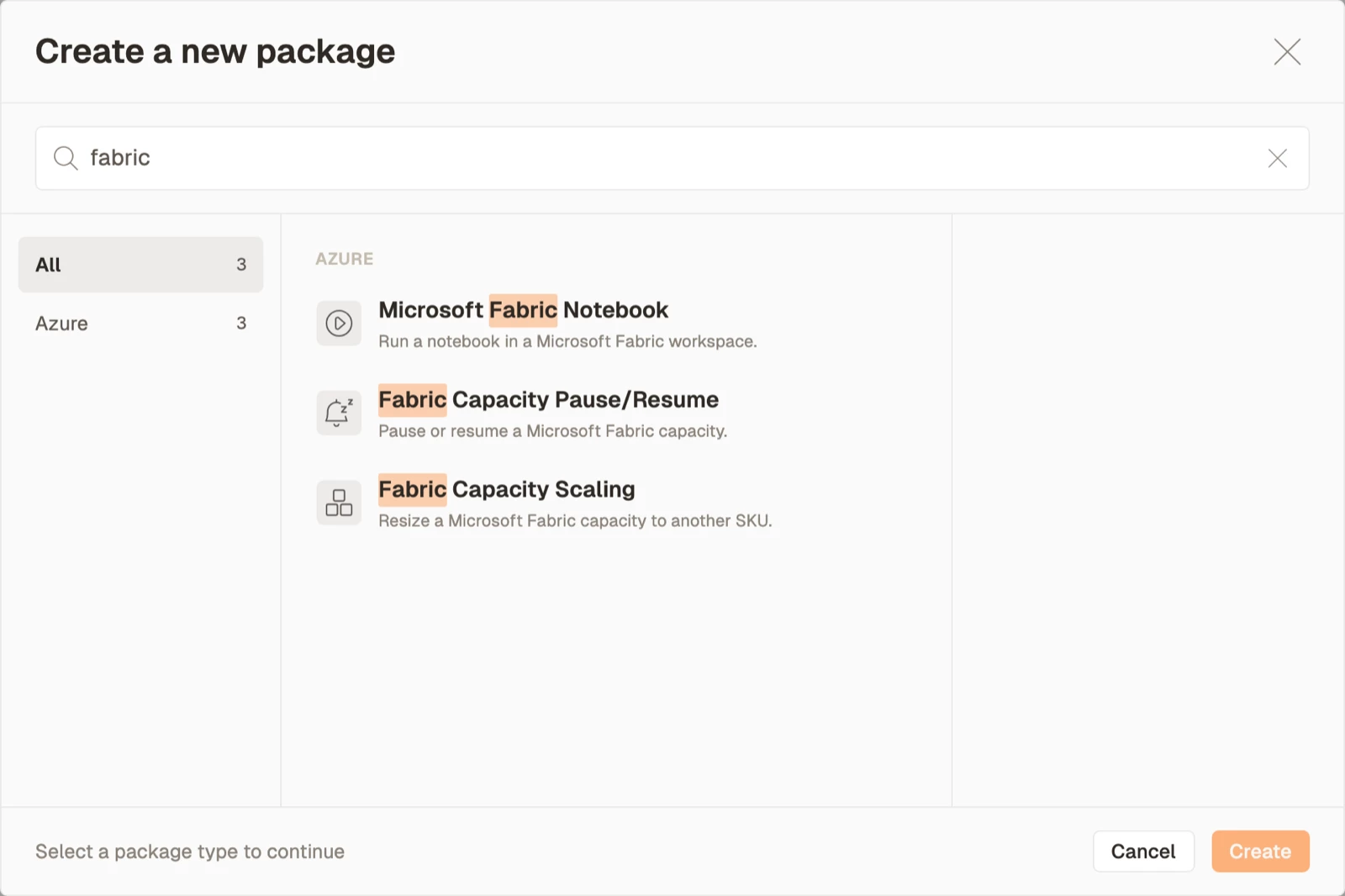
You can filter the picker by area when you know roughly what you want, or search, which matches across all areas.
The 21 package types
Timextender: 6 types
| Type | What it does | Needs |
|---|---|---|
| Timextender Ingest | Load data into the data estate with a SaaS ingest task | TimeXtender Data Integration connection |
| Timextender Prepare | Transform data already in the data estate | TimeXtender Data Integration connection |
| Timextender Deliver | Publish prepared data to downstream consumers | TimeXtender Data Integration connection |
| Timextender SaaS | Run a job in TimeXtender Data Integration | TimeXtender Data Integration connection |
| Timextender Classic | Run an execution package on a Classic repository | Classic repository connection |
| Jet Analytics | Run a Jet Analytics execution package | Jet Analytics repository connection |
Azure: 11 types
| Type | What it does | Needs |
|---|---|---|
| Azure Data Factory | Trigger a pipeline in a data factory | Azure App Registration data provider |
| Power BI Refresh | Trigger a dataset refresh | Azure App Registration data provider |
| Azure PowerShell | Run a PowerShell (Az) script in an Azure context | Azure App Registration data provider |
| Azure Function | Invoke an HTTP-triggered function | Azure App Registration data provider |
| Azure Synapse | Trigger a pipeline in a Synapse workspace | Azure App Registration data provider |
| Azure Databricks | Run a job on a Databricks workspace | Azure App Registration data provider |
| Microsoft Fabric Notebook | Run a notebook in a Fabric workspace | Microsoft Fabric data provider |
Four more types reduce cloud spend by sizing a resource to what is needed:
| Type | What it does | Needs |
|---|---|---|
| Azure Virtual Machine Start/Stop | Start, restart or shut down a virtual machine | Azure App Registration data provider |
| Azure SQL Database Scaling | Rescale a database to a different tier | Azure App Registration data provider |
| Fabric Capacity Scaling | Resize a capacity to another SKU | Azure App Registration data provider |
| Fabric Capacity Pause/Resume | Pause or resume a capacity | Azure App Registration data provider |
Data movement: 1 type
| Type | What it does | Needs |
|---|---|---|
| Data Transfer | Move and map data between a source and a destination | Source and destination connections |
Scripts and commands: 3 types
| Type | What it does | Runs on |
|---|---|---|
| PowerShell | Execute a PowerShell script | TimeXtender Cloud, or a gateway |
| Command Line | Execute a command-line program or script | An on-premises gateway only |
| Data Provider Command | Run SQL against a data provider connection | A data provider connection |
What every package has in common
Whatever the type, the editor has the same four tabs and the same lifecycle.
Definition
The type-specific fields: the script, the pipeline, the connection. This is the only tab that differs between types.
The Save button shows a completion percentage until every required field is filled. Hover over it to list the fields that are still outstanding.
Properties
Two free-text fields, neither required:
- Description: what data is being processed and why.
- Action: what someone should do if this package fails.
Both are worth filling in. They are what a colleague reads when a package they have not seen before has failed.
Executions
Sets how and when the package runs:
- Schedule: assign one or more schedules to run this package automatically. The list offers every schedule in the workspace.
- Disable: switch the package off, or disable it until a date.
- Timeout: how long a single attempt may take before it is abandoned. The timeout applies to each attempt on its own, and the wait between retries does not count against it. An attempt that exceeds the timeout is reported as timed out and is not retried.
- Retry on failure: whether to retry, how many times, and how long to wait between attempts.
Past runs and their logs live in the Executions area of Orchestration.
A timeout does not stop work already running in TimeXtender Data Integration. When the timeout fires, the execution it started in TimeXtender Data Integration carries on until it finishes by itself.
Notifications
Who gets told on failure or completion. Recipients can be individual users or groups, and more than one of each.
Draft, In Edit and Published
The status badge in the overview tells you where a package stands:
| Status | Meaning |
|---|---|
| Draft | Saved, never published |
| In Edit | Published before, with saved changes since |
| Published | Production matches what you last published |
Saving affects Development only. Test and Production keep running the version you last published, so you can edit a package without disturbing anything that is scheduled. Publish promotes what you saved to Production and enables Run.
Drafts do not run on a schedule.
Packages and ODQ Desktop
ODQ Desktop links to the package in TimeXtender Data Platform from the object tree, the right-click menu and the Start Page. Three behaviours to know:
- Duplicate creates a Draft copy you can edit independently.
- Delete removes the package from TimeXtender Data Platform and from ODQ Desktop.
- If the gateway a package points at has been deleted, saving and publishing are blocked with a warning rather than the package failing later at run time.
Where the work runs
Two separate mechanisms control this:
- Execution connection chooses where a package runs: TimeXtender Cloud, or one of your on-premises gateways. Only some types offer it, and not all of those offer the cloud.
- Environment (Development, Test or Production) chooses which configuration a run uses. Command Line can hold a separate command per environment.
Global parameters
Wherever a value differs between environments, such as a URL, a tenant name or a secret, use a global parameter instead of entering it into the package. Fields that support them show an Insert Parameter control, and the reference takes the form {$ParameterName}.
Secret parameters show a padlock rather than a value, and stay masked in execution logs.
Administrators manage them under Settings > Global Parameters.
Related articles
- Create and assign a schedule
- Configure global parameters
- Execution connections
- Installing an execution connection
- Desktop vs Turnkey comparison
