

Understanding the Schedules list
Go to Orchestration > Schedules to list every schedule in the workspace. The page is laid out like the Packages page.
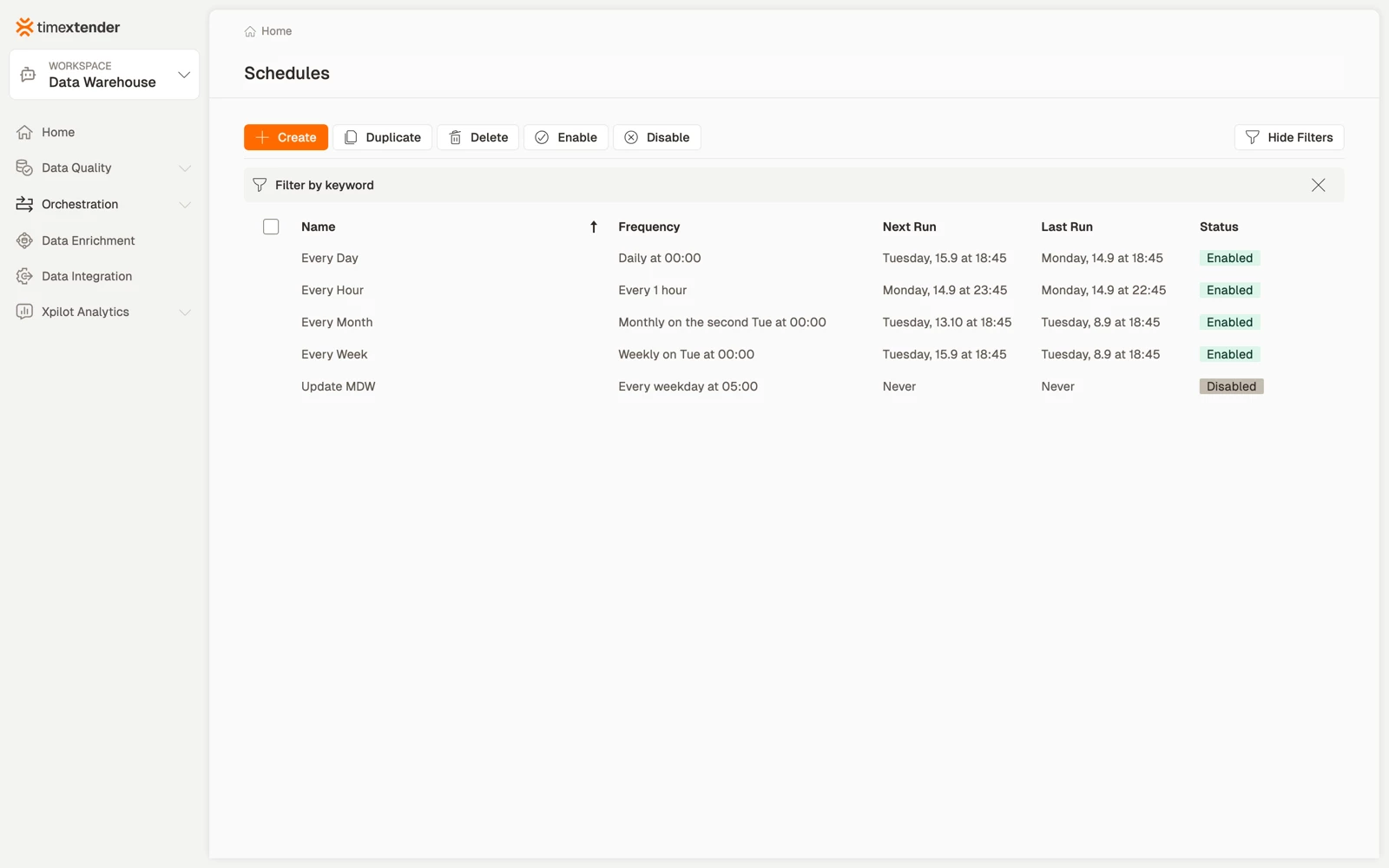
What each row tells you
| Column | What it shows |
|---|---|
| Frequency | The schedule in plain language, for example Daily at 00:00 or Monthly on the second Tue at 00:00 |
| Next Run | When it will next fire |
| Last Run | When it last fired |
| Status | A green Enabled or grey Disabled label |
The Frequency column is generated from the schedule's configuration rather than entered by hand.
Reading the Next Run column
Four things can appear in this column, and three of them are not dates:
| Next Run | Meaning |
|---|---|
| A date and time | The scheduler has worked out the next run |
| Calculating… | You have just saved. The scheduler recomputes within about a minute |
| Never | There is no next run |
| A dash | The schedule has not reached the scheduler yet |
Calculating… is normal and short-lived, and is not an error. It appears after any save and resolves on its own.
Never covers three different situations: a one-time schedule that has already fired, a schedule that is disabled, and a configuration that can never come due. A disabled schedule shows Never rather than Calculating…, because the scheduler does not compute run times for schedules that are switched off. Enable the schedule and save it to get a next run.
Selecting rows
Select rows individually, or use the header checkbox to select the whole list. The keyword filter above the grid narrows the list by name as you type.
A selection does not survive paging, sorting or filtering. If you select rows and then change the filter, check what is selected before acting on it.
The toolbar
- Create opens the editor for a new schedule.
- Enable and Disable act on every selected row at once, which is the quickest way to quiet a set of schedules before maintenance and start them again afterwards.
- Duplicate takes one schedule at a time. It opens the editor prefilled from the schedule you selected: the name as Copy of {original}, the same frequency, the same tasks in the same order, and the same execution mode, environment and enabled state.
- Delete removes the selected schedules.
Duplicate creates nothing until you save. The copy exists only once you select Save. Selecting Duplicate repeatedly is harmless, and leaving the editor creates nothing.
Related articles
- Set the frequency and timing of a schedule
- Add tasks to a schedule
- Understanding schedule permissions
- Packages in TimeXtender Data Platform
