Question

ERROR. New version

  • October 6, 2026
  • 9 replies
  • 37 views

rvgfox
Problem Solver
Forum|alt.badge.img+4

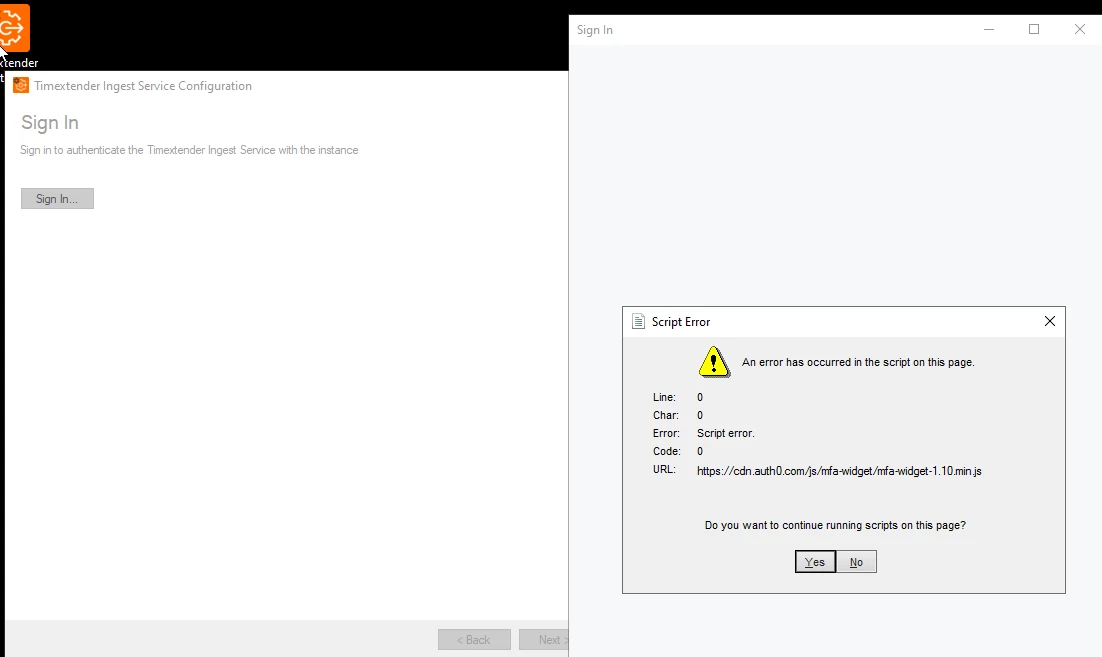
I’m getting this error in the Sign In proccess in the new version 26.3.0.1



9 replies

Christian Hauggaard
Community Manager
Forum|alt.badge.img+5

Hi ​@rvgfox 

This error usually means the sign-in window is falling back to the old Internet Explorer engine, because Microsoft Edge WebView2 Runtime is missing or not working on the machine.

Please try the following:

  1. Download the WebView2 Runtime from https://developer.microsoft.com/en-us/microsoft-edge/webview2/#download and choose the Evergreen Standalone Installer (x64), not the bootstrapper.
  2. Run the installer on the server where the Ingest Service Configuration is running.
  3. Open the Ingest Service Configuration again and sign in.

If the problem persists after this, let me know and please include the Windows Server version and whether Microsoft Edge WebView2 Runtime is listed under Apps & Features.


rvgfox
Problem Solver
Forum|alt.badge.img+4
  • Author
  • Problem Solver
  • October 6, 2026

The server it’s the same that prevously works with the 7376.1 version and all the previous ones.


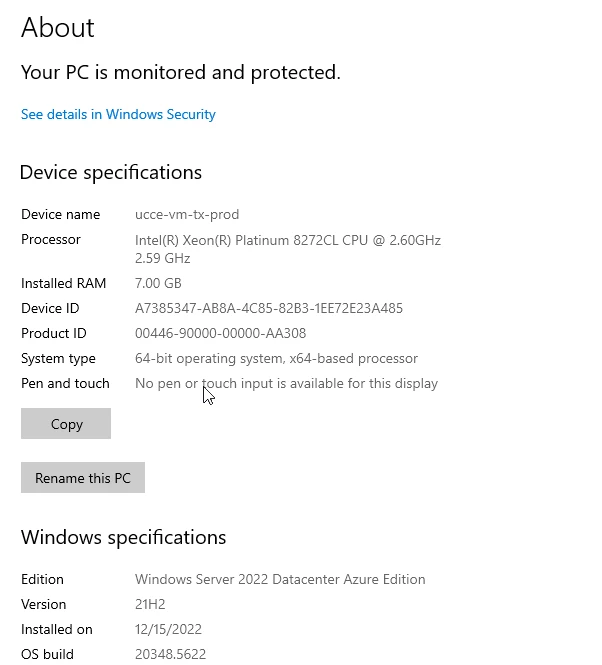
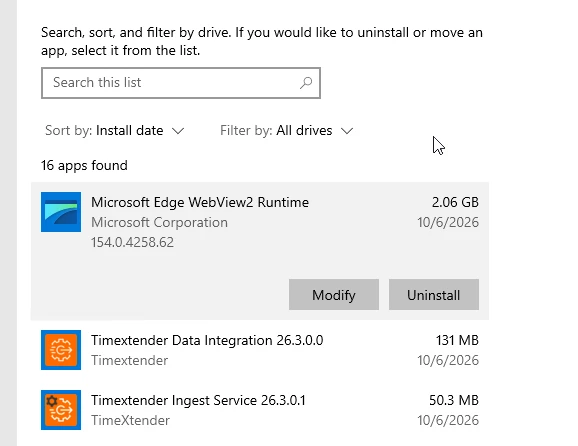
Here it’s the details:


Christian Hauggaard
Community Manager
Forum|alt.badge.img+5

Hi ​@rvgfox 

Thanks for the details. I can see WebView2 Runtime was installed today. Could you confirm whether you used the Evergreen Standalone Installer (x64) or the bootstrapper?

If it was the bootstrapper, please uninstall it and install the standalone version instead. Either way, please restart the server and then test the sign in again.


rvgfox
Problem Solver
Forum|alt.badge.img+4
  • Author
  • Problem Solver
  • October 6, 2026

I’ve installed the  Evergreen Standalone Installer after you first answer. And I’ve restarted the Server too


Christian Hauggaard
Community Manager
Forum|alt.badge.img+5

​@rvgfox 

Thanks for confirming. I tested the sign in with the Ingest Service Configuration on 26.3.0.1 with MFA enabled, using the same WebView2 Runtime version as you (154.0.4258.62), and it works on my side. This seems to be specific to the server.

Could you please try the following:

  1. Right click the Ingest Service Configuration and choose Run as administrator, then sign in again.
  2. If it still fails, open Task Manager while the Sign In window is open and check if any msedgewebview2.exe processes are running.
  3. Run the following in PowerShell to check that the WebView2 components are present in the installation folder:
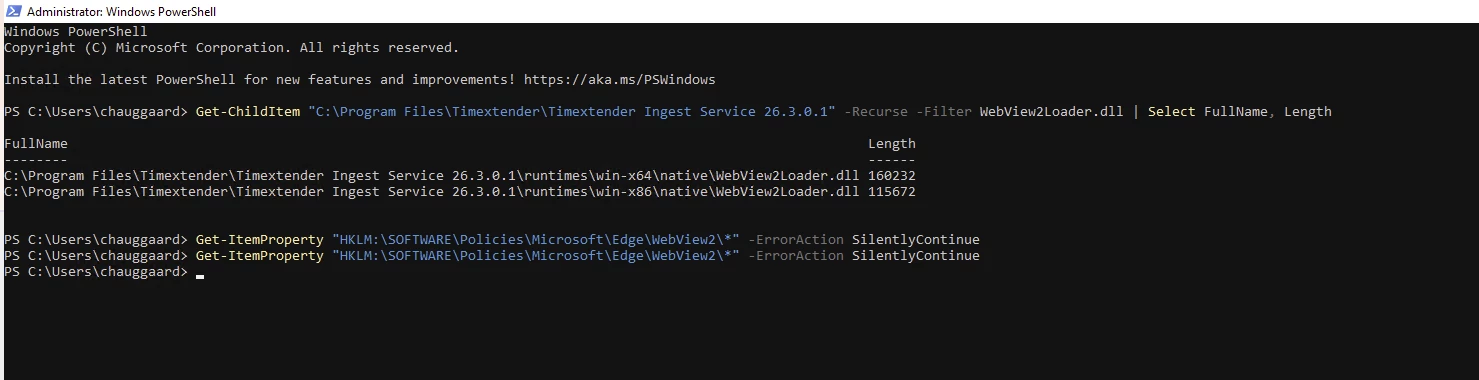
Get-ChildItem "C:\Program Files\Timextender\Timextender Ingest Service 26.3.0.1" -Recurse -Filter WebView2Loader.dll | Select FullName, Length
  1. If the files are missing or the sizes differ from the screenshot below, uninstall the Ingest Service 26.3.0.1, install it again, and test the sign in.
  2. Run the following in PowerShell to check if any policies are applied to WebView2 on the server:
Get-ItemProperty "HKLM:\SOFTWARE\Policies\Microsoft\Edge\WebView2\*" -ErrorAction SilentlyContinue

Below is the output of steps 3 and 5 from my working installation. Step 3 returns two files and step 5 returns no output.

If the problem persists after this, please send a screenshot of the output from steps 3 and 5 and let me know if msedgewebview2.exe was running. It would also help if your IT team could check if any security software on the server is blocking msedgewebview2.exe.


Christian Hauggaard
Community Manager
Forum|alt.badge.img+5

Also in powershell please run the below to list all WebView2 files in the installation folder and send a screenshot of the output:

Get-ChildItem "C:\Program Files\Timextender\Timextender Ingest Service 26.3.0.1" -Recurse -Filter *WebView2* | Select FullName, Length

On my working installation this returns four files:


rvgfox
Problem Solver
Forum|alt.badge.img+4
  • Author
  • Problem Solver
  • October 6, 2026

I’ve solved the problem in my two servers:

  1. Download the WebView2 Runtime from https://developer.microsoft.com/en-us/microsoft-edge/webview2/#download and choose the Evergreen Standalone Installer (x64)
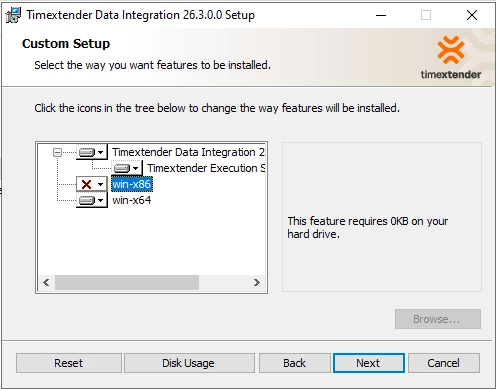
  2. Use the “complete install”. Previouslly I’ve used this custom setup:

Something it’s new in this new version, because until now I’ve used the same procedure to install it, and never I get this error.


rory.smith
TimeXtender Xpert
Forum|alt.badge.img+8
  • TimeXtender Xpert
  • October 6, 2026

Hi,

I assume IE Enhanced Security Configuration is off on your machine? Mainline support for that OS is ending next week, though you still have until 2031 for security patching to end.


rvgfox
Problem Solver
Forum|alt.badge.img+4
  • Author
  • Problem Solver
  • October 6, 2026

Hi,

I assume IE Enhanced Security Configuration is off on your machine? Mainline support for that OS is ending next week, though you still have until 2031 for security patching to end.

My servers are in Azure: