

Overview
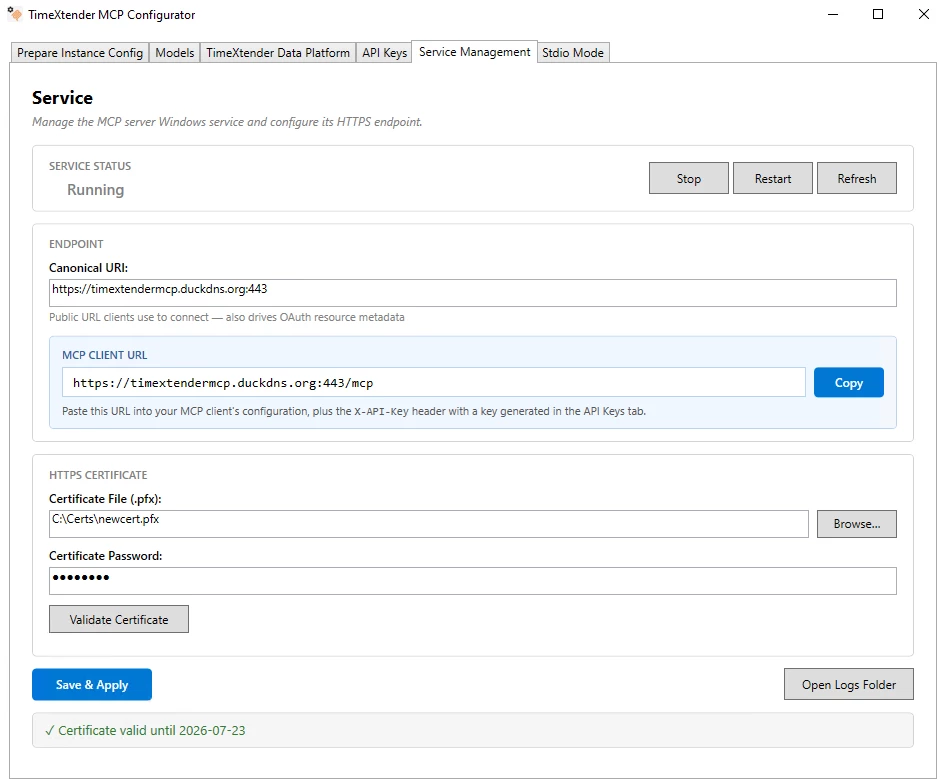
HTTPS is required for any production MCP Server deployment. AI clients that connect over HTTP mode reject plain http:// URLs and untrusted certificates. HTTPS configuration lives inside the Service Management tab in the TimeXtender MCP Configurator, alongside service status and the Canonical URI.
There is no separate HTTPS tab. The certificate, password, and validation tools are all in the HTTPS Certificate section of Service Management.
Prerequisites
- Configure MCP Server, including at least one semantic model and a successful Test Connection on the Prepare Instance Config tab
- A PFX (
.pfxor.p12) certificate file containing the private key. For production, use a certificate from a trusted certificate authority whose Common Name (CN) or Subject Alternative Name (SAN) matches the public hostname you will use as the Canonical URI. For development, use the self-signed certificate snippet below.
Set the Canonical URI
The Canonical URI is the public URL clients use to reach the MCP Server. It also drives the hostname that the HTTPS certificate is validated against.
- Open the Service Management tab
- In the Endpoint section, enter the Canonical URI that AI clients will use, including the
https://prefix and the port if non-standard- Production example:
https://mcp.contoso.com - Development example:
https://localhost:6001
- Production example:
- The MCP Client URL in the blue panel below updates as you type. This is the URL clients paste into their configuration.
Use the same hostname here that appears in your certificate's Subject or Subject Alternative Name. A mismatch causes clients to reject the connection with a certificate validation error.
Install the Certificate
- Stay on the Service Management tab
- In the HTTPS Certificate section, click Browse… next to Certificate File (.pfx) and select your
.pfxfile - Enter the Certificate Password that protects the private key. The password is encrypted with Windows DPAPI before being stored in
mcp-server.json. - Click Validate Certificate. The validation panel shows:
- Subject of the certificate
- Valid Until date
- Thumbprint for cross-checking against your CA records
- Click Save & Apply to persist the configuration. The Windows service is restarted automatically so the new certificate takes effect.
Generate a Self-Signed Certificate for Development
For local development or testing, generate a self-signed PFX certificate with PowerShell. Run as Administrator:
$cert = New-SelfSignedCertificate `
    -DnsName "localhost" `
    -CertStoreLocation "Cert:\LocalMachine\My" `
    -KeyExportPolicy Exportable `
    -KeySpec Signature `
    -KeyLength 2048 `
    -KeyAlgorithm RSA `
    -HashAlgorithm SHA256 `
    -NotAfter (Get-Date).AddYears(2)

$password = ConvertTo-SecureString -String "ChangeMe123!" -Force -AsPlainText
Export-PfxCertificate `
    -Cert "Cert:\LocalMachine\My\$($cert.Thumbprint)" `
    -FilePath "C:\certs\mcp-server.pfx" `
    -Password $password
The resulting C:\certs\mcp-server.pfx can be selected with Browse… in the Configurator, and the password (ChangeMe123! in the snippet) goes in the Certificate Password field.
Self-signed certificates are accepted by some MCP clients but rejected by Claude Desktop. For local Claude Desktop use, prefer Stdio mode instead. See Connect to MCP using Stdio Mode.
Verify the Endpoint
After Save & Apply completes and the service status returns to Running, verify HTTPS is live:
- Copy the MCP Client URL from the Endpoint section
- Open the URL in a browser. A trusted certificate produces a normal page or a JSON response; an untrusted certificate produces a browser warning.
- For PowerShell verification, run:
Invoke-WebRequest -Uri "https://mcp.contoso.com/health" -UseBasicParsing | Select-Object StatusCode, StatusDescriptionA 200 OK response confirms the service is reachable over HTTPS.
Rotate or Replace the Certificate
When a certificate is about to expire or is being rotated:
- Open the Service Management tab
- Browse… to the new
.pfxfile - Enter the new Certificate Password
- Click Validate Certificate to confirm the new file is good
- Click Save & Apply. The service restarts and begins serving the new certificate immediately.
The previous certificate and password are overwritten. Update any external monitoring that pins the certificate thumbprint.
Troubleshooting
Validate Certificate shows a red error
The file is not a valid PFX, the password is wrong, or the file does not contain a private key. Re-export the certificate ensuring the private key is included, and confirm the password matches the one used during export.
Browser shows NET::ERR_CERT_AUTHORITY_INVALID
The certificate is self-signed or issued by a CA the browser does not trust. For production, replace with a certificate from a trusted CA. For development, install the self-signed certificate into the browser's trusted root store, or use Stdio mode for Claude Desktop.
Browser shows NET::ERR_CERT_COMMON_NAME_INVALID
The hostname in the URL does not match the certificate's Subject or Subject Alternative Name. Set the Canonical URI to a hostname that the certificate covers, then Save & Apply to restart the service.
Service fails to start after applying a new certificate
Open Service Management and click Open Logs Folder. Check the most recent service log for certificate load errors. Common causes: the PFX file was moved or deleted, the service account no longer has read access to the file, the password no longer matches.
Service runs but clients receive 504 or no response
Confirm the port in Canonical URI is not blocked by Windows Firewall or by an upstream firewall between the client and the server. The default port for HTTPS streaming is 6001 unless overridden.
