

Overview
HTTP mode is the production transport for the TimeXtender MCP Server. A single MCP Server hosts every semantic model you have registered, and AI clients reach all of them through one URL with an X-API-Key header. Use HTTP mode for any client that is not Claude Desktop running on the same machine.
This article covers configuring an AI client to connect over HTTP. The server-side setup (registering models, generating keys, starting the service) is covered in Configure MCP Server and Manage API Keys for MCP Server.
Prerequisites
- Configure MCP Server, including at least one semantic model
- The MCP Server Windows service is Running
- (Recommended for production) HTTPS is configured on the Service Management tab. See Configure HTTPS for MCP Server.
- An API key generated on the API Keys tab, scoped to the models this client should reach. See Manage API Keys for MCP Server.
Get the MCP Client URL
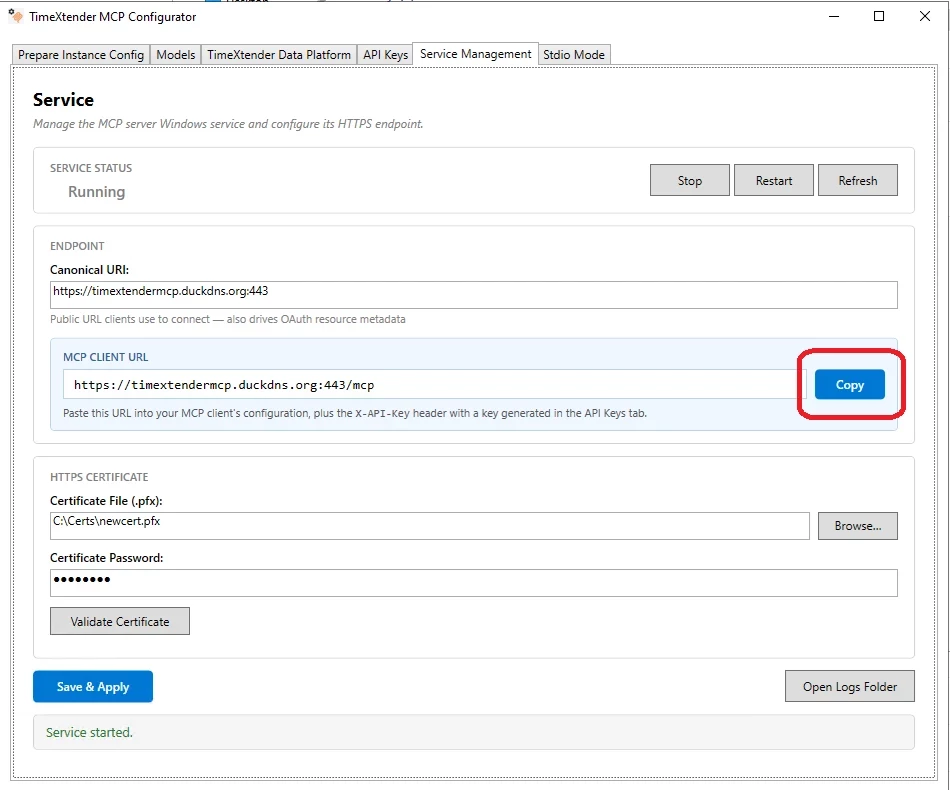
- Open the Service Management tab in the TimeXtender MCP Configurator
- In the Endpoint section, click Copy next to the MCP CLIENT URL field
- Paste the URL into a note. You will paste it into the client configuration in the next section.
The MCP Client URL is derived from the Canonical URI you configured. The format is:
<canonical-uri>/mcpFor example, a Canonical URI of https://mcp.contoso.com produces an MCP Client URL of https://mcp.contoso.com/mcp.
Configure the AI Client
Every HTTP-mode client needs three pieces of information:
| Field | Value | Where it comes from |
|---|---|---|
| Server URL | The MCP Client URL | Service Management tab |
| Header name |
| Fixed |
| Header value | The plaintext API key | Shown once in the yellow banner on the API Keys tab |
The exact JSON shape varies by client. The following sections show the most common patterns.
LM Studio
LM Studio supports MCP servers through its mcp.json configuration file. Add the TimeXtender MCP Server under mcpServers:
{
  "mcpServers": {
    "timextender-mcp": {
      "url": "https://mcp.contoso.com/mcp",
      "headers": {
        "X-API-Key": "PASTE_PLAINTEXT_API_KEY_HERE"
      }
    }
  }
}
Save the file and restart LM Studio. The MCP Server appears in the LM Studio tool source list.
Cursor
Cursor supports MCP servers through the mcpServers section of its settings. Open Cursor's settings, find the MCP servers configuration, and add:
{
  "mcpServers": {
    "timextender-mcp": {
      "url": "https://mcp.contoso.com/mcp",
      "headers": {
        "X-API-Key": "PASTE_PLAINTEXT_API_KEY_HERE"
      }
    }
  }
}
Reload Cursor for the new server to appear.
Custom Agents
Any MCP-compatible client library can connect over HTTP. The wire protocol is standard JSON-RPC over HTTP streaming, with the X-API-Key header on every request. The MCP SDK for your language of choice will accept the URL and a headers dictionary in its client constructor.
A minimal Python example using the mcp package:
from mcp import ClientSession
from mcp.client.streamable_http import streamablehttp_client

url = "https://mcp.contoso.com/mcp"
headers = {"X-API-Key": "PASTE_PLAINTEXT_API_KEY_HERE"}

async with streamablehttp_client(url, headers=headers) as (read, write, _):
    async with ClientSession(read, write) as session:
        await session.initialize()
        tools = await session.list_tools()
        print([t.name for t in tools.tools])
The available tools are list_semantic_models, get_semantic_schema, query_with_semantic_layer, and discover-relationships.
Verify the Connection
- Start the AI client
- Ask a question that requires a semantic model query (for example, "List the available semantic models")
- The client calls
list_semantic_modelsand returns the models the API key is authorised for
If the question does not produce a tool call, confirm the client recognised the server. Most clients show registered MCP servers in their tool source list or settings panel.
How the Key Is Sent
AI clients in HTTP mode include the key in the X-API-Key HTTP header on every request. The server hashes the incoming value and compares it against the stored hashes in constant time, so timing cannot leak which configured key is the closest match.
A request that omits the header, sends a blank value, or sends an unrecognised key is rejected with HTTP 401 Unauthorized and the response body:
{
  "error": "invalid_api_key",
  "error_description": "API key is missing or invalid. Provide a valid key in the X-API-Key header."
}
The 401 response is deliberately the same for missing, malformed, and wrong keys, so an attacker cannot tell which condition was hit.
Troubleshooting
Client receives HTTP 401
The API key is missing, malformed, or has been removed from the server. Confirm the client is sending the X-API-Key header with the exact plaintext value generated on the API Keys tab. If the key was recently regenerated, update the client with the new plaintext.
Client receives access_denied for a specific model
The key is valid but is not authorised for the model the client requested. Either widen the key's scope on the API Keys tab and save, or update the client to query a model already in the key's scope. The client can call list_semantic_models to see which models are in scope.
Client cannot reach the URL
Confirm the Canonical URI is correct on the Service Management tab and that the port is not blocked by a firewall between the client and the server. Try opening the MCP Client URL in a browser from the client machine; a working server returns a response, an unreachable server returns a connection error.
Certificate errors in the client
The server's HTTPS certificate is self-signed or untrusted by the client. For production, use a certificate from a trusted certificate authority whose Subject matches the Canonical URI. For development testing, configure the client to trust the self-signed certificate, or use Stdio mode for Claude Desktop. See Configure HTTPS for MCP Server.
Client connects but no tools appear
The MCP Server is reachable but the API key has no models in scope. Open the API Keys tab in the Configurator, expand the key's card, and either tick at least one model or turn on Grant access to all models. Click Save All and restart the service when prompted.
