

Overview
The TimeXtender MCP Server uses bundle API keys to authorise AI clients that connect over HTTP mode. A single bundle key can grant access to one model, several models, or every model on the server.
This bundle design gives you flexibility in how you organise access. With the same mechanism you can:
- Issue one key per team: a
sales-teamkey that covers the Sales pipeline, Quotas, and Won deals models, shared by everyone on the team - Issue one key per person: a
jane-analystkey scoped to the specific models that analyst is allowed to query, separate from her teammates - Issue one key per tool: a
claude-desktopkey scoped to the models a particular AI client should reach, so you can rotate or revoke that tool's access without touching the others - Issue an unrestricted admin key: a
admin-evalkey that covers every model on the server and any model added later, for testing or evaluation
You can mix all of these on the same server. The key's name appears in audit logs, so every request is traceable back to the team, person, or tool that owns the key.
Keys are managed from the API Keys tab in the TimeXtender MCP Configurator. The plaintext value of a key is shown once at the moment the key is generated. After that, only a SHA-256 hash of the key is stored on disk and the plaintext cannot be retrieved.
AI clients using Stdio mode (such as Claude Desktop running on the same machine as the MCP Server) do not need API keys. The Configurator provisions a system key for the stdio path automatically and hides it from the API Keys tab.
Prerequisites
- Configure MCP Server, including at least one semantic model registered on the Models tab. A bundle key needs at least one model to authorise; the Add Key button is disabled until a model exists.
Create an API Key
- Open the API Keys tab in the TimeXtender MCP Configurator
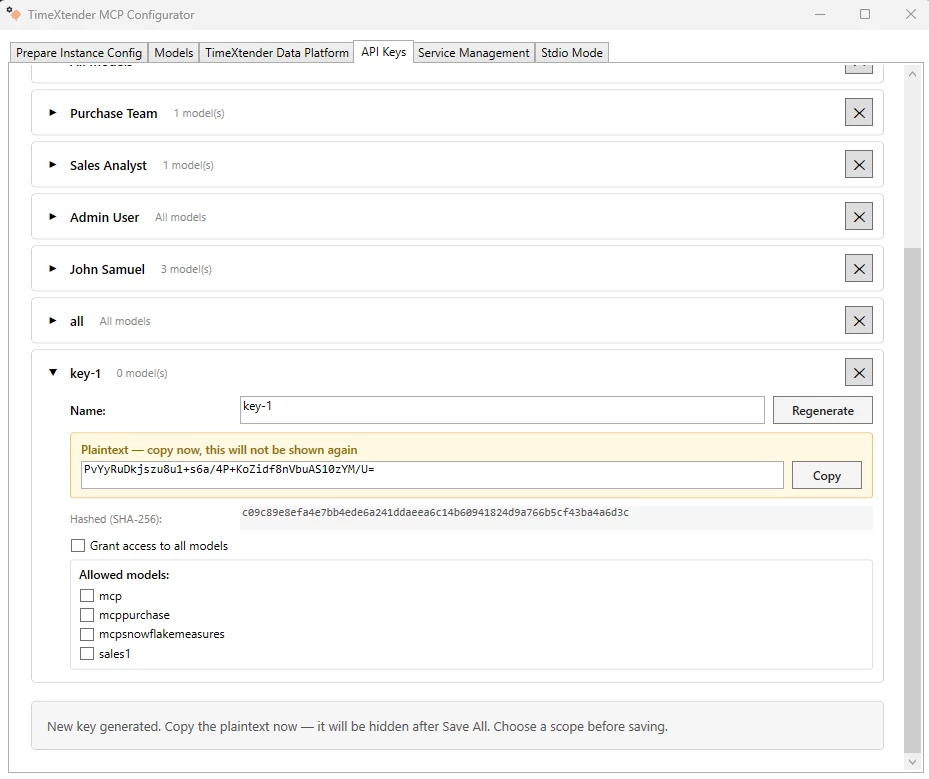
- Click Add Key. A new card appears, expanded, with an auto-generated name (
key-1,key-2, ...) and a fresh plaintext key visible at the top in a yellow banner. - Copy the plaintext value now. The yellow Plaintext: copy now, this will not be shown again banner is the only time the secret is visible. It is hidden as soon as you click Save All and cannot be retrieved later.
- In the Name field, replace the auto-generated name with something descriptive that identifies who or what will use this key. The name appears in audit logs on the server, so each request can be traced back to the owner. Choose the pattern that fits how you grant access:
- Team-based:
sales-team,finance-team,marketing-team - Person-based:
jane-analyst,mark-controller - Tool-based:
claude-desktop,cursor-ide,lm-studio-prod
- Team-based:
- Choose the scope for the key. See Scope a Key below.
- Click Save All to persist the key. The plaintext banner disappears and only the SHA-256 hash remains visible on the card.
- When the Windows service is running, the Configurator prompts you to restart it so the new key takes effect. Click Yes to apply immediately.
Scope a Key
Each key is either unrestricted (every model on the server) or scoped to a specific list of models.
Grant access to all models
Tick the Grant access to all models checkbox on the key's card. The card's scope summary shows All models.
This is the right choice when:
- The same AI client is allowed to query every model on this server, today and in the future
- You add new models periodically and do not want to update every key when you do
When Grant access to all models is on, any model added later on the Models tab is automatically covered by this key.
Scope to specific models
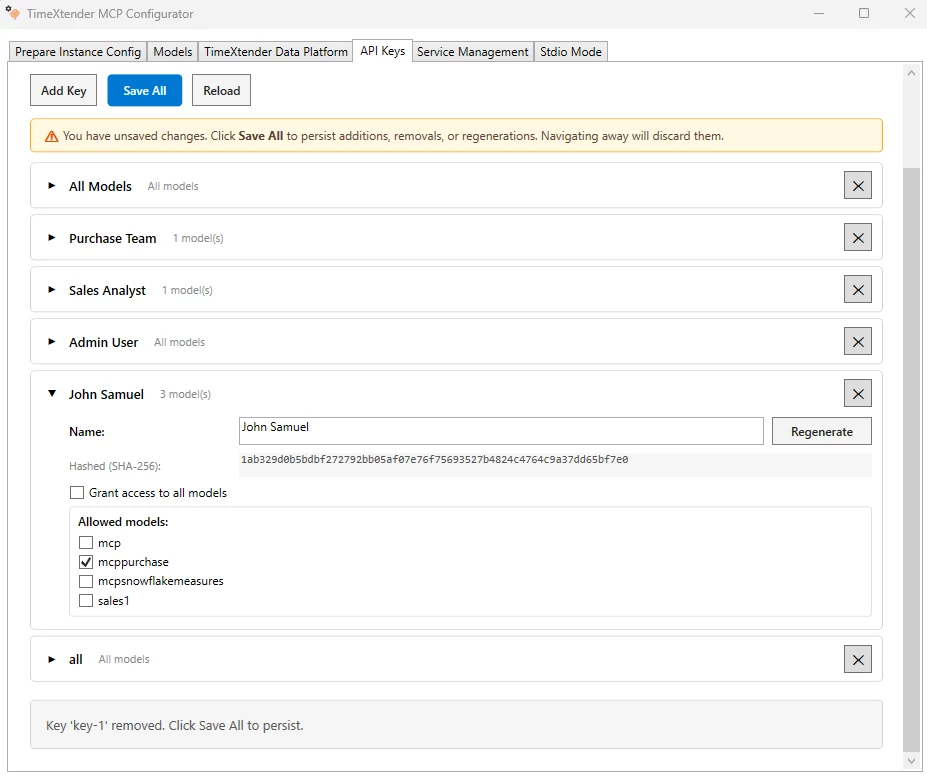
Leave Grant access to all models unticked. The Allowed models panel appears and lists every model currently registered. Tick the models this key should be allowed to query. The card's scope summary shows the count (for example, 2 model(s)).
This is the right choice when:
- Different teams or AI clients should only see specific domains (Sales, HR, Finance)
- A newly added model should not be exposed to existing keys until you explicitly add it to each one
Tick at least one model before clicking Save All. A key with Grant access to all models unticked and no individual model selected cannot be saved.
Common scoping patterns
The same bundle key design supports several access models. Mix them as your organisation needs:
- One key per team. Name the key after the team (
sales-team) and tick the models that team owns (for example, Sales pipeline, Quotas, Won deals). Everyone on the team uses the same key inside their AI client of choice. When a teammate leaves, regenerate the key once and redistribute the new plaintext to the team. - One key per analyst. Name the key after the person (
jane-analyst) and tick the specific models that person is authorised to query. Useful when individuals need different access from their team, or when you want individual accountability in audit logs. - One key per tool. Name the key after the AI client (
claude-desktop-finance) and scope it tightly to the models that tool should reach. Useful when the same person uses multiple tools and you want to revoke or rotate them independently. - One unrestricted admin key. Tick Grant access to all models for an admin or evaluation key used to test the full surface. Issue it sparingly and rotate it on a schedule, because it grants access to every current and future model on the server.
A team key and a person key can coexist on the same server. For example, an analyst might use the shared sales-team key inside their team's reporting tool and a separate jane-analyst key inside their personal workspace, each with different scope.
How Scope Is Enforced
When an AI client connects with a scoped key, the server enforces the scope in two ways:
- The list of models the client can see is filtered. Calls to the
list_semantic_modelstool only return models that the key is authorised for. Models outside the scope are invisible to that client. - A direct query for an unauthorised model is rejected. If the client somehow asks for a model that is not in its scope (for example, by remembering a model ID from earlier), the tool call returns the error:
{
  "error_code": "access_denied",
  "error_message": "Your API key is not authorised to access model 'sales'.",
  "error_details": "Use list_semantic_models to discover the models this key can access, or ask an admin to widen the key's AllowedModelIds."
}
Unrestricted keys (Grant access to all models on) skip both checks. Every registered model is visible to the client and every query is allowed.
Use the Key from an AI Client
AI clients in HTTP mode send the key in the X-API-Key HTTP header on every request. For the full client-side configuration, see Connect to MCP using HTTP Mode.
A request that omits the header, sends a blank value, or sends a key the server does not recognise is rejected with HTTP 401 Unauthorized and the response body:
{
  "error": "invalid_api_key",
  "error_description": "API key is missing or invalid. Provide a valid key in the X-API-Key header."
}
The 401 response is deliberately the same for a missing key, a malformed key, and a wrong key, so an attacker cannot tell which condition was hit.
Regenerate a Key
If a client's plaintext value is leaked or you simply want to rotate it, regenerate the key. The key's name, scope, and identity stay the same. Only the secret value changes, so audit logs from before the rotation continue to reference the same name.
- Open the API Keys tab
- Expand the card for the key you want to rotate
- Click Regenerate. Confirm the prompt. A new plaintext value appears in the yellow banner. The previous plaintext becomes invalid as soon as the next Save All completes and the service restarts.
- Copy the new plaintext value
- Click Save All
- Restart the MCP service when prompted (or from the Service Management tab)
- Update the AI client's configuration with the new plaintext value
Remove a Key
- Click the ✕ button on the right side of the key card
- Click Save All to persist the removal
- Restart the MCP service when prompted
Any AI client that was using the removed key starts receiving 401 responses on the next request after the service restarts.
How Keys Are Stored
The MCP Server never stores the plaintext of a user-created API key. When a key is saved, the Configurator writes its SHA-256 hash to mcp-server.json together with the key's name and scope. The plaintext only exists in memory inside the Configurator long enough for you to copy it from the banner.
When an HTTP request arrives, the MCP Server hashes the incoming X-API-Key value and compares the result against the stored hashes using a constant-time comparison so that wall-clock timing cannot leak which configured key is the closest match. The full list of configured keys is also scanned even after a match, so the position of the matching key in the list cannot leak through response time either.
If you forget to copy the plaintext before clicking Save All, the key is unrecoverable. Generate a new plaintext value with Regenerate, or remove the card and add a new key.
Dangling Model References
A key is dangling when one of its allowed models has been deleted from the Models tab. The Configurator shows a red References deleted models warning on the card and lists the missing model IDs.
- In the Configurator: dangling references are a soft warning. The save still completes so you have a chance to fix the issue without losing other edits.
- At server startup: dangling references are a hard failure. The MCP service refuses to start until either the model is added back or the dangling entry is removed from the key.
Resolve a dangling reference one of two ways:
- Re-add the model to the Models tab using the same model ID, if the deletion was unintentional, or
- Untick the dangling model on the key card (or turn on Grant access to all models if the key should be unrestricted), then click Save All
Troubleshooting
Add Key is disabled
A key needs at least one model to authorise. Register a model in the Models tab first, then return to API Keys.
Save All fails with a duplicate name error
Two or more keys have the same name (case-insensitive). Rename one of them on its card and try again.
Save All fails with a scope error
A key has Grant access to all models off and no individual model ticked. Tick at least one model on the key's card, or turn on Grant access to all models, then click Save All.
Plaintext value was lost before it could be copied
The plaintext cannot be retrieved. Click Regenerate on the same card to create a new plaintext value, then Save All and restart the service. Update the AI client's configuration with the new value.
Client receives HTTP 401 after rotating a key
The Windows service must restart to pick up the new key configuration. Click the prompt that appears after Save All, or restart manually from the Service Management tab. Also confirm the AI client was updated with the new plaintext value.
Client receives access_denied for a model
The key is valid but the model the client requested is not in the key's scope. Either expand the key's scope on the API Keys tab and save, or update the client to query a model the key already allows. The client can call list_semantic_models to see which models are in scope.
Server fails to start after deleting a model
A key still references the deleted model. Open the API Keys tab, find the card with the red References deleted models warning, untick the dangling model (or turn on Grant access to all models), and click Save All.
