

Overview
Register your on-premises MCP Server with the TimeXtender Data Platform so cloud-hosted AI tools, including Xpilot, can call your semantic models. Registration is optional. The MCP Server keeps working without it for Stdio and HTTP clients on your own network.
After registration, the MCP Server maintains an outbound-only SignalR connection to the TimeXtender Data Platform hub. The cloud cannot reach the server unless the server's outbound connection is up, and no inbound firewall ports need to be opened. All traffic flows over the same outbound TLS connection.
Registration is managed from the TimeXtender Data Platform tab in the TimeXtender MCP Configurator.
Prerequisites
- Configure MCP Server with at least one semantic model registered on the Models tab
- A TimeXtender Data Platform tenant and an account that has the TimeXtender administrator role on that tenant
- Outbound HTTPS access from the MCP Server machine to:
- The TimeXtender Cloud authentication endpoints (the browser opens these during sign-in)
- The relay hub URL assigned to your tenant (recorded after registration)
- The MCP Server Windows service is Running. Connection state changes take effect on service restart.
Register the Server
- Open the TimeXtender Data Platform tab in the TimeXtender MCP Configurator. The tab shows the Not connected state on a fresh install.
- Click Connect to TimeXtender Data Platform. The default browser opens to the TimeXtender sign-in page.
- Sign in with the account that has the TimeXtender administrator role
- If your account is a member of more than one tenant, select the tenant this MCP Server belongs to from the tenant picker
- The browser confirms registration is complete and returns control to the Configurator
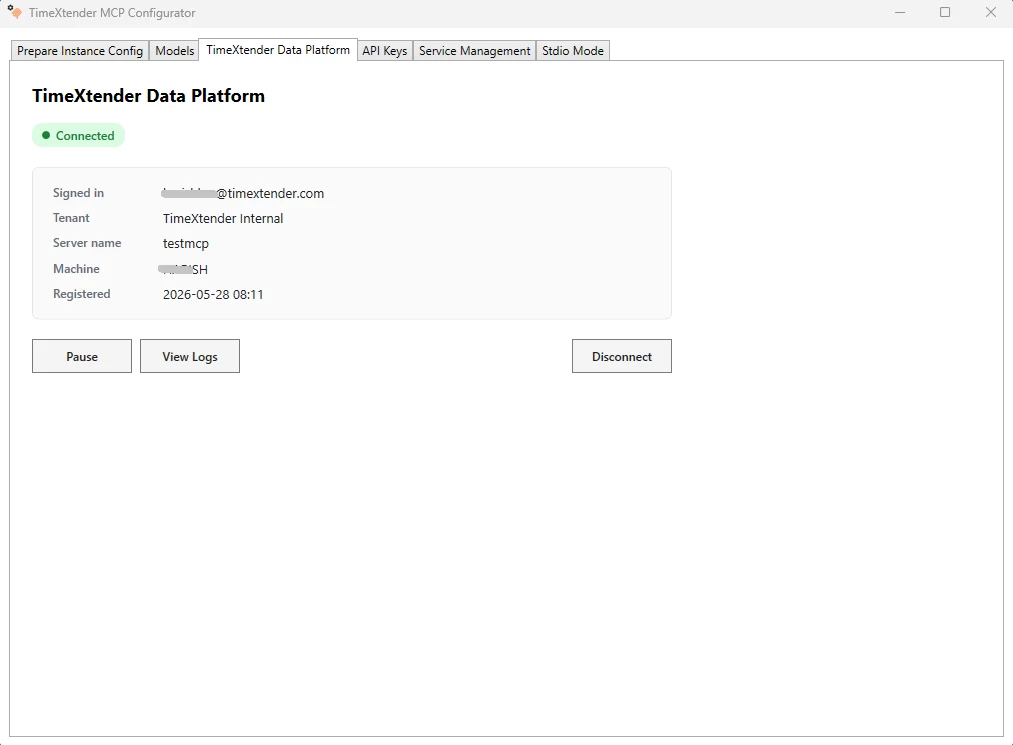
- The tab transitions through the Busy state and lands on the Connected state. The Connected card shows:
- Signed in — the email address used to register
- Tenant — the tenant display name (or tenant key if no display name)
- Server name — the friendly name assigned during registration
- Machine — the Windows machine the MCP Server runs on
- Registered — the timestamp of successful registration
The Configurator writes the registration into the Relay section of mcp-server.json. The relay access token is encrypted with Windows DPAPI (LocalMachine scope) before being saved. The token is never logged, never displayed, and never written in plaintext.
States and Actions
The tab uses five states. Each state shows the controls relevant for that state.
| State | Meaning | Available actions |
|---|---|---|
| Not connected | The server has never been registered, or registration was disconnected | Connect to TimeXtender Data Platform |
| Busy | Registration or a state change is in progress | Cancel, View Logs |
| Connected | The server is registered and the relay client should connect on startup | Pause, View Logs, Disconnect |
| Paused | The server is registered but the relay client is disabled. Local Stdio and HTTP clients still work. | Resume, View Logs, Disconnect |
| Couldn't connect | Registration failed or the relay connection raised an error | Try Again, View Logs, Disconnect (if previously registered) |
Pause and Resume
Use Pause when you want to temporarily stop cloud AI from reaching the server without losing the registration. Pause changes the Relay configuration to disabled. Restart the MCP Server Windows service from the Service Management tab for the new state to take effect. Use Resume to re-enable cloud reach.
Disconnect
Disconnect removes the registration. The relay token is deleted from mcp-server.json and the tab returns to the Not connected state. Cloud AI loses the ability to call this server until you re-register. To make the change take effect in the running process, restart the Windows service from the Service Management tab.
Try Again
In the Couldn't connect state, the panel shows an administrator-friendly message and a correlation ID. Use Try Again to retry the failing step. Include the correlation ID when contacting TimeXtender support.
Limits
The relay enforces hard limits on request and response payload size to protect both the on-premises server and the TimeXtender hub:
| Limit | Default | Where enforced |
|---|---|---|
| Maximum request body | 2 MiB raw | On-premises before forwarding to the local MCP transport |
| Maximum response body | 2 MiB raw | On-premises before sending back to the hub |
| Shutdown drain | 30 seconds | Waits for in-flight requests to complete before the relay disconnects |
| Local request timeout | 30 seconds | If the local MCP transport does not reply within this window, the relay returns a 504 Gateway Timeout |
A request that exceeds the size limit is rejected with an HTTP 413 Payload Too Large response before any local I/O. If you regularly hit the limit on legitimate workloads, raise it with TimeXtender support.
How the Connection Works
After registration, the relay client opens a long-lived SignalR connection to the hub URL recorded in the Relay configuration. The connection authenticates with the access token TimeXtender Cloud issued during registration. Once connected, the relay client subscribes to ForwardRequest invocations and dispatches each one to the local MCP HTTP transport at http://localhost:<port>/mcp, then returns the response over the same hub connection.
The relay is implemented as a hosted background service inside the MCP Server. It only attempts a hub connection when the Relay section is present in mcp-server.json and Enabled is true. Otherwise, the MCP Server starts in local-only mode and serves Stdio and HTTP clients normally.
If the relay token cannot be decrypted at startup (for example, because the configuration was copied from a different machine or restored from backup under a different user account), the server falls back to local-only mode. The health check surfaces the misconfiguration as Unhealthy. Re-register from the TimeXtender Data Platform tab on the new machine or under the correct user.
Update or Move the Server
The registration is bound to the Windows machine and the Windows user account that ran the Configurator at registration time. If you need to:
- Restart the machine: nothing to do. The relay reconnects on next service start.
- Update the MCP Server software: nothing to do. Registration survives in-place upgrades.
- Restore
mcp-server.jsonfrom a backup taken on the same machine and same user: the token decrypts and the relay reconnects. - Move the MCP Server to a new machine, or restore under a different Windows user: re-register from the new machine. The previous DPAPI-encrypted token cannot be decrypted on the new machine. Disconnect first from the old machine if it is still online, then re-register from the new one.
Troubleshooting
The browser does not open or times out during sign-in
A pop-up blocker or browser policy is interfering. Close other browser windows, ensure your default browser is set, and click Try Again. If your environment requires a specific browser for authentication, set that browser as default before retrying.
Sign-in succeeds but the tenant picker is empty
The signed-in account is not a member of any TimeXtender tenant, or it does not have the TimeXtender administrator role. Sign in with an administrator account, or have an existing administrator grant your account the role.
Sign-in succeeds, the tenant is selected, but the tab lands on "Couldn't connect"
The registration API returned an error. The panel shows an administrator-friendly message and a correlation ID. Click View Logs to see the full server log, copy the correlation ID, and contact TimeXtender support if the message is not self-explanatory.
Connected state shows but cloud AI cannot reach the server
Restart the MCP Server Windows service from the Service Management tab. The Relay section was just written; the hosted relay client only reads it at startup.
Connected, but server log shows "DPAPI decryption failed"
The mcp-server.json file was copied from a different machine, or restored under a different Windows user account. DPAPI ciphertext can only be decrypted by the same user on the same machine that encrypted it. Disconnect, then re-register from this machine.
Cloud AI requests return HTTP 413 Payload Too Large
A single request or response exceeded the 2 MiB raw limit. Reduce the query result size (add filters, lower the row cap, project fewer columns). If the workload genuinely needs a higher limit, contact TimeXtender support.
Cloud AI requests return HTTP 504 Gateway Timeout
The local MCP transport did not reply within 30 seconds. The query is too slow or the server is overloaded. Check the Open Logs Folder link on the Service Management tab for the slow query, and consider tuning the underlying database or splitting the semantic model.
