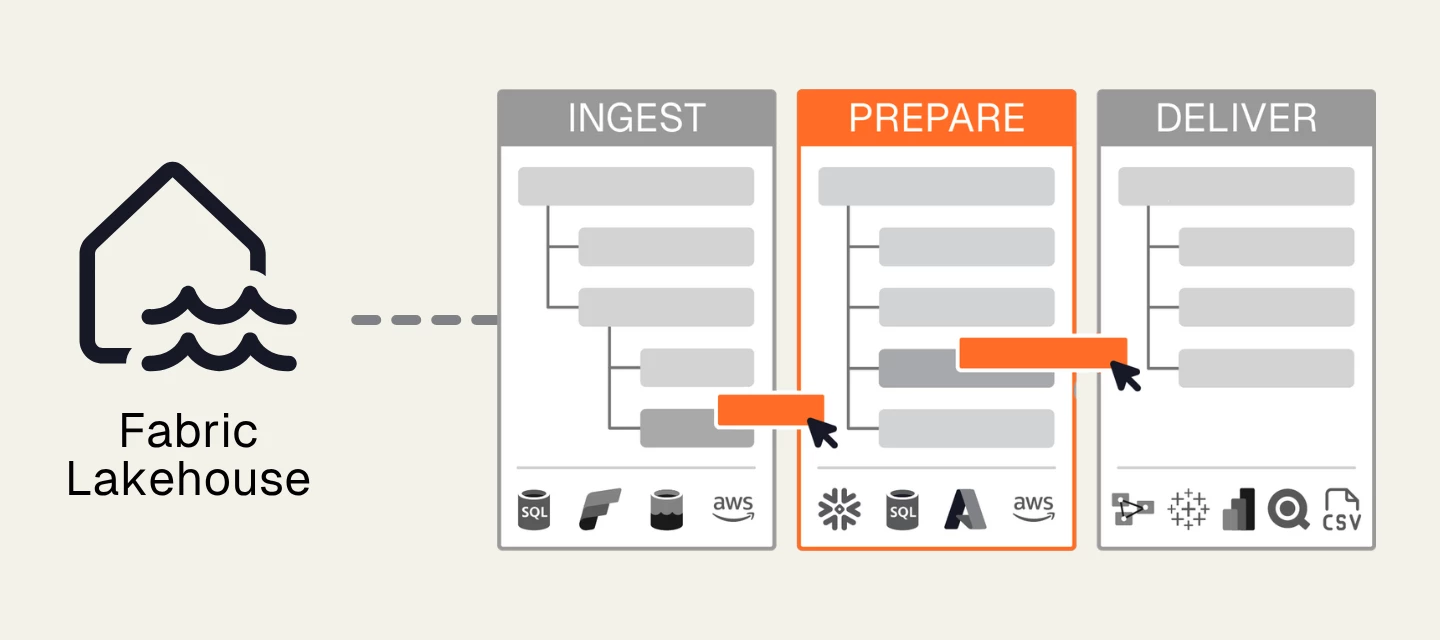



This article describes how to set up Prepare instances with Fabric Lakehouse storage.
Fabric Lakehouse Prepare instance storage is available as part of the Standard, Premium or Enterprise Package
A public preview of this feature is currently available that supports the following functionality:
- Data extraction from Ingest instances using Fabric Lakehouse storage
- All standard functionality except related records and hierarchy tables.
- If you use the data in a Delivery instance, PowerBI endpoints can be used.
The following features are currently not supported in Fabric Lakehouse:
- Lookup transformations and lookup transformation templates
- The setting Postfix valid tables with '_v' (always equals ‘No’ on Fabric Lakehouse)
- Snippet views and custom steps
- Stored procedures and user defined functions (as these are SQL scripting concepts)
When a Prepare instance uses Fabric Lakehouse storage, the supported features work the same as on any other storage with the following exceptions:
- 'nchar' columns always have the predefined length with spaces being added to the value as padding. For example, a 'CustomerName' column with the datatype 'nchar(20)' would store TimeXtender as "TimeXtender ". When you create selection rules on 'nchar' columns, remember to add the spaces to the rule.
Prerequisites
- Your Ingest Instance must also use Fabric Lakehouse storage. Currently, Fabric Prepare Instances can only use data from Ingest instances with Fabric storage. Using Fabric Prepare instances in combination with non-Fabric Ingest Instances is currently not supported.
- Create an App Registration in the Azure Portal. It is recommended to use a dedicated app registration to ensure this account is the only one with access to the client credentials.
- In Fabric/Power BI Admin Portal, enable the following settings and ensure these settings are enabled for the app registration if using specific security groups:
- Users can create Fabric items
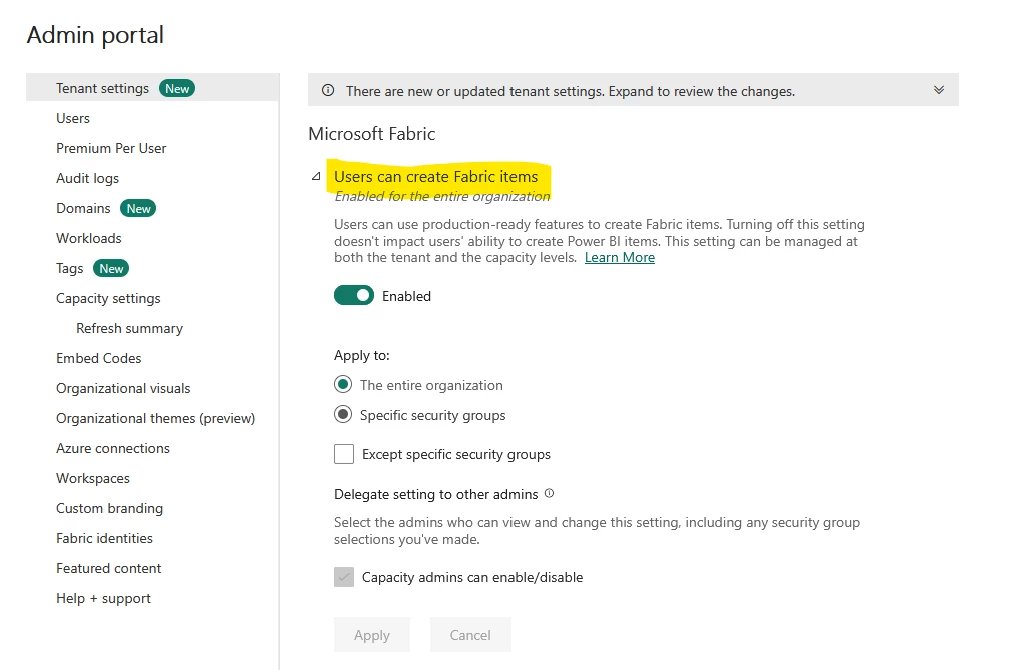
- Service principals can create workspaces, connections and deployment pipelines
- Service principals can call Fabric public APIs
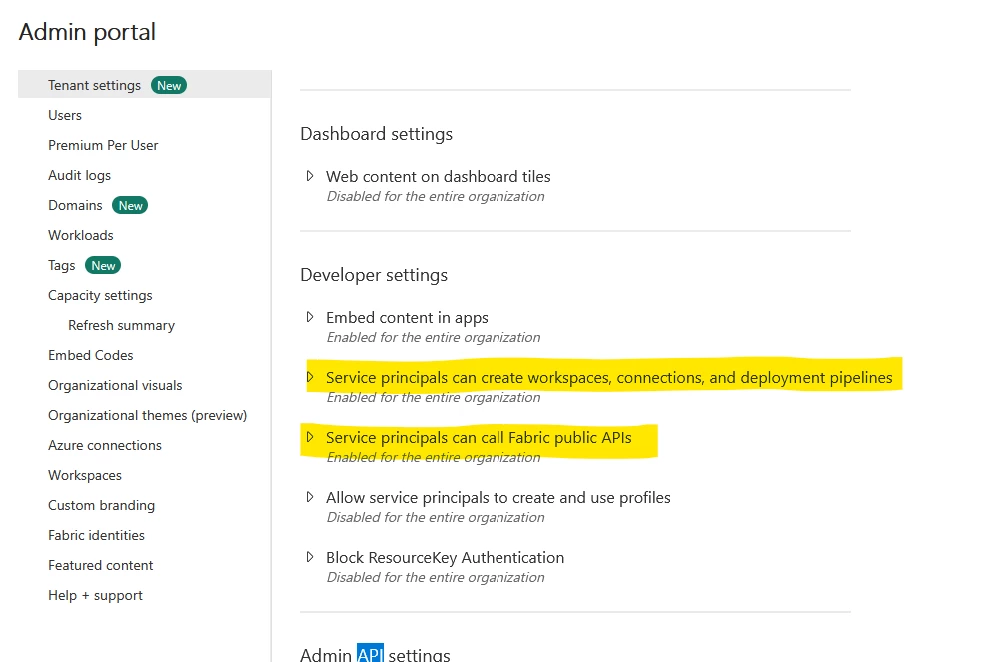
Note: If using workspace settings to override tenant admin settings for Users can create Fabric items, ensure this setting is enabled on the workspace level and that it is enabled for the app registration if using specific security groups.
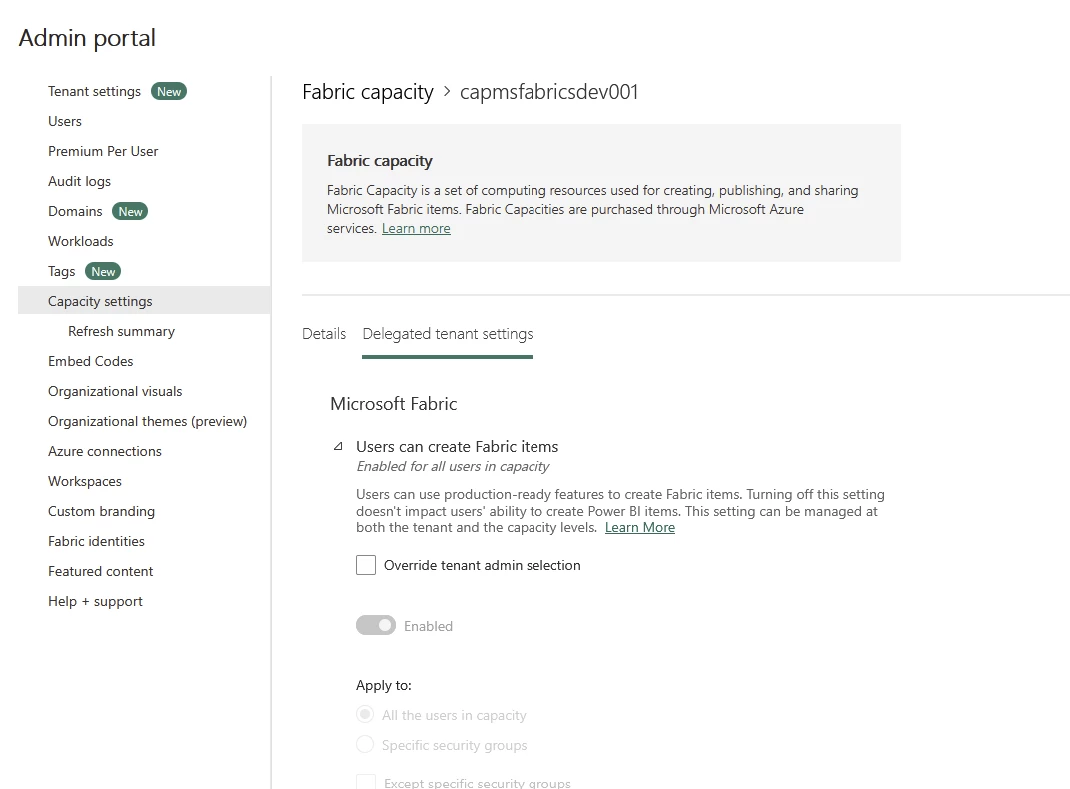
- Users can create Fabric items
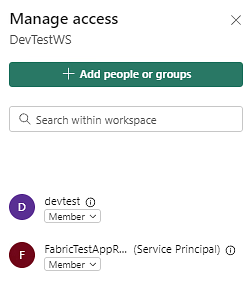
- Create a workspace, or go to an existing workspace, in the Fabric portal and select Manage access. Grant the App Registration account Member access to the Fabric workspace.
Add Prepare Instance with Fabric Lakehouse Storage
Note: You can connect to an existing Lakehouse that has been created directly in the Fabric Portal, or you can choose to create the Lakehouse within TimeXtender Data Integration (TDI).
- Add a Prepare instance and select the storage type Microsoft Fabric Storage.
- Enter the workspace name for the existing Fabric workspace.
Warning: Don’t use a workspace with a / (slash) or backslash (\) in the name. While it’s allowed in Fabric, Spark notebooks - and with that, TDI - do not support it.
- Enter a name for the Lakehouse.
Warning: Make sure to use different Lakehouses for your Ingest and Prepare instances to avoid table name clashes.
- Enter the Tenant ID for the tenant associated with Fabric.
- Enter the Application ID for the App Registration.
- Enter the Application Key (the client secret value) associated with the App Registration.
- To save notebooks in a TimeXtender subfolder instead of the workspace root, turn on Save notebooks in a folder.
Note: This option is turned on by default for new instances. For existing instances, it is turned off by default and must be enabled manually in the storage settings. Existing notebooks are not moved automatically, but you can move them manually without affecting functionality.
- Open TimeXtender Data Integration and open the instance you just created.
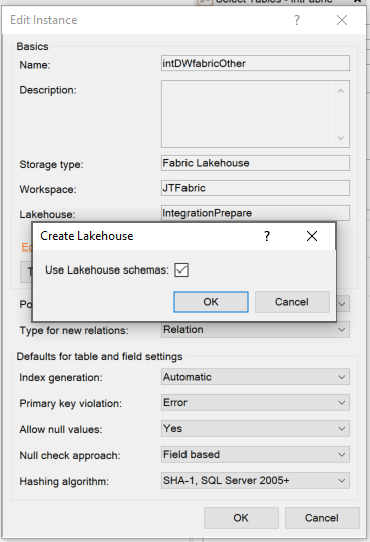
- If you haven't created the Lakehouse already, you can do so now by right-clicking the instance in the Solution Explorer and selecting Edit Instance, then Create Storage. Keep the Use Lakehouse schemas property checked (recommended, as it allows for different schemas by organizing tables into sub-folders in the Lakehouse, rather than creating all tables in the 'dbo' schema, which presents the risk of overwriting tables if there are multiple data areas containing tables with the same name) and select OK.
Objects deployed within Fabric Lakehouse
Upon deployment of a table in a Fabric Prepare instance, a Spark-based Fabric Notebook is created in the workspace and named using the following format: TimeXtender_<Lakehouse Name>_<TABLE/VIEW>_<Data Area>_<Table Name>. A notebook is created for each table that is deployed.
If Save notebooks in a folder is turned on, notebooks are saved in a TimeXtender subfolder within the workspace instead of the workspace root.
To view the notebooks, go to your Fabric Lakehouse and select Open notebook, then select Existing notebook. Search for the notebook and select the relevant notebook.

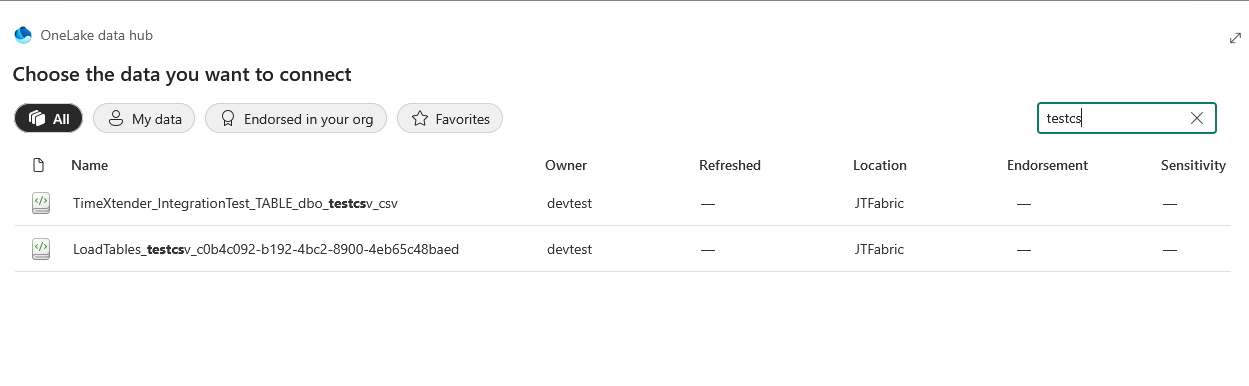
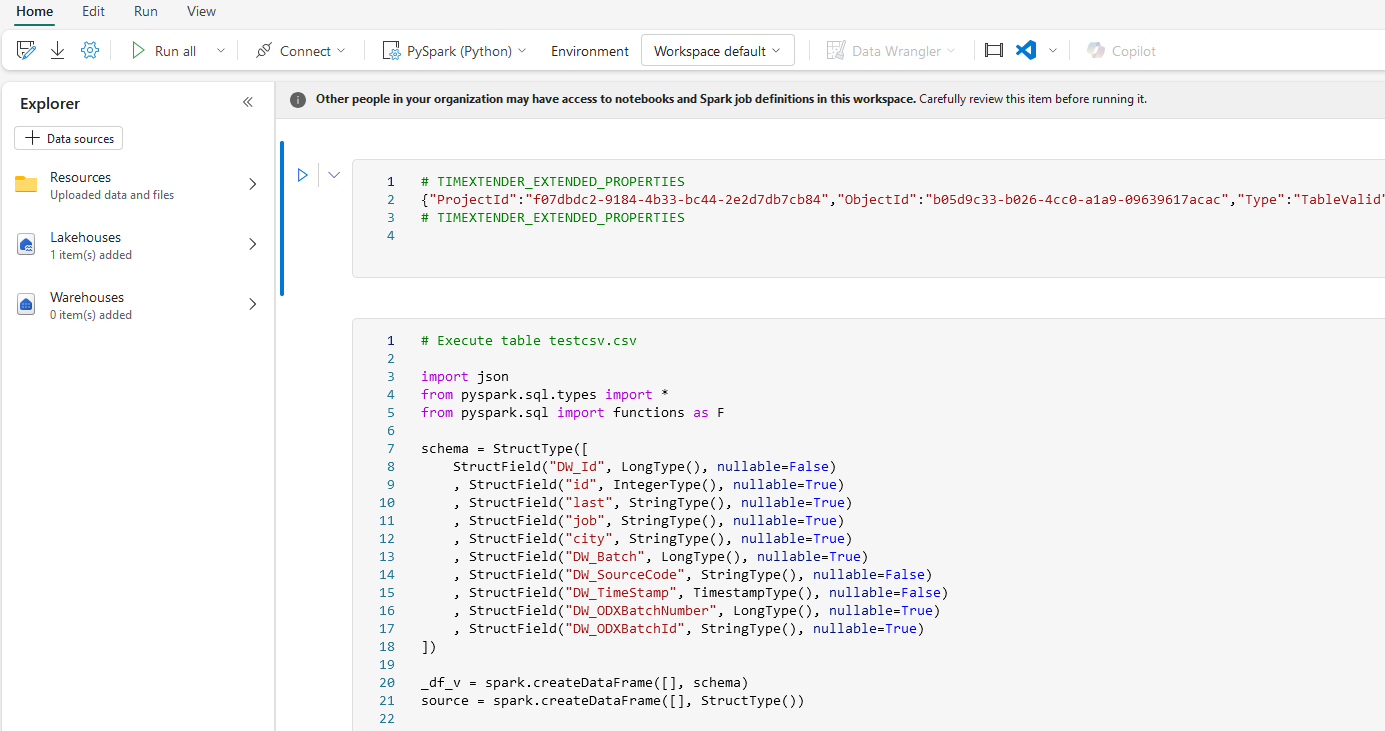
When a table is executed within a Fabric Prepare instance, the notebooks created on deployment are run. The execution of the notebook results in the creation of a Lakehouse table and population of the Lakehouse table with data from the Ingest instance Fabric storage.
Note: Unlike other storage types, tables are not created in Fabric Lakehouse until you execute the table. In addition, empty tables are not created.
If a table is dragged into the data area without any transformation, selection rules, incremental rules or any other modifications, a shortcut to the table (in the Ingest instance Fabric lakehouse) is created in the Prepare instance Fabric lakehouse, rather than a delta parquet table.
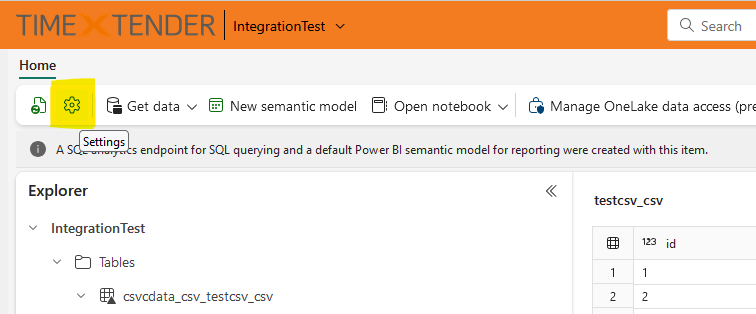
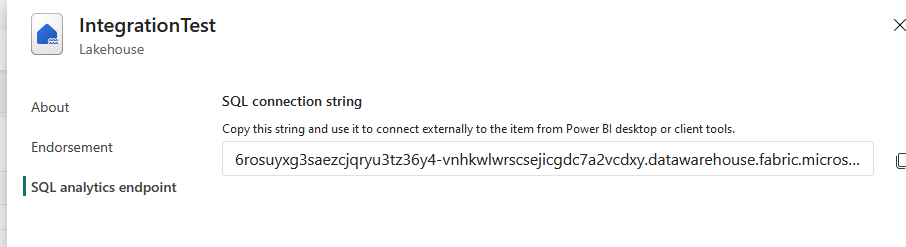
Views and stored procedures are deployed to the SQL Analytics endpoint for the lakehouse. To review the views and stored procedures deployed, go to your Fabric lakehouse, select Settings, and select SQL analytics endpoint. Copy the connection string, paste it into SSMS, and connect with the Microsoft Entra MFA authentication option.