



In this article, you are going to learn about Run Actions in Data Enrichment and how they can simplify your workflow. An Action can apply complicated data transformations and business logic to your data.
Running an action can be performed using the following methods:
- Using Run Action Button
- Run Action within Context Menu
- Run Action from a Button
Using Run Action Button
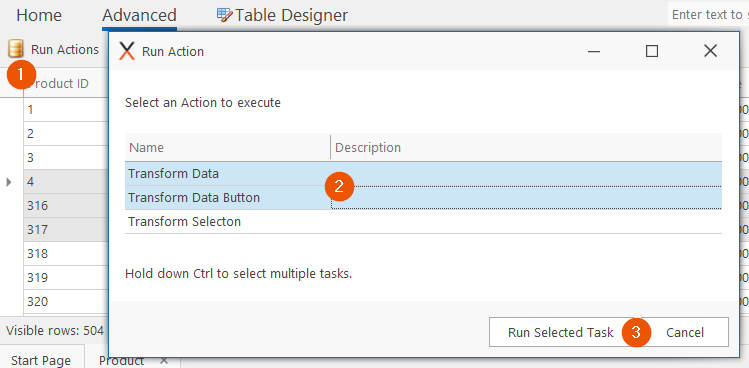
- All available Actions are available from the Run Action button. To Run one or Multiple Actions Click on Run Actions from the Advanced Tab
- Select One or Multiple Actions (Ctrl+Click)
- Click Run Selected Task
Run Action within Context Menu
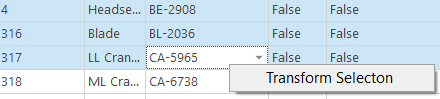
Tasks that should only be performed on selected rows can be placed as a Menu Item. To run a Menu Action:
- Select one or Multiple Rows (Ctrl+Click)
- Right Click
- Click the Action from the Context Menu
Run Action from a Button
Common task Actions can have a custom Icon Button assigned to the Action as in the Transform Data Button below.
- Click Edit in the navigation bar
- Name your customer button, click save
- Clicking the button will run the Action

