

Generate Data Quality Rules with XPilot
Generate Data Quality Rules with XPilot is a feature in TimeXtender Data Quality that uses artificial intelligence to scan a dataset and propose data quality rules for you. It analyzes data patterns, column statistics, and structures, then generates suggested rules with exception criteria (SQL filters) that you can review and turn into actual rules with just a few clicks. XPilot focuses on issues such as missing values, inconsistent formats, and suspicious outliers that can undermine analytics and AI if they are not controlled.
Why You Should Use It
XPilot AI-Powered Rule Suggestions is useful when you want to improve data quality quickly without manually designing every rule:
- You save time: XPilot automatically proposes relevant rules instead of requiring you to define each rule from scratch.
- You uncover hidden issues: XPilot looks for unexpected null patterns, format inconsistencies, and statistical outliers you may not think to check.
- You benefit from sector-specific intelligence: XPilot uses your workspace sector to load industry-relevant quality control templates.
- You reduce human error: Suggestions are based on observed data patterns rather than assumptions.
How to Use It (Base Case)
This section shows the shortest path from “no rules” to “rules created from AI suggestions.”
3.1 Open TimeXtender Data Quality and Navigate to Suggest Rules with XPilot
- Open TimeXtender Data Quality.
- Navigate to the Suggest Rules with XPilot page by either:
- Going to Datasets, opening a saved dataset, and clicking Generate Rules in the dataset header, or
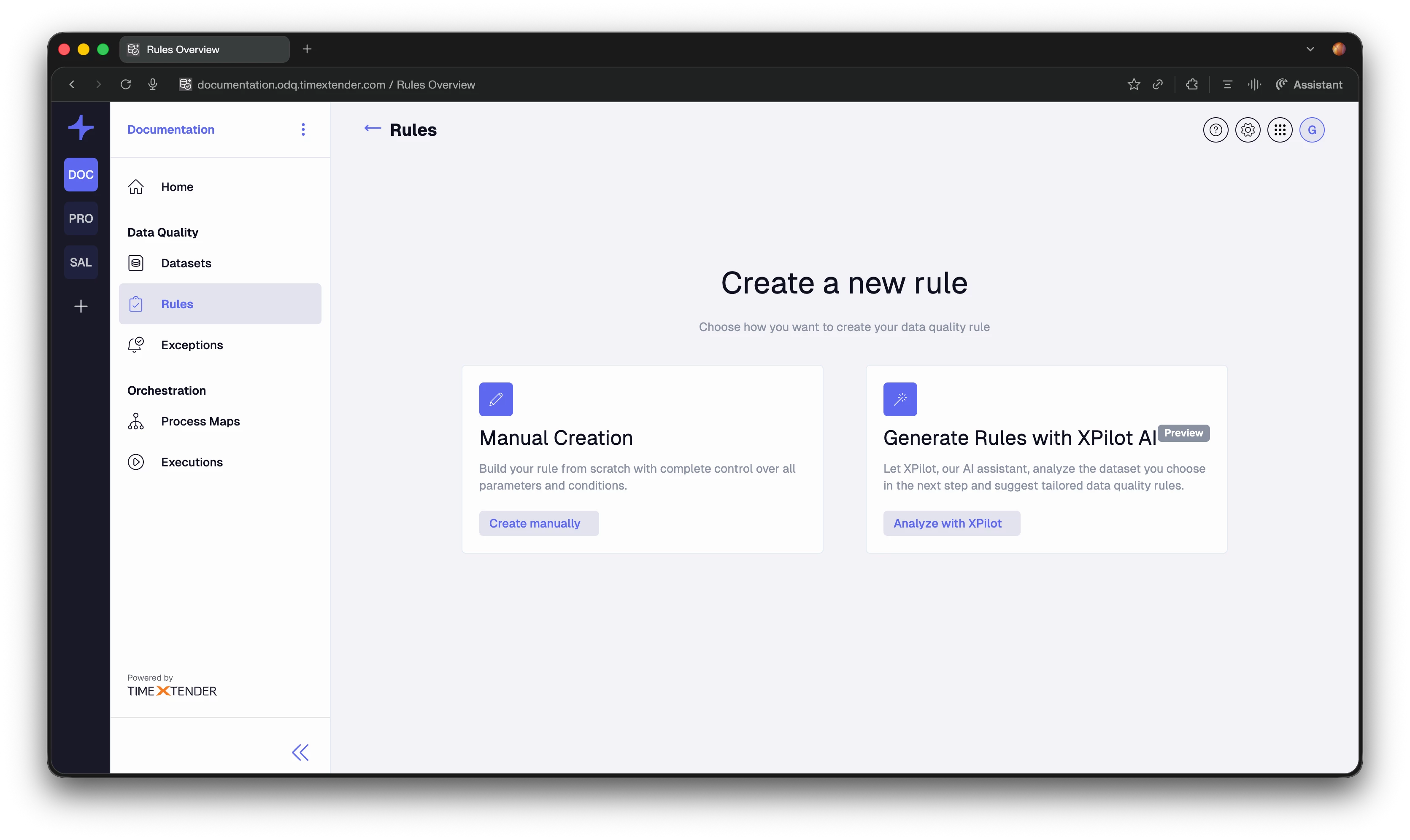
- Going to Rules → New and selecting Generate Rules with XPilot AI on the Create a new rule page.
3.2 Configure XPilot and Run It on a Dataset
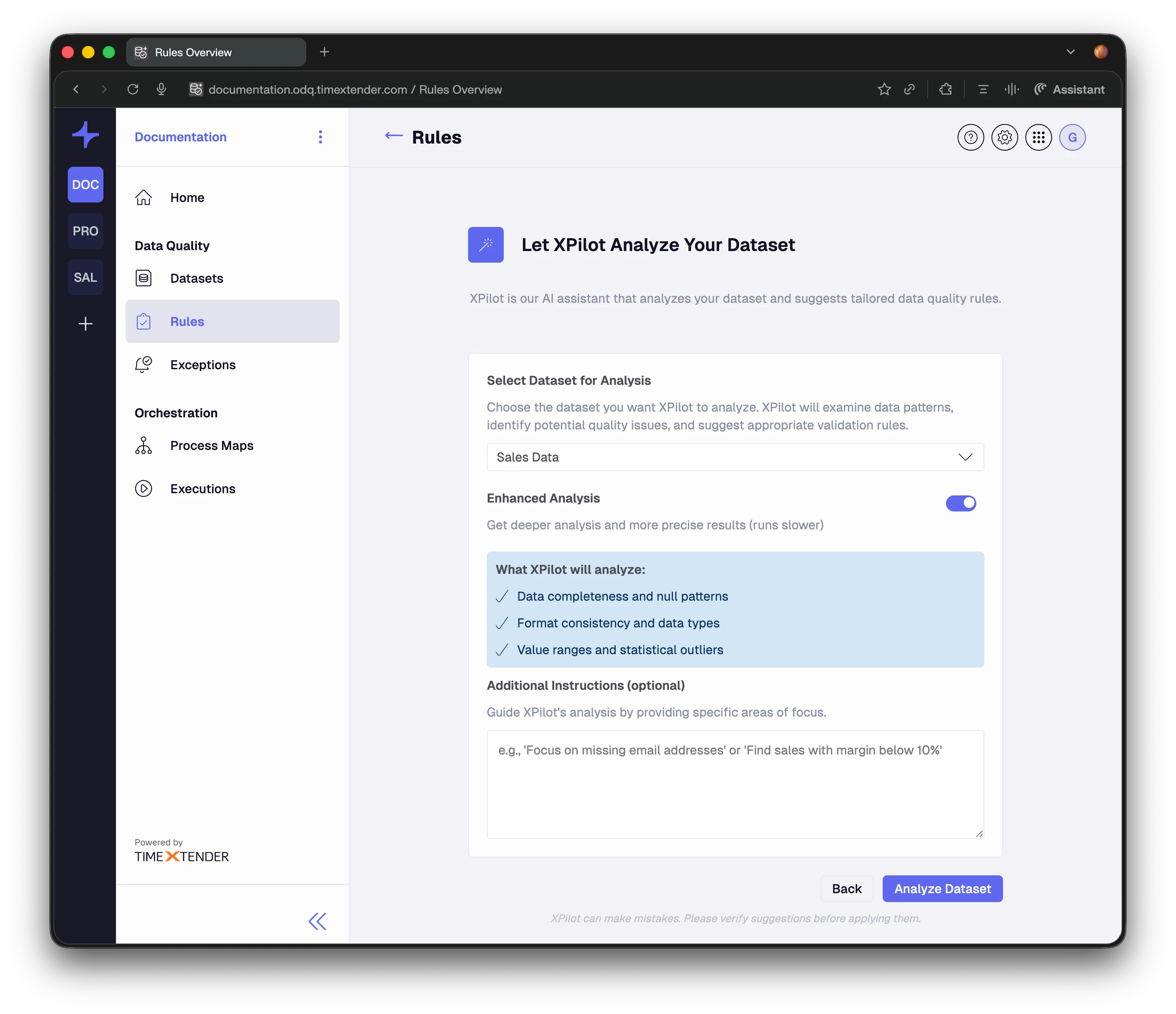
On the Suggest Rules with XPilot (Dataset Selection) page:
- Confirm the Dataset field shows the dataset you want XPilot to analyze. Change it if needed.
- (Optional) Turn on Enhanced Analysis if you want deeper, more precise results for complex datasets. A standard run usually finishes within about one minute, while Enhanced Analysis can take up to roughly three times longer.
- (Optional) Add plain-text instructions such as “Focus on missing email addresses” or “Find sales with margin below 10%” to guide the analysis.
- Click Analyze Dataset.
Because XPilot is performing several AI and metadata-driven steps behind the scenes, the analysis can take some time. Standard analysis usually completes within about one minute, while Enhanced Analysis can take up to roughly three times longer on wide or complex datasets.
3.3 Review Suggestions and Create Rules
When the analysis finishes, you see a split-view with a suggestion list on the left and suggestion details on the right.
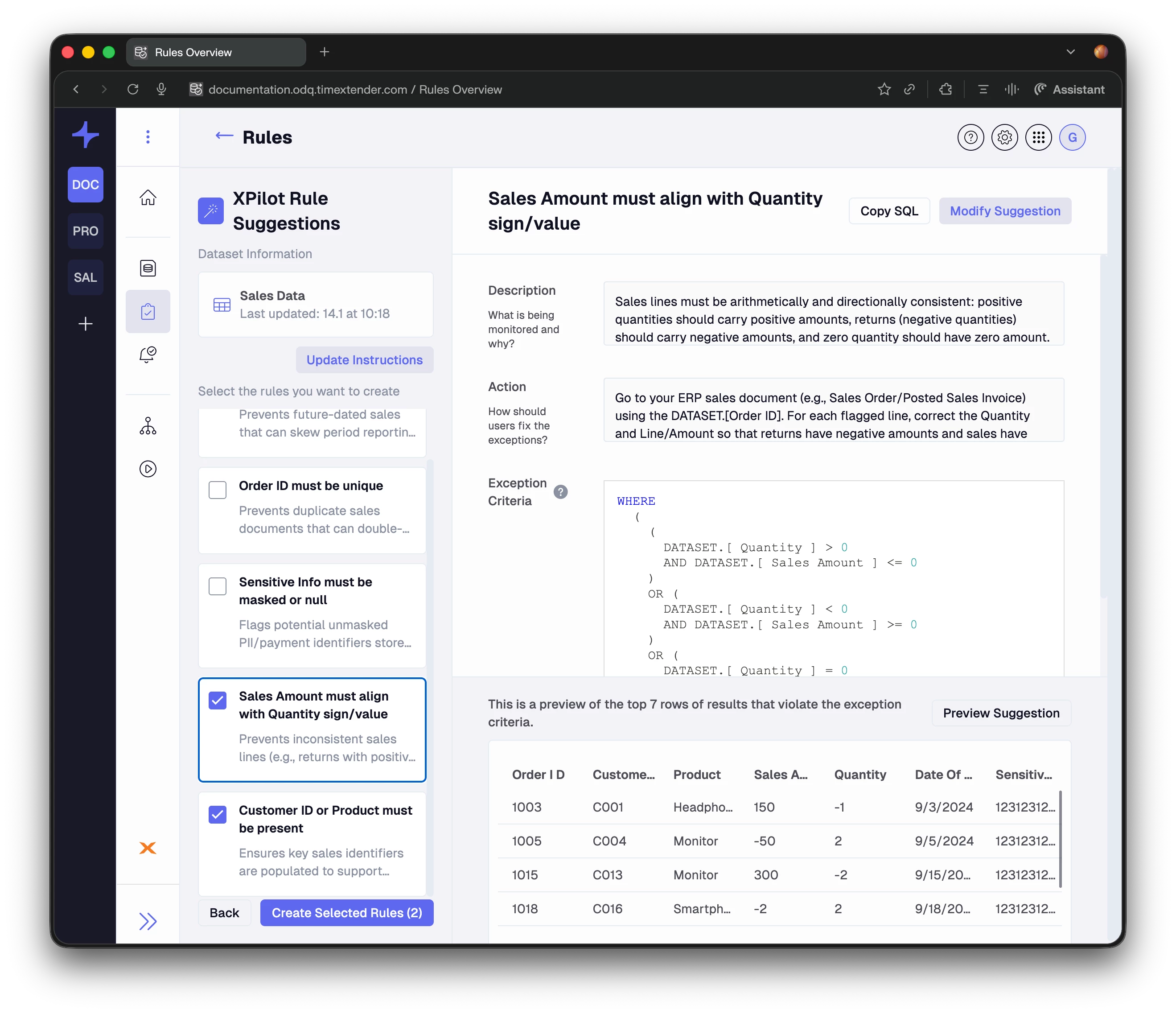
Left panel (list):
- Dataset name and last updated date.
- Update Instructions button.
- List of suggestions with a checkbox, title, short description, and a “New” badge for new items.
Right panel (details for the selected suggestion):
- Title – suggested rule name.
- Description – what the rule checks and why.
- Action – suggested remediation steps.
- Exception Criteria – SQL WHERE clause that finds violations.
- Copy SQL – copies the full query (dataset plus exception criteria).
- Modify Suggestion – lets you adjust the suggestion using natural language.
- Preview Suggestion – lets you see matching rows before creating a rule.
To create rules:
- In the left panel, select the checkboxes next to the suggestions you want to turn into rules.
- The main button updates to Create Selected Rules (X), where X is the number of selected suggestions.
- Click Create Selected Rules (X).
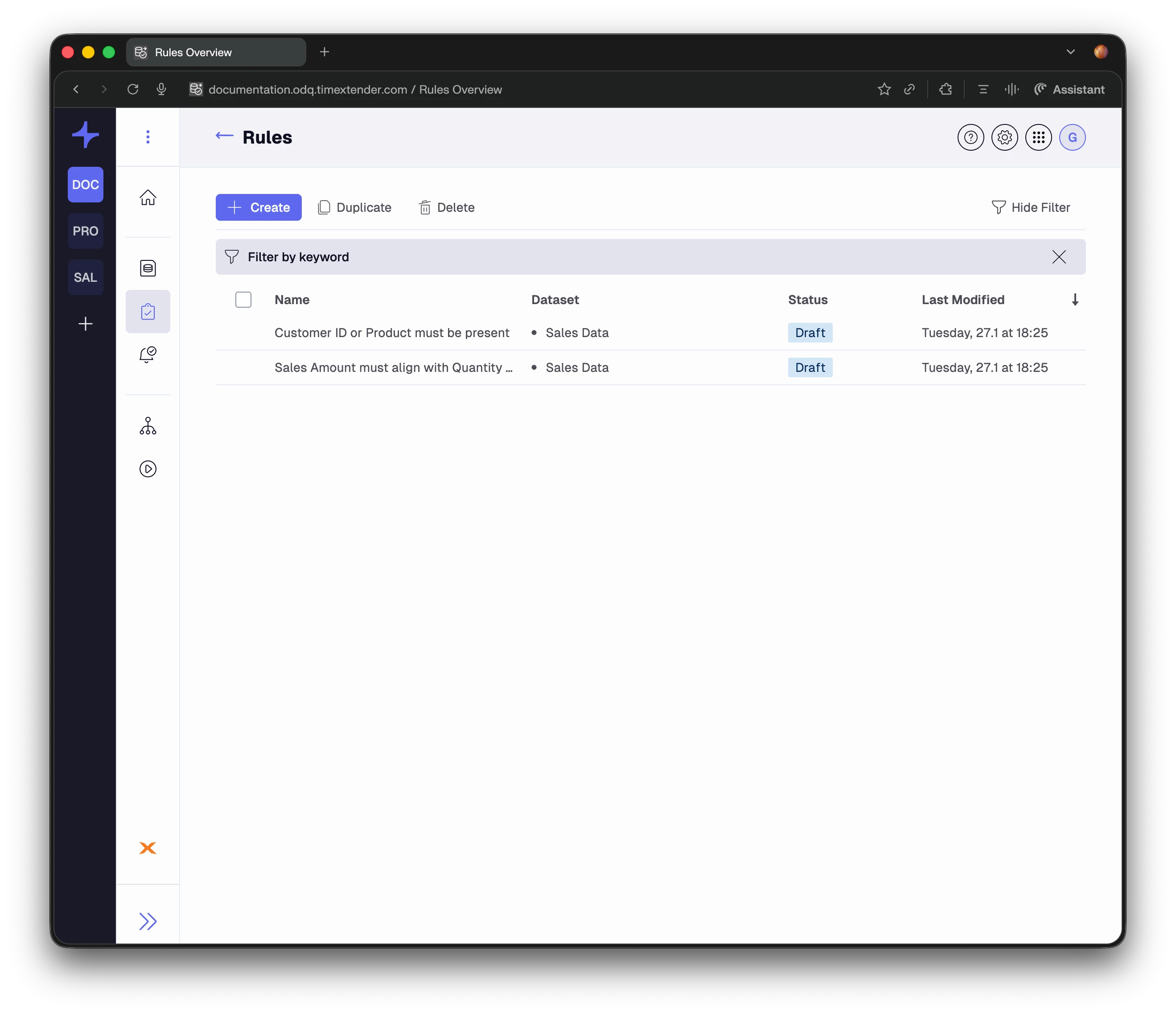
XPilot creates each rule in Draft status with:
- Name from the suggestion title.
- Description from the suggestion description.
- Action guidance from the suggested remediation steps.
- Exception criteria as a Custom SQL filter.
- Email notification pre-configured.
You are redirected to the Rules Overview page, and success messages confirm that the rules were created.
At this point, the basic workflow is complete. You can review and publish the draft rules using your standard TimeXtender Data Quality process.
Optional Refinement Steps
Use these capabilities when you want more control, need to adjust suggestions, or must fix issues.
4.1 Preview Suggestion Results
Previewing helps you confirm the impact of a suggestion before creating a rule.
- Select a suggestion in the left panel.
- Click Preview Suggestion.
- Review the data grid showing rows that match the exception criteria.
If there are no matches, XPilot shows:
No results match the specified exception criteria.
4.2 Modify Suggestions with Natural Language
If a suggestion is close but not correct:
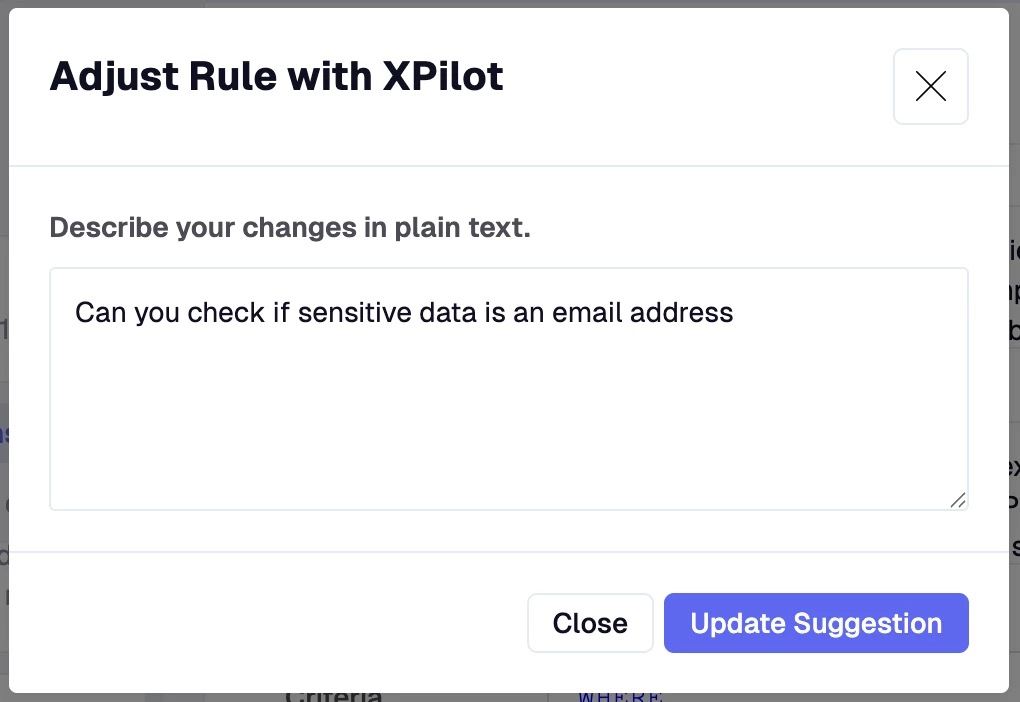
- In the suggestion details panel, click Modify Suggestion.
- In the modal, describe the change in plain language, for example:
- “Apply this null check to all customer contact fields.”
- “Exclude orders where IsTest = 1.”
- Click Update Suggestion to regenerate the suggestion and SQL.
4.3 Fix SQL Errors Automatically
If the generated SQL fails validation:
- Read the warning that appears with the SQL error.
- Click Ask AI to Fix This.
- XPilot regenerates a valid SQL filter that preserves the original intent where possible.
You can still edit the SQL manually if needed.
4.4 Generate More Suggestions with Updated Instructions
If the first set of suggestions is too narrow or not quite right:
- In the left panel, click Update Instructions.
- Add or refine your instructions in plain language.
- (Optional) Turn on Enhanced Analysis if you want deeper checks.
- Click Generate Suggestions.
New suggestions appear at the top of the list and have a “New” badge.
-
Tips for Best Results
These simple practices make XPilot much more effective:
- Use Enhanced Analysis only when needed: Turn on Enhanced Analysis for large, complex, or critical datasets. Expect runs to take longer, sometimes up to roughly three times the standard analysis time.
- Maintain rich metadata: Add clear descriptions for each column, the data provider, the workspace sector, and the dataset itself so the model understands field purpose, sector context, and overall dataset intent.
- Always preview critical rules: For rules that drive alerts or automated actions, use Preview Suggestion before creating and publishing to avoid unexpected results.
Important Notes and Limitations
Keep these points in mind when working with XPilot:
- XPilot uses a large language model (LLM) to generate suggestions, but your data is not used to train that model. The model is only used at runtime to generate suggestions for your workspace.
- XPilot does not send the entire dataset to the LLM. Instead, it uses a sample of the first 100 rows together with column statistics to characterize the dataset for analysis.
- Because XPilot relies on sampling and statistics, very rare patterns or edge cases may not always be detected automatically and may still require manual checks.
- XPilot can make mistakes; always validate suggestions, especially SQL exception criteria, before publishing rules.
- Rules created by XPilot are saved in Draft status and do not run until you publish them.
- Generated rules use Custom SQL filters for flexibility, which may require SQL skills for complex adjustments.
Troubleshooting
| Issue | Possible Cause | Recommended Action |
|---|---|---|
| No suggestions generated | Instructions too generic or dataset too limited | Add more specific instructions or enable Enhanced Analysis, then rerun the analysis. |
| SQL filter errors | Generated SQL contains syntax or semantic issues | Click Ask AI to Fix This, or use Modify Suggestion to adjust the SQL manually. |
| Suggestions do not match expectations | Instructions or sector context not specific enough | Use Update Instructions with more precise focus areas and confirm the workspace sector is correct. |
| Analysis takes longer than expected | Large dataset or Enhanced Analysis enabled | Allow more processing time. For quicker feedback, start with standard analysis before enabling Enhanced Analysis. |
| Feature not visible | AI features disabled in service settings | Ensure AI features are enabled; contact admin if AI features are disabled. |
By following these steps and guidelines, you can effectively utilize XPilot to generate high-quality, actionable data quality rules quickly and efficiently.
