

Overview
This guide explains how to configure TimeXtender Data Quality to automatically send exception notifications to a Microsoft Teams channel using an incoming webhook.
Prerequisites
- A Microsoft Teams channel where you want to receive notifications.
- Permission to create an Incoming Webhook connector in that channel.
- Access to TimeXtender Data Quality
Step 1: Create an Incoming Webhook in Teams
- In Teams, go to the channel where you want notifications.
- Select More options (⋯) → Connectors → Incoming Webhook.
- Name the webhook (e.g., TimeXtender Data Quality Alerts).
- Optionally upload an icon, such as the TimeXtender logo.
- Copy the webhook URL — you’ll need it in TimeXtender.
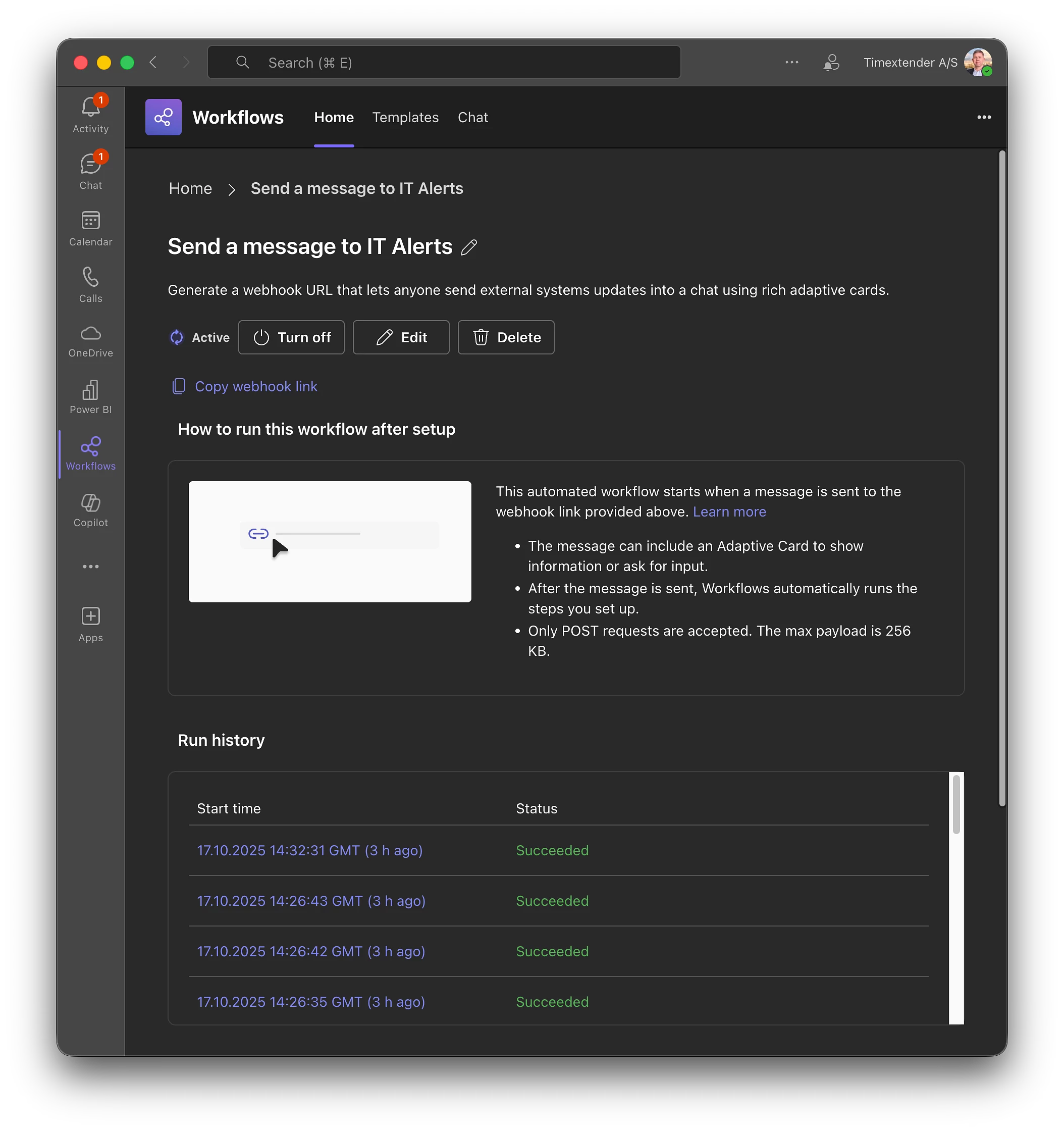
Step 2: Configure the Integration in TimeXtender Data Quality
- Open TimeXtender Data Quality and navigate to Integrations.
- In the Desktop client this is under the General folder
- In the web client this is under Settings
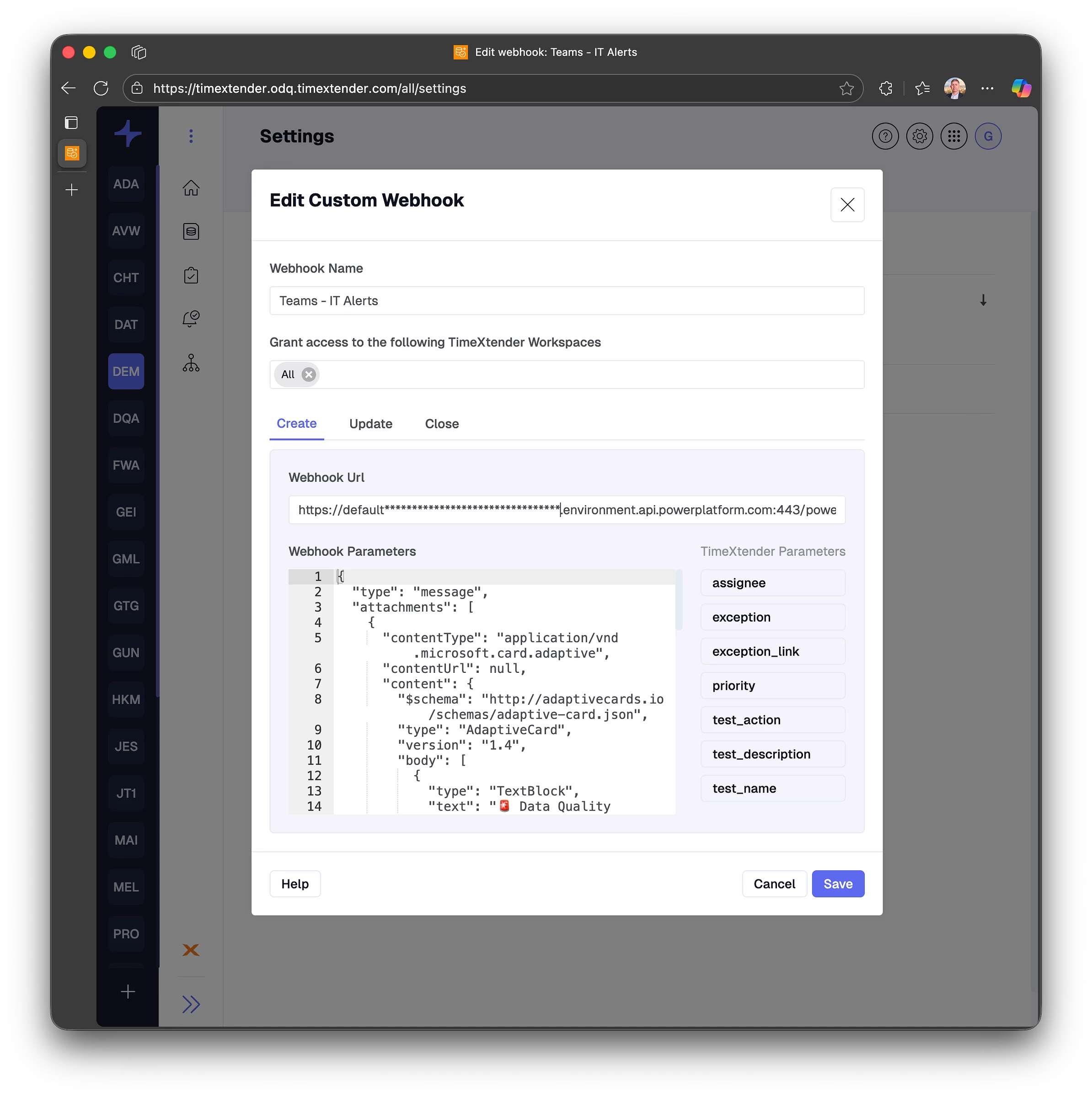
- Create a new integration and choose Webhook as the connection type.
- Paste the Teams webhook URL from the previous step.
- Define your message body using the Adaptive Card JSON structure below:
{
  "type": "message",
  "attachments": [
    {
      "contentType": "application/vnd.microsoft.card.adaptive",
      "contentUrl": null,
      "content": {
        "$schema": "http://adaptivecards.io/schemas/adaptive-card.json",
        "type": "AdaptiveCard",
        "version": "1.4",
        "body": [
          {
            "type": "TextBlock",
            "text": "🚨 Data Quality Exception Detected",
            "weight": "Bolder",
            "size": "Large",
            "color": "Attention"
          },
          {
            "type": "FactSet",
            "facts": [
              { "title": "Test Name:", "value": "%test_name%" },
              { "title": "Description:", "value": "%test_description%" },
              { "title": "Action:", "value": "%test_action%" },
              { "title": "Assigned To:", "value": "%assignee%" }
            ]
          },
          {
            "type": "TextBlock",
            "text": "Exception Details:",
            "weight": "Bolder",
            "spacing": "Medium"
          },
          {
            "type": "TextBlock",
            "text": "%exception%",
            "wrap": true,
            "spacing": "Small"
          },
          {
            "type": "ActionSet",
            "actions": [
              {
                "type": "Action.OpenUrl",
                "title": "🔍 View Exception in TimeXtender",
                "url": "%exception_link%"
              }
            ]
          }
        ]
      }
    }
  ]
}
This JSON defines how Teams will display the message. TimeXtender automatically replaces variables (like %test_name%) with real values when the exception occurs.
Note that the exact format Teams receives is defined in their documentation.
Step 3: Map Dynamic Fields
The following placeholders are supported and will be replaced dynamically:
- %test_name% – Name of the data quality test.
- %test_description% – Explanation of what the test checks.
- %test_action% – Recommended next step or remediation.
- %exception% – Details about the record or data that failed the test.
- %exception_link% – Direct link to view the exception in TimeXtender.
- %assignee% – Assigned user or group responsible for resolving the issue.
Step 4: Test the Integration
- Save your integration.
- In a Rule, create a Notification with your newly created Integration
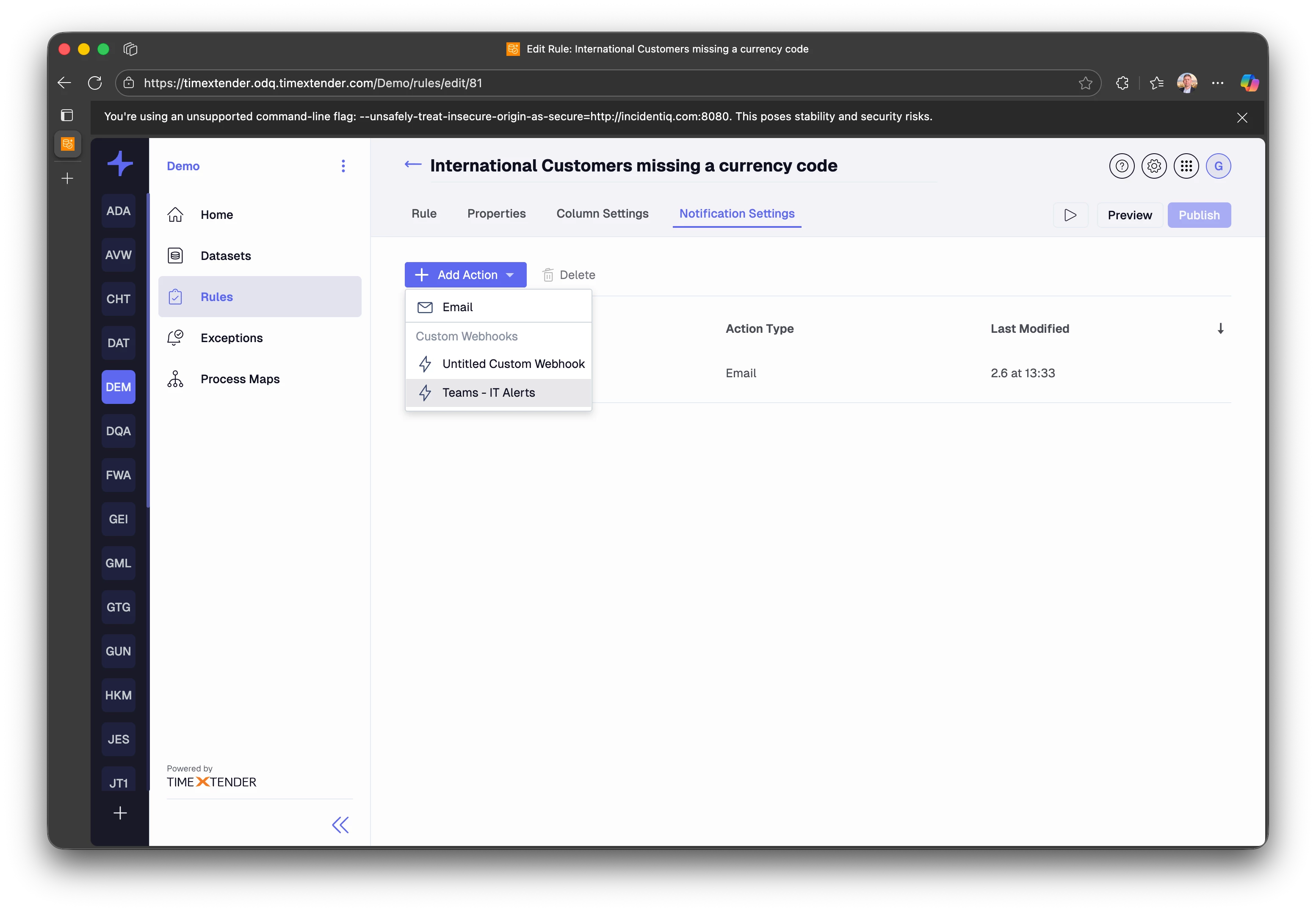
- Trigger a test run of a Data Quality test that generates an exception.
- Verify that a formatted notification appears in your Teams channel.
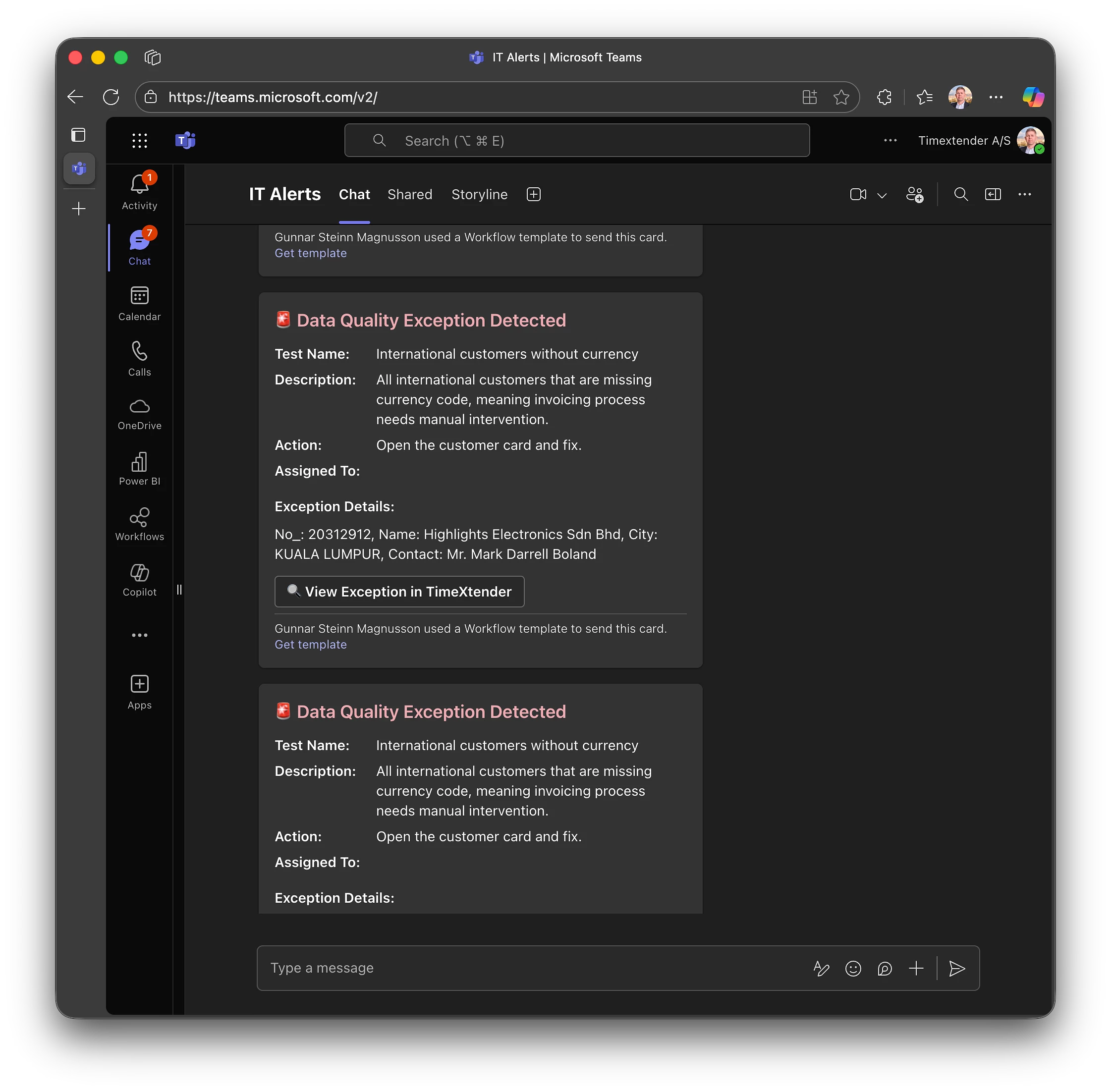
Step 5: Customize Further
You can modify the Adaptive Card JSON to include more visuals, sections, or even color-coding based on severity using additional Adaptive Card elements. Refer to Adaptive Cards documentation for inspiration.
Summary
With this setup, TimeXtender Data Quality automatically informs your team of new exceptions directly in Teams, improving visibility and accelerating response time to data issues.
