

Instance mapping was introduced in 26.2. If your Timextender Data Integration (TDI) data provider was created before 26.2, Orchestration holds one copy of every package for every environment it lives in.
Your schedules keep running. But Sync with TDI is switched off on that data provider, so it can no longer pick up changes from TDI — and the environment setting on your schedules does not do what it appears to do. This page explains why, what still works in the meantime, and how to move across.
For the destination, see Orchestrating TDI.
Why this changed
Syncing a TDI data provider used to create a separate package, object group, process and process map for every environment a package existed in. Five TDI packages across four instances produced twenty package entries:
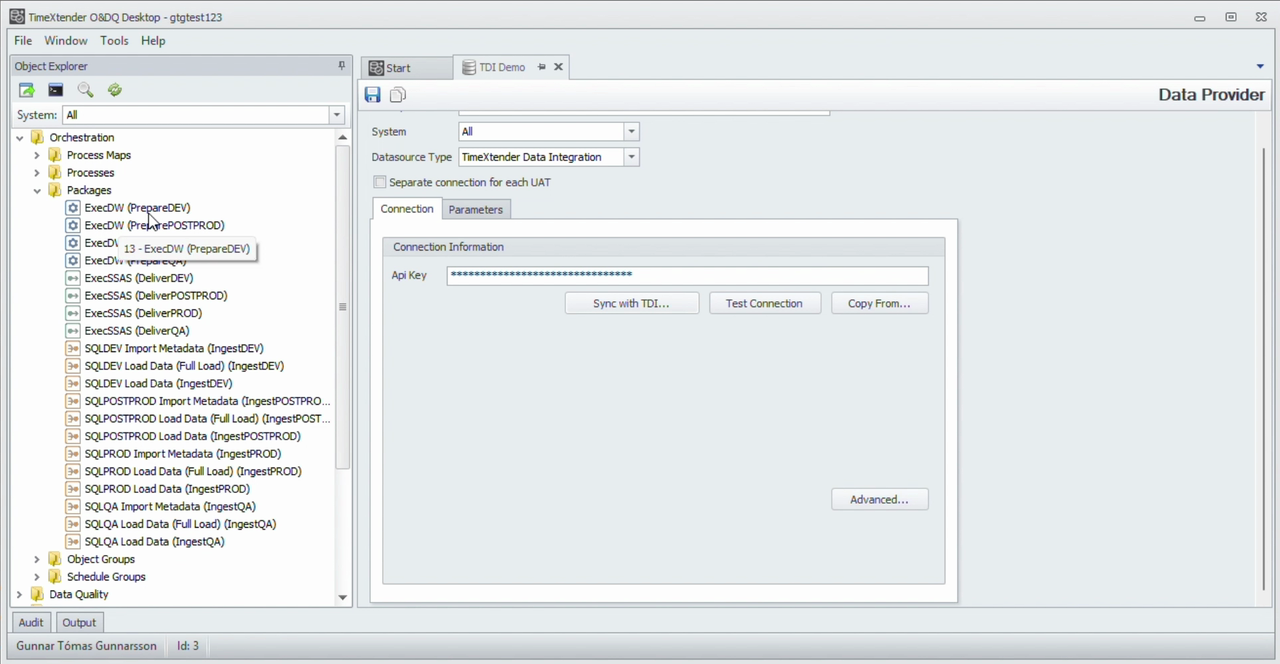
A customer with 18 packages across three environments got 54 entries for 18 real pipelines.
The duplication was not just clutter. Each duplicated object stayed permanently tied to the instance it was synced from, so the environment setting on a schedule did not control which instance ran — the object inside the schedule did. That made one specific mistake easy to make and nearly impossible to spot:
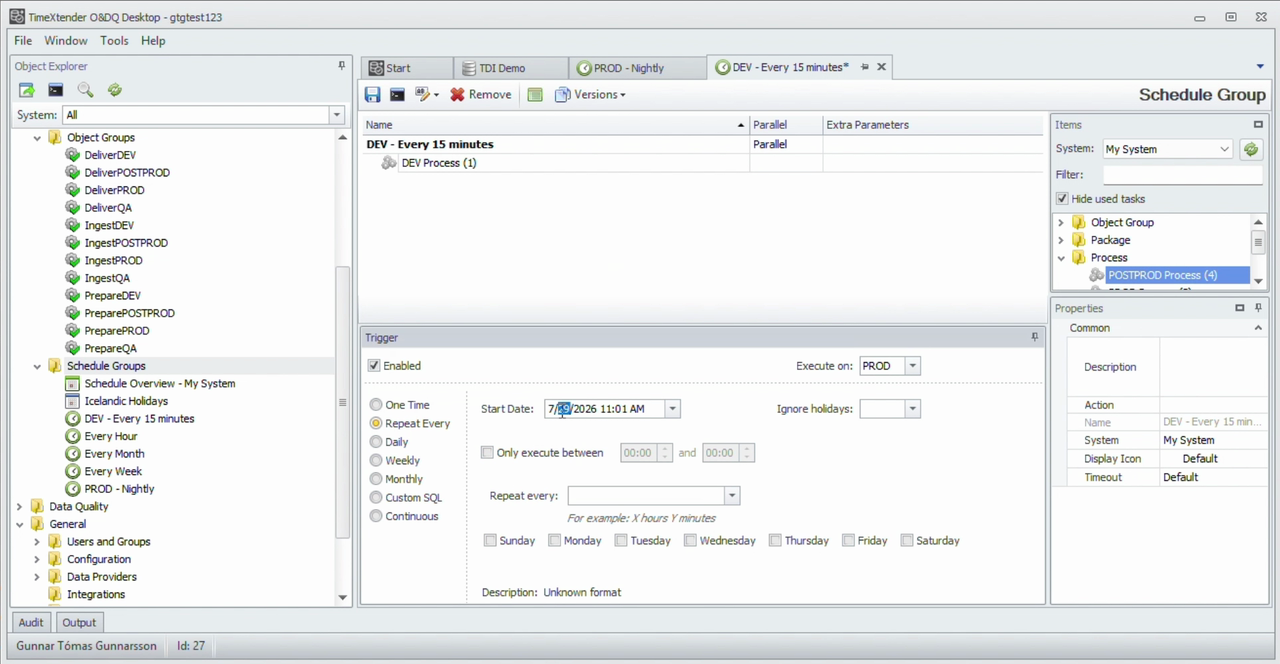
This schedule says it executes on PROD. It contains the DEV Process. It runs against the Dev instance, every fifteen minutes, and nothing on screen says so.
With environment-aware sync, each TDI package exists once, the three Orchestration environments are mapped to real instances once, and an Orchestration schedule's environment setting decides what runs where.
| Per-environment packages | Environment-aware sync | |
|---|---|---|
| Package entries | One per environment, per package | One per TDI package |
| Object groups and processes | One set per environment | One set |
| Which instance runs | Fixed by the object in the schedule | Chosen by the Orchestration schedule's environment |
| Adding an environment | Re-sync creates another full set | Point a column at the new instance |
What works until you migrate
You do not have to migrate today. Here is exactly where you stand until you do.
Your existing schedules keep running, unchanged. Packages with no instance mapping execute against the instance they were originally synced from, so nothing stops working at upgrade.
Sync with TDI is disabled on the old data provider. So is Fetch Instances, and so is Save. Opening it shows:
This Data Provider was created before instance mapping was introduced and has no saved mapping. Create a new Data Integration Data Provider instead.
Test Connection still works, so use the disabled Save button — not a failed connection — to tell a pre-26.2 data provider from a healthy one.
The environment setting on those schedules has no effect. Whatever it says, the object inside the schedule decides the instance. Do not rely on it until you have migrated.
Adding a TDI package while you wait
Because sync is off, a package you create in TDI will not appear in Orchestration on its own. You can still add it by hand:
- Go to Packages and create a new package.
- Choose the type that matches the work — Ingest, Prepare or Deliver.
- Select your existing data provider — the field is Data Provider in the desktop client and Timextender Data Integration in the web interface.
- Select the task to run in Ingest Task (or Prepare Task / Deliver Task). Use the refresh button beside the dropdown if a task you have just created in TDI is not listed yet.
- Save, then add the package to a schedule as usual.
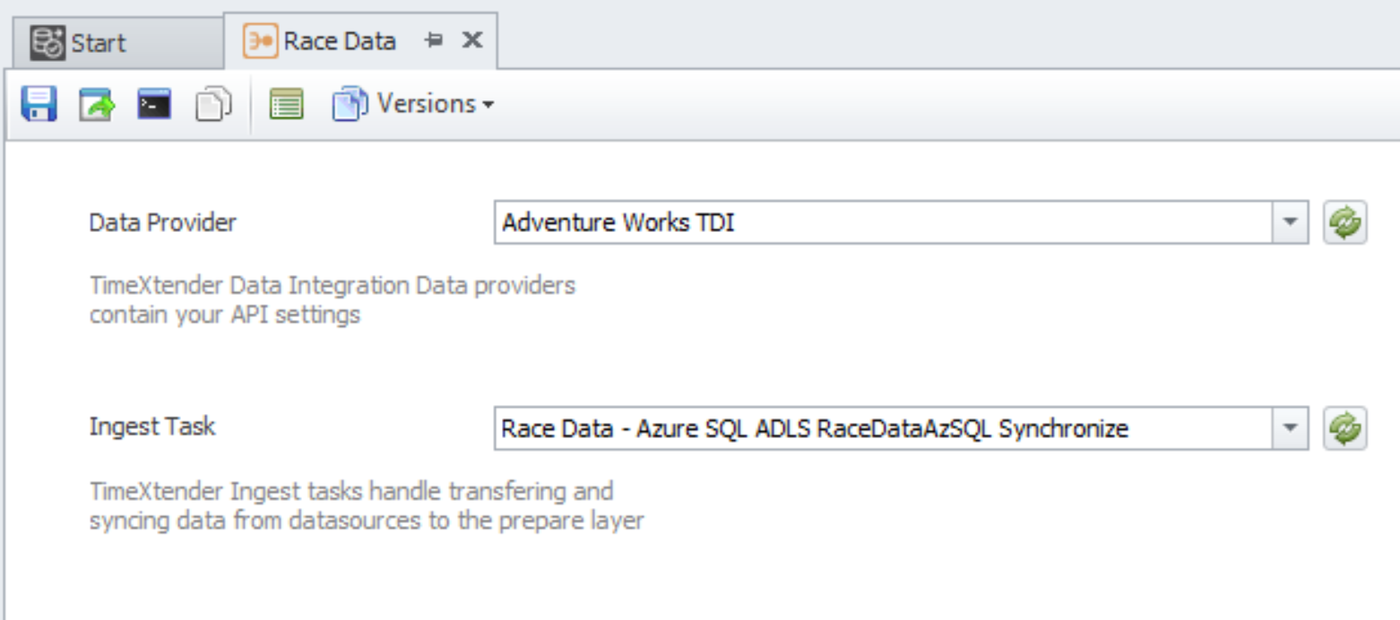
One package, one instance
A package added this way behaves like the rest of your pre-26.2 packages: it is tied to the instance you picked it from. If you need the same task to run in more than one environment, that is what migrating gives you.
Migrating
Five steps, in order. The old setup keeps running throughout and nothing is deleted until the last step, so you can stop after any step and still have a working system.
Step 1 — Find out what your schedules actually run
Do this first, and do not trust schedule names.
For each existing schedule, open it and note the process or package inside it — not its name, and not its environment setting. That list is what your schedules really do today, and it is what you need to reproduce after migrating.
Expect to find at least one mismatch
This is the failure the feature exists to prevent, and it is common in older setups. Where you find a schedule running against an environment nobody intended, decide what it should run before you rebuild it — carry the intent across, not the mistake.
Step 2 — Create a new data provider and map it
A pre-26.2 data provider cannot be upgraded in place; you create a new one alongside it. You can use the same API key.
Follow Orchestrating TDI steps 1 to 3: create a TimeXtender Data Integration data provider in Settings → Data Providers, fetch instances, map Development, Test and Production, save, and sync.
After the sync you will have a second, deduplicated set of packages — one entry per TDI package — alongside your old per-environment ones. Nothing has been removed yet.
Consider syncing into a new workspace
When the sync asks which workspace to create the objects in, you can point it at a new one — the dialog has a Create Workspace button. Keeping the new objects separate from the old ones makes them easy to tell apart while both sets exist, and it means the cleanup in step 5 is a matter of emptying the old workspace rather than picking the right entries out of a mixed list.
Step 3 — Test the new process before you change anything
Your old setup is still running and still untouched, which makes this the safest moment to prove the new one works.
Run the new process manually — once per environment you care about — and confirm in Execution History that each run hit the instance you expect. If the mapping is wrong, this is where you find out, with nothing yet depending on it.
Only move on once the new process does what the old one does.
Step 4 — Move your schedules across
Rather than editing your existing schedules, leave them intact and build the new ones beside them:
- Create a new schedule for each one on your list from step 1, with the same trigger — same time, same interval, same holiday settings.
- Add the process from the new data provider.
- Set the Orchestration schedule's environment to the environment that schedule is meant to run in.
- Disable the old schedule rather than deleting it.
- Enable the new one.
Let both sets sit side by side for a cycle or two — a few nightly runs, a day of the frequent ones — and compare Execution History against what the old schedule used to do. If anything is off, you re-enable the old schedule and you are back where you started.
Editing in place also works
You can instead swap the process inside an existing schedule and keep its trigger, which saves rebuilding the timing. It is quicker, but there is nothing to fall back to if the new process misbehaves — so prefer it only for schedules you are relaxed about.
Step 5 — Remove the old objects
Only once you are completely sure — the new schedules have run cleanly for long enough that you would not go back — delete the legacy objects belonging to the retired data provider:
- the per-environment Packages
- their Processes
- any Process Maps built for them
- the per-environment Object Groups
Then delete the disabled old schedules, and finally the old data provider itself.
Deleting a lot of packages
You do not have to delete them one at a time. In Object Explorer, select several packages at once using the row indicators down the left-hand side, then right-click the selection and choose Delete.
Check the tree afterwards. Where a selection mixes editable objects with ones managed from the web interface, the delete removes the editable ones and skips the rest without saying so — so anything still listed simply needs a second pass.
For genuinely large volumes, Timextender Support can run a bulk delete for you. Open a ticket naming the data provider you are retiring, and confirm in the ticket that your new schedules have been verified.
After migrating
- Only mapped instances are synced. Anything unmapped is reported as skipped after each sync, and its packages are not created.
- To bring a previously skipped instance in, map it to a column and sync again.
- New TDI packages arrive with the next sync — no more adding them by hand.
- If you run more than three instances in a group, see How many TDI environments do you have? in the Orchestrating TDI article.
