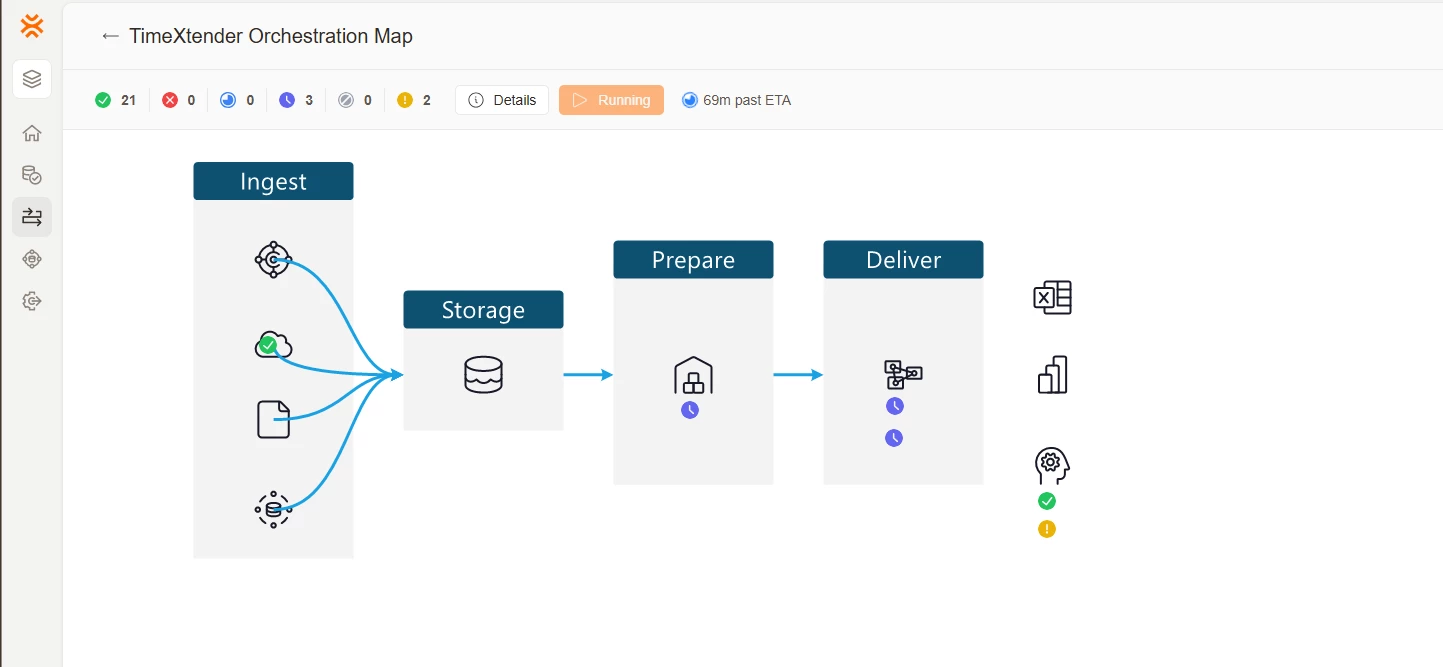
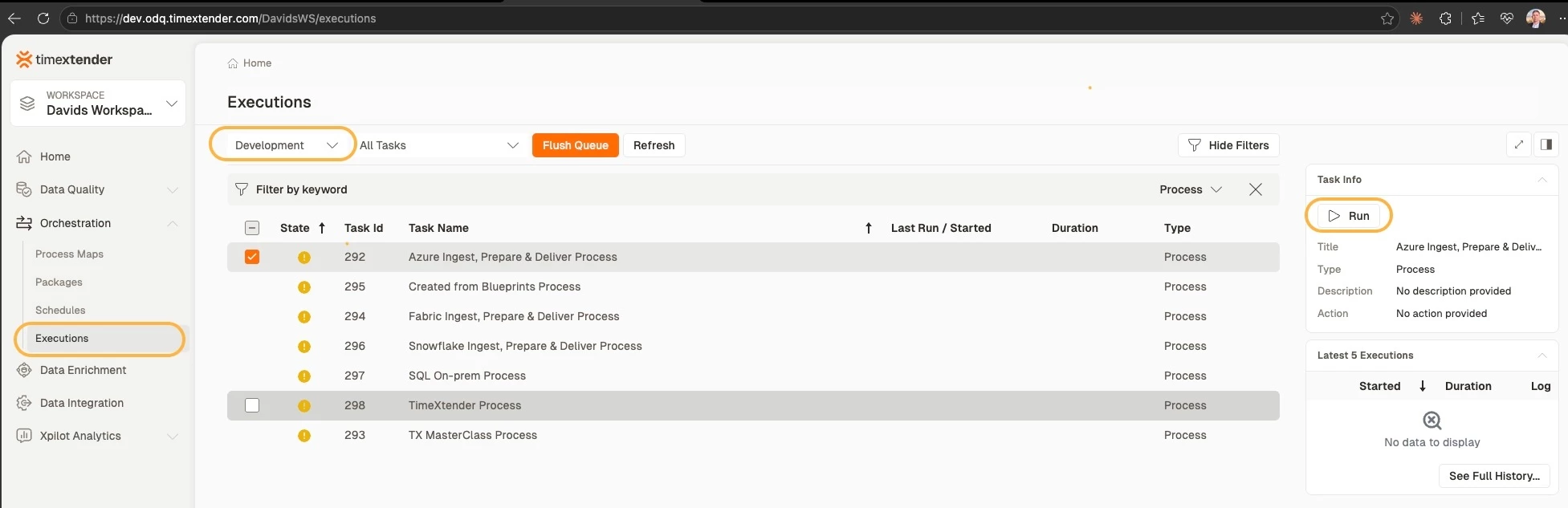
Orchestration & Data Quality can run your Timextender Data Integration (TDI) work on a schedule: your Ingest, Prepare and Deliver tasks, in the order you choose, against the instance you choose for each environment. Every run is recorded, and you can have someone notified when one fails.
There are three steps:
- Connect Orchestration to TDI with a data provider.
- Map your TDI instances to Orchestration's three environments — this is environment-aware sync, and it is what lets one set of packages serve all your environments.
- Schedule the work, choosing the environment each schedule runs in.
This page walks through all three, in order. You do this once per data provider.
Already running TDI packages in Orchestration?
Instance mapping was introduced in 26.2. If your TDI data provider was created before 26.2, start with Migrate from per-environment TDI packages. It explains what changes, what keeps working in the meantime, and what to retire. Following this page alone would leave you with two parallel sets of packages.
Environments: how TDI and Orchestration fit together
The two products both have a notion of "environment", and they are not the same thing. Mapping is what joins them.
In Orchestration, an environment is one of exactly three values that every execution runs under: Development, Test or Production. You will see these stored or logged as DEV, TEST and PROD, and in older material they are called UAT values. There are always three; you cannot add a fourth.
In TDI, the thing you point each of those at is an instance. Most customers run one instance per stage of their own promotion process — one they build in, one they validate in, and one that serves the business — but that is your own convention, not something TDI enforces.
Packages reach an instance by being migrated into it, so once a package has been promoted all the way, each of your instances has its own copy under the same name. Mid-deployment they differ: if you have migrated from Dev to Test but not yet to Production, Production is still missing packages the other two already have. Sync copes with that — an instance is grouped with the others even while it is short a package or two.
A TDI environment is not the same thing
TDI also has something it calls an environment, which groups instances together. It carries no fixed meaning — an environment can hold instances used for any purpose, or none at all — so a TDI environment is not what Orchestration's three environments correspond to. What you map is instances.
Mapping tells Orchestration which of your TDI instances is meant by each of its three environments:
| Orchestration environment | Stored as | Your TDI instance |
|---|---|---|
| Development | DEV | the instance you develop in |
| Test | TEST | the instance you validate in |
| Production | PROD | the instance that runs your business |
Once that is mapped, a TDI package appears in Orchestration once, not once per environment, and an Orchestration schedule's Execute environment setting decides which instance actually runs it.
You are asked once per instance group, not once per package
Instances that share packages are grouped together — typically the Dev, Test and Prod copies of one pipeline stage, such as everything called Ingest. You map the group, and every package in it follows.
Step 1 — Connect Orchestration to TDI
You need an API key for your Timextender organization. See Timextender API Key Management.
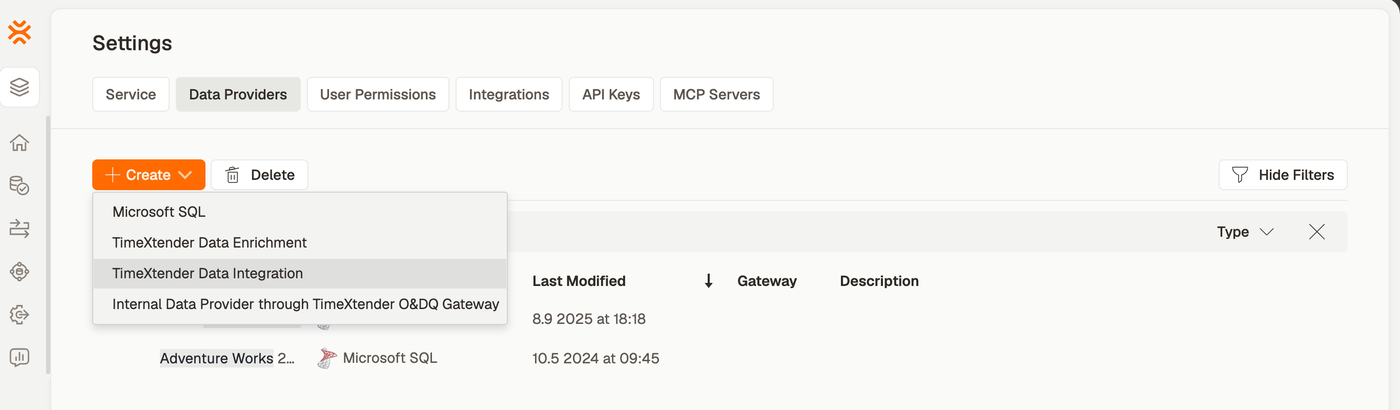
- In Timextender Data Platform, go to Settings → Data Providers.
-
Click + Create and choose TimeXtender Data Integration.
-
Give the data provider a name, paste your key into API Key, and click Save.
You can use Test Connection at any point to confirm the key is accepted.
Step 2 — Map your instances to environments
-
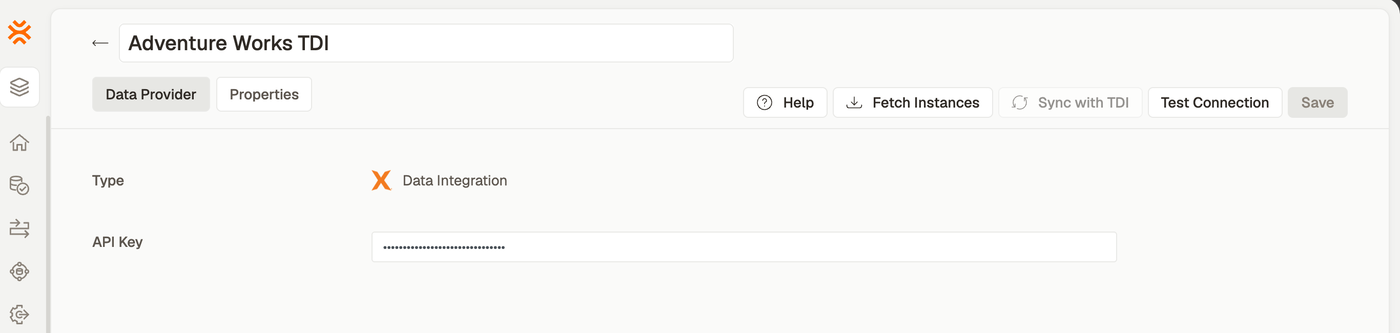
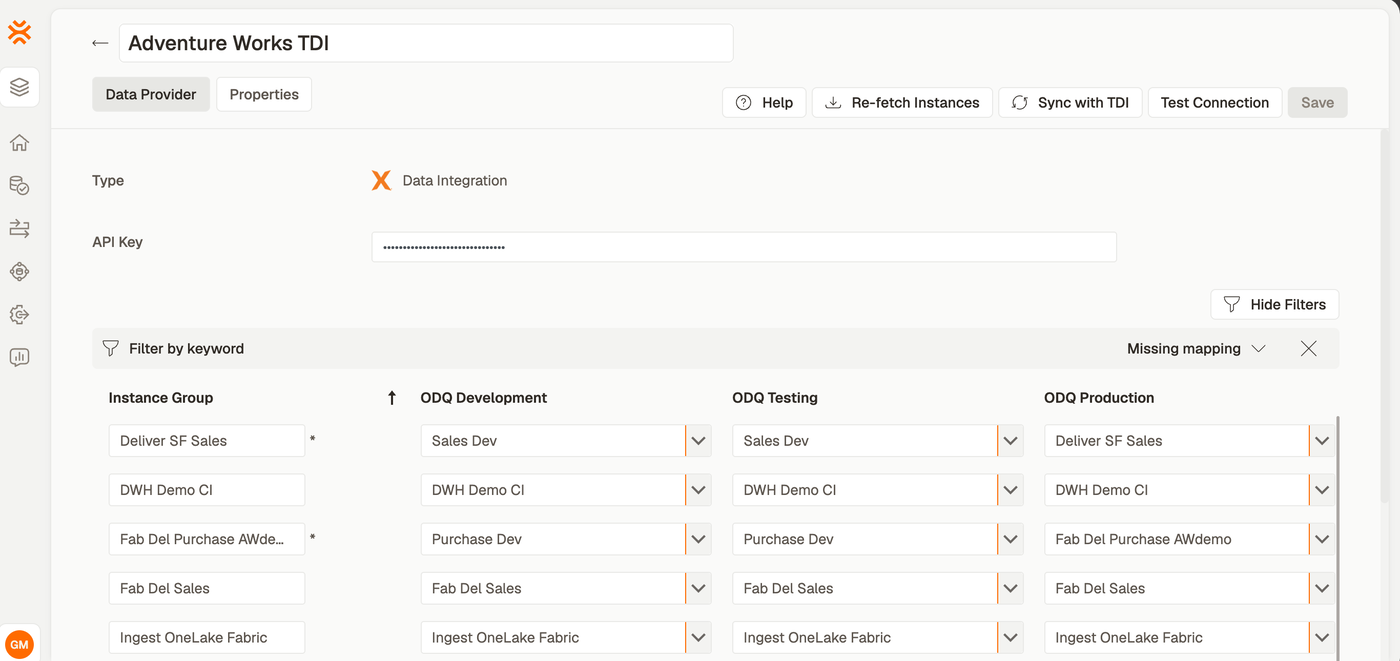
Click Fetch Instances. Orchestration asks Timextender which instances your key can see and fills the grid with one row per instance group.
-
For each row, choose an instance under ODQ Development, ODQ Testing and ODQ Production. An asterisk after an instance group's name means the group holds instances with more than one name — hover it to see which.
-
Every row needs all three columns. Until they are set, Save stays disabled and shows how much is still missing, and a banner names how many rows are incomplete.
With a long list, use the Missing mapping filter above the grid to show only the rows still missing an environment, and Filter by keyword to find a group by name.
If you run fewer than three instances, see How many TDI environments do you have below — the answer is to reuse an instance, not to leave a column empty.
-
Click Save.
Step 3 — Sync
Sync with TDI creates the Orchestration objects — packages, object groups, a process and a process map — for the instances you mapped. It becomes available once the mapping is complete and saved.
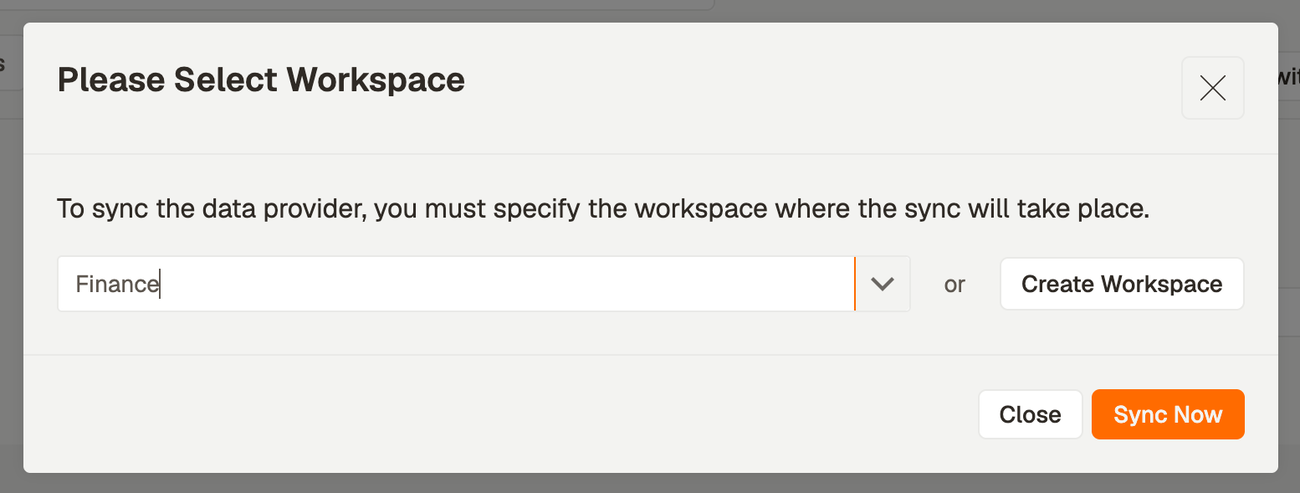
- Click Sync with TDI.
-
Choose the workspace the objects should be created in, or create one, then click Sync Now.
-
If you get a skipped-instance message, read it. Any instance not mapped to a column is skipped, and its packages are not created:
Unmapped TDI Instances — The following TDI instances are not mapped in ODQ and were skipped: DeliverPOSTPROD, IngestPOSTPROD, PreparePOSTPROD. Map these instances before re-syncing to include their packages.
That is expected if you left an instance out deliberately. If it names something you wanted, map it and sync again.
-
Check the result. Under Packages, Object Groups and Processes you now have a folder named after your data provider, with each TDI package appearing once — regardless of how many instances it exists in.
Step 4 — Schedule it
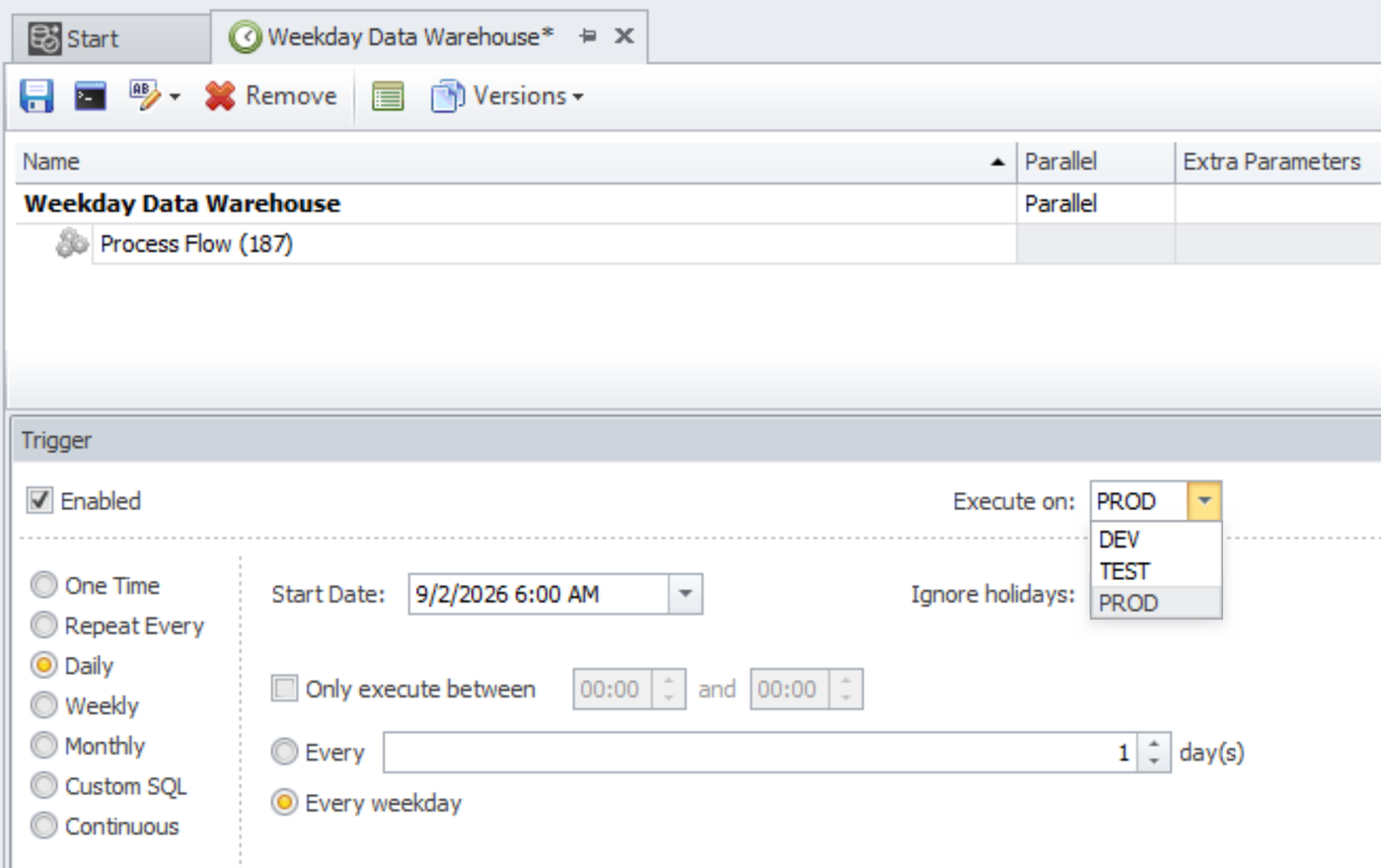
Schedules are where you choose the environment. A schedule holds the tasks to run, a trigger that says when, and an Execute environment that says where.
- Go to Schedules and create a schedule. Give it a name that says what it does and where it runs —
Nightly — Productionrather thanNightly. - Add the process or packages created by the sync in step 3.
- Set the Orchestration schedule's environment — Execute environment in the web interface, Execute on in the desktop client — to Development, Test or Production. This is what picks the TDI instance, using the mapping from step 2.
- Set the trigger — a daily time, an interval, a weekday pattern.
- Save, then run it once and confirm in Execution History that it hit the instance you expect.
A common arrangement is two schedules over the same content:
| Schedule | Trigger | Execute environment |
|---|---|---|
| Nightly production load | Daily, every weekday, 01:00 | Production |
| Frequent test refresh | Every 15 minutes, Mon–Fri | Test |
Because the packages are shared and only the environment differs, adding a third for Development costs you one more schedule, not another set of packages.
How many TDI environments do you have?
The grid always has three columns, and every row needs all three filled in. What you put in them depends on how many instances you actually run.
1 or 2 instances
Point more than one column at the same instance. With a single instance, set ODQ Development, ODQ Testing and ODQ Production all to it. With two, put the second in the column that matches how you use it — commonly Development and Test on your development instance, Production on the other.
Leaving a column empty is not an option: the data provider will not save, so it cannot sync.
3 instances
The straightforward case, and exactly what the steps above describe. Map each column to its matching instance.
4 or more instances
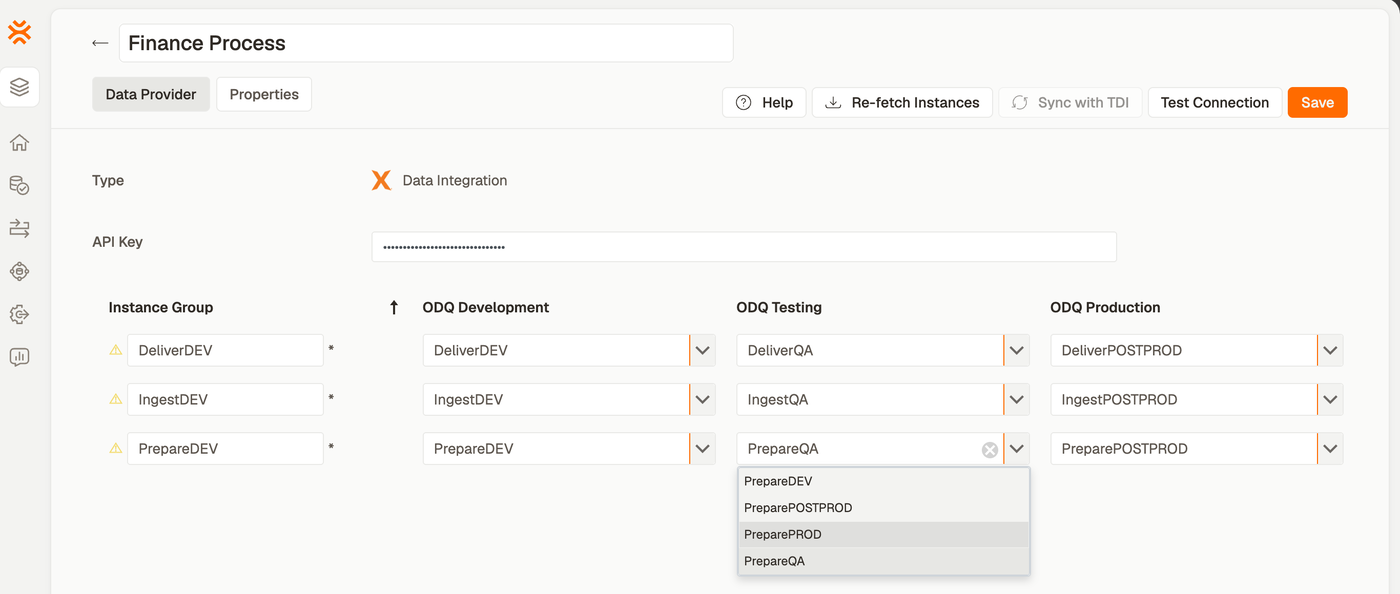
Only three instances per group can be mapped. Choose the three that need schedules driven from Orchestration; the rest are skipped and listed for you after sync (step 3). Scheduling works normally for the three you mapped.
A group with more than three instances available keeps a warning triangle even when all three columns are filled. It means "there is an instance here you have not mapped" — not that anything is broken.
How the instance is chosen at run time
When a package runs, Orchestration takes the environment of the run — Development, Test or Production — and looks up the instance you selected in that column for the package's instance group. That is what makes an Orchestration schedule's Execute environment authoritative: one package, a different instance per environment, nothing duplicated.
If a package has no mapping at all, Orchestration falls back to the instance it was originally synced from. That is the older behaviour, in which the environment setting has no effect — see Migrate from per-environment TDI packages.
Keeping it current
- After adding or removing instances in TDI, click Re-fetch Instances. Groups are rebuilt, and your existing choices and any names you gave the groups carry over where they still apply.
- Repointing a column takes effect on the next run. The environment is resolved when a package executes, not when it is synced, so no re-sync is needed.
- Mapping an instance that was previously skipped does need a sync, because its packages do not exist in Orchestration until you run one.
- Renaming an instance group renames the object group it produces, which makes it easier to find in a long list. Sync again afterwards for the new name to take effect.