

Triggering a Fabric Data Pipeline from TimeXtender Orchestration
Integrating Fabric Data Pipelines with TimeXtender Orchestration allows you to automate your data workflows and ensure seamless operation. This guide provides step-by-step instructions on how to trigger a Fabric Data Pipeline using PowerShell and wait for it to finish successfully.
Steps:
- Add the App Registration into Global Parameters
- Create a Query Snippet using the provided code
- Create a PowerShell package that defines the pipeline id and references the Query Snippet
1. Add App Registration into Global Parameters
To enable secure communication between TimeXtender and the Fabric Data Pipeline, you need to add your App Registration details into the Global Parameters. Follow these steps:
- Navigate to General > Configuration in the TimeXtender Orchestration module.
- Open Global Parameters and click Add.
- Add the following parameters:
- AppReg_TenantId: Your Tenant ID
- AppReg_ClientId: Your Client ID
- AppReg_Secret: Your Client Secret
These parameters will be used for authentication purposes.
2. Create a Query Snippet
Create a Query Snippet using the following PowerShell code. This code handles authentication, triggers the pipeline, and monitors its status until it completes or times out.
Query Snippets are under Data Quality > Query Snippets
# ====== 1. Config ======
$tenantId     = "{$AppReg_TenantId}"
$clientId     = "{$AppReg_ClientId}"
$clientSecret = "{$AppReg_Secret}"
$pollIntervalSeconds = 10  # How often to check status
$timeoutMinutes      = 60  # Max time to wait

$scope = "https://analysis.windows.net/powerbi/api/.default"

# ====== 2. Get access token ======
$body = @{
    client_id     = $clientId
    scope         = $scope
    client_secret = $clientSecret
    grant_type    = "client_credentials"
}

try {
    $tokenResponse = Invoke-RestMethod `
        -Method Post `
        -Uri "https://login.microsoftonline.com/$tenantId/oauth2/v2.0/token" `
        -Body $body `
        -ContentType "application/x-www-form-urlencoded" `
        -ErrorAction Stop

    $accessToken = $tokenResponse.access_token

    $headers = @{
        Authorization = "Bearer $accessToken"
    }
}
catch {
    Write-Error "Failed to obtain access token: $($_.Exception.Message)"
    if ($_.ErrorDetails.Message) {
        $errorDetails = $_.ErrorDetails.Message | ConvertFrom-Json -ErrorAction SilentlyContinue
        if ($errorDetails) {
            Write-Error "Error Code: $($errorDetails.error)"
            Write-Error "Description: $($errorDetails.error_description)"
        }
    }
    throw
}

# ====== 3. Trigger the pipeline ======
$jobType = "Pipeline"
$runUri  = "https://api.fabric.microsoft.com/v1/workspaces/$workspaceId/items/$pipelineId/jobs/instances?jobType=$jobType"

# Optional: pipeline parameters
$payload = @{
    executionData = @{
        parameters = @{
            # MyParam = "value"
        }
    }
} | ConvertTo-Json -Depth 5

Write-Host "Starting pipeline run..."
try {
    $runResponse = Invoke-RestMethod -Method Post -Uri $runUri -Headers $headers -Body $payload -ContentType "application/json" -ErrorAction Stop

    # The response contains the job instance id
    $jobInstanceId = $runResponse.id
    Write-Host "Pipeline job instance id: $jobInstanceId"
}
catch {
    Write-Error "Failed to trigger pipeline run: $($_.Exception.Message)"

    # Try to parse the error response JSON
    if ($_.ErrorDetails.Message) {
        try {
            $errorDetails = $_.ErrorDetails.Message | ConvertFrom-Json
            Write-Error "Request ID: $($errorDetails.requestId)"
            Write-Error "Error Code: $($errorDetails.errorCode)"
            Write-Error "Message: $($errorDetails.message)"

            if ($errorDetails.errorCode -eq "InsufficientPrivileges") {
                Write-Error "The service principal does not have sufficient permissions."
                Write-Error "Required permissions: Workspace Contributor or Admin role in Fabric workspace."
            }
        }
        catch {
            Write-Error "Raw error: $($_.ErrorDetails.Message)"
        }
    }

    throw
}

# ====== 4. Poll job status until finished or timeout ======
$statusUri = "https://api.fabric.microsoft.com/v1/workspaces/$workspaceId/items/$pipelineId/jobs/instances/$jobInstanceId"

$startTime = Get-Date
$deadline  = $startTime.AddMinutes($timeoutMinutes)

$finalStatus = $null
$failureReason = $null
$startTimeUtc = $null
$endTimeUtc   = $null

do {
    Start-Sleep -Seconds $pollIntervalSeconds

    try {
        $jobInstance = Invoke-RestMethod -Method Get -Uri $statusUri -Headers $headers -ErrorAction Stop

        # Normalize response in case API returns an array or a wrapper with an array
        $job = $jobInstance
        if ($jobInstance -is [System.Array]) {
            Write-Verbose "Status API returned array with $($jobInstance.Count) items; using first."
            $job = $jobInstance | Select-Object -First 1
        } elseif ($jobInstance.PSObject.Properties.Name -contains 'value' -and $jobInstance.value -is [System.Array]) {
            Write-Verbose "Status API returned wrapper with 'value' array; using latest by startTimeUtc."
            $job = $jobInstance.value | Sort-Object startTimeUtc -Descending | Select-Object -First 1
        } elseif ($jobInstance.PSObject.Properties.Name -contains 'items' -and $jobInstance.items -is [System.Array]) {
            Write-Verbose "Status API returned wrapper with 'items' array; using latest by startTimeUtc."
            $job = $jobInstance.items | Sort-Object startTimeUtc -Descending | Select-Object -First 1
        }

        $currentStatus = $job.status
        $startTimeUtc  = $job.startTimeUtc
        $endTimeUtc    = $job.endTimeUtc
        $failureReason = $job.failureReason

        Write-Host "Current status: $currentStatus (Started: $startTimeUtc, End: $endTimeUtc)"

        if ($currentStatus -in @("Completed","Failed","Cancelled")) {
            $finalStatus = $currentStatus
            break
        }
    }
    catch {
        Write-Warning "Error checking job status: $($_.Exception.Message)"

        # Try to parse the error response
        if ($_.ErrorDetails.Message) {
            try {
                $errorDetails = $_.ErrorDetails.Message | ConvertFrom-Json
                Write-Warning "Error Code: $($errorDetails.errorCode) - $($errorDetails.message)"
            }
            catch {
                Write-Warning "Raw error: $($_.ErrorDetails.Message)"
            }
        }

        # Continue polling in case it's a transient error
        # If it persists, the timeout will handle it
    }

     $now = Get-Date;
} while ($now -lt $deadline)

if (-not $finalStatus) {
    $finalStatus = "TimedOut"
    Write-Warning "Pipeline run did not finish within $timeoutMinutes minutes."
}

# ====== 5. Log outcome ======
Write-Host "================ Pipeline Run Result ================"
Write-Host "Job Instance Id : $jobInstanceId"
Write-Host "Status          : $finalStatus"
Write-Host "StartTimeUtc    : $startTimeUtc"
Write-Host "EndTimeUtc      : $endTimeUtc"

if ($failureReason) {
    Write-Host "FailureReason   : $failureReason"
}

# Make the script fail in CI/CD if the pipeline failed
if ($finalStatus -eq "Failed") {
    throw "Fabric pipeline failed. JobInstanceId=$jobInstanceId. Reason=$failureReason"
}
3. Create a PowerShell Package
Follow these steps to create a PowerShell package that triggers the Fabric Data Pipeline:
- Open TimeXtender and navigate to the Orchestration module.
- Create a new PowerShell Package.
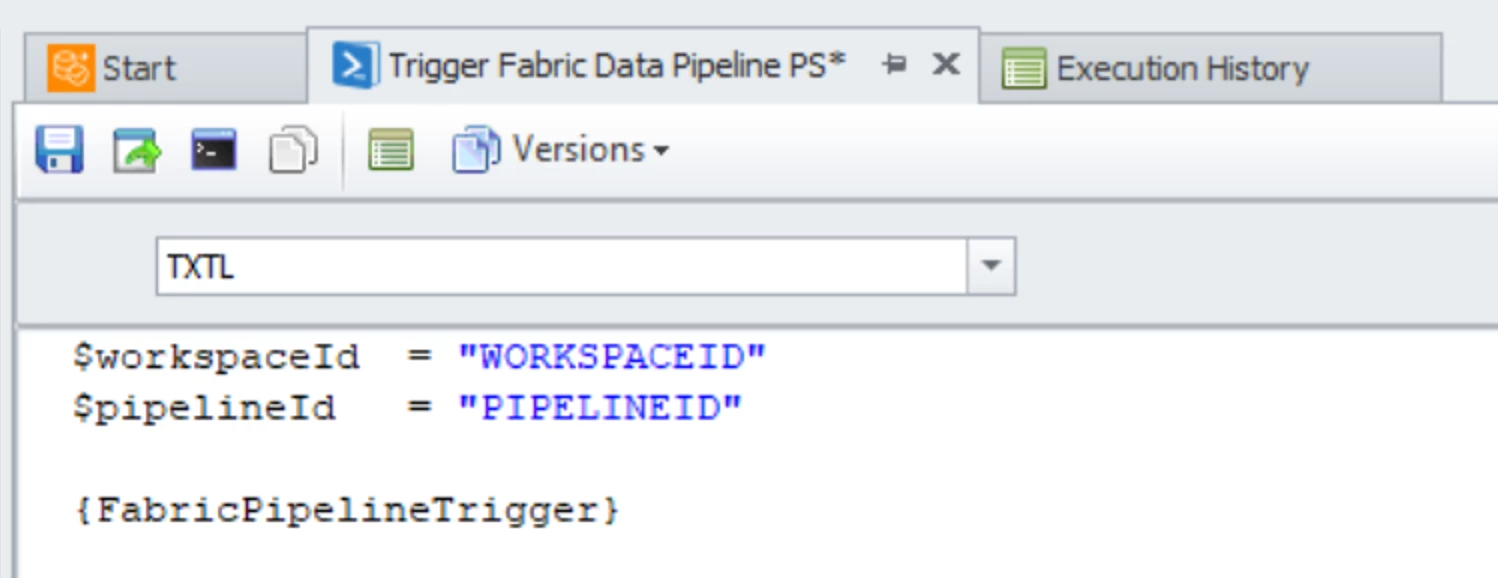
- Copy and paste the following PowerShell script into the package:
$workspaceId  = "WORKSPACEID"
$pipelineId   = "PIPELINEID"

{FabricPipelineTrigger}
Replace WORKSPACEID and PIPELINEID with your actual workspace ID and pipeline ID. The {FabricPipelineTrigger} placeholder references the Query Snippet created in the previous step.
Select a TimeXtender ODQ Gateway to execute the package on.
Try and execute the package, either via the Run button or by adding it to schedule.
Verify by looking in Fabric execution history and in Orchestration Execution History
Troubleshooting
If you encounter issues, consider the following troubleshooting steps:
- Ensure that the URL is correctly copied and valid.
- Verify the authentication method used in the Query Snippet.
- Review the pipeline run history in Fabric for any errors.
- Check if the service principal has sufficient permissions.
Conclusion
By following these steps, you can effectively trigger and monitor a Fabric Data Pipeline from TimeXtender Orchestration. This integration enables you to automate and streamline your business processes, leveraging the strengths of both platforms.
