
Triggering Power Automate Workflows with TimeXtender Orchestration
Triggering Power Automate Workflows with TimeXtender Orchestration
Integrating Power Automate workflows with TimeXtender Orchestration can streamline your data workflows by automating tasks across different platforms. This guide will provide you with the steps to trigger a Power Automate workflow from TimeXtender Orchestration using a PowerShell Package.
Step-by-Step Guide
1. Create a Power Automate Workflow with a HTTPS Webhook
- Open Power Automate.
- Create a new workflow that starts with a "When a HTTP request is received" trigger.
- Save and note down the URL generated for the HTTP request.
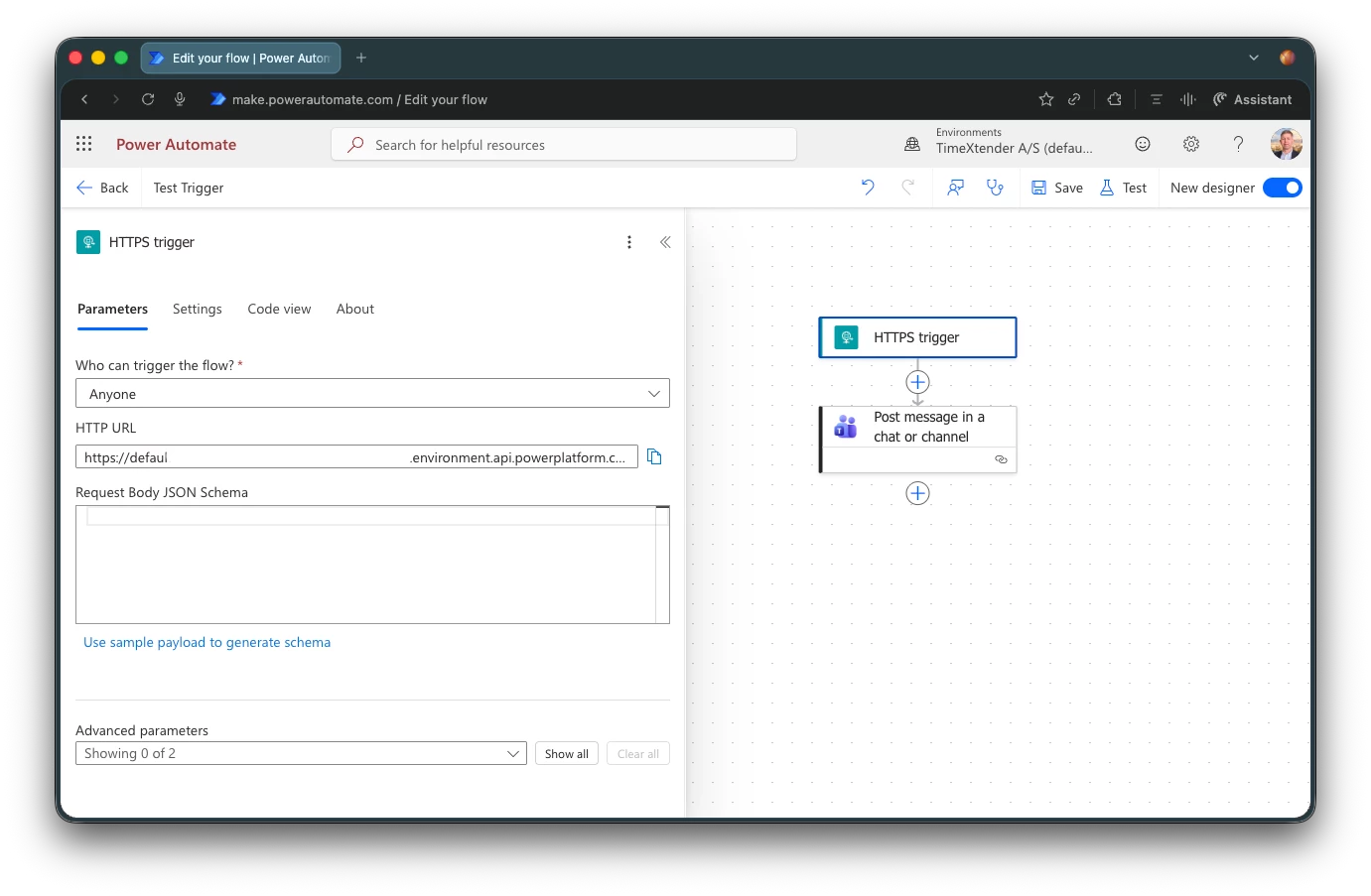
2. Get the HTTPS Webhook URL
You will need this URL to trigger the workflow via PowerShell. For example, your URL might look similar to this:
https://defaultxxxxxxxxxxxx.c7.environment.api.powerplatform.com:443/powerautomate/automations/direct/workflows/GUID/triggers/manual/paths/invoke?api-version=1&sp=%2Ftriggers%2Fmanual%2Frun&sv=1.0&sig=SIGNATURE3. Create a PowerShell Package in TimeXtender Orchestration
Follow these steps to set up the PowerShell Package:
- Open TimeXtender and navigate to the Orchestration module.
- Create a new PowerShell Package.
- Copy and paste the following PowerShell script into the package:
$flowUrl = "YOURURL"

# If needed, add parameters
$body = @{
    SomeParam1 = "Value1"
    SomeParam2 = 123
} | ConvertTo-Json

Invoke-RestMethod -Uri $flowUrl -Method Post -ContentType "application/json"  -Body $body
Replace the $flowUrl variable with your Power Automate webhook URL.
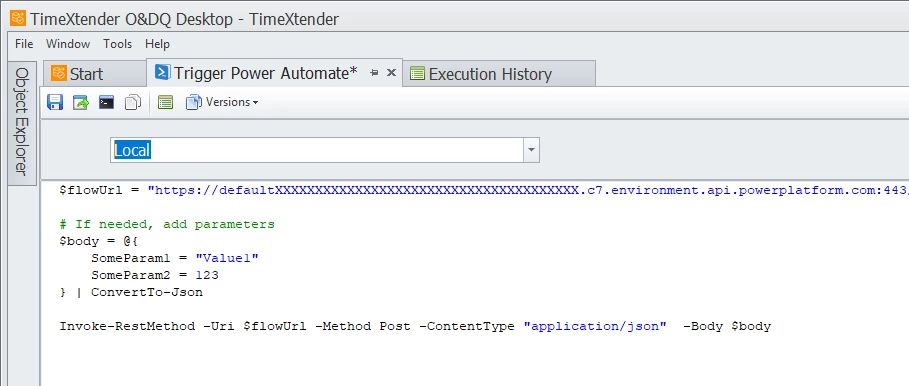
4. Add Parameters (Optional)
If your Power Automate workflow requires additional parameters, add them to the $body variable. The parameters should be defined as key-value pairs:
$body = @{
    SomeParam1 = "Value1"
    SomeParam2 = 123
} | ConvertTo-Json
This snippet converts the dictionary to JSON format, which is then sent as the body of the HTTP request.
5. Save and Deploy the PowerShell Package
- Save the PowerShell script.
- Deploy the PowerShell Package using the TimeXtender deployment methodology.
- Ensure that the PowerShell execution policy allows running scripts.
6. Execute the Workflow
Once the package is deployed, trigger the TimeXtender Orchestration workflow. The PowerShell script will send a POST request to the Power Automate webhook URL, triggering the associated workflow.
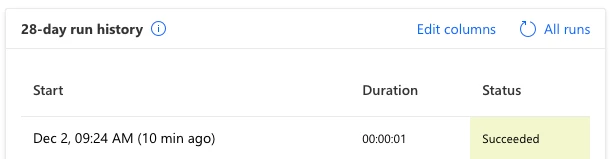
Open the Power Automate workflow and verify that the execution was triggered correctly.
Troubleshooting
If you encounter issues, consider the following troubleshooting steps:
- Ensure that the URL is correctly copied and valid.
- Verify the authentication method used in Power Automate.
- Review the workflow run history in Power Automate for any errors.
Conclusion
By following these steps, you can effectively trigger Power Automate workflows from TimeXtender Orchestration. This integration enables you to automate and streamline business processes, leveraging the strengths of both platforms.