



Use HTTP mode when you want the TimeXtender MCP Server to act as a shared, production endpoint for AI clients on your network. The steps below show how to configure the server, open firewall access, and register the endpoint in an AI tool such as LM Studio.
Prerequisites
Instructions
In TimeXtender MCP Configurator:
-
Prepare the Instance Connection.
-
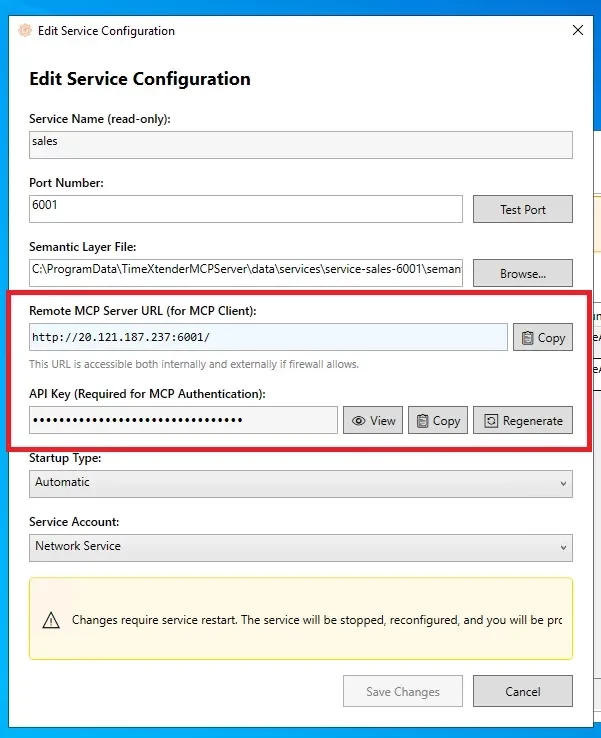
Create the Service for the semantic layer you want to expose (for example, sales, production, or dev).
-
Note down:
- Remote MCP Server URL (including host and port, for example, http://myserver.example.com:6001).
- API key issued for that service.
Ensure you configure your firewall to allow inbound connections for any ports configured above.
Add the Connection Details the AI Client of your Choice
The below example shows configuring using LM Studio
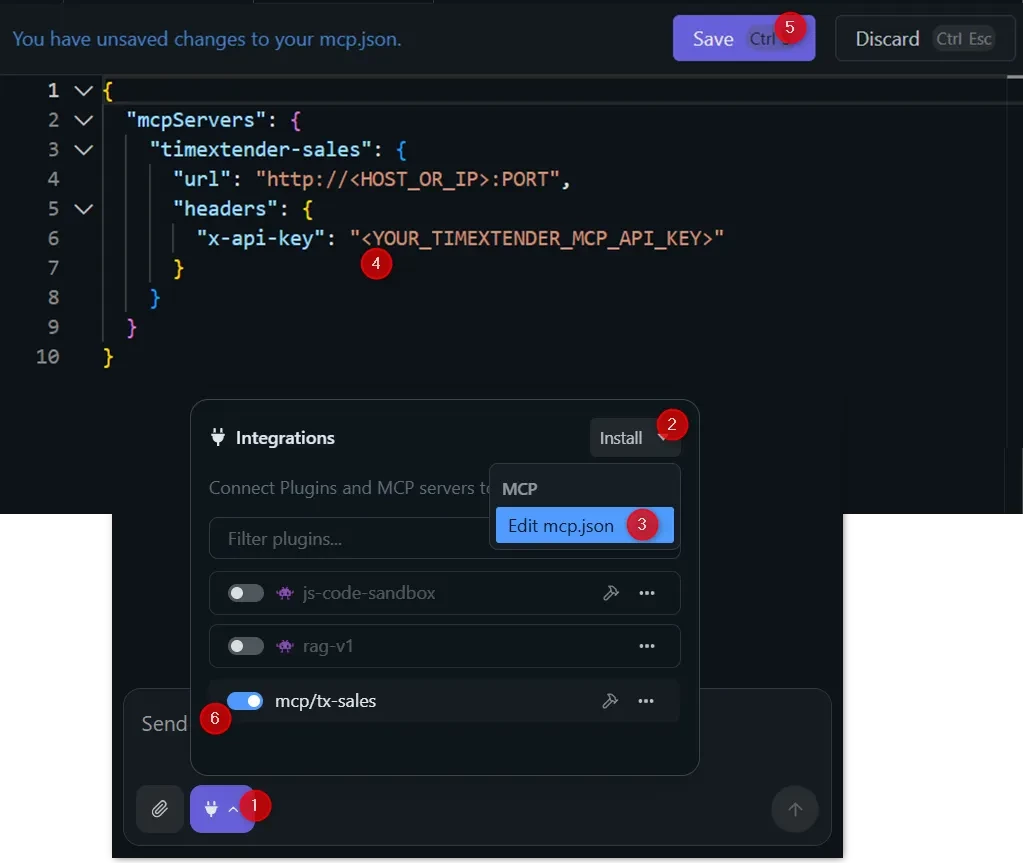
- Edit mcp.json to open the in‑app editor.
- Add a new entry MCP Server entry similar to:
{
  "mcpServers": {
    "timextender-sales": {
      "url": "http://<HOST_OR_IP>:6001",
      "headers": {
        "x-api-key": "<YOUR_TIMEXTENDER_MCP_API_KEY>"
      }
    }
  }
}
- Replace <HOST_OR_IP> with the MCP server’s DNS name or IP.
- Replace <YOUR_TIMEXTENDER_MCP_API_KEY> with the API key noted in Step 1.
- Use a descriptive server name such as timextender-sales.
- Save the file; LM Studio automatically reloads MCP definitions after saving.
