


This option is used for demonstration, development, or testing purposes when the client and MCP server run on the same machine. Alternatively, when you want the MCP Server to act as a shared, production endpoint for AI clients on your network use Connect to MCP using HTTP mode.
Prerequisites
Instructions
Connect to Claude
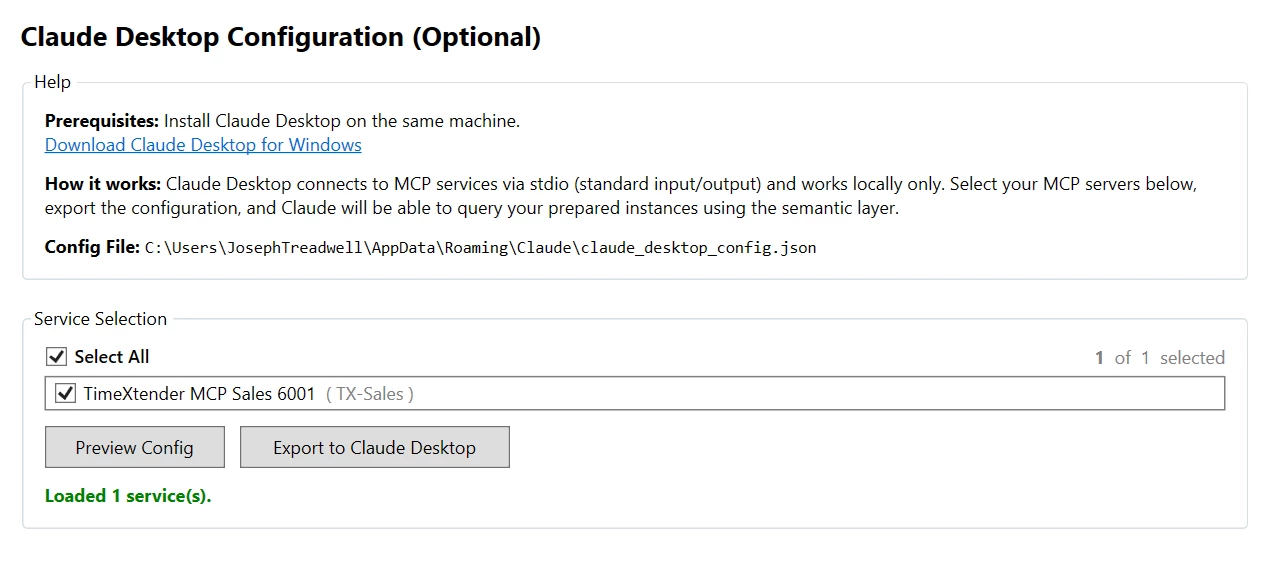
- Click the Claude Desktop Config tab in the TimeXtender MCP Configurator
- Select the MCP service to export
- Click Export to Claude Desktop to configure the stdio connection
- Launch Claude Desktop application on the same machine
- If Claude was previously running, you must click File > Exit to full exit and reopen Claude desktop.
- Verify the TimeXtender semantic model appears as an available data source
Connect to LM Studio
- Click the Claude Desktop Config tab in the TimeXtender MCP Configurator
- Select the MCP service to export
- Click Preview Config
- Copy to Clipboard
Open LM Studio
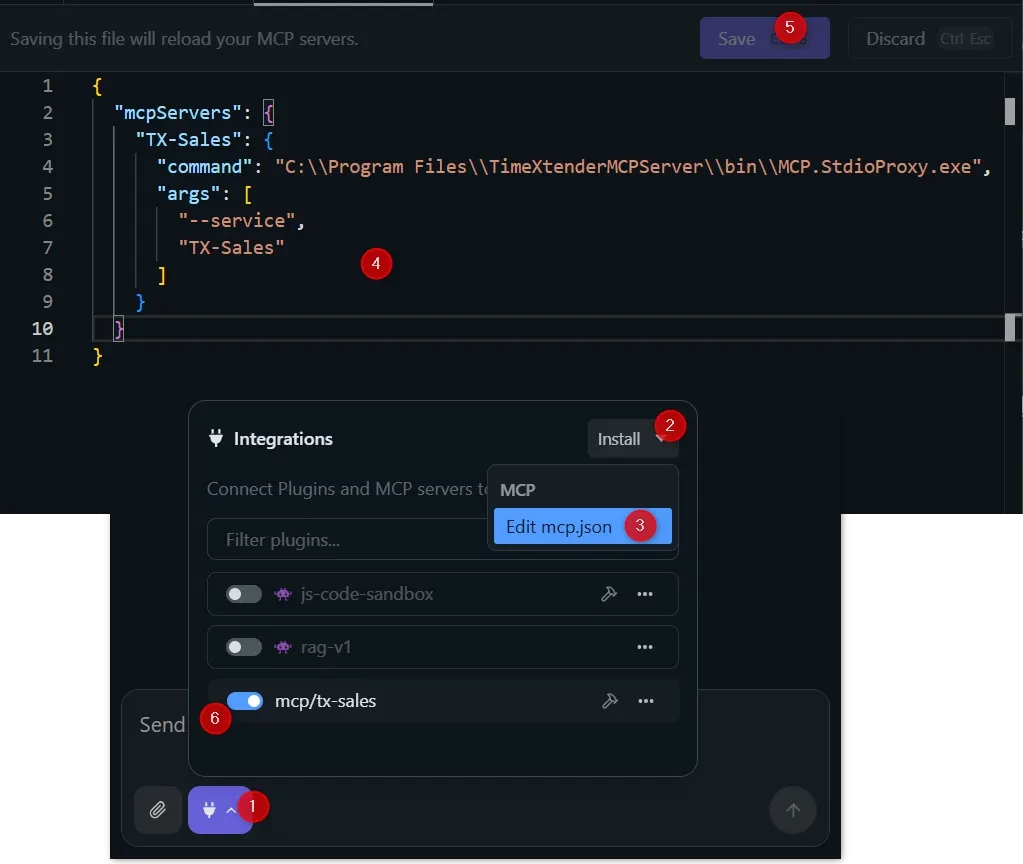
- Click Config icon
- Click Install
- Click Edit mcp.json
- Paste the JSON config in the clipboard.
- Click Save
- Turn on the MCP Server
Note:
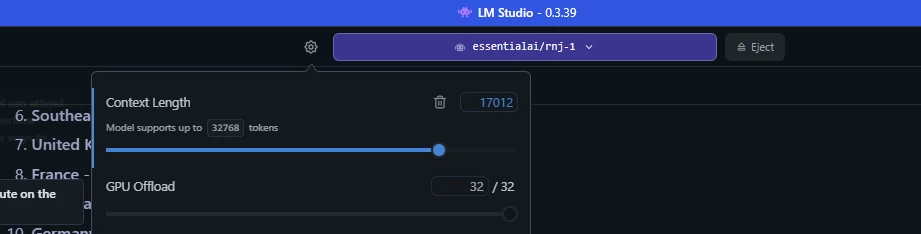
For local LLM tools such as LM Studio, we recommend configuring the context length to at least 15,000 tokens to provide a more robust interaction experience, assuming your hardware resources allow it.
For self-hosted deployments, our evaluations identified the Rnj-1 model from Essential AI as the most suitable option for our use case, offering strong performance relative to its 8B-parameter size and extended 32K-token context window.
Troubleshooting
Claude Desktop does not show semantic model
- Restart the Claude Desktop application after exporting the configuration. You must click File > Exit... to full exit and restart the application.
- Verify the MCP service status shows "Running" in the Service Management tab. Check that the JSON file path contains no spaces or invalid characters.