

Overview
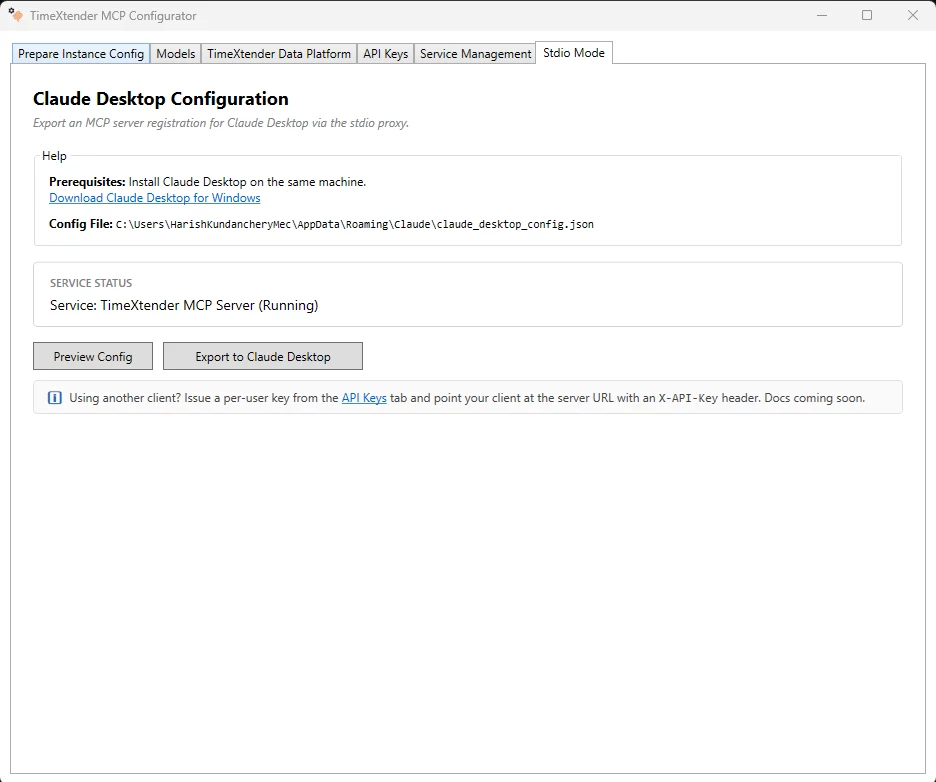
Stdio mode lets Claude Desktop connect to a TimeXtender MCP Server running on the same Windows machine. The TimeXtender MCP Configurator generates the Claude Desktop registration for you and writes it directly to Claude Desktop's configuration file.
This article covers the Stdio Mode tab in the Configurator. Today this tab targets Claude Desktop specifically. The panel exists because Claude Desktop rejects plain http:// URLs and self-signed HTTPS certificates for local MCP servers, so a stdio proxy is the only path that works without a publicly trusted certificate. Other MCP clients (LM Studio, Cursor, custom agents) should use HTTP mode instead. See Connect to MCP using HTTP Mode.
API keys are not required for Stdio mode. The Configurator provisions a system key for the stdio path automatically and hides it from the API Keys tab.
Prerequisites
- Configure MCP Server with at least one semantic model registered on the Models tab
- The MCP Server Windows service is Running (check the Service Management tab)
- Claude Desktop is installed on the same machine. Download Claude Desktop for Windows
Export the Claude Desktop Configuration
- Open the Stdio Mode tab in the TimeXtender MCP Configurator
- Confirm the Service Status card shows the service is Running. Preview Config and Export to Claude Desktop are disabled until the service is started. If the service is not running, click the Go to Service Management link and start it.
- (Optional) Click Preview Config to see exactly what the Configurator will write into Claude Desktop's configuration. Use this when you want to inspect the JSON before it touches your existing Claude Desktop settings.
- Click Export to Claude Desktop. The Configurator merges a new MCP server entry into your Claude Desktop config without replacing any other MCP servers already registered.
- Quit Claude Desktop completely (right-click the system tray icon, Quit), then start it again. Claude Desktop only reads its configuration on startup.
Verify the Connection
- Open Claude Desktop
- Start a new conversation
- Look for the MCP tool icon in the message composer. The TimeXtender MCP Server appears as one of the tool sources.
- Ask a question that requires a semantic model query. Claude calls
list_semantic_models,get_semantic_schema, andquery_with_semantic_layeragainst your registered models and returns the result.
Where the Configuration Is Written
The export writes to:
%APPDATA%\Claude\claude_desktop_config.jsonThe exact path is displayed in the Help section at the top of the Stdio Mode tab.
The Configurator adds one mcpServers entry per export, keyed by a friendly server name. The entry runs the bundled MCP.StdioProxy.exe with a --service argument pointing at the Windows service:
{
  "mcpServers": {
    "timextender-mcp": {
      "command": "C:\\Program Files\\TimeXtender\\MCP\\MCP.StdioProxy.exe",
      "args": ["--service", "TimeXtenderMCPServer"]
    }
  }
}
Existing entries under mcpServers from other MCP servers are preserved. If you re-export after renaming the Windows service, the Configurator removes the orphaned entry so Claude Desktop does not try to launch a service that no longer exists.
Using Another Client
LM Studio, Cursor, and custom agents do not need this tab. They connect over HTTP mode using an API key:
- Generate a key on the API Keys tab. See Manage API Keys for MCP Server.
- Configure the client with the MCP Client URL from the Service Management tab and the
X-API-Keyheader. See Connect to MCP using HTTP Mode.
Troubleshooting
Preview Config and Export to Claude Desktop are disabled
The MCP Server Windows service is not Running. Click the Go to Service Management link in the warning banner, start the service, then return to the Stdio Mode tab.
Export to Claude Desktop fails with "config is not valid JSON"
Claude Desktop's configuration file at %APPDATA%\Claude\claude_desktop_config.json has been hand-edited into malformed JSON. The error message includes the line and position of the parse failure. Fix or delete the file and run Export to Claude Desktop again.
Claude Desktop does not show the MCP Server after export
Quit Claude Desktop completely from the system tray (not just close the window) and reopen it. Claude Desktop reads its configuration only at startup.
Tool calls return errors mentioning "service not running"
The Windows service was stopped after the export. Open Service Management and click Start, then ask Claude to retry the query.
Multiple MCP servers in the same Claude Desktop
Multiple TimeXtender MCP Servers can coexist as separate mcpServers entries in the same Claude Desktop configuration. Each export uses a unique friendly key and a unique --service argument, so they do not overwrite each other.
