



Which Dynamics 365 Finance & Operations data source should you use?
This article covers the Timextender Classic AX Adapter, the Business Unit equivalent of the SQL data source for Dynamics 365 Finance & Operations (F&O), for projects on Classic rather than Timextender Data Integration. It merges separate company-account tables into one and supports SQL Server, Microsoft Fabric SQL endpoint, AX7 OData, and Oracle providers.
On Timextender Data Integration? Other options:
- SQL Server data source →: Direct connection to a self-managed Finance & Operations database.
- Fabric / OneLake data source →: Cloud Finance & Operations data exported to Fabric/OneLake.
The Dynamics AX adapter simplifies the extraction of data from Microsoft Dynamics AX, which Microsoft now calls Dynamics 365 Finance & Operations.
If you connect to a Dynamics AX database as a regular data source, you have to apply and maintain selection rules on all tables. With the Dynamics AX adapter, you can select company accounts at a global level.
The adapter also extracts any virtual company accounts, including table collections, and tables that are set up in the source database. You can then use this information in dimensions and cubes. Furthermore, the adapter extracts all Base Enumerations and their associated labels and supports synchronization with the back-end application.
Importing XPO Files into Dynamics AX
The Dynamics AX adapter is only available if the .xpo file has been imported into Dynamics AX.
- Import the .xpo file into Dynamics AX.
- Compile the imported project within Dynamics AX.
- Run all four classes in Dynamics AX to populate the tables.
- Add a Dynamics AX adapter to your TimeXtender project. For more information, see Add Dynamics AX Adapters.
Adding a Dynamics AX Adapter
Use the Dynamics AX Adapter to load data from separate Dynamics AX company accounts tables in a single table.
- Open a business unit, right-click Data Sources, click Adapter Data Sources, and then click Add Dynamics AX Adapter.
- Enter a name for the adapter, and then click OK.
You can now choose the provider that contains the data source you want to connect to.
Adding a Microsoft SQL Server Provider
- Right-click the adapter, click Source Providers, and then click Microsoft SQL Provider.
- In the Server name box, enter the location of the server.
- In the Authentication list, click the authentication mode you want to use. You have the following options:
- Windows Authentication: Use the logged-in Windows user's credentials for authentication.
- SQL Server Authentication: Use a login set up on the SQL Server. Enter the username and password in the corresponding fields.
- Azure AD Password Authentication: Use Azure AD credentials from a domain that is not federated with Azure AD. Enter the username and password in the corresponding fields.
- Azure AD Integrated Authentication: Use the logged-in Windows user's credentials for authentication, provided that he is logged in using Azure AD credentials from a domain that is federated with Azure AD.
- In the Database field, enter the name of the database.
- In the Connection timeout box, enter the number of seconds to wait before terminating the attempt to connect to the server, and then click OK.
- In the Command timeout box, enter the number of seconds to wait before terminating the attempt to connect to the database.
- (Optional) In the Encrypt connection list, you can enable encryption of the connection, which is recommended when you are not in a private network (e.g., when your server is on Azure). You have the following options:
- No: The communication is not encrypted (default).
- Yes: The communication is encrypted. A certificate authority verifies the server's certificate.
- Yes, trust server certificate: The communication is encrypted. However, the server's certificate has not been verified. This setting is not recommended for use on public networks.
- In the Use SSIS for transfer list, click on Yes to enable SQL Server Integration Services data transfer, No to disable it, or leave it at As Parent to respect the project setting.
- Select Force codepage conversion to convert all fields to the collation of the data warehouse.
- Select Force Unicode conversion to declare all alphanumeric fields as nvarchar.
- Select Allow dirty reads to allow reading from the source without locking the table.
- To add additional connection settings, click Additional Connection Properties. In the Connection String Properties window, enter the required connection strings, and then click OK.
Adding a Microsoft Fabric SQL Provider
- Make sure the prerequisites are met. See Prerequisites below.
- Right-click the adapter, and then click Source Providers > Microsoft Fabric SQL Provider. The Microsoft Fabric SQL Endpoint dialog opens.
- (Optional) Select Use global database to take the connection and all other settings from a global database of the type AX Lakehouse. The provider's own fields are unavailable while it is selected, so you can skip to step 16.
- In SQL endpoint, enter the host name of the Lakehouse's SQL Analytics Endpoint from Fabric.
- In Lakehouse, enter the name of the Lakehouse.
- Enter the Application (client) ID and Client secret of the Entra app registration.
- (Optional) In Connection properties, enter any additional properties you want to append to the generated connection string.
- In Connection timeout, enter the number of seconds to wait when connecting. The default is 15.
- In Command timeout, enter the number of seconds to wait for a query. The default is 100.
- In the Use SSIS for transfer list, leave it at As Parent to use the project setting, or select another value to override it for this source.
- In the Column metadata list, select how column types reported by Fabric are corrected: None, Enhanced (default), or Set manually. For details, see Column Metadata below.
- In Text length, enter the width to use for text columns when Column metadata is set to Set manually, and as the fallback for Enhanced. The default is 4000.
- (Optional) Clear Read account table schema only to read the whole endpoint. The checkbox is selected by default, so only the schema of the account table is read. Link to Fabric delivers all tables into one schema, so you rarely need to change this.
- (Optional) Clear Uppercase table and field names to keep the lowercase names used on the endpoint. The checkbox is selected by default, so table and field names are shown and deployed in uppercase, for example
CUSTTABLE, to match what an AX SQL source produces. The names queried at the source are never changed. - (Optional) In Label language, enter the language code for the enum labels. The default, 1033, is English (United States). Resolve option set labels is selected by default, so the labels are read from Microsoft's
GlobalOptionsetMetadatatable. - Click Test Connection. The test checks the driver on your machine first, and then the endpoint and credentials from the execution engine, so a failure tells you which of the two is the problem.
- Click OK.

After you add the provider, set the account table as described in Setting the Account Table, and set the company code conversion as described in Setting Up Dynamics AX Companies.
Use the Microsoft Fabric SQL Provider to read Dynamics 365 Finance & Operations data from a Microsoft Fabric Lakehouse that Dynamics exports into, for example with Link to Fabric, instead of from an AX SQL Server or Oracle database. The provider connects to the Lakehouse's SQL Analytics Endpoint and authenticates with a Microsoft Entra service principal. Companies, table selection, enum labels, incremental load, and primary key deletes work as they do with a SQL AX source.
Prerequisites
In Microsoft Fabric:
- A Lakehouse that Dynamics exports into, and its SQL Analytics Endpoint.
- The export must include the tables you want to read. In addition to your business tables, three tables are important:
dataarea: The company master. Without it, the adapter cannot synchronize companies.sqldictionary: AX's own table and field dictionary. It is only needed when Column metadata is set to Enhanced. See Column Metadata.GlobalOptionsetMetadata: Microsoft's option set metadata, needed for Resolve option set labels.
In Microsoft Entra:
- An app registration (service principal) with a client secret. A Fabric endpoint does not accept a SQL username and password, so the provider uses an application ID and a client secret instead.
- The service principal must have read access to the Lakehouse in Fabric.
On your machines:
- The 64-bit Microsoft OLE DB Driver 19 for SQL Server (MSOLEDBSQL19) or later, on both the machine that runs the Timextender Classic client and the machine that runs the execution engine or SSIS. Version 19 installs alongside version 18, so you can keep an existing version 18 installation. The client needs the driver even if the transfer runs on another machine, because Test Connection checks the driver on the client before it tests the endpoint.
Column Metadata
Fabric reports every string column as varchar(8000), whatever its real width, and reports the export's own key columns as strings. Column metadata decides how much of this is corrected.
| Option | What it does |
|---|---|
| None | Uses the column types reported by the source. Most text columns become nvarchar(max), which cannot be indexed and is stored outside the row. |
| Enhanced (default) | Corrects the column types using AX's own table dictionary in sqldictionary. Columns that the dictionary does not cover, or that have no width recorded, use Text length. The export's Id column is deployed as uniqueidentifier. |
| Set manually | Uses Text length wherever the source reports a wider column. |
Text length is the width used by Set manually, and the fallback for Enhanced. The default is 4000, which is the widest bounded nvarchar.
Note: Enhanced requires sqldictionary in the export. If the table is missing, reading the source structure fails with an error that names the table. Because Enhanced is the default, you must set Column metadata to Set manually or None if your export does not include sqldictionary.
If a value is longer than the column width in characters, it is cut off in the source query without any warning or log entry. With Enhanced, column widths come from AX's own dictionary, which AX enforces at the source, so this can only happen on columns whose width had to be estimated.
Column widths change the next time you read the source structure. If a column still gets the wrong type, use Data type overrides on the data source properties to set the deployed type. Overrides also apply to the ENUMVALUE and ENUMVALUELABEL columns in the enum tables.
Changing an Existing Adapter to the Fabric Provider
To move an existing project from a SQL AX source to Fabric, change the provider on the existing adapter instead of adding a new adapter. Changing the provider keeps the adapter's tables, fields, and selections, while a new adapter starts with no table selections.
- Right-click the adapter, and then click Change provider > Change provider to Microsoft Fabric SQL Provider. Change provider replaces Source Providers once an adapter has a provider, and only lists the providers you are not already using.
- Set up the provider as described in Adding a Microsoft Fabric SQL Provider. Make sure Uppercase table and field names is set the way you want before you select tables.
- Set the account table again. A SQL AX source uses
DATAAREA.ID, while a Fabric export usesdataareawith the key columnfno_id. See Setting the Account Table.
With Uppercase table and field names selected, the project keeps the names it already has. If you change the setting after you select tables and then synchronize, every table and field is renamed at once, and the whole project is redeployed on the next deployment. Tables with incremental load or history keep their data, and all other tables are rebuilt and reloaded.
Troubleshooting the Fabric Provider
| Message | Cause and solution |
|---|---|
Invalid object name 'dbo.dataarea' when synchronizing companies | The account table does not exist as configured. The export may not include it, it may be in another schema, or the export uses suffixed names and the table is called dataarea_partitioned. Right-click the adapter and click Edit account table to correct it. |
| An error that names the MSOLEDBSQL driver and the required version | OLE DB Driver 19 or later is not installed on that machine. Version 18 is not supported. The message names both machines that need the driver. |
| All text columns are unlimited | Column metadata is set to None. |
Reading the source structure fails on sqldictionary | The table is not in the export, it is in a different schema from the account table, or the service principal cannot read it. The error names the schema the adapter looked in. Add the table to the export, or set Column metadata to Set manually. |
Adding a Dynamics AX OData Provider
The version of Dynamics AX released in 2016, known as Dynamics AX 7, introduced a new Azure-based data storage option. You can access this through the "AX7 Odata" provider.
The provider uses OAuth 2.0 authentication, which means you need to set up a client in Azure AD to connect - please see this article for more information:
https://ax.help.dynamics.com/en/wiki/dynamics-ax-7-services-technical-concepts-guide/
Note that this provider cannot use SSIS transfer.
To add a Dynamics AX OData provider, follow the steps below.
- Right-click the adapter, click Source Providers, and click Add AX7 Odata Provider. The AX7 Odata window appears.
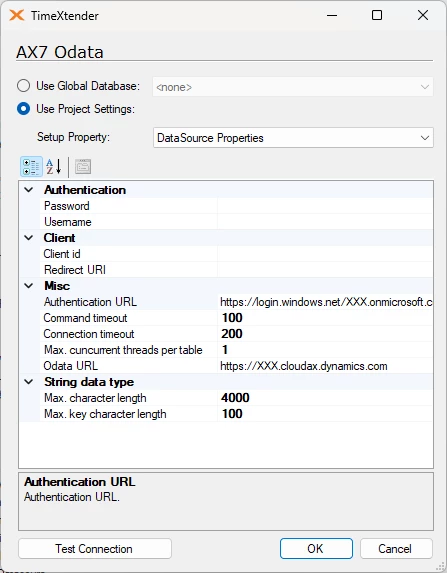
- In the Password option, enter the password you use to connect.
- In the Username option, enter the username you use to connect.
- Under client, enter the Client id and Return URI you use to connect.
- In the Authentication URL option, enter the URL used for authentication.
- (Optional) The Connection Timeout option allows you to modify the number of seconds to wait before terminating an attempt to connect to the server.
- (Optional) The Command Timeout option allows you to modify the number of seconds to wait before terminating an attempt to connect to the database.
- (Optional) The Max. concurrent threads per table option allows you to modify the number of connections you will allow to a single table.
- In the OData URL option, enter the URL from which you will get the data.
- (Optional) The Max. character length option sets the maximum length in characters for fields that are strings.
- (Optional) The Max. key character length option allows you to set the maximum length in characters for key fields that are strings.
- If you need to connect through a proxy server, click Proxy settings in the Setup property list. In the WebProxyApproach list, you have the following options:
- NoProxy
- ApplicationProxy: Use the proxy settings configured at the application level. To adjust the application settings, click Options on the Tools menu and then click Proxy Settings.
Note that using a proxy server for Internet connections can also be turned on and off from here.
- SpecificProxy: Enter the settings (server, port, username, and password) to use for the adapter.
Adding an Oracle Provider
- Right-click the adapter, and select Source Providers. Then select Oracle Provider.
- In the TNS alias field, type the alias that identifies the database.
- In the Owner list, select the owner of the database.
- Specify the authentication mode. When you select Oracle authentication, you are prompted to enter a username and password.
- Select Convert Out of Range Dates to MS SQL min/max if you want to convert all dates older than January 01, 1753, to 1753-01-01.
- In the Connection Timeout field, specify the number of seconds to wait before terminating the attempt to connect to the server.
- In the Command Timeout field, specify the number of seconds to wait before terminating the attempt to connect to the database.
- If you want to set the character encoding to either Unicode or Non-Unicode, select Force Character Setting. Then select the preferred character encoding in the list.
Note: Forcing character encoding may affect performance. If you want to add additional connection strings, click the Additional Connection Properties button. In the Connection String Properties window, type the preferred connection strings, and then click OK.
Setting the Account Table
Before you can proceed with setting up accounts, you must verify that the company account table is accurate.
- Right-click the adapter, and then choose Set Account Table. The table DATAAREA and the field ID are selected by default.
- Click OK.
Microsoft Fabric SQL Provider: When you add the provider, the adapter uses dbo.dataarea as the account table, which is correct for a Link to Fabric export in the default schema. If your export is different, right-click the adapter and click Edit account table. The list shows every table on the endpoint as schema.name, so you can tell tables with the same name apart. The key column is fno_id, not ID, because Dataverse reserves Id and renames AX's ID column. The adapter recognizes both.

For a Fabric source, the account table also decides the following:
- The schema: All other AX lookups use the schema of the account table, including
sqldictionaryandGlobalOptionsetMetadata. - The table suffix: The older export mechanism delivers
dataarea_partitioned, while Link to Fabric deliversdataarea. If you select the name with the suffix, the adapter assumes that all tables have the suffix and removes it from the names it shows.
Setting Up Dynamics AX Companies
After adding a Dynamics AX adapter and specifying a provider, you need to set up the accounts. To set up accounts:
- Right-click the adapter, and select Set Up Accounts. An information message is displayed, which lists the accounts that have been added. Click OK. The Accounts window appears.
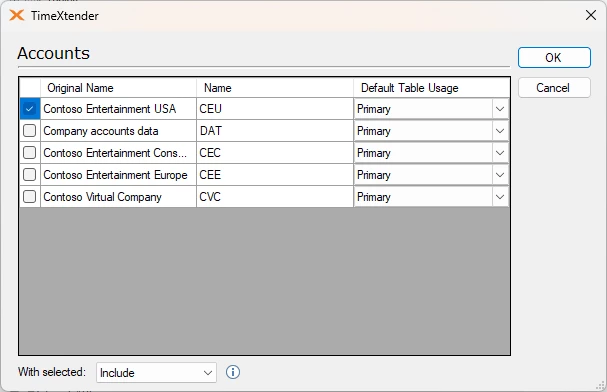
- Select the accounts from which you want to retrieve data. In the With selected list, click Include to use the selected accounts in the data warehouse, or click Exclude to exclude the selected accounts and include all other accounts. The last option is helpful if you frequently add new accounts in Dynamics AX and want to ensure that all accounts are included in the data warehouse as soon as they exist in the ERP system. Note that the exclude option isn't available when you use the OData provider.
- In the Default Table Usage list, specify the order in which data from the tables is retrieved and read. You have the following options:
Option Definition Primary Data from this company account is read and retrieved first Secondary Data from this company account is read and retrieved after the primary account, if it has not already been retrieved from the primary account. None Tables from this company are not retrieved unless you specify at the table level that you want to recover data from a specific table. For more information, see Modifying Table Usage on Dynamics AX Tables. - Click OK.
Note: A Fabric SQL endpoint compares text case-sensitively, while an AX SQL Server database usually does not. This means that company codes such as DAT and dat do not match on Fabric. On the Dynamics AX adapter, Lower case under Company code conversion decides what happens to company codes on extraction:
- No: Company codes are extracted as they are.
- CompanyTableOnly (default): Only the company table's own key is converted to lowercase.
- AllTables: The company column is converted to lowercase on every table that has one.
For a Fabric source, you must set Lower case to AllTables. Otherwise, the company a row belongs to will not match the company list. The same applies to an AX source read over Oracle.
Loading and Selecting Data from Dynamics AX Data Sources
- Right-click the Dynamics AX adapter you want to select data from, and then select Read objects. The Data Selection pane displays all tables and fields.
- In the Data Selection pane, select the tables and fields you want to extract to your staging database.
The tables and fields are displayed in the data source tree and in the staging database tree.
Adding Dynamics AX Virtual Table References
- Expand the AX adapter that contains the table to which you want to add a virtual table reference, right-click the table, and then choose Add Virtual Table Reference.
- In the Add Virtual Table Reference window, select the preferred virtual tables, and then click OK.
Viewing Dynamics AX Table Information
TimeXtender can retrieve table information directly from your Dynamics AX database.
- Expand the Dynamics AX adapter that contains the table you want to view information about, right-click the table, and then select View Table Information.
The three tabs in the View Table Information dialog contain the following information:
Fields Tab Description Name Specifies the name of the field as it appears in the database Label Specifies the name of the field as it appears in the user interface Help Text Contains the help text for the field EDT Name Specifies the name of the extended Data Type if applicable Enum Name Specifies the name of the enumeration if applicable System Specifies whether the table is a system table or visible in the user interface Relations Tab Description External Table Specifies the name of the table that the selected table is related to Directions Specifies whether the selected table is the child or the parent in the relation Field Specifies which field in the selected table relates to a field in the related table External Field Specifies the field on the related table Relation Type Specifies the type of relation. Field specifies relation fields without conditions. This Fixed option specifies relation fields to restrict the records in the primary table. ExternFixed specifies relation fields that limit the records in the related table Virtual Company References Description Company The name of the company account Virtual Company The name of the Virtual Company that contains tables shared by several company accounts
Viewing Dynamics AX Enum Table Information
All Enum values in Dynamics AX are represented as integers in the tables. However, you can see the corresponding literal values by viewing the enumeration table information.
- Expand the Dynamics AX adapter that contains the table you want to view information about, right-click the table, and then select Preview Enum Table.
Changing Dynamics AX Schemas
- Right-click the AX adapter that contains the table whose priority you want to change, and then select Change Schema.
- In the Select Schema To Change list, select the schema you want to change.
- In the New Schema Name field, enter a name for the schema.
Modifying Table Usage on Dynamics AX Tables
When you set up accounts, you specify the default order in which data is retrieved from the individual accounts. However, it is possible to select a different priority order for individual tables.
- Right-click the AX adapter that contains the table whose priority you want to change, and then select Modify Table Usage. The company accounts and the usage of all tables will be displayed.
- Right-click the table and account field with the setting you want to change the order of priority on for data retrieval. You have the following options:
Priority Definition Default Data from this table is read and retrieved first Primary Data from this table is read and retrieved first Secondary Data from this table is read and retrieved after the primary table, if they have not already been retrieved from the primary table None Data from this table is not retrieved 1-9 Specify the order priority in the range of 1-9. Enter priority If the order of priority exceeds the numbers 1-9, you can specify additional numbers. - Click OK.
Modifying the Usage of a Single Dynamics AX Table
If you want to change the order of priority in which data is retrieved from a single table, you can do so from the individual table.
- Right-click the AX adapter that contains the table whose priority you want to change, and then select the preferred table.
- Right-click the table and select Modify Single Table Usage. The company accounts and the usage specified in Setup Company Accounts will be displayed.
- Right-click the field that contains the setting for the table, and then specify the table usage. You have the following options:
Priority Definition Default Data is retrieved based on the settings specified when you set up the company accounts. Primary Data from this table is read and retrieved first Secondary Data from this table is read and retrieved after the primary table, if they have not already been retrieved from the primary table None Data from this table is not retrieved 1-9 Specify the order of priority in the range from 1-9 Enter priority If the order of priority exceeds the numbers 1-9, you can specify additional numbers here.
