



When you have files in SharePoint, whether CSV, Excel, or similar, you can connect to them with our file-based Enhanced data sources.
To connect to SharePoint, you need to fill out the following options.
- SharePoint/OneDrive Client ID: Client ID of the service principal.
- SharePoint/OneDrive Client Secret: Client secret of the service principal.
- SharePoint/OneDrive Tenant ID: Tenant ID of the service principal.
- SharePoint/OneDrive Drive ID: Drive ID of the file location.
To help locate this, I use Postman. I also use a collection. I attached it, but I can’t upload JSON files, so you will need to edit it to become a JSON file before you can import it.
To import a collection, click the Import button in the upper left corner and locate the file.

Once you have imported the collection to your workspace, you can set up the known variables.
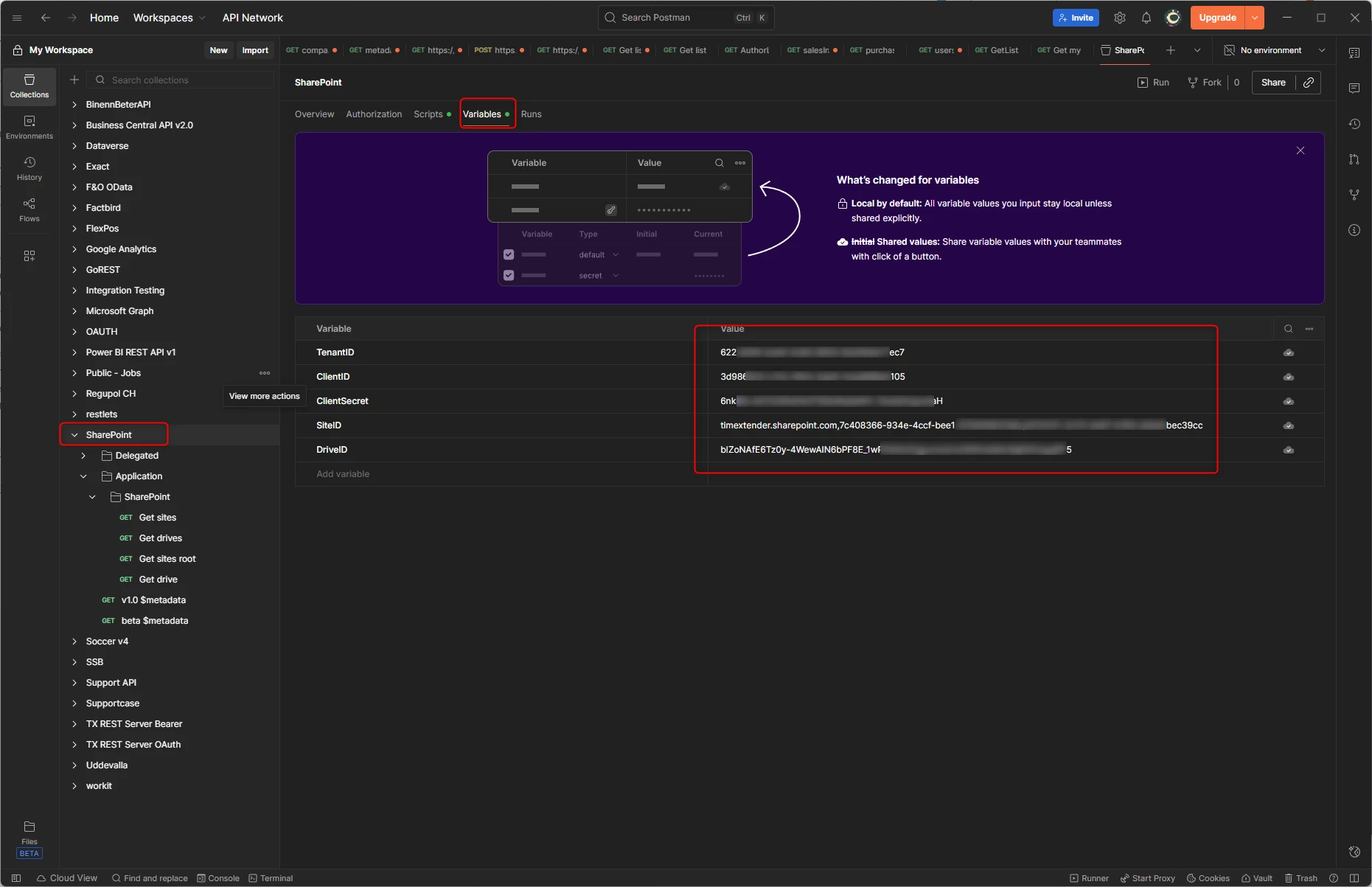
The SiteId and DriveId aren’t known at this time, so you can keep them empty for now.
Regarding the Service Principal App. It is important that it has the proper rights.
The main right you need the following granted Application permissions Files.Read.All and Sites.Read.All. To be sure you have enough rights, you may also add Group.Read.All and User.Read.All.
Once the variables are added, you can make sure you are authenticated.
Go to the Application level in the collection and click on Authorization.
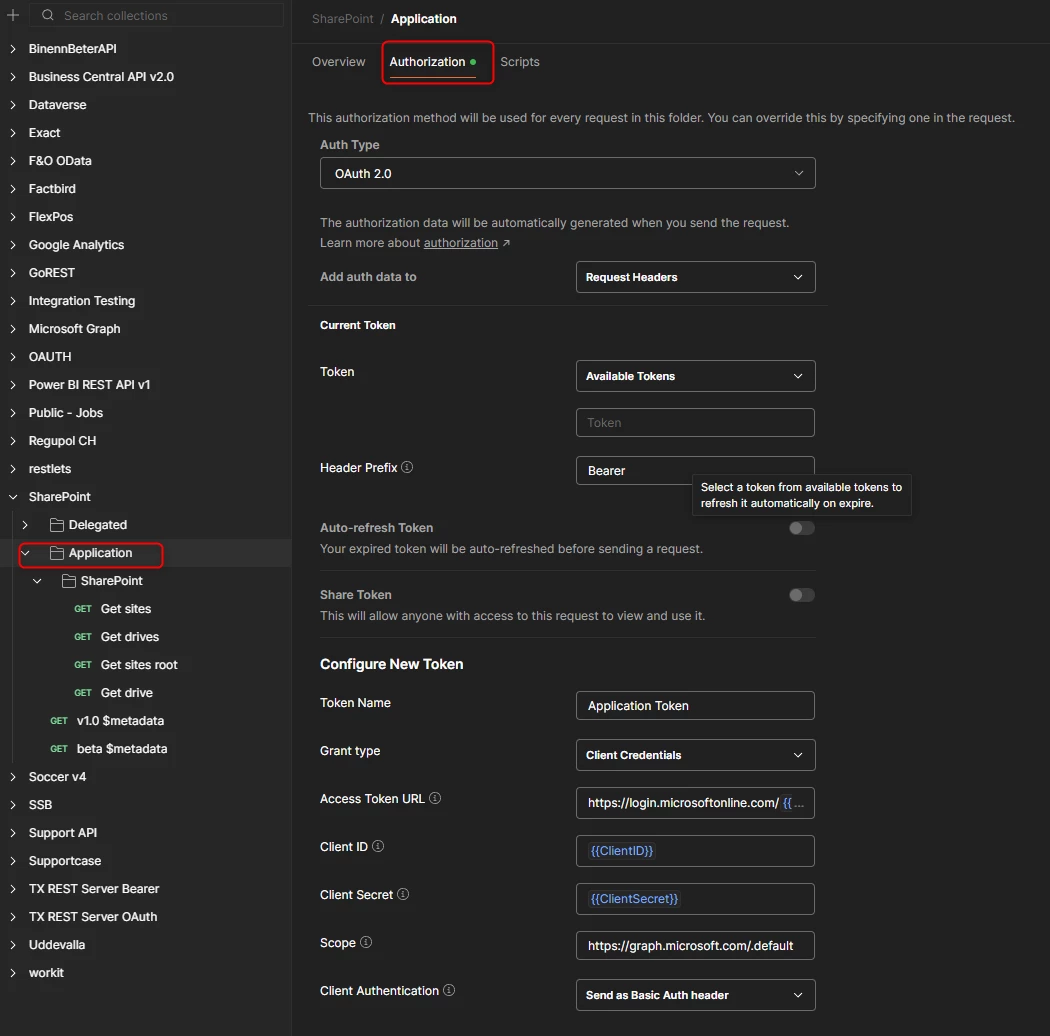
You can see that it uses the variables in the fields, so clicking the Get New Access Token button will retrieve one. Click Proceed, then click Use Token to go through the steps.
Run the Get Sites call and search the result for the SharePoint site that stores the files. In my case, it is called PowerBITest.
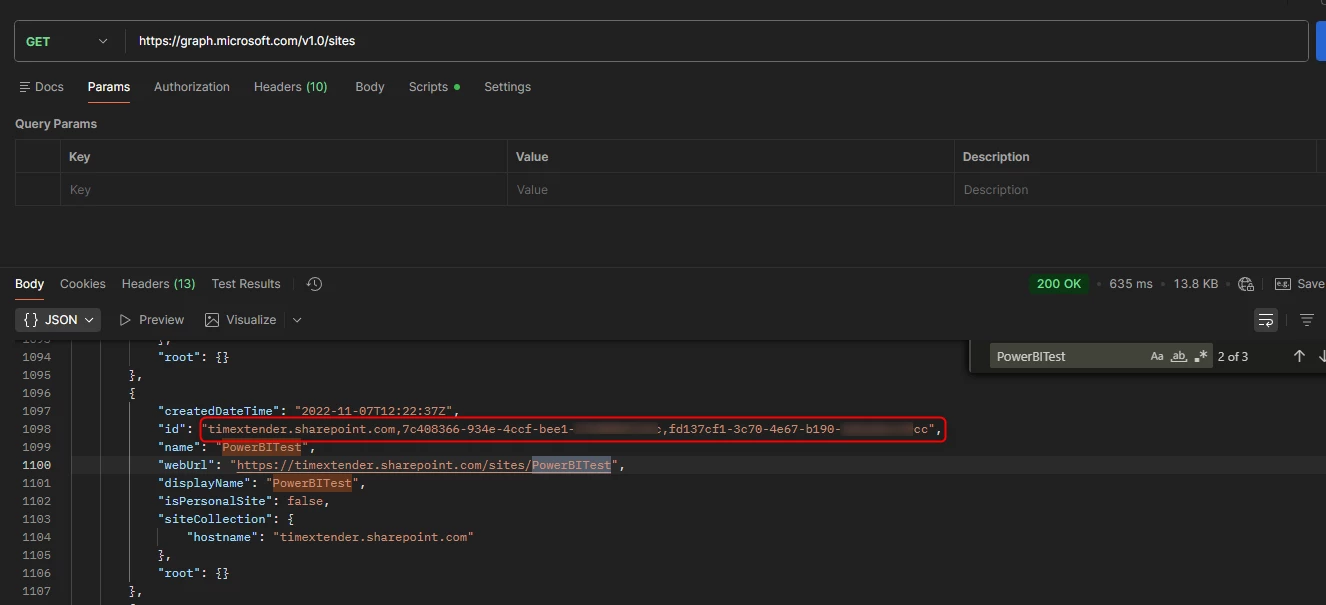
Copy the id value and add it as the SiteID variable.
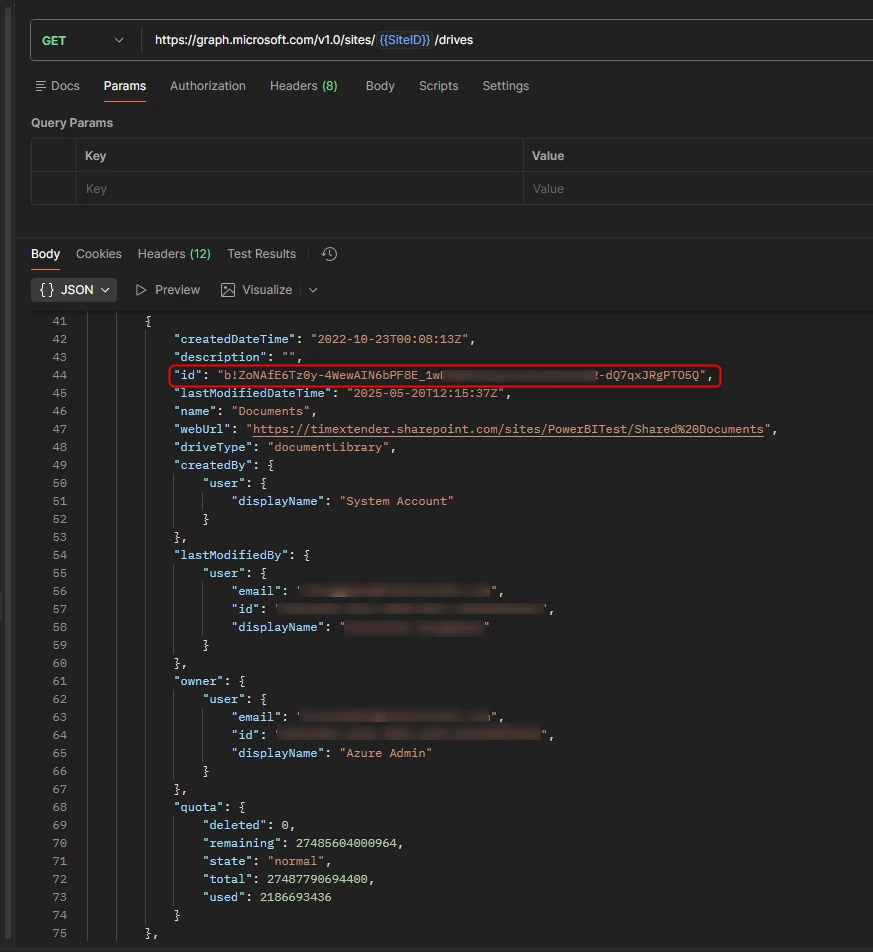
Once this is done, you can run the Get Drives call.
What you want to find is a DocumentLibrary driveType.
If you look at a SharePoint site, you can see it by clicking on the Site contents.
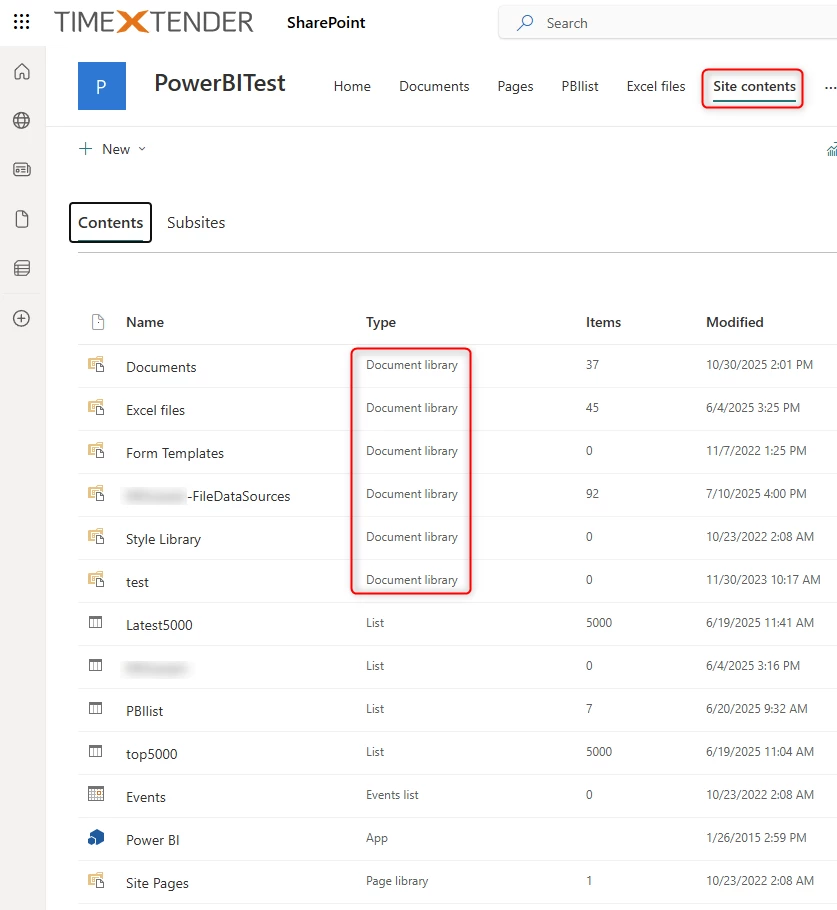
In my case, I want to find the drive ID for the Excel files in the Document Library. If I tried to find the Documents, which is the main one, it would look a little bit different. So I will show both below.
Excel files drive Id:

The primary Documents or shared Documents drive Id:
Once you have found this, use these two steps to find the info needed to connect to files in the various document folders. The drive IDs will also help with connecting to Lists.
