

Overview
Assigning privileges to Entra ID groups is a good way to ensure access to TimeXtender Data Platform is maintained in a single location in the organization.
This requires single sign-on to be registered.
- One-paragraph explanation: an Entra-backed role in TDP grants its privileges to anyone who is a member of a chosen Entra security group, with no need to maintain membership in two systems. See User Management in TDP for general role behaviour.
- Note: prerequisite is that the customer has SSO with Azure AD already configured — link back to article 1930.
Creating a role backed by an Entra group
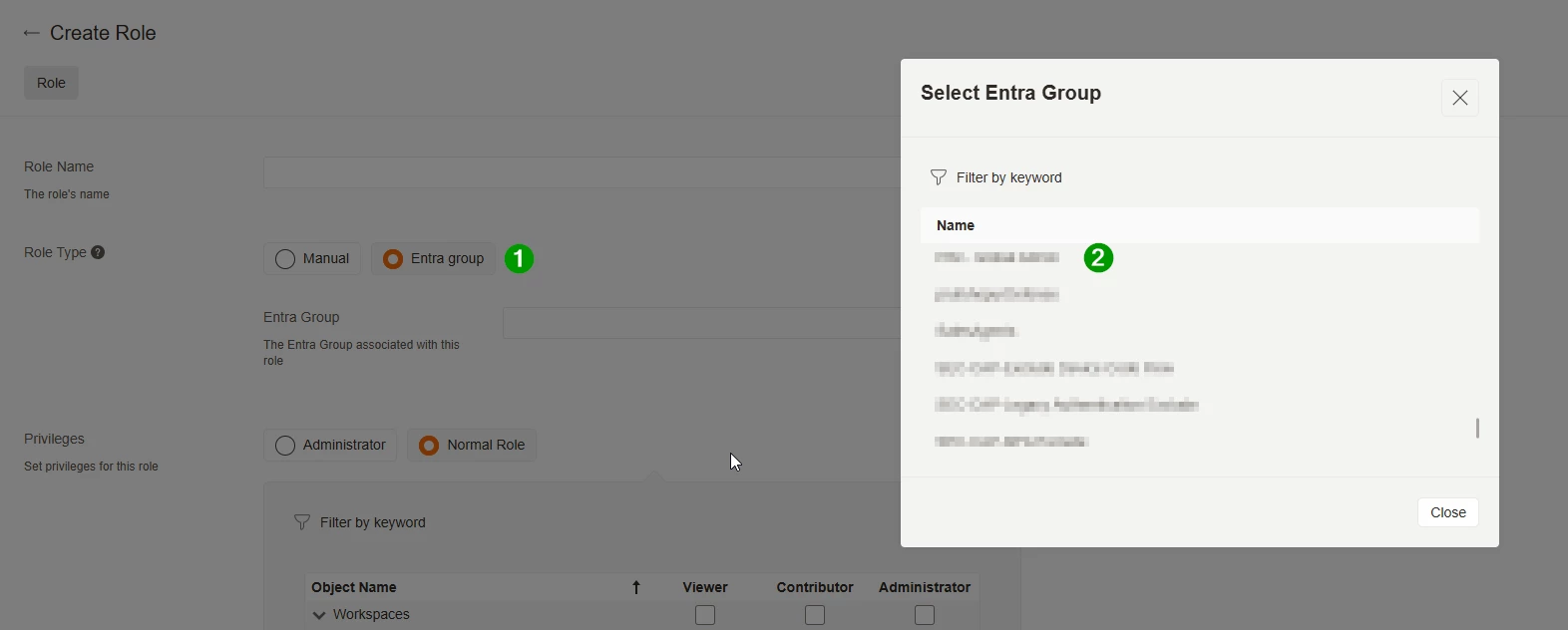
- Open Settings → User permissions → Roles in TDP.
- Click Create role.
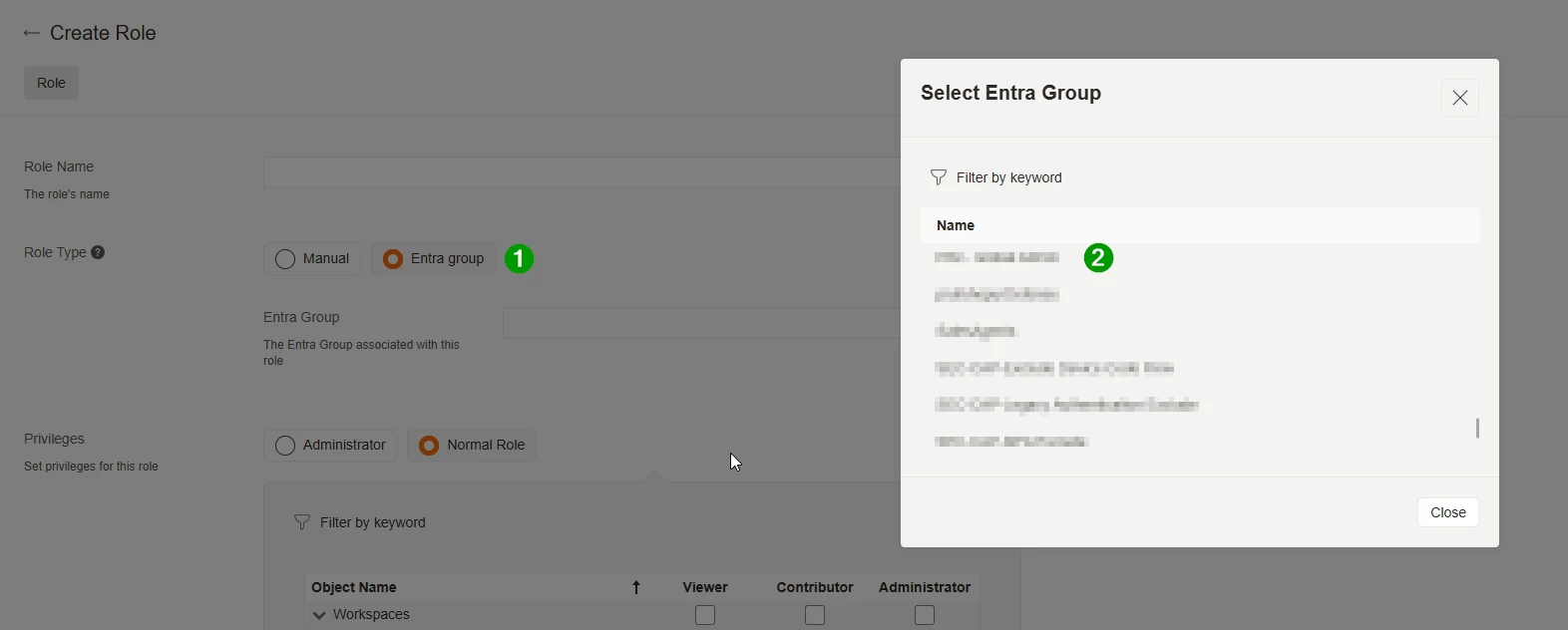
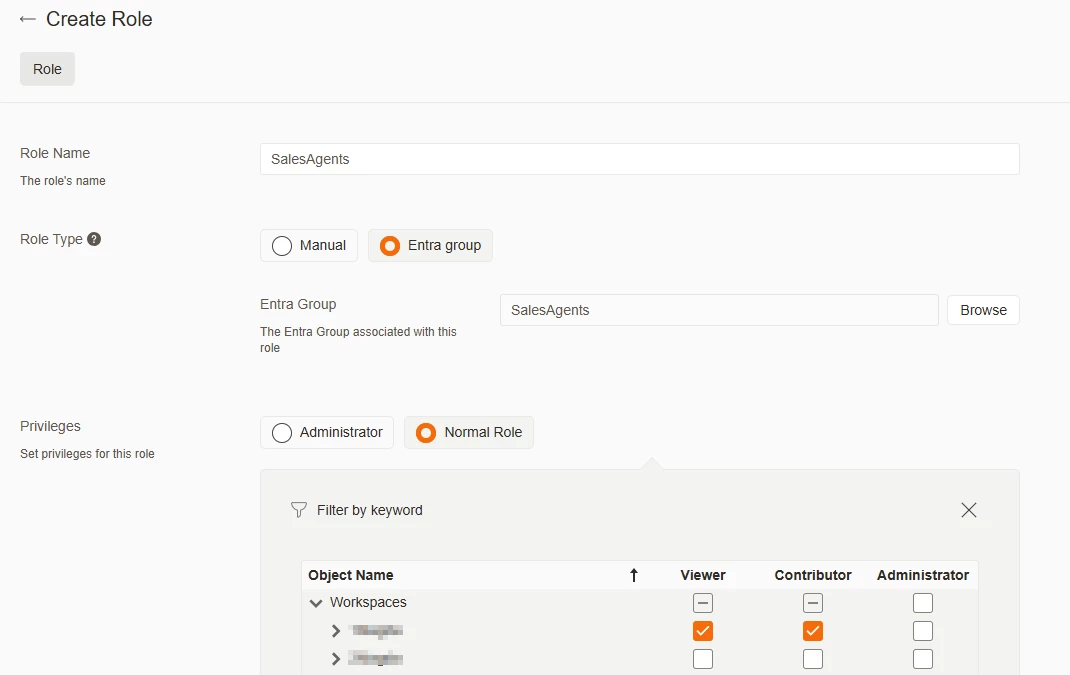
- Choose Group type: Entra group.
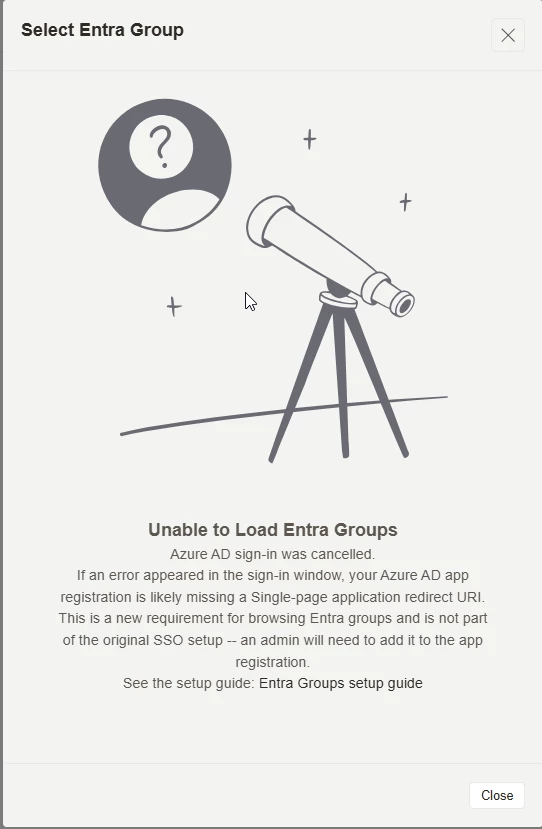
- Click Browse to open the picker. The picker authenticates the admin via a Microsoft popup (using the existing SSO session) and lists the Entra groups in the tenant. Search by name and select the group.
- Assign privileges (Workspace / Datasets / Rules / Process Maps / etc.) — see User Management in TDP for what each privilege does.
- Save.
How membership works
- Membership is resolved at sign-in. When an Entra-group member logs into TDP, TDP looks up which roles are mapped to their Azure AD groups and grants the corresponding privileges.
- Adding or removing someone from the Entra group in Azure AD is reflected in TDP at their next login. No action needed in TDP.
Important — Entra-group users must sign in to TDP first
Users who get their access through an Entra group must sign in to TDP first before they can open the ODQ Desktop client or the old portal. Their desktop user record is created during the first TDP sign-in. Until that happens, even with the right Entra-group privileges they will not be able to open the desktop or old portal.
Practical guidance for admins: when communicating new access to an Entra-group user, tell them to start at TDP. After their first successful TDP login, the desktop and old portal will recognise them.
Note — viewing Entra group membership
TDP does not show which Entra groups a user belongs to. To verify a user's group membership, look the user up in the Azure Portal.
Lifecycle
- Once a role is saved with an Entra group, you can't switch it to a different group or to a Manual role — delete it and create a new one instead.
- Deleting an Entra-group role removes access for all its members at their next login.
- Recreating a role with the same Entra group reactivates access cleanly (no orphaned records left from the deleted role).
Troubleshooting
- Consent error or empty list in the Browse picker →
Group.Read.Allis missing or admin consent wasn't granted. See article 1930.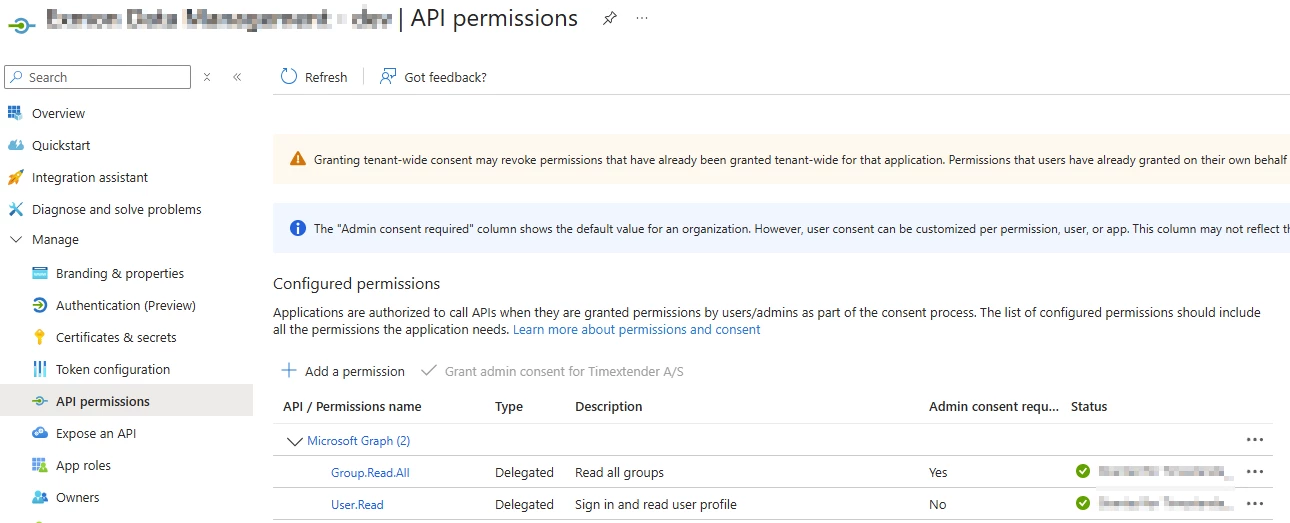
- Browse picker popup fails / "redirect URI mismatch" → TDP URL not added as a Single-page application redirect URI in the App Registration. Note: TDP sign-in itself still works (it uses WS-Federation server-side); only the Browse picker breaks, and existing Entra-group-backed roles continue to grant privileges. See single sign-on article.
- An Entra-group user sees no privileges in TDP → confirm in the Azure Portal that they really are a member of the group; membership is evaluated at login time, so have them sign out and back in.
- Entra-group user can't open the desktop or old portal → they must sign in to TDP first (see the section above).
