

Connect Claude or ChatGPT to the TimeXtender MCP Server using your own Microsoft Entra ID tenant as the identity provider, so users sign in with OAuth 2.1 instead of an API key.
Verify your tenant configuration before you connect a client. Claude and ChatGPT cache the OAuth metadata they read from your server URL at organization level and do not read it again. A first connection attempt against an incomplete configuration makes that URL unusable, and recovering it requires an organization administrator. Complete every section up to and including Configure the MCP Server first.
Prerequisites
- A Microsoft Entra ID tenant you can register applications in.
- A deployed MCP Server, reachable over HTTPS at a public hostname.
- Rights to add a connector in Claude or ChatGPT. Both desktop apps use a connector created in the browser, so you need browser access for either one.
- The Azure CLI, installed and signed in. Run
az loginand select the tenant you are configuring. - Administrator access to the MCP Server host, to run the TimeXtender MCP Configurator.
Entra ID supports neither Dynamic Client Registration nor Client ID Metadata Documents, so an MCP client cannot register itself. You create the client application in advance and give the connector its ID and secret. If your identity provider is Auth0, use Connect to MCP using Auth0 instead.
Check the rights you need
Run this to find out whether you need a directory role:
az rest --method get --url 'https://graph.microsoft.com/v1.0/policies/authorizationPolicy' --query "defaultUserRolePermissions.allowedToCreateApps"| Result | What you need |
|---|---|
|
| Nothing beyond being a member of the tenant. Owning the two registrations you create covers every step. |
|
| The Application Developer role, the least privileged role that can create registrations. |
Global Administrator is not required. Consent is not required either, because you pre-authorize the client application on the server application, which removes the consent step.
If your organization enforces device compliance sign-in policies, ask whoever manages Conditional Access whether a new cloud application can be excluded. A cloud hosted MCP client is not an enrolled device. See Conditional Access policies below.
Understanding the two app registrations
This procedure creates two Entra ID app registrations with different jobs. Both have an Application (client) ID, which is Entra ID's label for any registration's identifier.
|
| Server application | Client application |
|---|---|---|
| Represents | The MCP Server, as a resource to be protected | The MCP client that calls it |
| Redirect URIs | None | The client callback URLs |
| Exposes an API | Yes, one delegated scope named | No |
| Requests a permission | No | Yes, the server application's |
| Credentials | None | A client secret, required |
| Its Application (client) ID is used in | The MCP Server configuration | The connector dialog |
Each registration references the other once, in opposite directions. On the client application you add a permission pointing at the server application. On the server application you pre-authorize the client application. Both registrations are single tenant.
Do not reuse the Entra ID service principal you created for data access. Connect Prepare Instance to Microsoft Fabric creates an app registration using the same terms, for a different purpose: it lets the MCP Server read your warehouse. The two registrations here let AI clients authenticate to the MCP Server. Keep them separate.
Register one server application per MCP Server deployment. The token's aud claim is the server application's identifier, so two deployments sharing one registration would each accept tokens issued for the other. The client application holds only redirect URIs and a delegated permission, and can be shared across your deployments.
Register the server application
- Go to Entra ID > App registrations > New registration.
- Enter a name that identifies the deployment, select Accounts in this organizational directory only, and select Register. Do not add a redirect URI. This registration never has one.
- Go to Expose an API > Application ID URI > Add, and accept the default value of
api://<server-app-client-id>. - Select Add a scope. Enter
mcp.accessas the scope name, leave Who can consent set to Admins only, and complete the four display name and description fields. Your users read these in the Microsoft consent dialog, so write them for that audience, for example "Query your data through the MCP server". - Set the access token version to
2. See Set the access token version below. - Go to App roles > Create app role and add
MCP.QueryandMCP.Admin, both with allowed member type Users/Groups. Do not assign them to anyone.
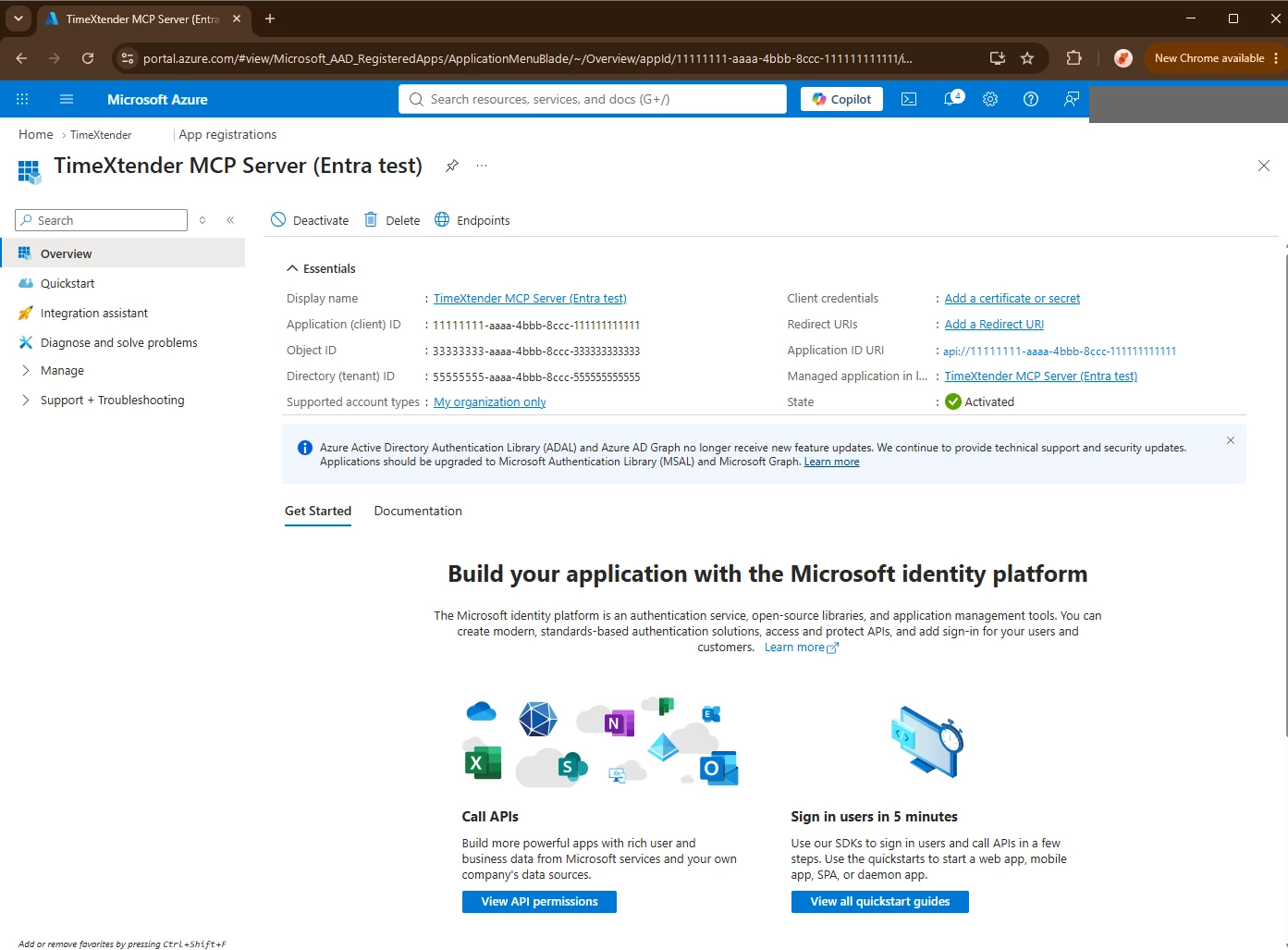
Server application Overview blade, showing the Application (client) ID and the Application ID URI.
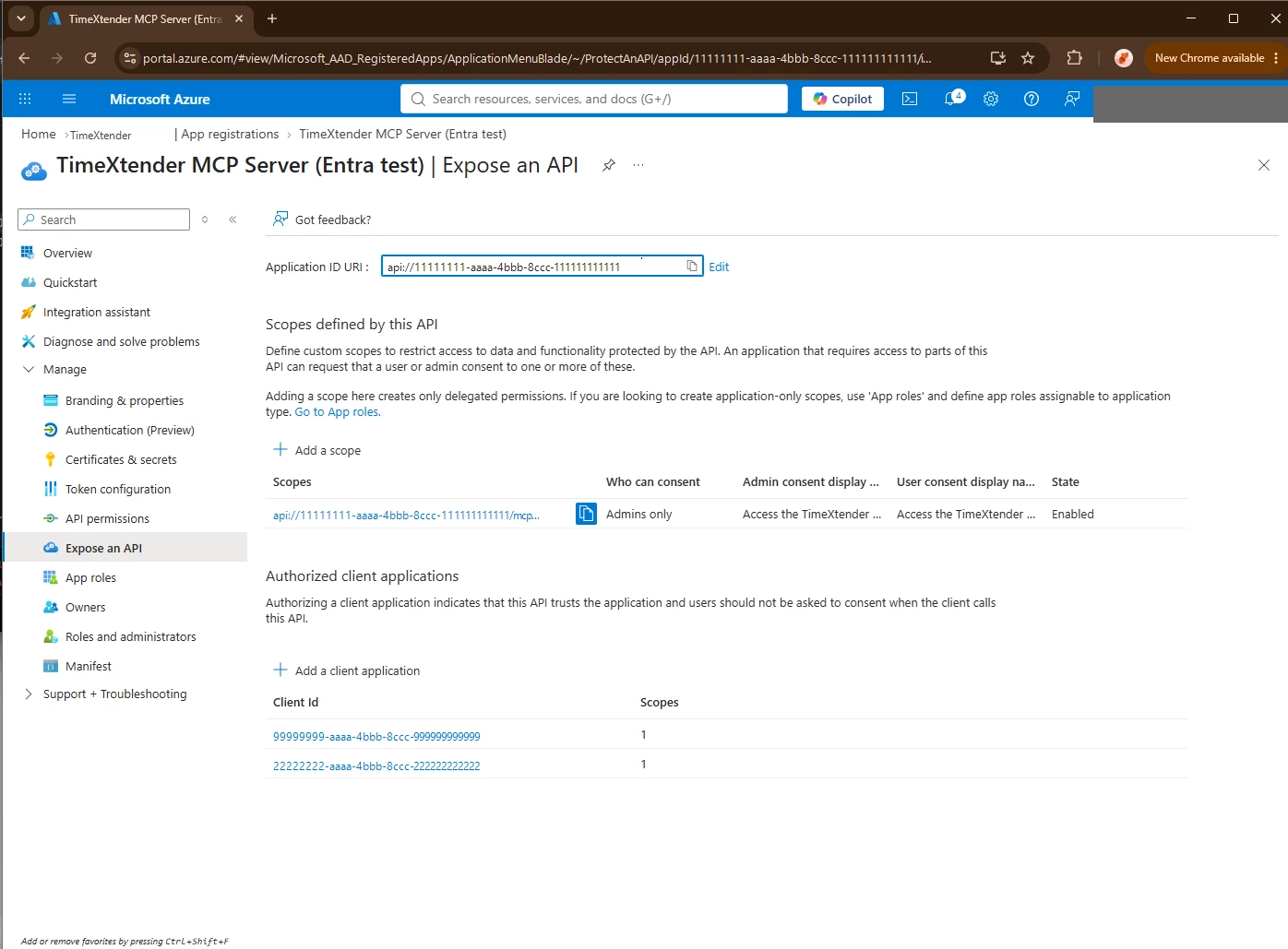
Expose an API blade on the server application, showing the mcp.access delegated scope.
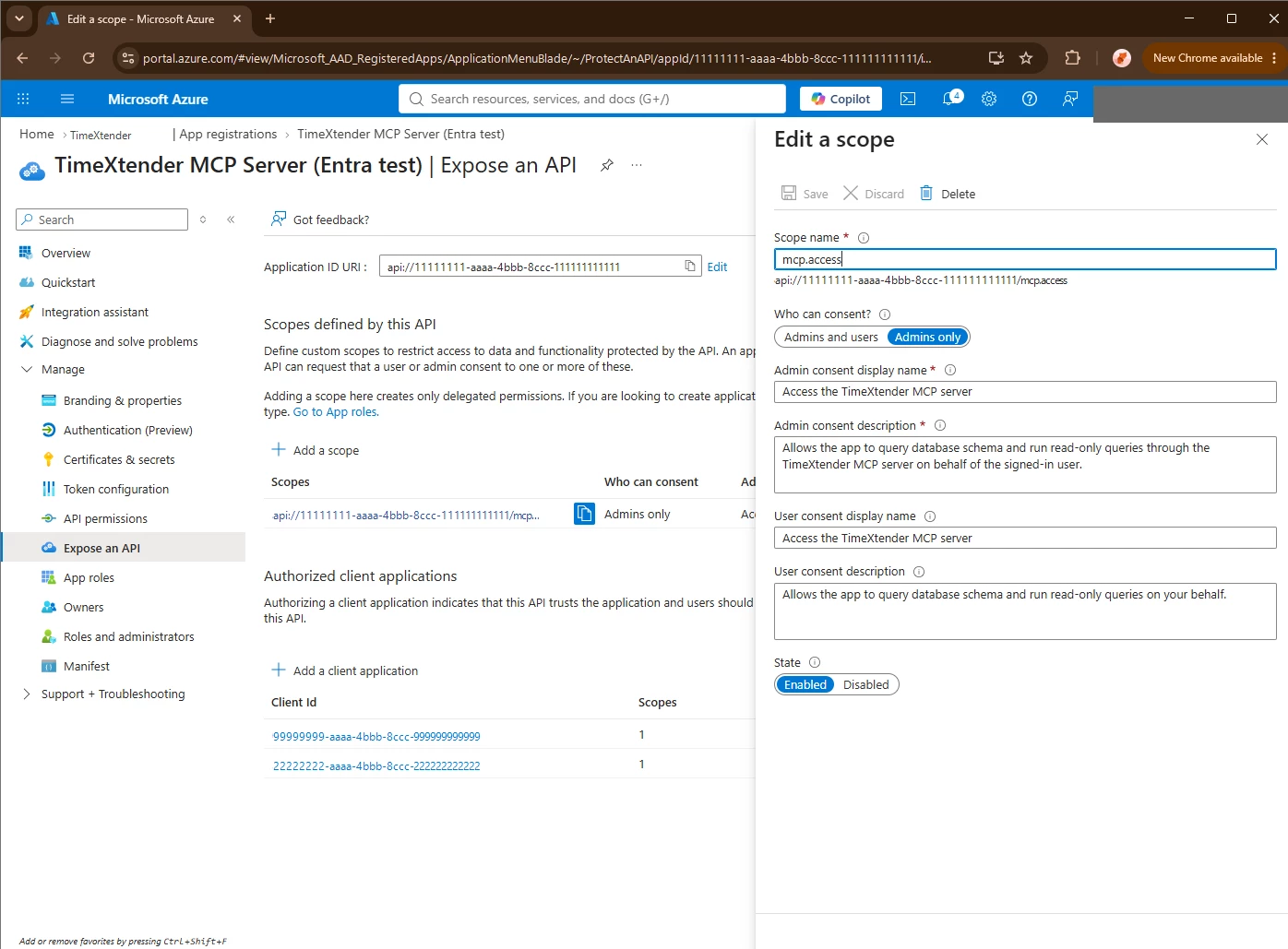
The Edit a scope panel, showing mcp.access with its consent display names and descriptions completed.
Record the Application (client) ID from this registration's Overview blade. You enter it into the MCP Server configuration later.
The app roles are defined for future use. Nothing reads them yet, and a token issued to an unassigned user carries no roles claim. Defining them now means you do not have to change the registration when role based authorization is added.
Set the access token version
The access token version is not exposed as a form field. You set it by editing the registration's JSON manifest.
- Go to Entra ID > App registrations > your server application > Manifest.
- Find the token version key and set it to
2. The key has two names, and which one appears depends on which manifest editor your tenant serves. - Select Save, reload the blade, and confirm the value was saved.
| Manifest editor | Key to set | Value |
|---|---|---|
| Microsoft Graph App Manifest |
|
|
| AAD Graph App Manifest |
|
|
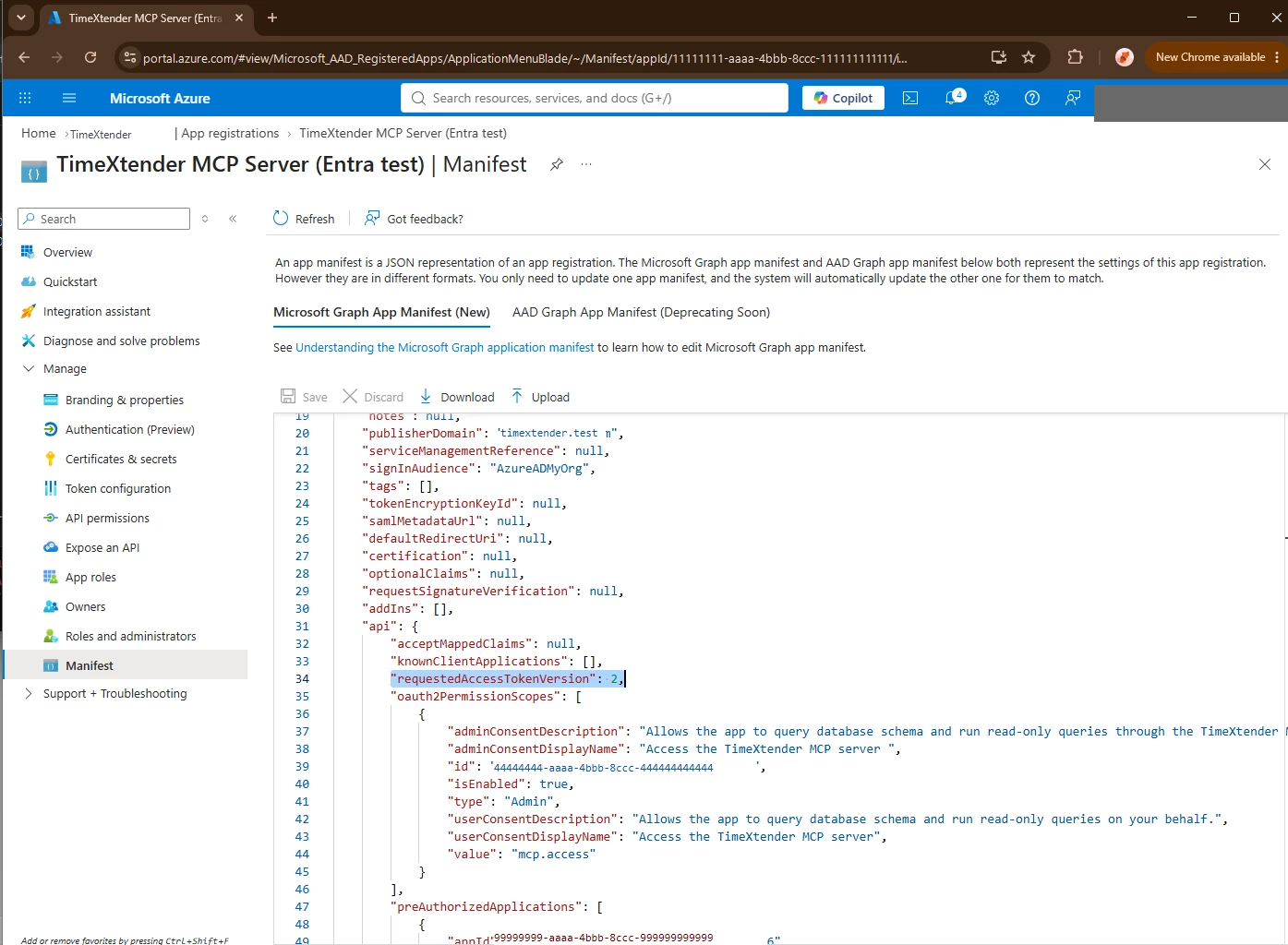
Manifest editor on the server application, with the access token version set to 2.
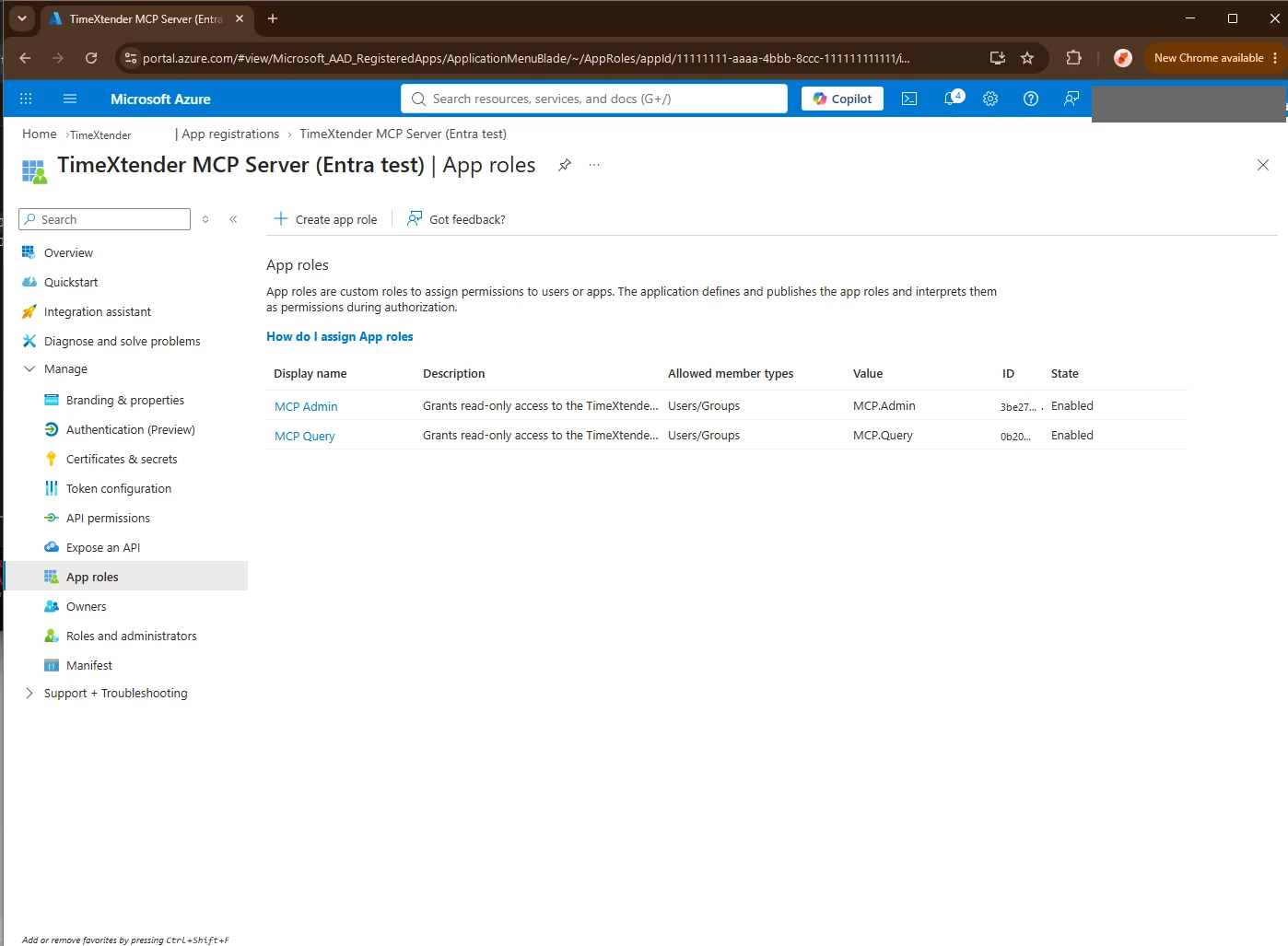
App roles blade on the server application, showing MCP.Query and MCP.Admin.
If the value stays at null or 1, Entra ID issues version 1 tokens with an iss claim of https://sts.windows.net/<tenant-id>/, which cannot match the /v2.0 authority the MCP Server uses. Every request then returns 401, and the server log reports only that validation failed. Verify the token claims below detects this.
Register the client application
- Go to Entra ID > App registrations > New registration.
- Enter a name, select Accounts in this organizational directory only, and select Register.
- Go to Authentication > Add a platform > Web, and add the callback URLs for the client you are setting up. See Callback URLs below. Clear both Implicit grant checkboxes.
- Go to Authentication > Advanced settings and turn off Allow public client flows.
- Go to Certificates & secrets > New client secret. Enter a description and an expiry, select Add, then copy the Value immediately. Entra ID shows it once.
- Go to API permissions > Add a permission > My APIs, select your server application, select Delegated permissions, select
mcp.access, then select Add permissions. No consent is needed.
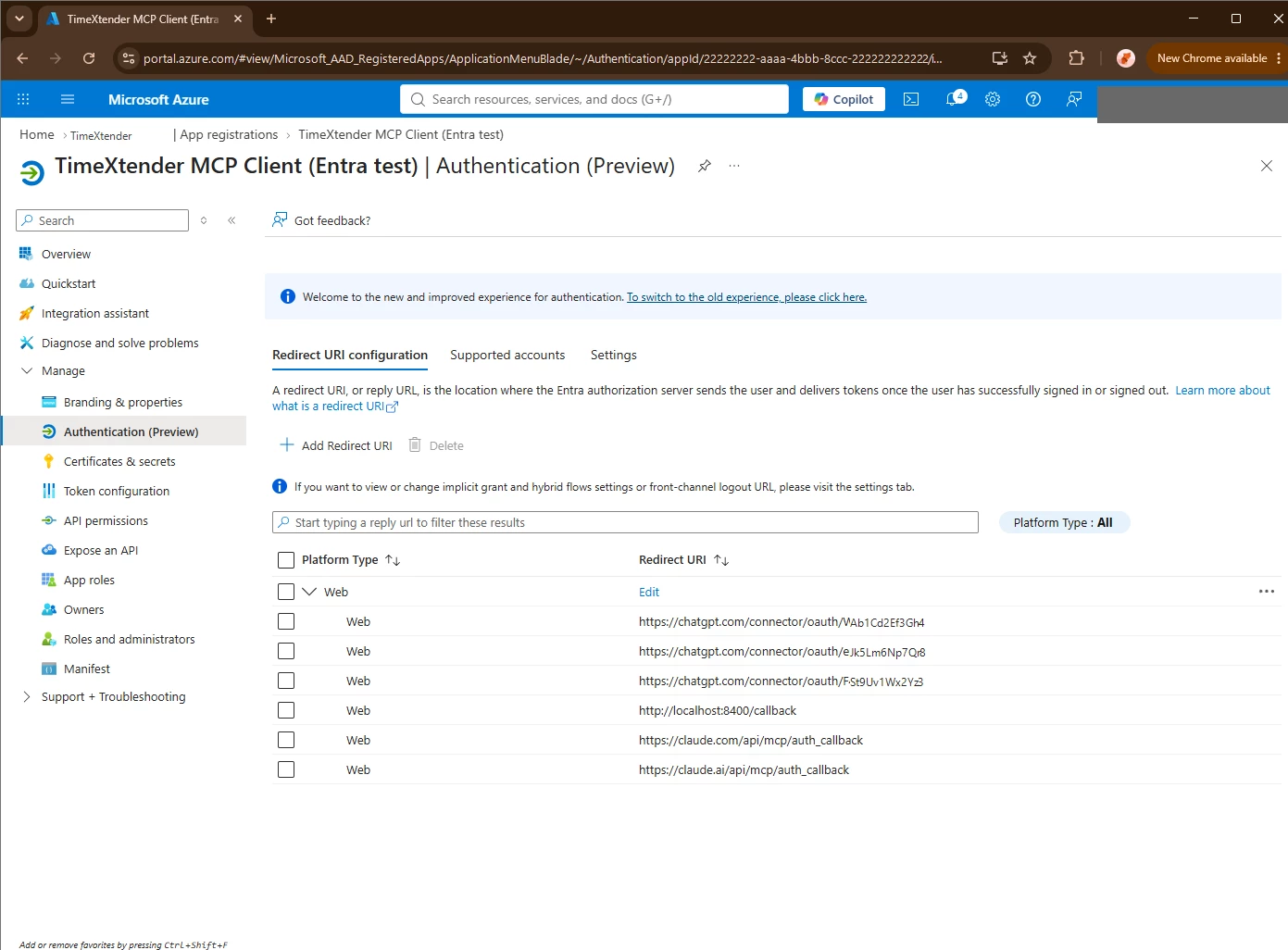
Authentication blade on the client application, showing the callback URLs under the Web platform.
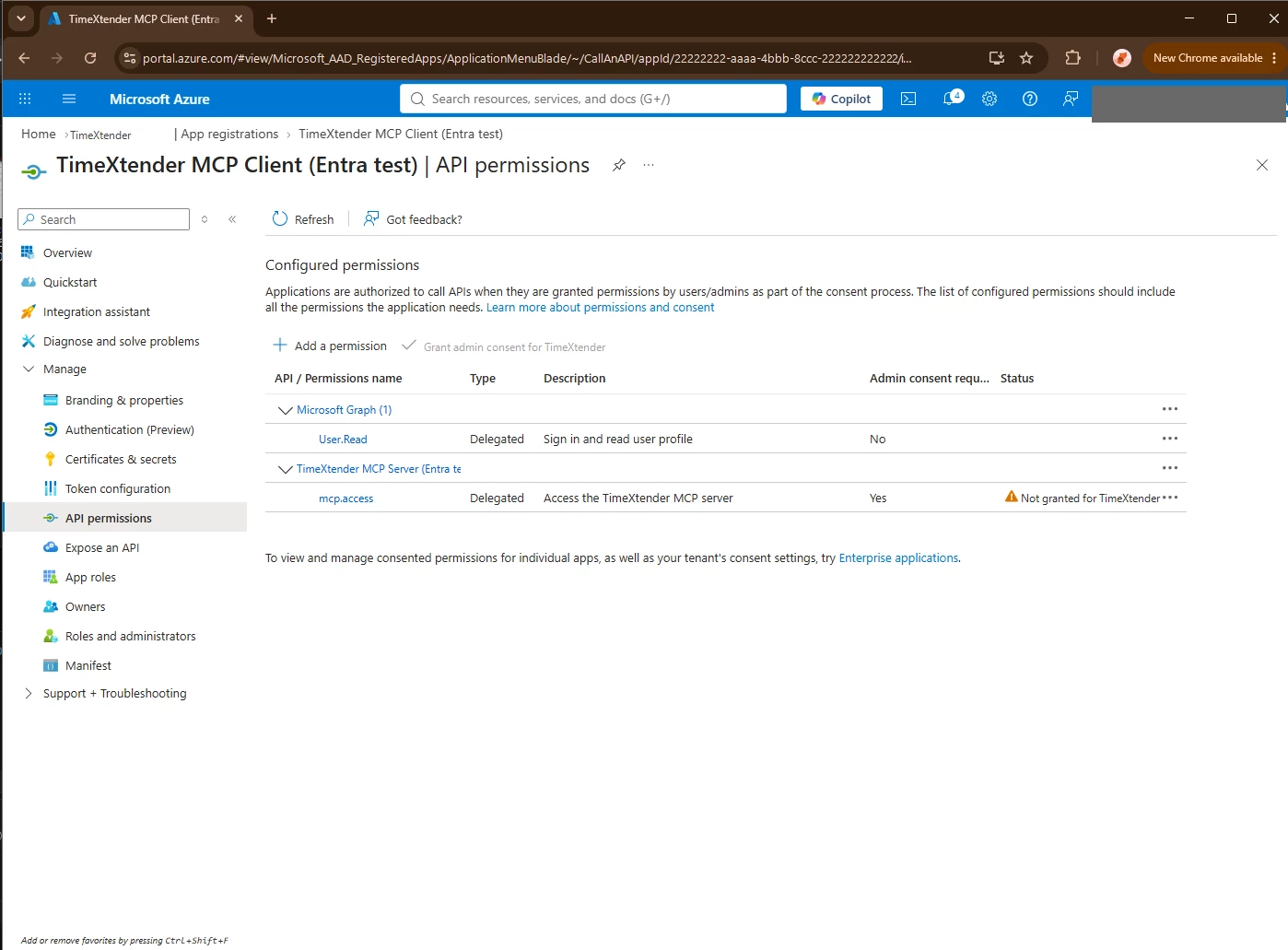
API permissions blade on the client application, showing the delegated mcp.access permission.
Record the Application (client) ID from this registration. You enter it into the connector dialog later.
Use the Web platform. Claude and ChatGPT redeem the authorization code from their own backends, and Web is the platform that accepts a backend redemption. It also makes the registration a confidential client, which is why the client secret is required.
Callback URLs
| Client | Redirect URIs to add |
|---|---|
| Claude |
|
| ChatGPT | One per connector, in the form |
Add both Claude URIs. The client uses one or the other depending on which domain the user is on, and a missing URI produces an intermittent failure that follows the user rather than the configuration.
Entra ID does not support wildcards in redirect URIs, so each ChatGPT connector needs its own entry. A workspace level connector is a single entry shared by everyone in the workspace.
The client secret expires. On the expiry date the connector stops working, and the failure resembles a credentials problem. Record the date. Renewing means creating a new secret and updating the connector.
Entra ID secrets contain ~, - and _ characters. A copy that stops at a ~ produces error AADSTS7000215, which is indistinguishable from a wrong secret. Select the whole value.
The value of an existing secret cannot be retrieved from the portal, the Azure CLI or Microsoft Graph. If you lose it, create a replacement:
az ad app credential reset --id <client-app-client-id> --append --display-name "<credential-name>" --years 1 --query password -o tsvInclude --append. Without it, credential reset removes every existing password and certificate on the registration, which breaks every other connector using it.
Pre-authorize the client application
- Go to Entra ID > App registrations > your server application > Expose an API.
- Under Authorized client applications, select Add a client application.
- Enter the client application's Application (client) ID, select
mcp.access, and select Add application.
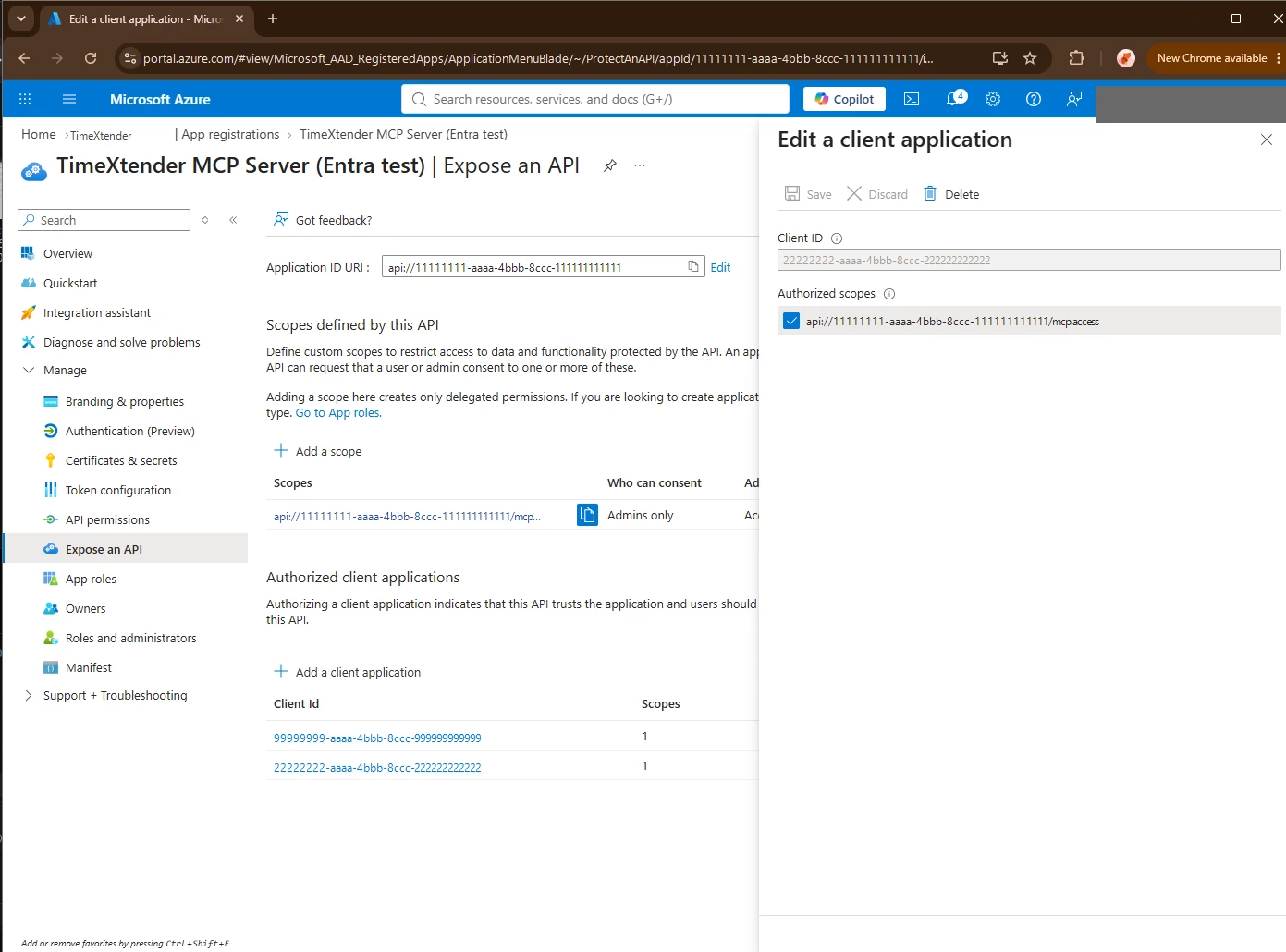
Authorized client applications on the server application, with the client application added and mcp.access selected.
Pre-authorization makes the delegated permission usable without consent from a user or an administrator, even though mcp.access is marked as requiring admin consent. This is what keeps the procedure within the rights described in Check the rights you need.
Verify the registrations
Run these commands and compare the output against the expected results. Both checks work before the MCP Server is deployed.
az ad app show --id <server-app-client-id> --query "{appIdUri:identifierUris, tokenVersion:api.requestedAccessTokenVersion, scopes:api.oauth2PermissionScopes[].value, roles:appRoles[].value, spa:spa.redirectUris, web:web.redirectUris, publicClient:publicClient.redirectUris}"

az ad app show --id <client-app-client-id> --query "{web:web.redirectUris, spa:spa.redirectUris, publicClient:publicClient.redirectUris, requests:requiredResourceAccess[].resourceAppId, appIdUri:identifierUris}"

az ad app show --id <client-app-client-id> --query "passwordCredentials[].{name:displayName, expires:endDateTime}"

az ad app show --id <server-app-client-id> --query "api.preAuthorizedApplications"| Command | Expected result |
|---|---|
| Server application | The Application ID URI is present, |
| Client application | Your callback URLs appear in |
| Client secret | At least one entry, with an |
| Pre-authorization | The client application's ID, with the |
A redirect URI on the server application, or an empty web list on the client application, means the two registrations have been swapped. Review Understanding the two app registrations.
Two entries in requests is expected. One is your server application. The other is Microsoft Graph, which Entra ID adds to every new registration along with a default User.Read permission. It plays no part here and does not need removing.
Verify the token claims
A token that decodes correctly confirms your tenant configuration, so any later failure is in the MCP Server configuration or the connector.
$token = az account get-access-token --scope "api://<server-app-client-id>/mcp.access" --query accessToken -o tsv

$payload = $token.Split('.')[1].Replace('-','+').Replace('_','/')
while ($payload.Length % 4 -ne 0) { $payload += '=' }
[Text.Encoding]::UTF8.GetString([Convert]::FromBase64String($payload)) |
    ConvertFrom-Json | Select-Object iss, aud, scp, ver, azp, appid, azpacr, roles | Format-List
The token is a live credential. Decode it locally, as shown above. Do not paste it into a web based decoder.
The Azure CLI is itself a client, so it needs pre-authorizing on your server application for this check. Remove it afterwards. It is not part of the deployed configuration.
| Claim | Expected | If it differs |
|---|---|---|
|
| Ends in | A value of |
|
| The bare server application ID, with no | This value is what the MCP Server's Audience setting must contain. The |
|
| Contains | The delegated permission is missing, or the client is not pre-authorized. |
|
|
| Same cause as |
|
| The calling client's application ID | This is the version 2 name for version 1's |
|
| Absent | Its presence means a version 1 token, from the same cause as |
|
|
| This reflects the Azure CLI, which holds no credential. A token your connector obtains shows |
|
| Absent | Expected. Roles appear only once assigned, and nothing reads them yet. |
This table describes the token, not an authorization model. The MCP Server validates the issuer, the audience, the token lifetime and the signature. It does not check scp or roles. Any token that passes those four checks can call every tool the server exposes.
Record the aud value. It is the server application's Application (client) ID, and it goes into the MCP Server's Audience setting. It is not the client application's ID.
Configure the MCP Server
Complete this on the machine that runs the MCP Server.
- Open the TimeXtender MCP Configurator.
- Go to the OAuth tab.
- For Identity provider, select Microsoft Entra ID.
- Complete the fields listed below.
- Turn on Enable OAuth sign-in.
- Select Save Configuration, and restart the service when prompted.
| Field | Value |
|---|---|
| Authority |
|
| Audience |
|
| API scope |
|
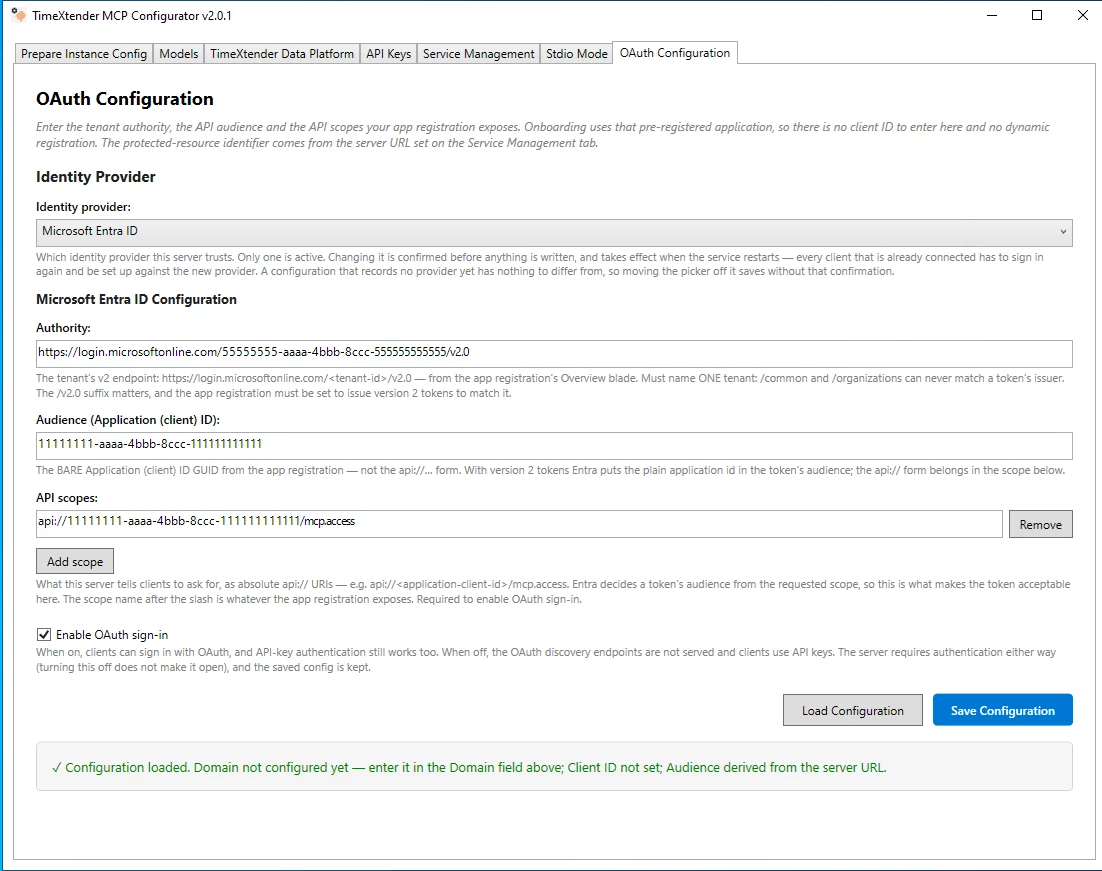
The OAuth tab in the TimeXtender MCP Configurator, with Microsoft Entra ID selected and the fields completed.
There is no Client ID field. Under Entra ID the MCP Server never holds one. It goes into the connector dialog instead.
API key authentication continues to work whether or not OAuth is turned on. Turning on OAuth adds a second way to authenticate.
Use the Configurator rather than editing files. It runs the server's validators before writing, so it cannot save a configuration the server would refuse to start on. Selecting Microsoft Entra ID also turns off the Client ID Metadata Document advertisement, because Entra ID supports neither that nor Dynamic Client Registration.
Which value goes where
| Value | In the Entra ID portal | In the issued token | In the server configuration | In the connector dialog |
|---|---|---|---|---|
| Tenant | The directory itself |
| Inside Authority |
|
| Authority |
|
|
|
|
| Audience | The server application's Application (client) ID, bare |
|
|
|
| Scope | The exposed scope on the server application |
|
| Requested by the client, from the server's metadata |
| Client ID | The client application's Application (client) ID |
| Not held by the server | Entered manually |
| Canonical resource URI |
|
| Derived from the server's public URL |
|
| Token version |
|
|
|
|
Audience is the bare application ID, not the api:// form. With access token version 2, Entra ID derives aud from the bare application ID. Only a version 1 token carries the Application ID URI. Use the aud value you recorded.
The canonical resource URI is not the audience. It is derived from the server's public HTTPS URL, and the Configurator sets it for you. Entering the audience there makes the server refuse to start.
Where the settings are stored
| Aspect | Detail |
|---|---|
| File written |
|
| When it loads | Last, after |
| Where it is read from |
|
| Also required | An |
After restarting, confirm the startup log records Resource-server identity provider: EntraId with no configuration error above it.
The server fails closed on invalid configuration. A /common or /organizations authority, a blank or placeholder value, a scope that is not an absolute api:// URI, or scopes naming two different applications each make the server refuse to start and name the setting. A missing /v2.0 suffix or a non-GUID audience produce warnings only, because a tenant issuing version 1 tokens legitimately uses those forms.
Keep the server URL and the canonical resource URI aligned. Both derive from the server's public URL on the Service Management tab. If you change that URL and do not save the OAuth tab again, they diverge: startup logs an error naming both values, and the discovery endpoints return 404. The Configurator warns you at the point of change, with a confirmation dialog that defaults to No.
Under Entra ID, divergence takes discovery offline but the server continues to accept bearer tokens, so existing connectors keep working while new ones cannot be set up. A working connector is not evidence that the configuration is correct.
Connect Claude
Complete every preceding section first. The first connection attempt against a URL fixes what the client stores about that URL.
- In Claude, add a custom connector.
- Enter a name, and enter your server's
/mcpendpoint as the Server URL, for examplehttps://<your-mcp-server-host>/mcp. - Continue to the OAuth options.
- For Sign-in, select Sign in now.
- For OAuth client, select Use your own OAuth client.
- Enter the client application's Application (client) ID as the Client ID, and the client secret as the Client secret.
- Complete the connector and sign in when prompted.
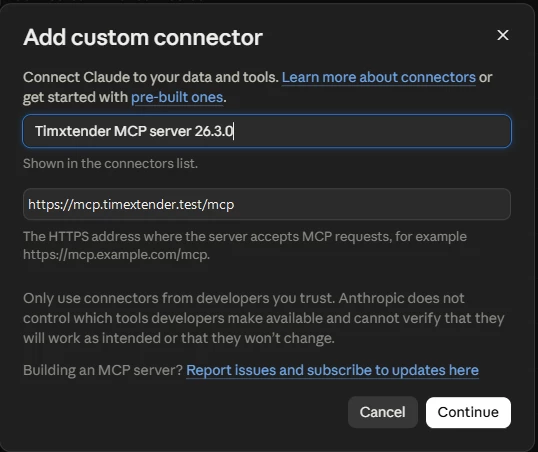
Claude's Add custom connector dialog, with a name and the server's /mcp URL entered.
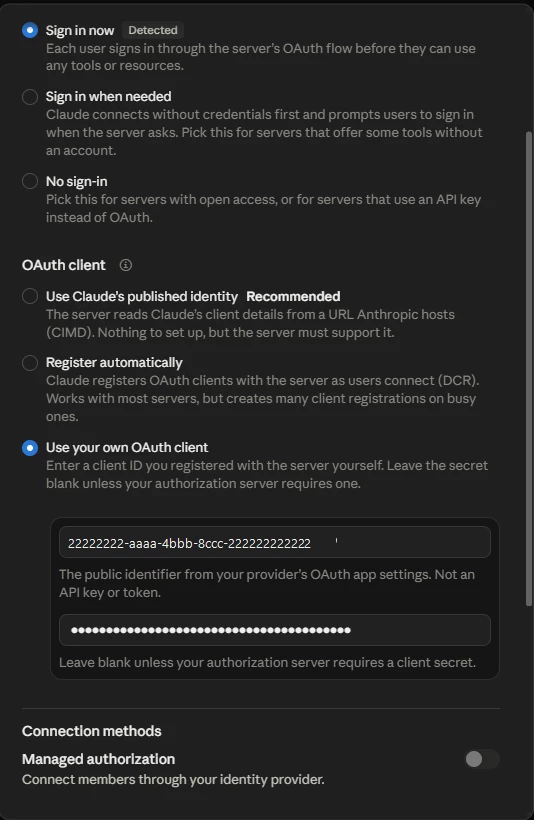
Claude's OAuth client settings, with Sign in now and Use your own OAuth client selected and the client ID and secret entered.
The Client secret field is required. Claude's inline hint suggests leaving it blank unless your authorization server requires one. Entra ID requires one, and a blank field produces error AADSTS7000218.
The dialog has no endpoint or scope fields. Claude reads the authorization endpoint, token endpoint and scope from your MCP Server's metadata, which is why the server configuration must be complete first.
| OAuth client mode | Result under Entra ID |
|---|---|
| Use Claude's published identity | Not usable. Entra ID does not support Client ID Metadata Documents, and the MCP Server refuses to start if configured to advertise them under Entra ID. |
| Register automatically | Not usable. Entra ID has no Dynamic Client Registration endpoint, and the MCP Server's registration endpoint returns |
| Use your own OAuth client | Usable. It uses the client application you registered. |
When the connector is connected, the MCP Server's five read-only tools are listed and can be called. Two log entries on a successful connection are expected: a server/discover handler failure, because the client calls a method this server does not implement and the request is answered anyway, and a 401 immediately after a successful tool call, which is the probe that starts the OAuth flow.
Claude Desktop uses the connector you created in the browser. There is nothing else to configure.
Connect ChatGPT
ChatGPT requires one redirect URI per connector, added to the client application before you sign in.
- In ChatGPT, go to Settings > Apps & Connectors > Advanced settings > Developer mode, then select Create.
- Enter your server's
/mcpendpoint as the Connection URL. - For Authentication, select OAuth, then open Advanced OAuth settings.
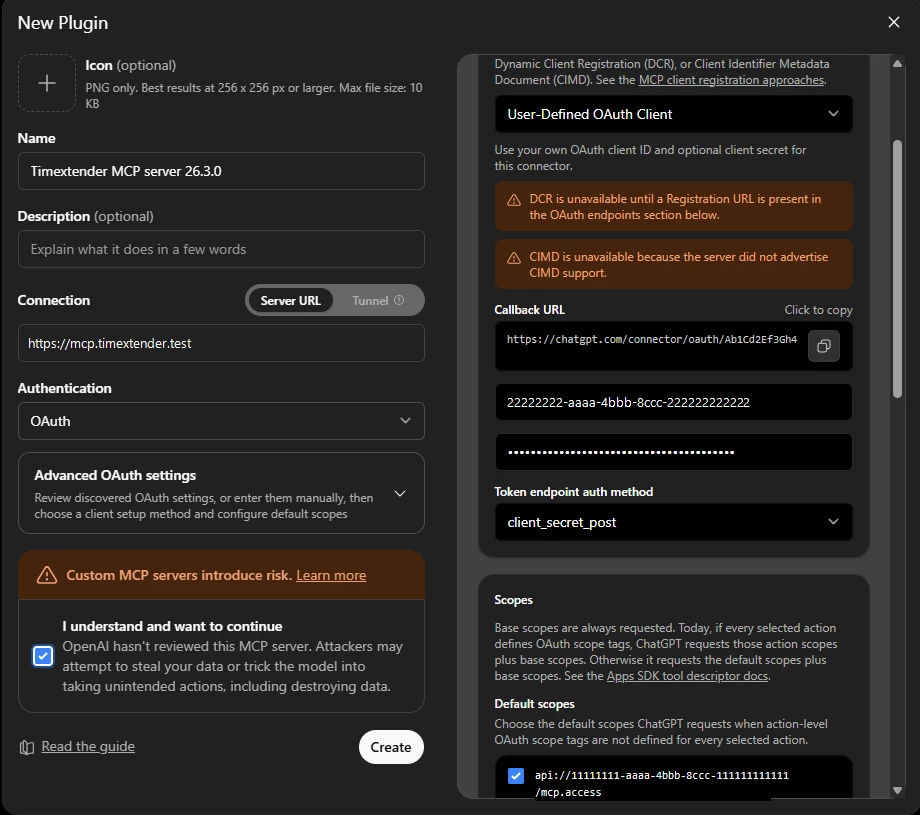
- For Registration method, select User-Defined OAuth Client. ChatGPT reports the other two methods as unavailable.
- Copy the Callback URL that ChatGPT displays, and add it to the client application's Web redirect URIs in Entra ID. See Register the client application.
- Enter the client application's Application (client) ID as the OAuth Client ID, and the client secret as the OAuth Client Secret. The secret is required despite the field being labelled optional.
- Set Token endpoint auth method to
client_secret_post, leave the pre-selected default scope ofapi://<server-app-client-id>/mcp.accessselected, set Base scopes tooffline_access, then select Create and sign in when prompted.
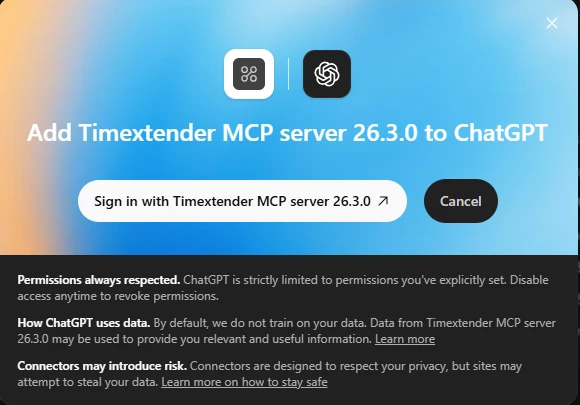
ChatGPT's connector dialog in User-Defined OAuth Client mode, with the server URL and client ID entered.
ChatGPT's prompt to sign in with the MCP Server connector.
Add the callback URL to Entra ID before you select Create. Connecting first produces error AADSTS50011. Leaving Token endpoint auth method at none produces error AADSTS7000218.
You do not enter any OAuth endpoints. The MCP Server serves your tenant's authorization server document, so ChatGPT finds the authorize and token endpoints itself.
ChatGPT Desktop uses the connector you created in the browser. There is nothing else to configure.
The cached metadata behaviour described at the top of this article applies to ChatGPT as well. The recovery described in Recover a client that cached the wrong metadata has been established for Claude's organization level record only. There is no known recovery for a ChatGPT connector that has cached incorrect metadata.
Troubleshooting
Several of these produce an identical 401 response, so match on the distinguishing observable rather than trying fixes in turn. Start with the server's startup log, which names most configuration errors, and a decoded token.
| Symptom | Cause | What to do |
|---|---|---|
| Every request returns | Access token version is still 1 | Set it to |
| Every request returns | Audience is set to the Application ID URI instead of the bare ID | Enter the bare Application (client) ID. |
| Every request returns | The token was issued for a different application, usually the client application's ID entered as the Audience | Audience is the server application's ID. |
| The server refuses to start, naming the authority | The authority is | Use your tenant ID. Multi-tenant authorities cannot validate a token. |
| The server refuses to start, naming a scope entry | The scope is missing, is not an absolute | Enter |
| The server exits and asks you to run the Configurator | No | Run the Configurator and save a configuration. |
| Sign-in is refused for everyone, mentioning a device or compliance requirement | Conditional Access requiring a compliant or hybrid joined device | The client application must be excluded from the policy. See Conditional Access policies. |
| Sign-in works, then stops hours or days later | Location or IP range Conditional Access. Sign-in passes from the user's browser, while token refresh comes from the client vendor's datacentre | Exclude the client application, or scope the policy to permit refresh traffic. |
| Users sign in more often than expected | A sign-in frequency policy, or Continuous Access Evaluation | Relax the policy for the client application. |
| Sign-in fails for some users, with an access denied message | Assignment required is turned on for the enterprise application and those users are not assigned | Assign the users, or turn off the requirement in Enterprise applications > Properties. |
| Consent is requested despite pre-authorization | Entra ID has flagged the application as risky, and | An administrator must grant consent, or the flag must be cleared. |
| Tokens expire sooner than expected | A custom token lifetime policy | Check |
| A generic credentials or permissions error, with nothing in the server log | Stale cached metadata for this URL. The failure occurs at Entra ID before your server is contacted | See Recover a client that cached the wrong metadata. |
| A discovery endpoint returns | Under Entra ID the registration endpoint returns | A |
| No | Roles are defined but not assigned, and nothing reads them | Expected. |
|
| The secret is not reaching Entra ID. The connector's secret field is empty or unsaved, or on ChatGPT the token endpoint auth method is still | Enter the secret, and on ChatGPT set |
|
| The redirect URI is registered on the wrong platform, so the client cannot redeem its code from a backend | Move it to the Web platform. |
|
| The callback URL is not registered on the client application, usually a ChatGPT connector callback | Add it as a Web redirect URI. |
|
| An invalid client secret, often a truncated paste | Copy the whole value, or create a new secret. |
| Everything worked, then stopped on a specific date | The client secret expired | Create a new secret and update the connector. |
Recover a client that cached the wrong metadata
This failure has a distinctive signature: a correctly configured server, a generic credentials or permissions error, and no entries in the server log, because the failure occurs at Entra ID before your server is contacted.
To read the underlying error code, open your browser's developer tools, turn on Preserve log before signing in, and inspect the redirect back from Microsoft. The provider's code appears in the error return URL as entra_aadsts_code. A code of AADSTS9010010 with a resource parameter naming your server's URL confirms this failure. Under a correct setup the authorize request carries no resource parameter.
The only known recovery is to give the MCP Server a new hostname. The cached state is held against the origin, not against a connector record, so deleting the connector does not clear it.
| Attempted | Result |
|---|---|
| The organization level Delete, in Settings > Organization > Connectors | Does not release the cached metadata. |
| Deleting the personal connector and adding it again | Same failure. |
| Adding the URL with a trailing slash | Same failure. URL keying normalizes it away. |
| Connecting from an account that had never connected | Creates a new connector record and still fails. |
| Refresh tools list, or other controls in the connector dialog | No effect. These controls govern tool, resource and prompt lists, not OAuth metadata. |
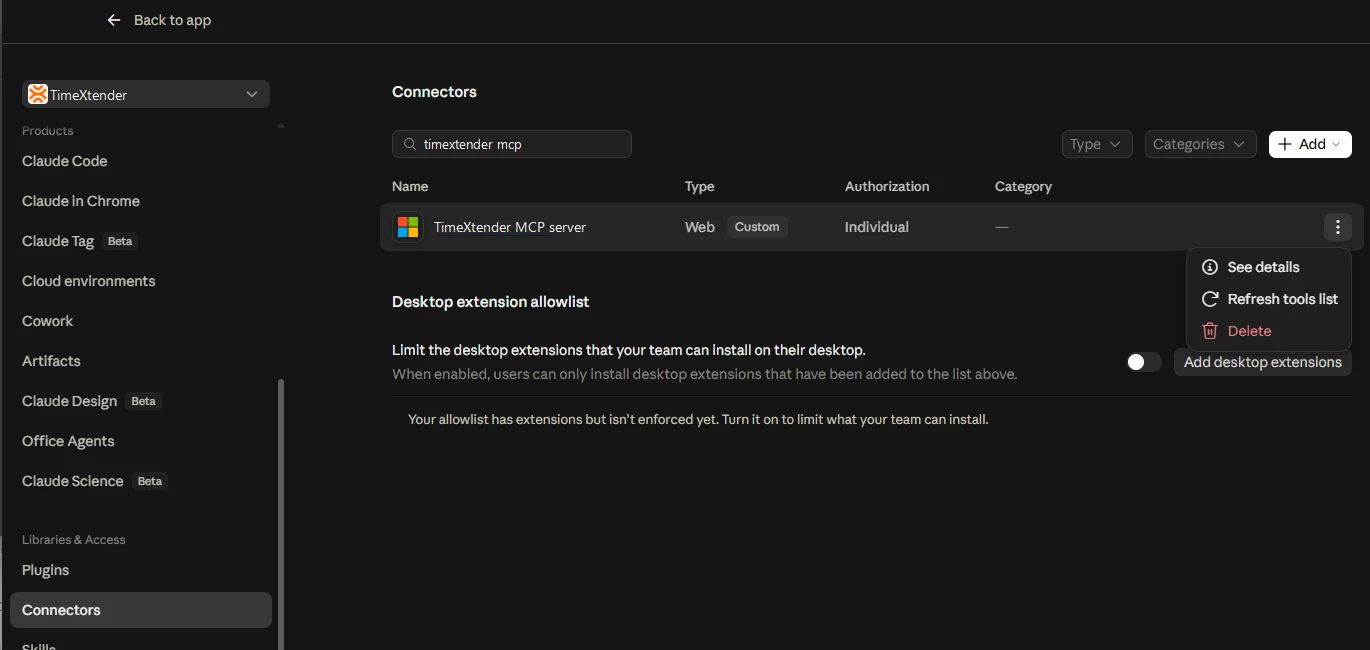
The organization level Connectors list with the overflow menu open, showing Delete and Refresh tools list.
Changing the hostname means a new DNS name, a new TLS certificate, an updated canonical URL on the Service Management tab, a service restart, and repointing every existing client of that server. Contact TimeXtender support before you do this.
Conditional Access policies
If you hold Global Reader or a security role, you can list the tenant's policies:
az rest --method get --url 'https://graph.microsoft.com/v1.0/identity/conditionalAccess/policies?$select=displayName,state'A Forbidden or AccessDenied response is expected when you hold only application registration rights. The error names the roles that would allow you to read the policies. In that case, ask whoever administers Conditional Access whether any policy requires a compliant or hybrid joined device for users signing in to a new cloud application, and whether that application can be excluded.
A tenant without Entra ID P1 or P2 cannot have Conditional Access policies, so an empty result means the policies are untested rather than absent. Adding a licence and a policy later reintroduces this.
