

Overview
After you deploy your Semantic Model MCP Endpoint, install the TimeXtender MCP Server and use the TimeXtender MCP Configurator to register your semantic models, generate API keys for AI clients, and start the server.
The MCP Server runs as a single Windows service that hosts every semantic model you register. AI clients reach all of them through one endpoint URL and authenticate with an API key scoped to the models that client should see.
Prerequisites
- Configure MCP Semantic Endpoint.
- Read-only database user credentials for each data warehouse you want to expose.
Install TimeXtender MCP Server
- Complete the Early Access sign-up.
- Download the TimeXtender MCP Installer.
- Open the installer file.
- Follow the prompts in the installation wizard.
- Wait for the TimeXtender MCP Configurator to open when the installation completes.
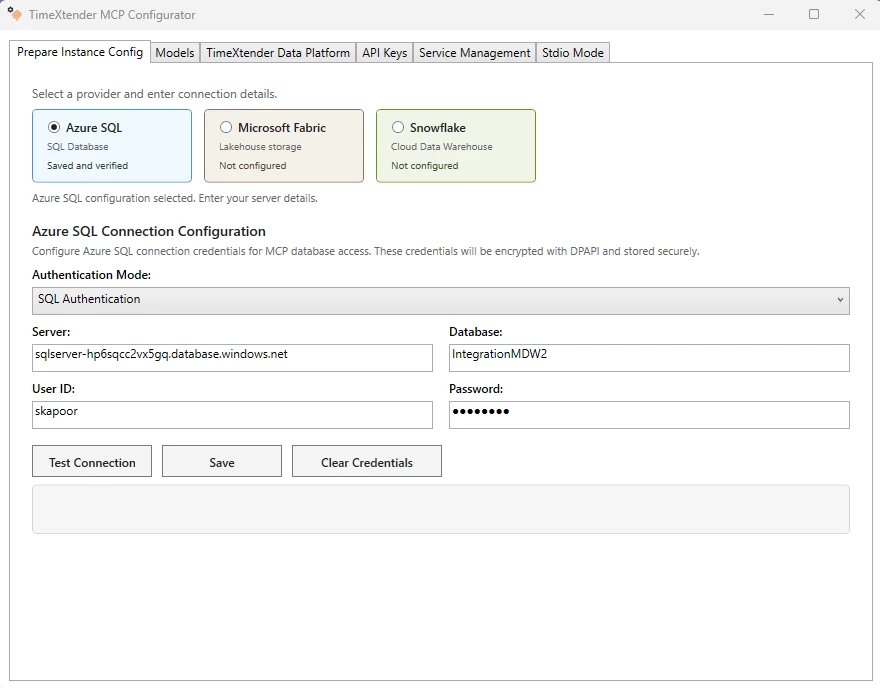
Configure the Prepare Instance Connection
Each semantic model is backed by a data warehouse. Add at least one provider before you register models. You can configure more than one provider type on the same MCP Server, for example Azure SQL for one model and Snowflake for another.
- Go to the Prepare Instance Config tab in the TimeXtender MCP Configurator.
- Select the Database Type for your data warehouse:
- Azure SQL Database
- Snowflake (Early Access)
- Microsoft Fabric (Early Access)
- Enter the connection details for the provider you selected. See the matching section below.
- Click Test Connection to verify connectivity.
- Click Save once the connection test succeeds.
Use a read-only database user account for each provider. The MCP Server does not support ALTER, UPDATE, or DELETE statements, but AI behavior can be unpredictable. Read-only credentials protect your data warehouse.
Azure SQL Database
- Select the Authentication Mode:
- SQL Authentication for a SQL Server login.
- Entra ID (Service Principal) for an Azure AD application.
- Enter the Server address, for example
myserver.database.windows.net. - Enter the Database name, for example
mydb. - For SQL Authentication, enter the User ID and Password.
- For Entra ID (Service Principal), enter the Tenant ID, Client ID, and Client Secret.
The password and the client secret are encrypted with Windows DPAPI before they are stored on disk.
This service principal lets the MCP Server read your data warehouse. It is not the same registration used for AI client sign-in. If you also turn on OAuth, create separate app registrations, as described in Connect to MCP using Microsoft Entra ID.
Snowflake (Early Access)
Snowflake supports three authentication modes: key pair (unencrypted .p8), key pair (encrypted .p8), and password (legacy). Use key-pair authentication for production.
For the full Snowflake setup, including how to generate the key pair, associate the public key with the Snowflake user, and set file permissions for the private key, see Connect Prepare Instance to Snowflake.
Microsoft Fabric (Early Access)
Microsoft Fabric requires Entra ID (Service Principal) authentication. SQL Authentication is not available for Fabric.
For the full Fabric setup, including how to register the service principal in Microsoft Entra, grant it access to the Fabric workspace, and find the SQL analytics endpoint hostname, see Connect Prepare Instance to Microsoft Fabric.
Add a Semantic Model
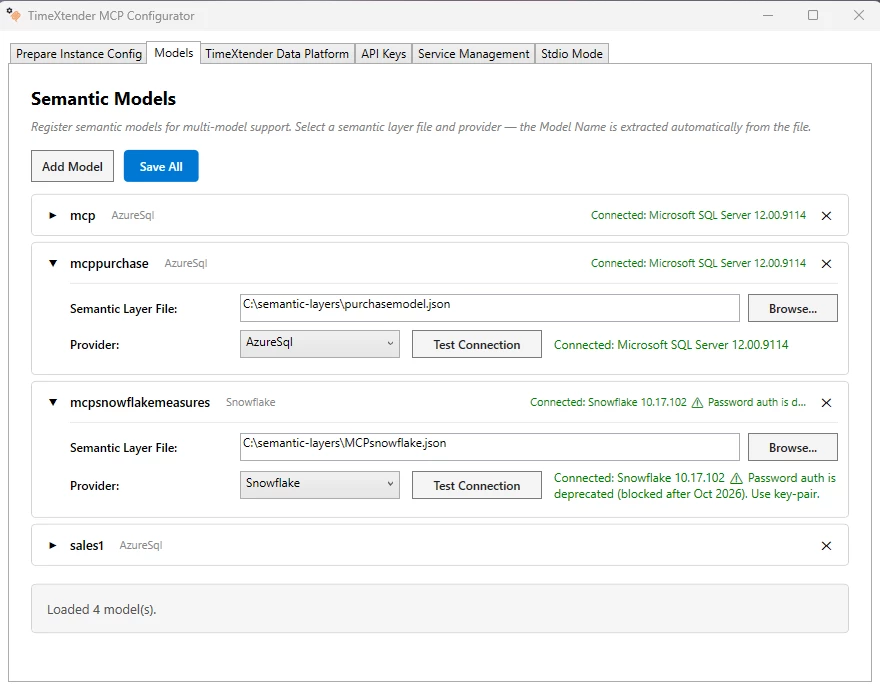
On the Models tab you register each semantic model JSON file produced by a Deliver instance MCP endpoint. Register one model per semantic layer file. You can register as many models as you need on a single MCP Server.
- Go to the Models tab.
- Click Add Model.
- In the Semantic Layer File field, enter the full path to the semantic model JSON file, for example
C:\TimeXtender\sales.json. The Model Name is read from the file. - In the Provider list, select the data warehouse provider this model queries. Only providers that you have saved and tested on the Prepare Instance Config tab appear here.
- Click Test Connection to confirm the model can reach its data.
- Click Save All to store the model.
Models can target different providers. For example, a Sales model on Azure SQL and a Production model on Snowflake can run on the same MCP Server at the same time.
Generate API Keys for HTTP Clients
AI clients that connect over HTTP mode authenticate with an API key. Each key is a bundle that can grant access to one model, several models, or every model on the server. Keys are stored as SHA-256 hashes in the configuration file and are never shown again in plaintext after you generate them.
For the full workflow, see Manage API Keys for MCP Server.
AI clients that use Stdio mode, such as Claude Desktop running on the same machine, do not need API keys.
(Optional) Turn on OAuth sign-in
The OAuth tab configures OAuth 2.1 sign-in against your own identity provider, so Claude and ChatGPT users authenticate with their own accounts instead of a shared API key.
For Identity provider, select Auth0 or Microsoft Entra ID. Each provider requires configuration in your own tenant before the server can use it, so follow the article for yours: Connect to MCP using Auth0 or Connect to MCP using Microsoft Entra ID.
API key authentication continues to work whether or not OAuth is turned on. Turning on OAuth adds a second way to authenticate, it does not replace the first.
(Optional) Register with TimeXtender Cloud
If you want Xpilot or other cloud-hosted AI tools to call this MCP Server, register the server with the TimeXtender Data Platform. See Register MCP Server with TimeXtender Cloud.
Start the MCP Server
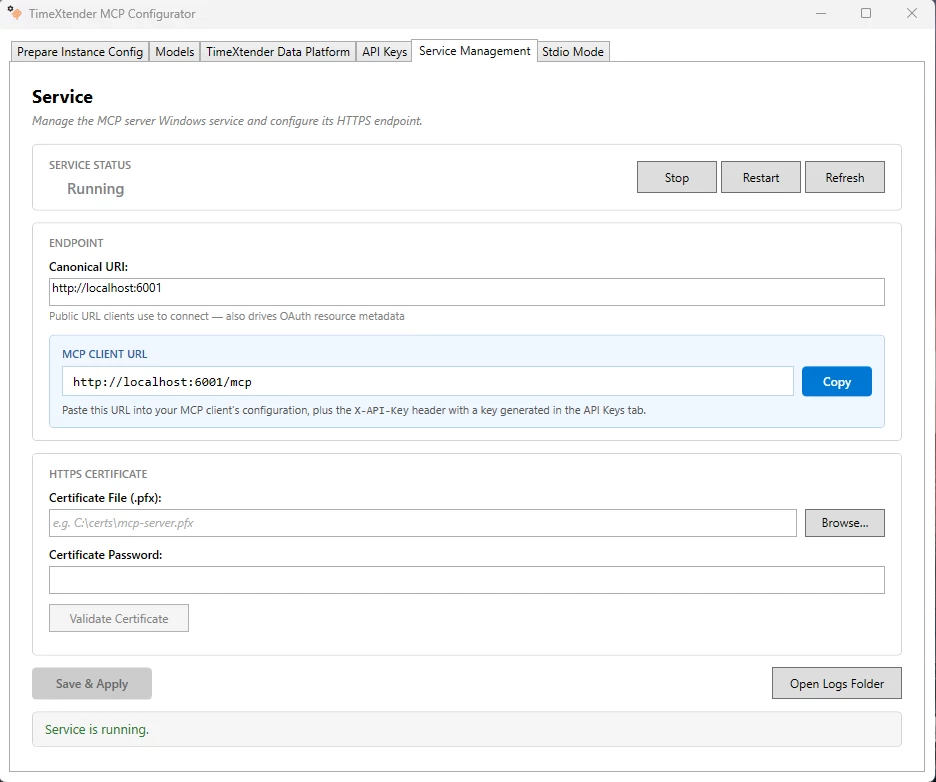
- Go to the Service Management tab.
- In the Endpoint section, enter the Canonical URI that AI clients use to reach this server, for example
https://mcp.contoso.comorhttps://localhost:6001. The Canonical URI is also used for HTTPS certificate hostname validation. - (Recommended for production) Configure HTTPS in the HTTPS Certificate section. See Configure HTTPS for MCP Server.
- Click Save & Apply to store the configuration.
- Click Start to start the Windows service.
- Copy the MCP Client URL from the Endpoint section. This is the URL your AI clients enter in their configuration.
Troubleshooting
Provider does not appear in the Models tab list
Only providers that you have saved and tested on the Prepare Instance Config tab are listed. Go back to that tab, click Test Connection, and click Save.
Test Connection fails for Azure SQL
Verify that firewall rules allow connections to the database server from this machine. Confirm that the server address, database name, and credentials are correct. For Entra ID (Service Principal), confirm that the service principal has read access to the database.
Test Connection fails for Snowflake or Microsoft Fabric
See the provider-specific troubleshooting in Connect Prepare Instance to Snowflake or Connect Prepare Instance to Microsoft Fabric for the full list of failure modes and how to diagnose them.
Invalid JSON file path error on the Models tab
The semantic model JSON file name must use only letters, numbers, hyphens (-), and underscores (_). Remove any spaces and special characters. Confirm that the file uses the .json extension.
Service fails to start
Go to the Service Management tab and click Refresh to confirm the current state. Common causes: the Canonical URI port is already in use by another process, the HTTPS certificate has expired, or the service account does not have permission to read the semantic model JSON files. Click Open Logs Folder for the service log.
MCP Client URL is empty or shows the wrong host
The MCP Client URL is derived from the Canonical URI. Enter the public URL that clients use, then click Save & Apply.
